
Search "best screen capture software for Mac" and you drown in lists — twenty tools, each crowned number one by whoever wrote the page. The lists never agree because they never tell you how they decided. So instead of handing you another ranking, this guide gives you the checklist the rankings should have used. Run any contender through these five questions and the right choice for your work becomes obvious.
First, a quick clarification, because "capture" is a loaded word on Mac. It can mean grabbing a still screenshot or recording motion video. This guide is about the video kind — software that records what is happening on your screen over time.
1. Does it handle Retina resolution gracefully?
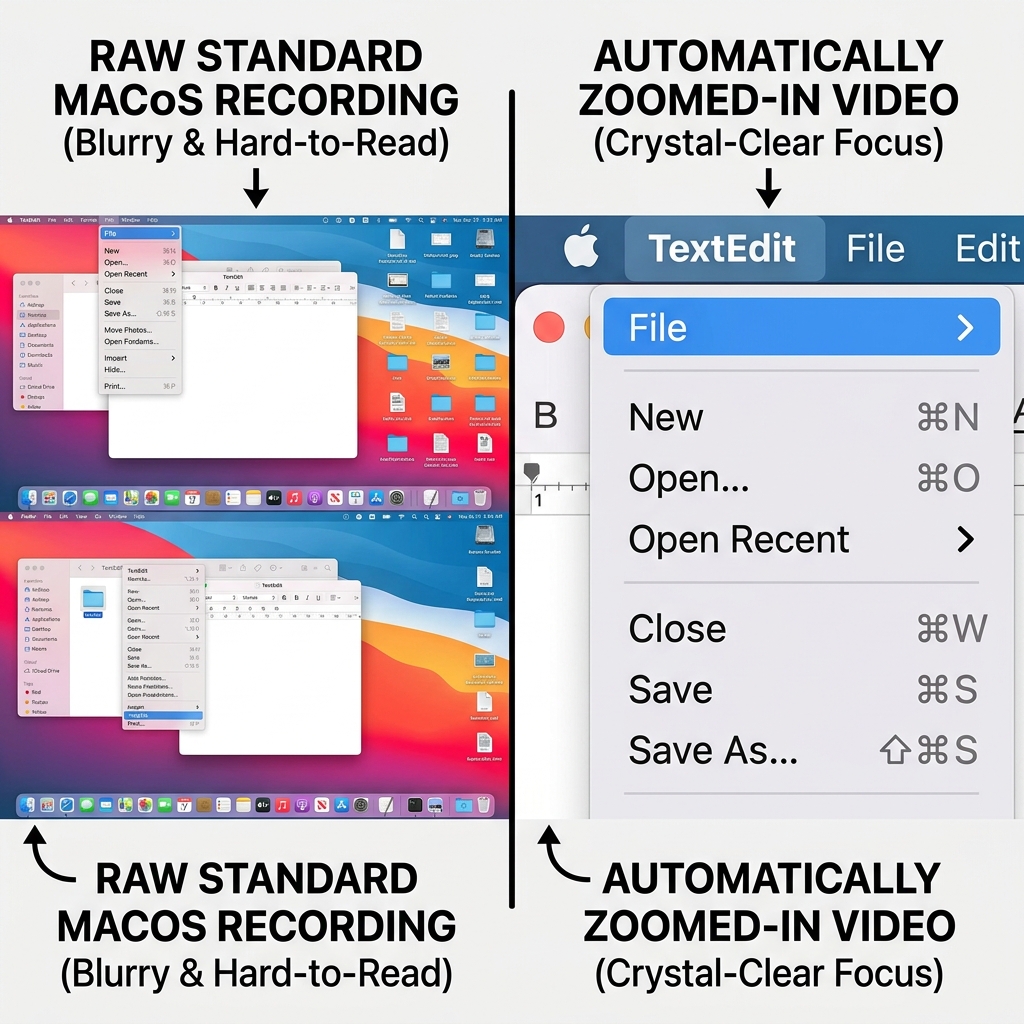
This is the question that quietly sinks most tools. Mac displays are absurdly sharp, and cheap capture software just dumps that full resolution into a file. Beautiful on your monitor — illegible the moment a viewer opens it on a laptop or phone, where your menus shrink to a few pixels tall. Good software either records a sensible region or, better, draws the eye to the part of the screen that matters so detail stays readable everywhere.
2. What does it do about the cursor?
Watch a raw Mac recording and you will notice the mouse twitching constantly — that is the trackpad translating tiny finger movements into a frantic pointer. On playback it is genuinely tiring to follow. The best tools stabilise the cursor into a calm, deliberate motion. It is a small detail that separates "homemade" from "produced."
3. Can it capture the audio you actually need?
Mic audio is easy; system audio is not, because macOS blocks recorders from grabbing internal sound by default. If your captures involve a video call, a game, or a YouTube clip, check whether the software solves this cleanly or expects you to install a virtual audio driver yourself.
Enjoying this read?
Get weekly insights on video editing, AI workflows, and creator growth straight to your inbox.
4. How much work happens after you stop recording?
This is the real cost nobody advertises. A tool that captures a flat file is only half a solution — you still owe an editor an afternoon of zoom keyframes and trimming. Ask whether the software produces something presentable on its own, or whether "capture" is just the first chore of many.
5. Is the output ready to share, or ready to edit?
Tie it together: the best screen capture software minimises the distance between stop and send. If you are a developer documenting a bug, a teacher recording a lesson, or a founder shipping a demo, every minute in post-production is a minute not spent on the work itself.
Running the checklist: where Cubix Capture lands
Hold Cubix Capture up against those five questions and it answers each one in the same move. It keeps Retina detail legible by zooming in on the action automatically, smooths the cursor as you go, can replace a cluttered webcam background, and crucially collapses the "after" step — the recording is presentable the instant you stop, with no editor required. It was built around the realisation that on a Mac, the hard part of screen capture was never the capture; it was everything you had to do afterward to make it watchable.
That is the whole point of a checklist over a ranking. The "best" Mac screen capture software is whichever one answers these five questions for the work in front of you — and for tutorials, demos, and lessons, the answers all point toward a tool that finishes the job instead of starting it.
Don’t miss the next one.
Join our newsletter for exclusive tips, product updates, and the latest from the Cubix team.