
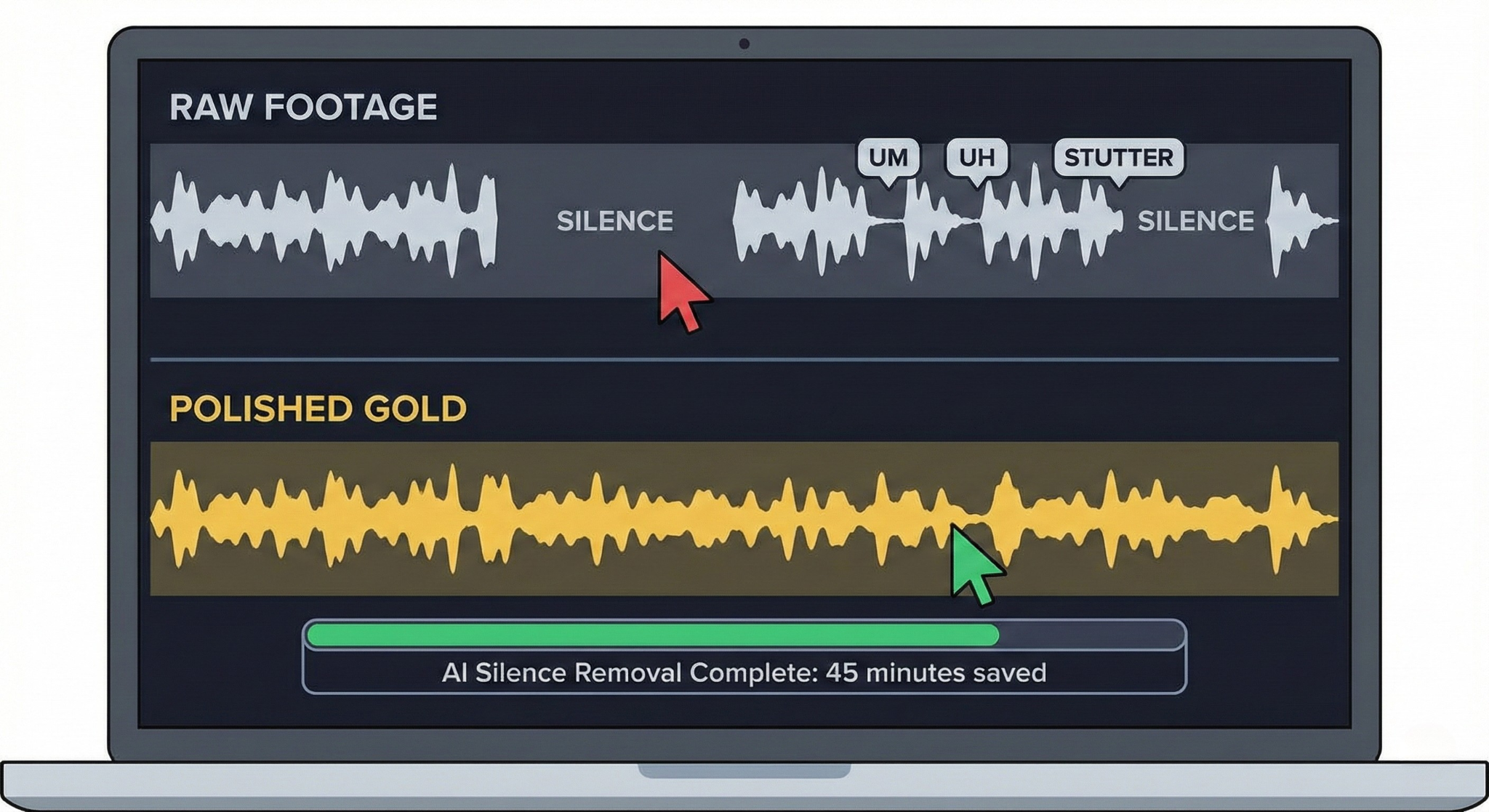
An AI silence remover finds gaps in spoken footage and helps you cut dead air without trimming every pause by hand. The goal is a tighter recording that still sounds like the speaker.
In Cubix, Remove Silences applies the cuts to an editable timeline. Choose a pacing mode, review the proposed changes and listen through the result before exporting. You can restore a pause when it helps an answer, a joke or a demonstration land.
What should you remove from a spoken video?
Start with gaps that interrupt the message: waiting while you find your place, a long pause after a restart, or dead air between answers. Common filler words such as “um” and “uh” can also be candidates for the pacing pass.
Keep pauses that serve the recording. A beat before a reveal, breathing room between sections and time for a viewer to inspect a screen can all be useful. A quiet stretch is not automatically a mistake.
Silence removal changes the timing of a video. For hiss, hum or background noise, use Clean Audio instead. You may use both jobs on the same recording, but they solve different problems.
How to remove silence from video in Cubix
1. Add a spoken recording
Open Cubix and upload your talking-head video, podcast, interview, webinar or narrated tutorial. Start with footage where speech carries the message.
For a screen recording with long demonstrations and little narration, identify the visual steps that need shortening. Cutting every quiet section could remove the part the viewer needs to see.
2. Choose Remove Silences and a pacing mode
Pick the rhythm you want for the finished video:
- Narrative Flow: more breathing room for interviews, explanations and reflective delivery.
- Social Fast: a tighter spoken edit for feeds and creator videos.
- Super Cut: the most tightly packed option when that rhythm suits the footage.
Use the gentler option when unsure. Tightening further after a review is easier than deciding that every pause should disappear at the start.
3. Review the proposed cuts
Cubix shows the places it found and how much time the proposed pass would remove. Review that result before accepting it. Pay particular attention to long gaps, important phrases and sections where the picture explains something without speech.
Filler detection also needs judgment. Words such as “like” or “you know” can carry meaning in one sentence and act as verbal fillers in another. Review the joins rather than assuming every occurrence should go.
4. Listen through and refine the timeline
After applying the pass, play the edited recording. Check sentence endings, breaths and changes of topic. If the delivery feels rushed, restore space around that cut or use a gentler pacing mode.
The cuts remain editable on the Cubix timeline. You can change an individual cut before continuing with automatic captions, B-roll or other finishing work.
5. Export the finished video
Review the full result once more before export. Creator supports exports up to 1080p; Pro supports up to 4K. Choose the format and resolution that suit the source footage and where you will publish it.
Enjoying this read?
Get weekly insights on video editing, AI workflows, and creator growth straight to your inbox.
Which recordings benefit from silence removal?
- Talking-head creator videos: trim the pauses around explanations while keeping a recognizable delivery. See AI editing for content creators.
- Podcasts and interviews: reduce waiting between answers while keeping the conversational rhythm.
- Courses and narrated tutorials: tighten speech while retaining time for the lesson or demonstration.
- Webinars: review gaps across a longer spoken session before deciding what to remove.
Music performances, montages and quiet demonstrations need different editing decisions. Silence removal is most useful when the gaps in speech are the problem you want to solve.
Common mistakes to avoid
Removing every pause. Intentional pauses help people follow a thought. Keep them where they do useful work.
Judging only the shorter runtime. A shorter recording is not necessarily a clearer one. Listen to the joins and check that complete ideas remain.
Expecting silence removal to clean noisy audio. Use audio cleanup for noise, and pacing edits for gaps.
Using one setting for every format. An interview and a tightly cut social clip may need different rhythms. For more examples, read how to remove awkward pauses naturally.
Questions about automatic silence removal
Can I keep a pause after the AI pass?
Yes. Review the result and restore the space around an individual cut when the pause belongs in the delivery.
Can it remove filler words as well as silence?
The pacing pass can trim common filler words. How much comes out depends on the selected mode and the recording. Review important phrases before publishing.
Does silence removal change my voice?
It cuts ranges from the timeline rather than denoising or rewriting the remaining speech. The timing changes; the voice in the retained footage remains your recording.
How much shorter will my video be?
That depends on the gaps in the source and the pacing mode. Review the proposed removed time for your own recording rather than relying on a fixed percentage or a promised processing time.
Can I use it on a screen recording?
Use it carefully on narrated sections. Keep quiet stretches that show a necessary action or give viewers time to understand the screen. For unnarrated footage, ask for specific visual sections to be shortened instead.
Don’t miss the next one.
Join our newsletter for exclusive tips, product updates, and the latest from the Cubix team.