
Screen Studio and Loom get compared constantly, and the comparison is usually framed as "which produces a better product demo." That framing produces a bad answer, because the two tools optimise opposite halves of the job.
Loom is built around distribution: the moment you stop recording, you have a link, and that link comes with a viewer, analytics, comments and permissions. Screen Studio is built around production: the moment you stop recording, you have a video that looks professionally edited, and then it is entirely your problem where it goes.
Which one wins a product demo depends on which half of that is your bottleneck.
Two Halves of the Same Job
| Loom | Screen Studio | |
|---|---|---|
| Optimises | Getting the video in front of someone | How the video looks |
| Output | A hosted link, immediately | A local file, after a render |
| Hosting | Included, on Loom's player page | Yours to arrange |
| Analytics and comments | Built in | None |
| Zoom, cursor smoothing, staging | None | Automatic, at capture time |
| Platforms | Windows, macOS, browser, mobile | macOS only |
| Cost | Free tier; paid plans per seat | $20/mo, or $9/mo billed yearly |
What Loom Is Genuinely Good At
Loom replaced a category of meeting, and it is very good at that:
- Zero friction to share. Stop recording, the link is already on your clipboard. No export, no upload, no waiting.
- Viewer engagement data. Who watched, how far they got, where they stopped. For sales follow-ups that is not a vanity metric — it tells you whether the deal is warm.
- Comments and reactions on the timeline, so feedback attaches to a moment rather than arriving as a paragraph describing one.
- Transcripts and search, across a library, which is what makes it work as a team knowledge base rather than a pile of files.
- It runs everywhere. Windows, Mac, browser, mobile. Nobody is excluded.
- Permissions and workspaces, which matter the moment more than three people are involved.
Where Loom Falls Down on a Public Demo
None of the above helps with how the video looks, and Loom does very little there by design:
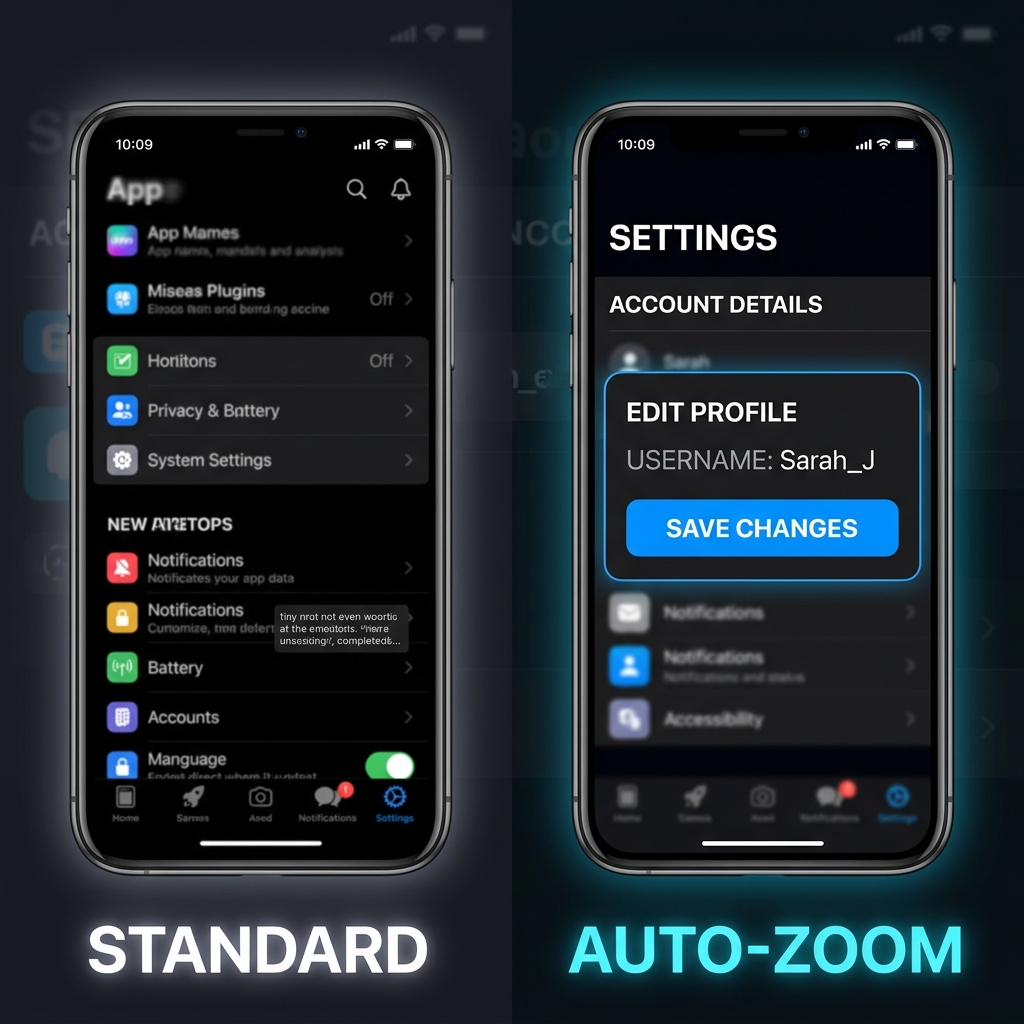
- The frame never moves. Loom records your screen at its actual size for the whole video. On a 27-inch monitor that means interface text is a few pixels tall on a phone — and a large share of your audience is on a phone.
- Your raw cursor is in the video. Real mouse movement is jittery, and it reads as unrehearsed in a way viewers notice without being able to name.
- No staging. No padding, no background, no cropping of desktop clutter. What was on your screen is what is in the video.
- The viewer lands on Loom's page. Loom's player, Loom's branding, a comment box, a "Get Loom for free" prompt. Fine for a colleague, wrong for a landing page hero video or a launch announcement.
- Editing is trim and stitch. Enough to cut a bad start. Not enough to add a zoom.
The honest verdict on Loom: excellent for internal communication, bug reports, and one-to-one sales follow-ups where speed beats polish. Not the tool for a demo that represents your product publicly.
What Screen Studio Is Genuinely Good At
Screen Studio does exactly one thing and does it very well: it makes a screen recording look like someone edited it, without anyone editing it.
- Zoom that follows your clicks, so a 27-inch interface stays readable on a phone. This is the single highest-impact feature in the category.
- Cursor smoothing, so the pointer reads as rehearsed rather than as a hand on a trackpad.
- Automatic staging — padding, background, shadow — so the frame looks composed rather than screenshotted.
- Zooms remain editable afterwards on a timeline, so you can fix the one that landed on the wrong click.
For a launch video, a landing page demo, or a YouTube tutorial, this is the output people mean when they say a demo "looks expensive."
Enjoying this read?
Get weekly insights on video editing, AI workflows, and creator growth straight to your inbox.
Where Screen Studio Falls Down
- There is no link. You get a file. Hosting, uploading, embedding and access control are all yours to arrange, every time.
- You wait for a render. Proportional to video length. Loom's link exists before you have finished thinking about it.
- macOS only. If your team is mixed, half of them cannot use it, and no pricing tier changes that.
- No analytics, comments or library. It is a production tool, not a platform.
- $108 a year on annual billing, with no functional free tier — the trial watermarks exports.
The honest verdict on Screen Studio: the right tool for videos with an audience larger than one, and unnecessarily heavy for a video you are sending to a single colleague this afternoon.
Pick by Where the Demo Ends Up
This is the decision that actually matters, and it is not "which tool is better."
| The demo is going to... | Use | Why |
|---|---|---|
| One colleague, right now | Loom | Speed is the whole value; nobody cares how it looks |
| A bug report or engineering handoff | Loom | Timestamped comments beat production quality |
| A sales follow-up after a call | Loom | View analytics tell you whether to follow up again |
| Your landing page or launch post | Screen Studio | It represents the product; a branded player page and unreadable text both cost you |
| A YouTube tutorial | Screen Studio | Mobile legibility directly drives retention |
| An onboarding or help-centre library | Either, consistently | Whichever you pick, pick one — mismatched production quality across a library reads as neglect |
| An investor or board update | Screen Studio | Small audience, high stakes, worth the render |
The pattern: audience of one, Loom. Audience of many, Screen Studio. Most teams that use both have converged on roughly that rule without writing it down.
The Cost of Running Both
Plenty of teams do run both, and it is a defensible answer — around $108 a year for Screen Studio plus Loom seats for everyone who sends async video. What it costs beyond money is consistency: two tools means two looks, and whoever forgets which one to open publishes the wrong one.
It also does not solve the Windows problem. If part of your team is on PCs, Screen Studio is not available to them at any price, and your polished-demo capability has a hardware requirement.
If You Want One Tool Covering Both Halves
The gap worth noticing is that nothing in the production half technically requires being Mac-only, and nothing in the distribution half requires giving up production quality. They are separate products mostly for historical reasons.
Cubix Capture is built against that gap. It applies the capture-time production Screen Studio popularised — zoom that follows your clicks, cursor smoothing, background staging, webcam overlay — and it runs on Windows and macOS, so a mixed team produces the same output regardless of laptop. Recordings land in a library you can share from, so a finished video does not have to become a file management problem.
Pricing is a free Starter plan with no account required, $14.99 a month for Pro, or $49 once for Lifetime. For teams currently paying for polish on Macs and sending everything else through Loom, it is worth a side-by-side test before renewing either.
Keep Reading
- Why You Shouldn't Use Loom for Product Demos for the case against Loom in detail.
- Screen Studio vs OBS: Completely Different Tools for the other comparison people get wrong.
- Cubix Capture vs Loom: 2026 Comparison for the direct alternative to Loom.
- Is Screen Studio Worth $149? Honest Answer for the pricing decision on its own.
Don’t miss the next one.
Join our newsletter for exclusive tips, product updates, and the latest from the Cubix team.