
If you have ever needed to record a fast software walkthrough for a student, a quick extension demo for a client, or a rapid bug report for a developer, you have likely run across Screencastify. As one of the earliest and most popular Google Chrome extension recorders, it carved out a massive niche by letting you record, trim, and share desktop clips without ever installing a heavy desktop app.
But as the digital landscape has shifted, the standard for what makes an engaging educational video has changed completely. Over half of all video tutorials are now watched on mobile devices.
This has brought Cubix Capture into the spotlight. Instead of recording a flat, passive image of your screen that requires you to step onto an editing timeline later, Cubix Capture builds presentation mechanics right into the capture phase itself.
If you are a tutorial maker, corporate trainer, or online educator trying to decide which platform should drive your workflow, here is the honest, side-by-side comparison of Screencastify versus Cubix Capture.
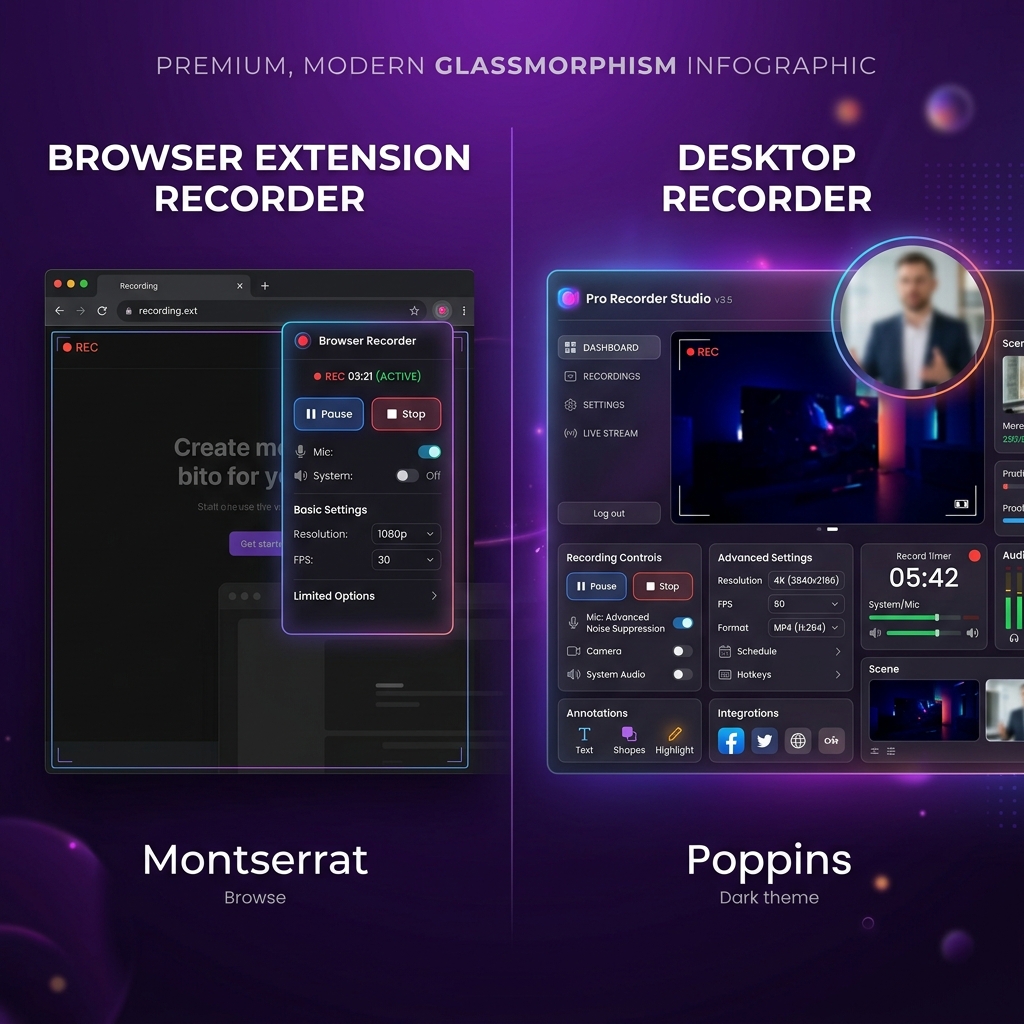
The Workflow Philosophy: Browser Utilities vs. Automated Directors
The fundamental divide between these two tools comes down to whether you need a quick, disposable browser utility or a highly stylized presentation machine.
Screencastify: The Lightweight Browser Companion
Screencastify lives entirely inside your web browser extension ecosystem. You click the icon in your toolbar, select whether you want to record your current tab, your full desktop, or just your webcam, and hit record.
Once you click stop, your video automatically uploads to the cloud, opening up a simple timeline where you can trim the edges, cut out a mistake, or overlay basic text rectangles. It is highly accessible, requires zero advanced computer hardware, and works beautifully on lightweight systems like Chromebooks.
Cubix Capture: The Smart Virtual Producer
Cubix Capture handles the visual styling dynamically while you speak, acting as an automated digital director.
Instead of treating your application like a flat, static pixel map, Cubix Capture actively monitors your mouse trajectory and active application borders. The exact millisecond you select a dropdown menu, tap a hotkey, or type text into an input field, the camera automatically triggers a smooth, cinematic zoom into that space. It eliminates the post-production pipeline completely, delivering a studio-grade video file the second you hit stop.
Feature Breakdown: Slicing the Value
To understand which tool scales your content creation pipeline effectively, let's look at how they handle the core elements of a great software tutorial.
1. The Mobile Readability Crisis
- Screencastify: Captures a flat layout of your screen. If you record an app workflow on a large desktop monitor, everything looks perfectly clear to you. But when a viewer opens that file on a smartphone, your entire desktop layout is shrunk down. The text becomes microscopic, forcing your audience to squint just to see what you are doing.
- Cubix Capture: Built natively for multi-device viewing. Its Auto-Zoom & Tracking algorithm dynamically magnifies your active workflows, ensuring that every button click and code block is perfectly legible on mobile displays without manual timeline editing.
2. Mouse Cursor Mechanics
- Screencastify: Records your raw, physical mouse pointer path. If your hand tremors or you make frantic movements on your trackpad while trying to remember your script, that jittery motion is permanently baked into the video clip.
- Cubix Capture: Applies AI Cursor Path Smoothing. It intercepts your physical tracking and translates it into a fluid, elegant sweep that comfortably anchors the viewer's eye.
3. Visual Framing and Aesthetics
- Screencastify: Your webcam feed sits in a traditional, square box in the corner of your screen, often overlapping and blocking crucial application menus, sidebar navigation items, or setting panels.
- Cubix Capture: Instantly isolates your targeted application window and places it against stunning, built-in Gradient and Live Canvas Backdrops. It automatically drops your webcam into a clean, floating geometric bubble and applies an optimized studio background blur natively, keeping your physical room private.
Enjoying this read?
Get weekly insights on video editing, AI workflows, and creator growth straight to your inbox.
Comparison Summary
| Metric | Screencastify | Cubix Capture |
|---|---|---|
| Software Type | Chrome Browser Extension / Web Suite | Desktop Application (Windows & macOS) |
| Core Workflow | Raw capture followed by basic linear trimming | Automated real-time layout polish |
| Zoom Transitions | None | Algorithmic, click-triggered auto-zooms |
| Cursor Delivery | Raw physical mouse tracking | AI-powered real-time path smoothing |
| Webcam Layout | Square box overlay overlaying screen | Clean floating geometric bubble with native blur |
| Audio Mechanics | Microphone + Browser Tab Audio | Crystal clear Microphone + Full System Audio |
| Best For | Fast internal office snippets & Chromebook classrooms | Premium software tutorials, YouTube walkthroughs, demos |
The Verdict: Which Tool Should You Choose?
Choose Screencastify if: You are working on a lightweight machine (like a Chromebook), strictly need to capture quick internal browser updates for team members, or are an educator in a school district that restricts native desktop software installation. It remains a reliable tool for simple, quick-cut browser sharing.
Choose Cubix Capture if: Your core goal is producing high-retention software tutorials, YouTube walkthroughs, or client-facing demos that need to look polished on any screen size. If you want a video that looks like a studio-grade production complete with cinematic zooms, elegant cursor paths, and professional backdrops without losing your afternoons to a video editing timeline, upgrading to Cubix Capture gives you an undeniable efficiency advantage.
Don’t miss the next one.
Join our newsletter for exclusive tips, product updates, and the latest from the Cubix team.