
Variable frame rate (VFR) means the time between displayed video frames changes within a file. Constant frame rate (CFR) uses a regular interval: at 30 fps, approximately 33.33 milliseconds separate successive frames. VFR is not the same as variable bitrate, and it does not automatically mean a recording is broken.
For editing, start by checking the original in your actual project. If playback, cuts and the exported result work correctly, a conversion may add work and another lossy encode without solving a problem. Investigate CFR when your editor requires it or a repeatable timing problem points to an incompatibility.
Variable vs constant frame rate
| Question | CFR | VFR |
|---|---|---|
| How are frames spaced? | Regular presentation intervals, allowing for timestamp precision. | Presentation intervals vary within the recording. |
| What does the reported fps mean? | Usually the intended fixed cadence, such as 30 or 30000/1001. | May summarize an average or nominal rate; one number cannot describe every interval. |
| Where might I encounter it? | Many camera, export and broadcast workflows. | Some phone, screen-capture and mixed-cadence recordings; inspect the actual file. |
| Does it guarantee audio sync? | No. Audio offsets and other timing defects can still occur. | No. A compatible workflow can play it correctly; VFR alone does not establish a fault. |
| Must I convert before editing? | Usually no frame-rate conversion is needed solely for this reason. | Only when the destination requires CFR or testing supports that change. |
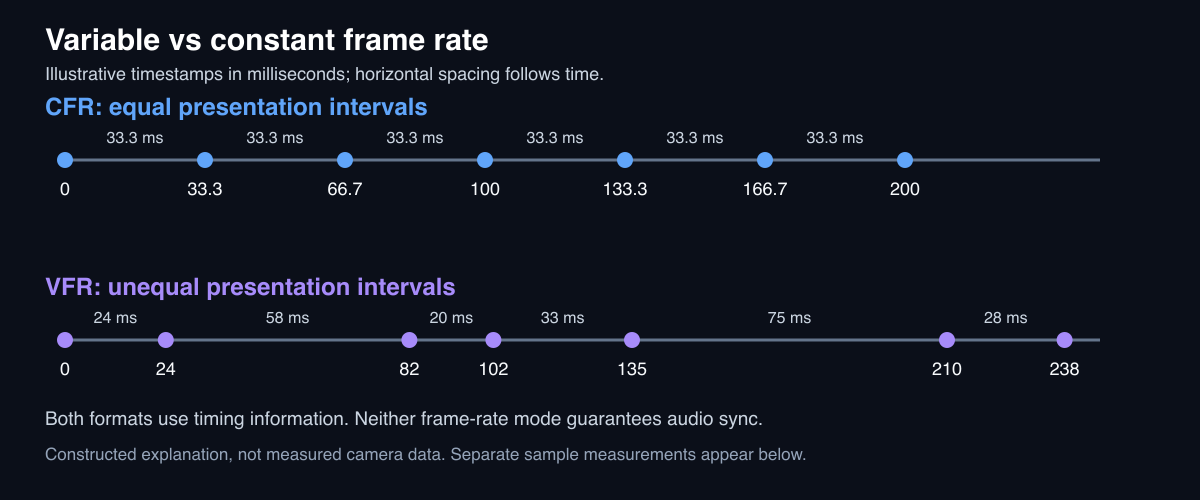
Constructed explanation, not a trace from a camera. Both formats use timing information; the distinction is the spacing between presentation times.
Frame rate vs bitrate: frame rate describes picture timing; bitrate describes encoded data per second. VBR and VFR are separate properties. Choosing a higher capture rate for slow motion is also a different decision: compare 30fps and 60fps screen recording for that question.
How to check whether a video is VFR
The filename extension is not enough. An MP4 or MOV container can hold different timing patterns. A decimal average fps is not proof of VFR either.
If you use MediaInfo, inspect its video frame-rate mode and any reported minimum/maximum rate, while keeping the source file available for a closer investigation. For a timestamp-level check, ffprobe's official documentation describes stream selection and frame output. With FFmpeg/ffprobe installed, this command lists decoded frame presentation times:
ffprobe -v error -select_streams v:0 -show_frames \
  -show_entries frame=best_effort_timestamp_time \
  -of csv=p=0 input.mp4
Subtract adjacent presentation times and inspect different parts of the clip. Consistent small rounding differences reflect timestamp precision; materially different intervals need a closer look. Comparing only r_frame_rate and avg_frame_rate is not a reliable verdict. Packet order can also differ from display order, so this example uses decoded-frame timestamps.
Enjoying this read?
Get weekly insights on video editing, AI workflows, and creator growth straight to your inbox.
A measured VFR-to-CFR example you can inspect
We generated our own silent moving test pattern with deliberately changed timestamps, then encoded a 30 fps CFR copy using FFmpeg 8.0.1 on macOS. The source has 120 frames: its first section has roughly 33.33 ms intervals, followed by roughly 66.67 ms intervals. This is a constructed timing experiment, not a smartphone recording or an audio-sync repair test.
| Measured property | Constructed VFR source | 30 fps CFR copy |
|---|---|---|
| Decoded frames | 120 | 179 |
| Container duration | 5.966667 s | 5.966667 s |
| Adjacent presentation intervals | About 33.33 or 66.67 ms | About 33.33 ms |
| File size | 206,784 bytes | 211,347 bytes |
For example, the source timestamps around its change are 1.966656, 2.000000, 2.066667, 2.133333 seconds. The CFR output uses 1.966667, 2.000000, 2.033333, 2.066667 seconds. The output fills the regular grid with additional frames; it does not recover motion that was never captured.
Inspect the VFR source MP4, CFR output MP4, measurement record and reproduction commands. The files contain no audio, so they establish frame timing and duration only. They do not demonstrate lip-sync correction, editor performance or a quality improvement.
Converting a separate copy when CFR is appropriate
This is the conversion command tested on that silent sample. It encodes the video again, uses a chosen 30 fps output and leaves the source intact. Choose the rate required by your destination; do not round every input to 30 automatically.
ffmpeg -n -i synthetic-vfr.mp4 \
  -c:v libx264 -crf 18 -preset medium -bf 0 \
  -r 30 -fps_mode cfr -an synthetic-cfr.mp4
The -an option deliberately omits audio for this silent experiment. It is not a complete command for retaining the audio, subtitles, metadata, HDR or extra tracks in your own footage. Check those requirements before adapting it. FFmpeg documents frame-rate synchronization options for more detailed workflows.
For a graphical alternative, HandBrake documents CFR, VFR and peak-rate modes, corroborated by its CLI frame-rate controls. A peak-rate limit is not the same as CFR. The technical page is marked draft, so follow the controls and documentation for your installed version. No HandBrake GUI run is claimed here.
Before replacing media in an edit
- Keep the original file and save a copy of the project.
- Compare source playback, timeline playback and the exported result. Note whether the mismatch is constant or grows, and where it starts.
- Inspect file timing and your editor's current format requirements. VFR is one possible factor, not the diagnosis for every stutter or sync problem.
- If you test a conversion, compare duration, motion, color, audio and track selection. Review the beginning, middle, end and existing edit boundaries.
- Replace media only after those checks. If the symptom persists, investigate the specific file or editor rather than repeating conversions.
For editing context, see screen-recording workflows. For frame counts and slow-motion calculations, use the frame-rate calculator; it calculates values and does not transcode your video.
Don’t miss the next one.
Join our newsletter for exclusive tips, product updates, and the latest from the Cubix team.