
Black bars on video usually come from fitting one picture shape inside another, or from borders already encoded in the source. Locate the bars before choosing a fix. Fit keeps the whole picture; fill/crop removes edges; padding keeps the picture and deliberately fills the surrounding canvas.
There is a tradeoff whenever landscape footage must occupy a vertical canvas. Cropping can remove a speaker or slide. Keeping the full width makes the picture smaller. A background changes the surrounding area but does not make small text larger.
Letterboxing, pillarboxing and baked-in borders
- Letterboxing: horizontal bars above and below the active picture.
- Pillarboxing: vertical bars on its left and right.
- Windowboxing: borders on all four sides, sometimes caused by fitting an already bordered image inside another canvas.
An editor can add bars when a clip does not fill its project. A player can add them when the video does not fill the viewing window. Bars can also be actual black pixels in the file, including a deliberately designed frame. These situations need different decisions.
Find where the black bars originate
| Compare | What to inspect | What it tells you |
|---|---|---|
| Original source | Inspect a decoded frame at its native dimensions, or view it in an editor with the source bounds visible. | Bars inside those pixel bounds are part of the source image. A player-window resize alone cannot establish that. |
| Source and project | Compare picture dimensions, project ratio and the selected clip's scale/position. | A source without bars can acquire them when fitted to a different canvas. Dimensions alone do not identify bars already inside the picture. |
| Timeline and exported file | Inspect an exported frame as well as playback. | Borders encoded in the export need an export/layout correction if they are unwanted. Player-added borders require a separate display check. |
| Local export and destination | Compare the same file in the intended upload preview and device. | The destination may frame it differently or cover content with interface elements. |
Keep an untouched copy of the source. If a black strip contains intentional graphics or captions, removing it may remove useful content. Cropping away a border cannot restore picture outside the original frame.
Fit vs fill/crop vs padding: compare the same source
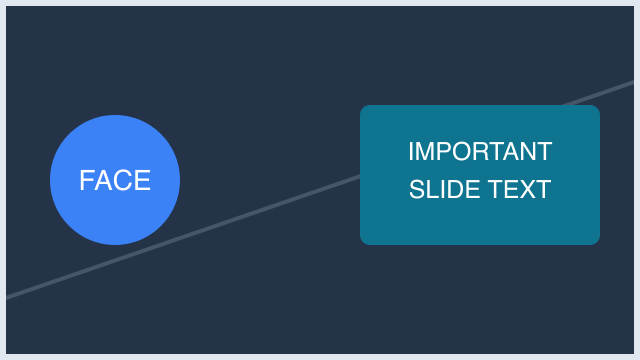
We created a synthetic 640 × 360 image with a face marker on the left and slide text on the right. We exported three one-second, 270 × 480 MP4s with FFmpeg 8.0.1, then decoded a frame from each output for this comparison.
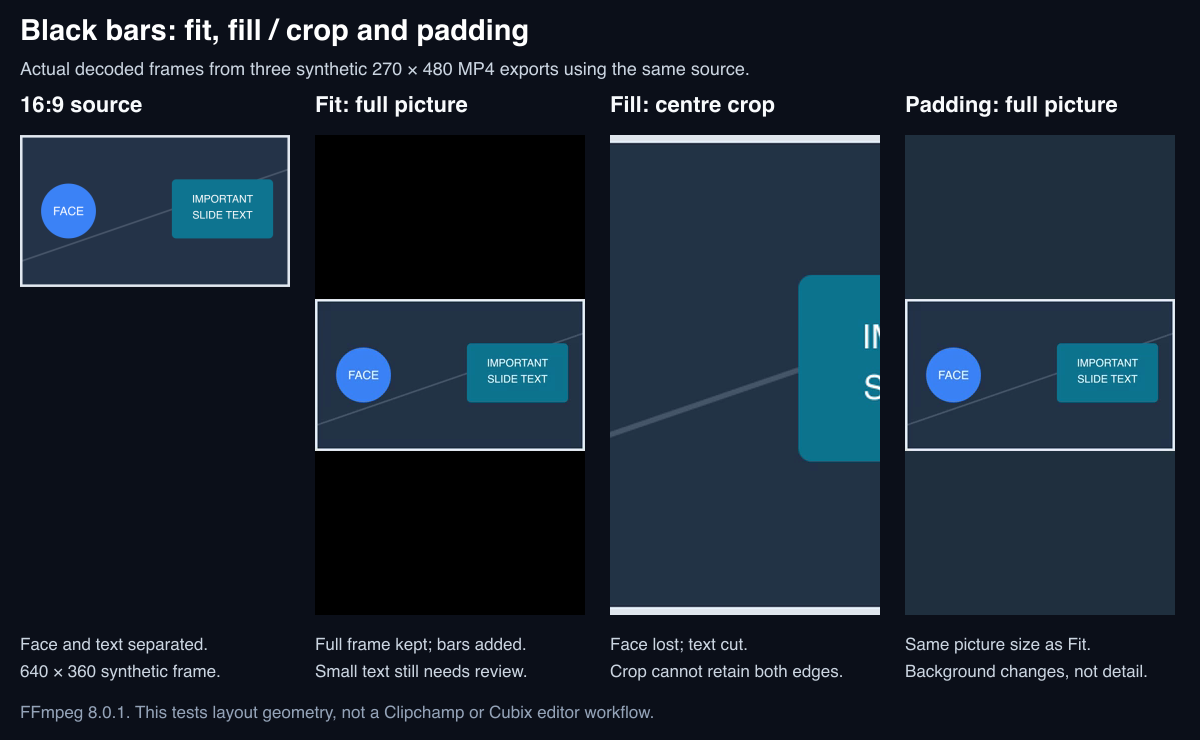
Own synthetic example. The source, exported files and decoded frames are provided below. This is a layout experiment, not a tested Clipchamp or Cubix editing session.
Fit: keep the whole picture
Fit scales the complete source into the canvas without cropping its edges. In this example, the landscape picture occupies 270 × 152 pixels of the 270 × 480 output, with black space above and below. The face and slide remain visible; their reduced size still needs a readability check.
For a 1920 × 1080 source fitted into 1080 × 1920, the active picture is approximately 1080 × 608 after rounding. About 68% of the canvas area is outside the picture. That is geometry for this particular conversion, not a universal rule about engagement or platform reach.
Enjoying this read?
Get weekly insights on video editing, AI workflows, and creator growth straight to your inbox.
Fill/crop: occupy the canvas and discard edges
Fill scales the source until it covers the canvas, then crops the excess. The centre crop in our exported example removes the face and part of the slide text. Moving the crop could retain one subject, but cannot retain both far-apart edges at the same scale.
A full-height 9:16 crop from a 16:9 source retains about 31.6% of the source width. Check each shot and moving subject. A tracking reframe still crops the picture; it does not preserve the entire landscape image.
Padding: keep the picture and style its surroundings
Our padding export uses the same fitted picture with a solid blue-gray background instead of black. Other layouts can use a graphic or a blurred background copy. The source stays complete, but its picture size and the small text are unchanged. Choose padding when preserving context matters more than filling the screen with the source.
Choose the layout for your actual content
| Need | Start with | Review before export |
|---|---|---|
| Keep slides, UI or two separated subjects | Fit or padding | Can viewers read the reduced picture? Would a landscape delivery serve them better? |
| Fill a vertical canvas around one subject | Crop and reposition | Are the face, hands, captions and relevant actions visible throughout? |
| Preserve the original composition | Match the project to the source ratio | Does the destination accept that shape, and how will its player display it? |
| Remove borders already in the pixels | Crop those borders on a copy, if appropriate | Is any useful picture or text lost, and does the remaining ratio still need fitting? |
Avoid stretching the source independently in width and height unless distortion is an intentional effect.
If you are using Clipchamp
Microsoft's current aspect-ratio instructions describe selecting the project ratio and using crop-to-fill when a clip leaves borders. They also recommend checking every clip after a ratio change. Use the controls available in your account and version, reposition the crop, and inspect a downloaded export.
That is documentation-based guidance. We have not run a Clipchamp GUI/export test for this article, so no exact blur percentage, interface location or tested-app claim is attached to it.
Inspect or reproduce our exported examples
Download the synthetic source PNG, fit MP4, fill/crop MP4 and padding MP4. All three exports were verified as 270 × 480, one-second videos. The measurement record and FFmpeg commands document that limited test.
Before publishing your own video, review the exported file and destination preview at the intended viewing size. Check readable text, faces, captions, and any interface overlays. Overlay positions vary by platform, device and display state; do not rely on one universal pixel margin.
Use the aspect-ratio calculator to plan dimensions. If cropping is your chosen solution, try the video cropper and inspect its downloaded result. For the broader editing workflow, see horizontal video to vertical.
Don’t miss the next one.
Join our newsletter for exclusive tips, product updates, and the latest from the Cubix team.