
Product montage maker. Let the details land.
Bring product shots you have already filmed and a music track you can use. Beat Edits times the cuts to the music on an editable timeline, so you can check that every reveal, detail and use shot stays readable before you export.
You bring: product shots you have already filmed or photographed, and a music track. You get: a montage on an editable timeline to review and refine. This workflow does not generate product footage or images.
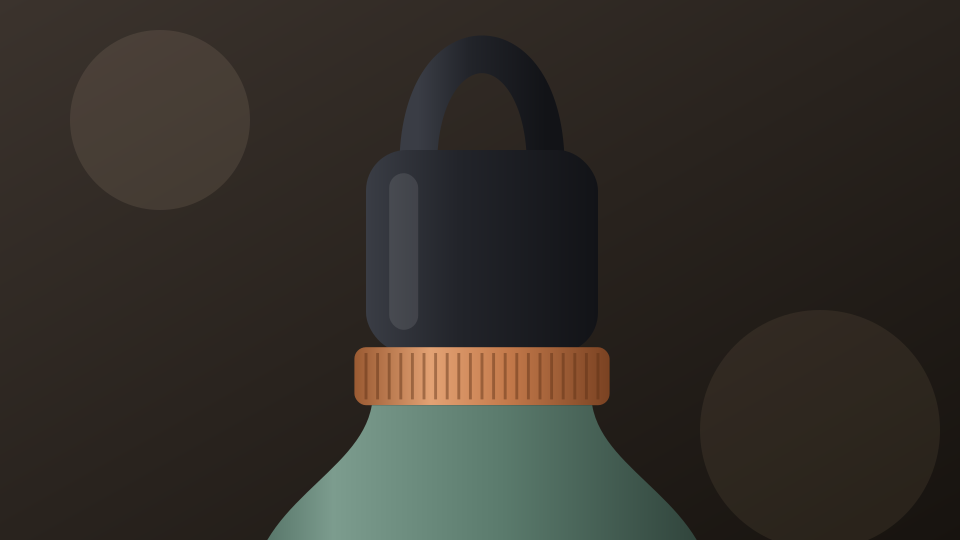 Detail · hold
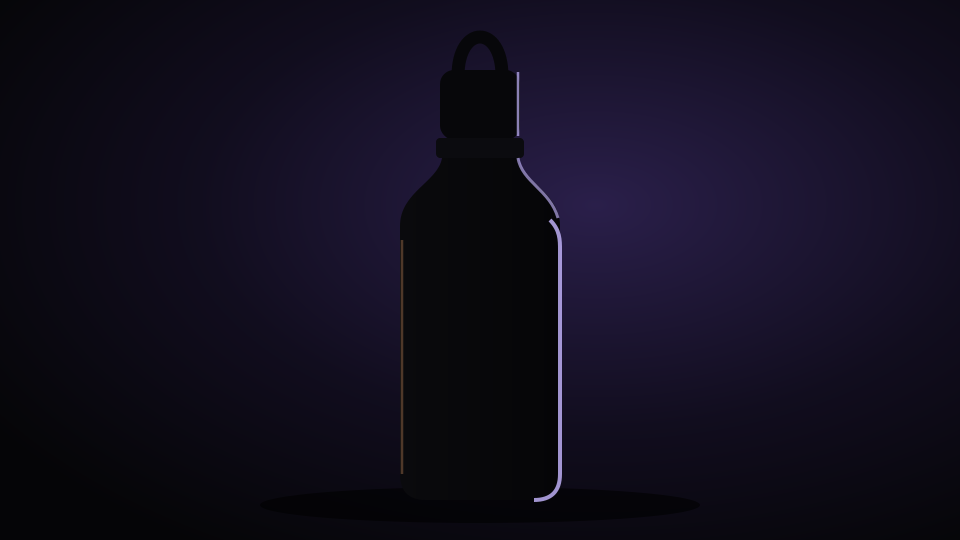 Reveal · short
 Use · full action
Fast accents, unhurried details
Reveal, detail, use, hold
An illustrated plan for a fictional reusable bottle. The music can move quickly; the shots that explain the product should not.
1 · Reveal
Silhouette in rim light
Opens on shape and light. A short reveal can land on a strong accent in the music.
Short reveal · 2 beats2 · Detail
Loop cap and copper band
The feature that sets this product apart. Hold it long enough to read the material and the loop, even when the music is moving faster.
Longer hold · 5 beats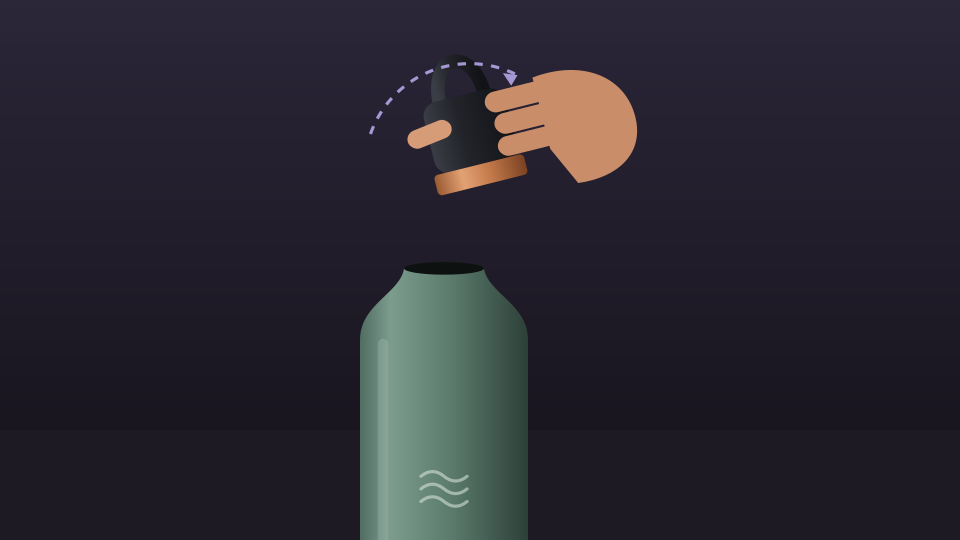
3 · Handling
Twisting the cap off
A handling shot has to show the whole movement. Cutting mid-twist hides how the product works.
Full action · 4 beats4 · Use
Pouring at the trailhead
Shows what the product is for. Keep the pour and the cup in frame until the action completes.
Full action · 4 beats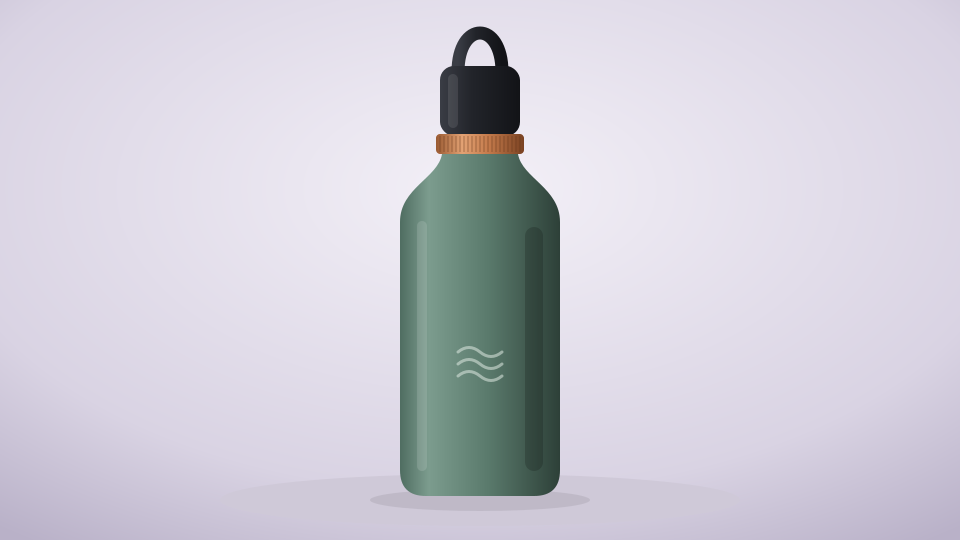
5 · Full object
The whole bottle, centred
Connects the details to one object, clean and complete, so nothing important is cropped.
Medium hold · 4 beats
6 · Closing hold
At rest at golden hour
A still final frame with room for your product name or call to action, held into the end of the track.
Final hold · 5 beats
The same plan as one 24-beat phrase
Beat counts are relative. A fast musical accent can drive the reveal and the transitions without shortening every detail; there is no universal minimum hold.
A cut between two shots
Illustration · a fictional, author-drawn product sequence. Not a filmed product, a customer edit or a performance case study.
How to build a product montage and review it
- 1
Select usable angles
Choose in-focus shots of the reveal, the distinguishing detail, the handling and the product in use. Add at least two clips or photos in your planned order.
- 2
Choose a track and a rhythm
Upload music you are allowed to publish, or choose one from the built-in library. Cut on the hits follows detected impacts; a steady BPM grid spaces cuts evenly.
- 3
Create the edit
Run Beat Edits, then compare Style and Energy settings. Motion adds a slow zoom to product photos, and Length extends the montage with repeats.
- 4
Inspect and refine before export
Step through the timeline shot by shot. Check the framing, the order Cubix produced and whether each action completes, then adjust individual cuts before you export.
Your plan is the shots and the order you add them in. The montage is what Beat Edits returns. Check that the order, the framing and every action match your plan before you export.
Every control in detail: Beat Edits · the beat editing guide
Keep the product readable
A product montage only works if viewers can see what they are looking at. Step through the timeline and check each of these.
- Keep the distinguishing feature, such as the cap, the material or the label, visible in the shots meant to show it.
- Check crops. A vertical frame can cut off a label, a logo or the hand doing the action.
- Let opening, closing and use actions complete before the next cut.
- Avoid near-identical angles back to back. Change the scale or the angle between cuts.
- Lower Energy if zoom punches or accents compete with fine detail.
- End on a clean, full-product hold that lands with the music.
Whether each shot shows your product well is your judgement to make, so review every detail shot yourself. This page makes no claim about sales or conversion.
Product montage FAQs
Does the product montage workflow create product footage or images?
No. A product montage edits shots you have already filmed or photographed. Beat Edits times them to music and leaves the montage on an editable timeline; this workflow does not generate product footage, product images, product models or ads.
How is a product montage different from a product demo?
A product montage is a short, music-led showcase of a physical object: the reveal, the details, the handling and the use. A product demo explains software or a process, usually with narration, and needs every spoken step kept. For a narrated software walkthrough, use the product demo editing page.
How do I keep labels and small details readable?
Choose shots where the detail is in focus and well lit, then check every cut in the frame you plan to export. If a detail flashes past, extend that shot on the timeline or compare a steady BPM grid with Cut on the hits. Lower Energy when zoom punches or accents distract from the product.
Can I adjust the timing after the first pass?
Yes. Change Style, Energy, Motion or Length and Cubix rebuilds the montage from its source shots, or trim individual cuts on the timeline. Revert returns to the state before the Beat Edits pass.
What access do I need to build and export a product montage?
You can open Cubix and explore the editor before choosing a plan; plan details, trial availability and billing are listed on the pricing page. Export resolution depends on the plan: Creator supports up to 1080p and Pro up to 4K. A higher export setting does not add detail your footage did not capture.
Your next video doesn’t need hours of editing.
Upload your footage. Tell Cubix what you want. Let the AI handle the edit.
Make my product montage