
First instruction
“Remove the false starts.”
- It does not say which of the two fluent takes is the right one.
- “Only give edit access” could be read as a repeat of “edit access” and cut.
- Other parts of the video may change too.
Upload a talking head, lesson or screen walkthrough with more than one attempt at a line. Tell Cubix which take to keep, by its time and opening words, and which attempts to remove. Then play every join before you export.
Use the original recording to identify the take. Use the edited timeline when you ask for a follow-up.
Remove00:09–00:12
“Once you’ve shared the draft, change the…”
Remove00:13–00:18
“Give reviewers edit access by default.”
Keep00:19–00:27
“Give reviewers comment access by default. Only give edit access to people who will make changes.”
Keep00:28–00:33
“Then copy the review link.”
Why 00:19: both takes are fluent, but only this one says “comment” and keeps the “only” exception.
Only the first one is an abandoned attempt. Decide which you are looking at before you cut.
Remove
“So the first step is— so the first step is to open settings.”
The speaker stopped and began again. Remove the abandoned beginning and keep the complete sentence.
Trim the gap
“Open settings.” … three seconds … “Then choose Billing.”
Nothing was said twice; there is just empty time. A silence cut handles it.
Keep
“Check it, then check it again before you send.”
The repetition is the point. Cutting it changes the instruction.
Keep
“Turn on sharing. Then turn on reminders.”
Similar words, new information. It is the next step, not a retry.
A natural stammer or a word repeated for emphasis can stay unless the speaker actually wants it gone. For empty gaps, see remove silence.
A fictional app walkthrough. The speaker recorded the same instruction more than once. Source timecodes are illustrative.
App walkthrough · sharing a draft for review · fictional
Remove00:09–00:12
“Once you’ve shared the draft, change the…”
An abandoned beginning. The speaker stops mid-sentence.
Remove00:13–00:18
“Give reviewers edit access by default.”
A complete, fluent delivery that the speaker then corrected. It says the opposite of what they meant.
Keep00:19–00:27
“Give reviewers comment access by default. Only give edit access to people who will make changes.”
The intended take. Keep “only” and the whole exception; without it, the advice is incomplete.
Keep00:28–00:33
“Then copy the review link.”
The next instruction. Check that it still lines up with the cursor moving to the button.
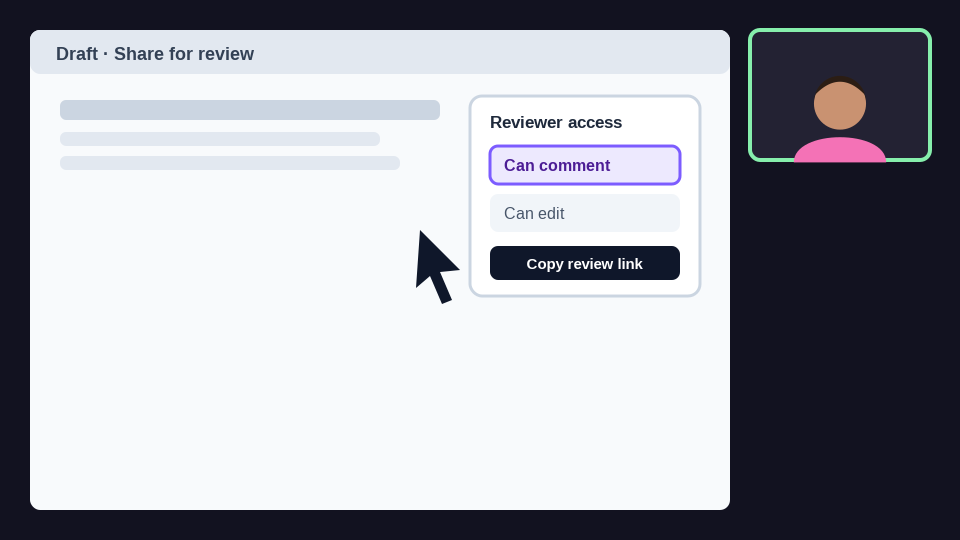
Both 00:13 and 00:19 sound perfectly fluent. The later take changes “edit” to “comment” and keeps the exception for people making changes. Check the selected option in the footage before removing the earlier instruction.
Proposed cut: the walkthrough reaches 00:09, skips to 00:19 and plays on. In the edited timeline the kept take now starts about 0:09, because ten seconds before it are gone.
Illustration · a fictional walkthrough with illustrative timecodes; a proposed cut, not a Cubix result. In another recording the intended take may be an earlier one.
What you ask for decides what Cubix looks for. A general request leaves the choice of take to the edit; a specific one names it.
First instruction
“Remove the false starts.”
Complete instruction
In the review-link section around 00:09–00:27, remove the abandoned start and the version that says to give reviewers edit access by default. Keep the complete take that begins “Give reviewers comment access by default,” including the “Only give edit access” sentence. Keep the next instruction about copying the link and leave the rest of the edit alone.
An example to adapt, not an executed result. Replace the times and phrases with your own, then check on the timeline what was actually changed.
The targeted path, from upload to a reviewed cut.
On a computer, open Cubix and choose Edit with AI under Start from scratch. Add the video. The button on this page opens the app home; it does not upload anything for you.
In the Ask Cubix box, give the complete instruction: the rough time, the words of each take and the wording to keep. Ask that the rest of the video be left alone.
Find the new join and play from a few seconds before it. The times have moved: the timeline shows the edited video, not the original recording.
If the latest edit removed the wrong material, try header Undo and check the resulting timeline. For a small repair, give Ask Cubix the current timeline time or adjust the clip edge yourself.
Want pauses, tangents and repeated phrases tightened across the whole video instead? That broader pass is a different job: Creator Polish.
A common first-pass problem: the join is in the right place, but it starts a fraction too late.
Heard after the first edit
“…ive reviewers comment access by default.”
The first sound of “Give” is missing.
Restored
“Give reviewers comment access by default.”
The whole word is heard, and the join still skips both earlier attempts.
At 0:09 on the timeline, the kept take starts on “ive reviewers”. Restore the start of that take so the whole word “Give” is heard, and leave everything else as it is.
Or do it by hand: drag the start of the kept clip back on the timeline until the full word plays, if the original recording still has those frames. If the follow-up made things worse, use Undo.
Restoring a boundary depends on the original media and the current state of the edit. If the speaker began the word over the end of the previous attempt, there may be no clean start to restore, and another take is the better choice.
Play through every join at normal speed, then check each of these.
If a jump is distracting, a punch-in or a cutaway from footage you already have can cover it; keep the on-screen action visible. Then recheck the complete sentence against the original recording before you export. For a deeper look at boundaries, read edit repeated takes without losing words.
Split the clip at the playhead, delete the unwanted part and drag the edges until the kept sentence plays cleanly.
If both takes are incomplete, look for a complete earlier delivery in the recording and keep that one instead.
If the corrected words were never said in full, no edit can create them. Record a replacement line and place it on the timeline.
When the sentence plays correctly, export. Check pricing for the current download terms and review the export options available for your account. See pricing · cut, trim and reorder clips
The speaker stops before the sentence is complete, or finishes it and then says it again differently. Listen for a restart, not a pause: a gap with nothing said twice is just silence, and a word repeated for emphasis is part of the sentence.
No. The last take is often the intended one, but not always. Keep the take whose wording is right, including any number, negation or condition, and then prefer the cleaner delivery. In another recording the right take may come earlier.
When the repetition is deliberate: emphasis, a list, a rhetorical echo or a step that really happens twice. If removing it would change the instruction or the meaning, it is not a false start.
Give the approximate time, the opening words of the take to keep, the words of the version to remove, and ask that the rest of the video be left alone. A specific instruction is easier to check than “remove the false starts”.
If the AI change was your most recent edit, try Undo. Otherwise, send a follow-up with the current timeline time and the words to restore, or drag the clip edge back if the original media has the frames you need.
Silence removal cuts empty gaps, and filler removal cuts sounds like “um”. A false start is spoken words that were abandoned or corrected; choosing which take survives is a decision about meaning, which a gap-based cut cannot make.
Name the passage to edit and the stammers or repetitions you want to keep. Then compare the draft with the original and listen just before and after the cut for words you meant to preserve.
Check the pricing page for current first-edit, AI and download terms. Before you plan to share the result, confirm what your account can export.
Upload the recording, name the take to keep and listen to every join before you export.
Edit out my false starts