
If you use a Mac in 2026, sharing your screen is likely a daily habit. Whether you are walking a client through a new software dashboard, teaching an online course, or sending a quick update to your remote team, video is the fastest way to communicate.
But as video has become the standard, the expectations for quality have skyrocketed. A few years ago, recording your raw, messy desktop with a tiny, unreadable software window was acceptable. Today, if your tutorial video is hard to follow, your audience will simply stop watching.
You need software that makes your videos look professional, clear, and engaging. But with dozens of apps on the market, which one should you choose? Here is a breakdown of the 7 best screen recorders for Mac in 2026, ranked by their specific strengths so you can find the perfect tool for your workflow.
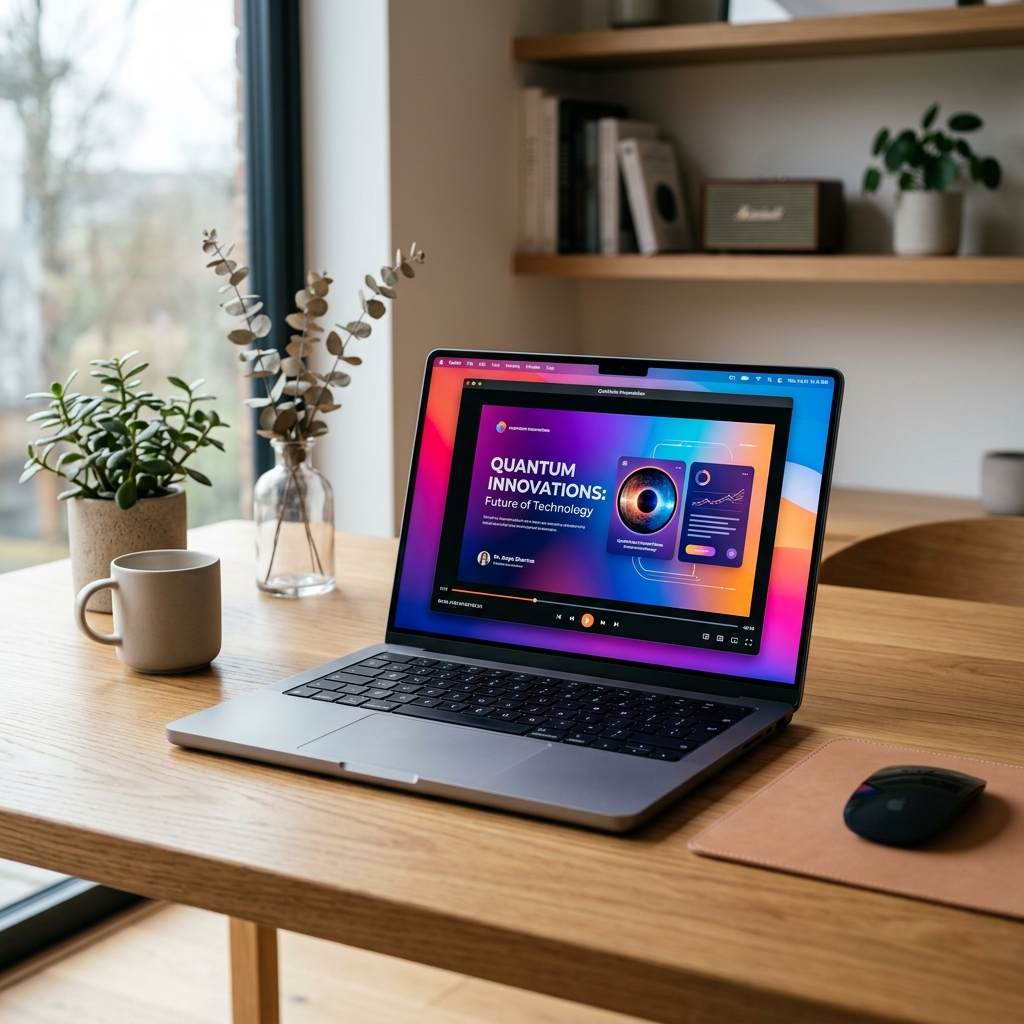
1. Cubix Capture (Best for Cinematic Tutorials & Demos)
If your goal is to create professional, highly engaging tutorials or product demos without spending hours editing, Cubix Capture is the standout choice for Mac users this year.
Most screen recorders just capture raw video, leaving you to fix it in post-production. Cubix Capture moves that whole post-production checklist forward to the recording itself. It is built around three Mac-specific decisions made in real time as you talk:
- Click-Tracking Frame: As you click around your macOS UI, the framing tightens on the active region, so a viewer on a phone never has to squint at a wide 16:10 desktop.
- Trackpad-Aware Cursor: The Apple gesture acceleration that makes you fast on the trackpad is interpreted into a deliberate motion path, removing the high-fidelity micro-tics that make Mac demos look hectic.
- macOS Window Staging: Your application window is isolated and placed on a clean stage, hiding the desktop, the menu bar clutter, and the fifteen Safari tabs you never closed.
For founders, educators, and creators who want premium results instantly without learning video editing, this is the ultimate solution.
2. QuickTime Player (Best for Basic, Free Captures)
Sometimes you just need to record a five-second clip of a bug to send to your IT department. For this, you do not need to look any further than your Mac’s Applications folder.
QuickTime Player is Apple’s built-in media tool. By simply pressing Command + Shift + 5, you can bring up a simple interface to record your entire screen or a selected portion. It is completely free and requires zero installation.
The downside: It captures everything exactly as it is. There is no auto-zoom, no cursor smoothing, and it captures your messy desktop. If you want the video to look professional, you will have to export it into iMovie and spend hours editing it yourself.
3. OBS Studio (Best for Live Streaming)
If you are a Twitch streamer or you run complex live broadcasts with multiple camera angles, OBS Studio is the undisputed king. It is a free, open-source powerhouse that lets you build complex "scenes," mix audio tracks, and broadcast directly to the internet.
The downside: OBS is incredibly complex. It has a massive learning curve. If you just want to record a quick software walkthrough for your team, setting up OBS scenes and audio inputs is like using a sledgehammer to crack a peanut. It is overkill for standard screen recording and still requires manual editing afterward to look polished.
4. Loom (Best for Quick, Disposable Messages)
Loom popularized the asynchronous video message. It is a cloud-based recorder that captures your screen and places your webcam in a little circular bubble in the corner. As soon as you hit stop, the video is uploaded to the cloud and a shareable link is copied to your clipboard. It is fantastic for replacing long emails with your remote team.
The downside: Loom is built for speed, not polish. Your videos are raw. The webcam bubble can often cover up important parts of your screen, and if you make a mistake, the built-in editing tools are very basic. It is great for quick chats, but not ideal for permanent, professional product tutorials.
Enjoying this read?
Get weekly insights on video editing, AI workflows, and creator growth straight to your inbox.
5. ScreenFlow (Best for Heavy Mac Video Editing)
If you want to edit your videos and you enjoy tweaking keyframes, ScreenFlow has been a Mac favorite for years. It is a traditional video editing timeline built specifically around screen recording. It gives you deep control over callouts, text animations, and multi-track audio.
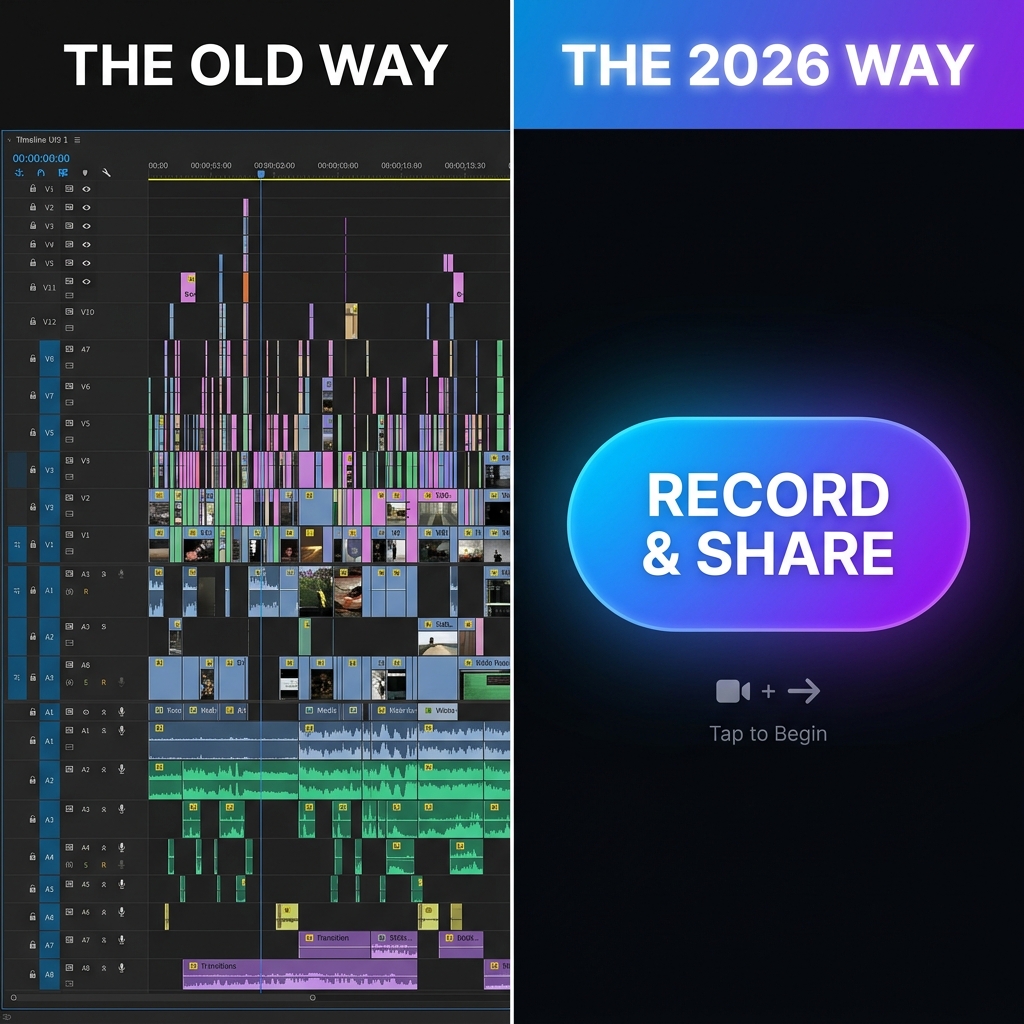
The downside: It is a heavy, traditional workflow. A five-minute tutorial might take you two hours to manually edit, zoom, and render. In a fast-paced work environment, most people simply do not have the time to dedicate to manual post-production.
6. CleanShot X (Best for Screenshots & GIFs)
While technically a screen recorder, CleanShot X is famous for being the ultimate screenshot replacement tool for Mac. If you need to take a scrolling screenshot of a long webpage, blur out sensitive information, or record a quick, 10-second GIF to paste into a Slack channel, it is an incredible utility to have running in your menu bar.
The downside: Its video capabilities are meant for very short, lightweight recordings. It is not designed for recording ten-minute voiceover tutorials or complex software demonstrations.
7. Camtasia (Best for Enterprise Corporate Training)
Camtasia is the heavy-duty veteran of the screen recording world. It is a massive software suite used mostly by large corporate training departments. It comes with a massive library of built-in assets, quizzes, and interactive elements that you can layer onto your videos.
The downside: It is expensive, the interface feels a bit dated compared to modern Mac apps, and just like ScreenFlow, it relies entirely on you spending hours doing manual timeline editing to make the final product look good.
Finding Your Perfect Workflow
The right Mac screen recorder depends entirely on what you value most. If you are a live streamer, use OBS. If you enjoy hours of video editing, ScreenFlow is great.
But if you value your time and want your software tutorials, product demos, and online courses to look cinematic and professional the exact second you hit the stop button, Cubix Capture is the most powerful tool you can add to your Mac this year.
Related reading:
- How to Record Your Screen with Gradient Backgrounds on Mac & Windows
- How to Make Your Screen Recordings Look Professional (Without Any Skills)
- Best Screen Recorder for Online Course Creators
Don’t miss the next one.
Join our newsletter for exclusive tips, product updates, and the latest from the Cubix team.