
Imagine you are doing research for a project. You find a fantastic quote on a website, so you highlight it and copy it. Then, right below it, you see the perfect image. You right-click and copy that image, too.
You open your document, ready to drop both items onto the page. You hit paste, and the image appears. But when you try to paste the quote, nothing happens. Your text is completely gone, replaced by the image.
If you have ever wondered how to extend your Mac clipboard beyond one item so you can actually copy multiple things at once, you are not alone. This single-item limit is one of the most common productivity roadblocks for computer users everywhere.

Why Your Mac Erases Your Previous Copies
To understand how to fix this, it helps to know what is actually happening behind the scenes.
By default, your Mac computer treats its clipboard like a tiny, single-use whiteboard. When you press "Command + C" to copy a sentence, the computer writes that sentence on the whiteboard. However, because the board is so small, the exact second you copy something new like a web link or a photo, your Mac has to completely erase the old sentence to make room.
It does not keep a hidden backup. It does not ask if you want to save the old item. It just instantly overwrites it. When you are trying to gather a lot of information, this forces you to work at a painfully slow pace, bouncing back and forth between different windows so you do not lose your work.
The Real-Life Recipe for a Bigger Clipboard
You do not have to work this way. You can easily expand that tiny whiteboard into a deep, organized filing cabinet. Here is a simple recipe to extend your clipboard and completely change how you use your computer:
- Expand the capacity: Stop relying on the default system. Add a tool to your Mac that automatically catches and stores everything you copy in a neat pile, instead of erasing it.
- Copy in batches: Open a webpage or a long document. Go straight down the page and copy the text, the links, and the images you need, one right after the other.
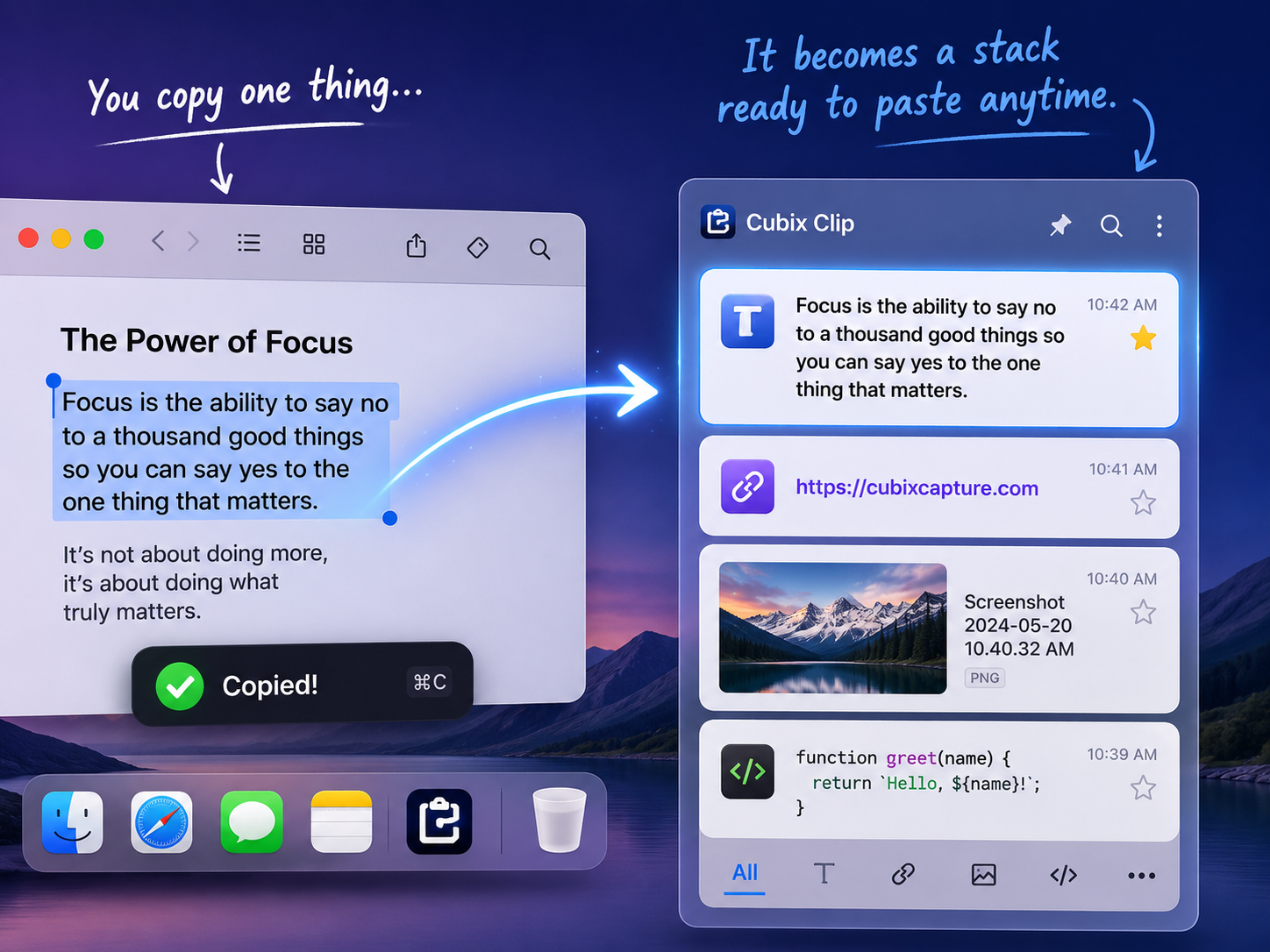
- Paste from a visual timeline: Open your blank document. Instead of pasting just one thing, bring up a list of your recent copies on your screen and paste them exactly where you want them, in any order you choose.
Enjoying this read?
Get weekly insights on video editing, AI workflows, and creator growth straight to your inbox.
What Becomes Possible Once the Limit Is Gone
Removing the one-item limit does more than save you a few clicks—it changes how you approach whole tasks. Filling out a form with your name, address, email, and phone number becomes a single sweep instead of four separate trips back to wherever you stored each detail.
Comparing two documents? Copy a passage from each and keep both ready to paste side by side. Moving snippets between apps—an email into a note, a note into a message, a message into a spreadsheet—stops being a careful one-at-a-time dance. You copy as much as you need, whenever you need it, and decide what to paste later.
That freedom is the real upgrade. You stop planning your work around what your clipboard can hold, and start working at the speed of your own thinking.
The Free Way to Extend Your Memory
Since Apple does not give you a way to extend this limit in your normal system settings, you need a dedicated tool to do the heavy lifting for you.
The most straightforward, stress-free way to solve this is by using Cubix Clip. It is a completely free clipboard manager for Mac that instantly extends your computer's memory beyond the one-item limit.
Once it is running quietly in the background, the fear of overwriting your work completely vanishes. It remembers absolutely everything you copy. Whether you grab a long paragraph of text, a high-quality image, a whole file, or a quick link, it saves it securely.
When you are ready to use your information, you do not have to remember where you found it. You just press a simple keyboard shortcut, and your entire clipboard history appears right on your screen. It brings all your copied items back the instant you press, letting you click and paste exactly what you need.
If you want to stop losing your copied information and extend your Mac's capabilities today, you can download this essential free tool right here: Cubix Clip - Free clipboard manager for Mac.
Final Thoughts
Working on a computer should feel fast and fluid, not restricted and repetitive. By extending your Mac clipboard beyond its default one-item limit, you save yourself from the endless frustration of lost text and the tedious dance of switching windows. Upgrade your workflow today, and enjoy a much smarter way to manage your daily tasks!
Don’t miss the next one.
Join our newsletter for exclusive tips, product updates, and the latest from the Cubix team.