
Every single day, millions of people search the internet to learn how to code, fix a bug, or build a new app. Because of this, creating programming tutorials is one of the best ways to share knowledge and build an audience.
Visual Studio Code (VS Code) is the undisputed king of code editors. Naturally, it is the backdrop for almost every coding tutorial on the internet.
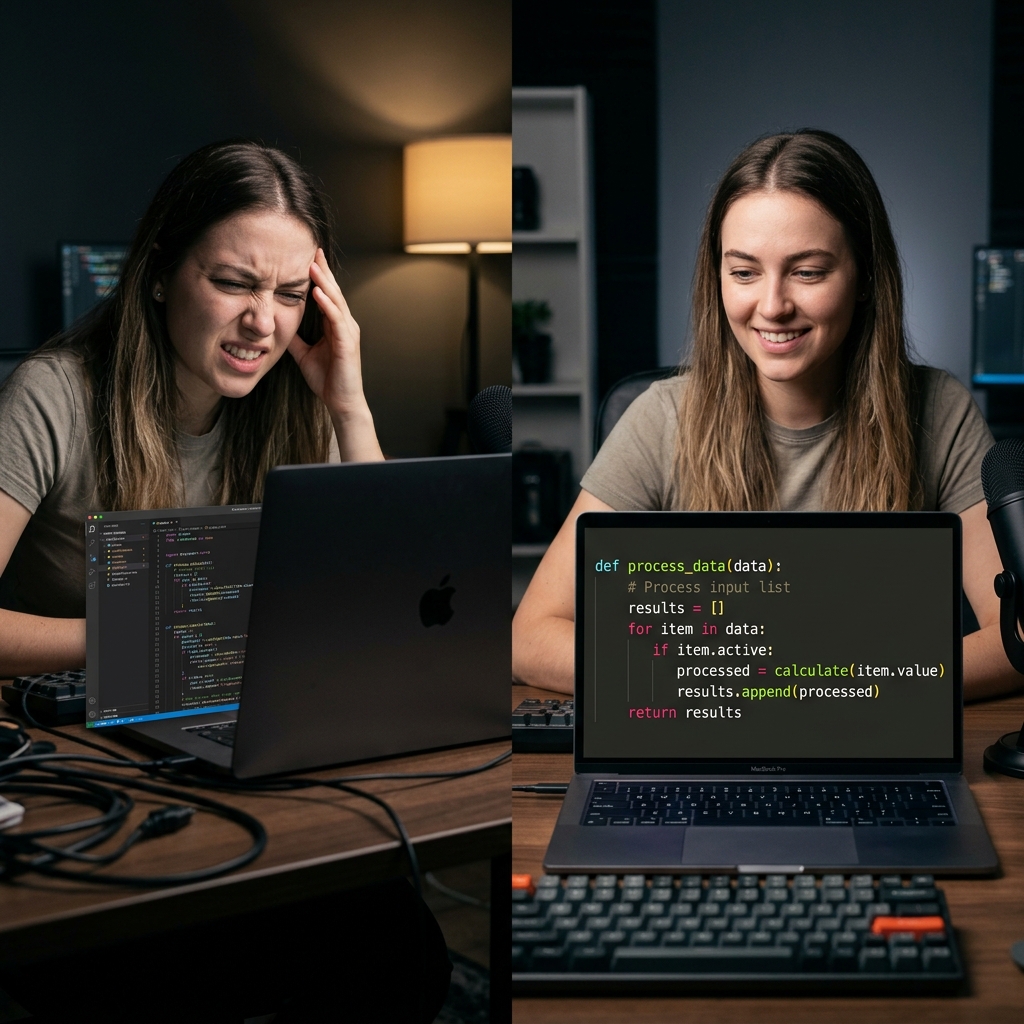
But there is a massive problem in the world of developer content. Most coding tutorials are incredibly hard to watch. The presenter might be a genius programmer, but if the video is recorded poorly, the viewer will click away within thirty seconds.
If you are a developer looking to record a VS Code tutorial, you face a unique set of visual challenges. Here is a breakdown of why standard coding videos fail, the recipe for creating a highly engaging programming tutorial, and the best screen recorder for developers that handles the hard work automatically.
The Visual Studio Code Problem
VS Code is an amazing tool for writing software, but its interface is very dense.
When you have the editor open, you usually have a file explorer on the left, a terminal running at the bottom, a minimap on the right, and dozens of lines of code in the center.
When you use a basic screen recorder to capture your entire monitor, you capture all of this dense information at once. If your viewer is watching your tutorial on a mobile phone, that massive screen is compressed. The text size of your code becomes completely unreadable.
If a viewer cannot read the exact syntax you are typing, or if they cannot see where you placed a semicolon, the tutorial is useless to them. They will immediately leave your video to find one they can actually read.
The Erratic Developer Mouse
Developers work fast. When you are building an app, you use keyboard shortcuts, you quickly click between files, and you rapidly drag your mouse down to the terminal to run commands.
While this speed makes you a great programmer, it makes for a terrible viewing experience.
In a video, a fast, jumping mouse cursor is visually exhausting. It creates anxiety for the viewer and makes the code seem much more complicated than it actually is. To teach effectively, the visual presentation needs to feel calm, calculated, and smooth.
The 3-Step Recipe for the Perfect Coding Tutorial
To create a programming video that actually holds attention and gets high ratings, you need to follow a simple visual recipe:
1. The Code Zoom
You must eliminate the dense clutter of the IDE. When you are actively typing a function, the camera needs to smoothly zoom in on the text editor. When you run a script, the camera needs to zoom in on the terminal. This guarantees that your syntax is always crystal clear on any device.
Enjoying this read?
Get weekly insights on video editing, AI workflows, and creator growth straight to your inbox.
2. The Cinematic Pointer
Your mouse movements need to be tamed. Instead of capturing your rapid, twitchy mouse movements, the cursor should glide smoothly from the file tree to the code block. This makes the tutorial feel professional and easy to follow.
3. The Clean Environment
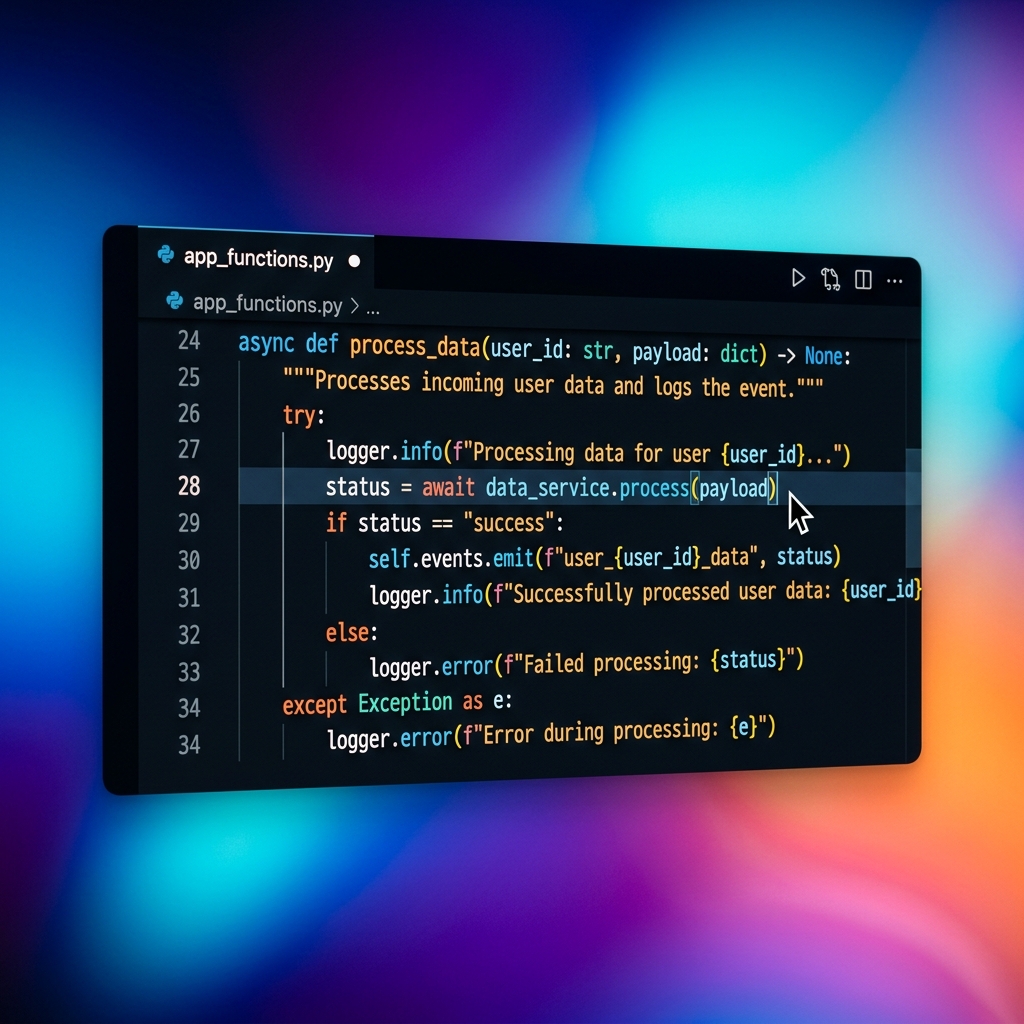
Do not show your messy desktop or random browser tabs. Isolate the VS Code window and place it over a clean, premium background so the viewer's eyes are locked onto the code.
The Best Screen Recorder for Developers
In the past, making a coding tutorial look this good meant you had to write your code, record the screen, and then spend three hours inside a video editing program. You had to manually add zoom keyframes every time you typed a new line and try to cut out your erratic mouse movements.
As a developer, your time is valuable. You want to write code, not edit video timelines.
To completely skip the video editing process and instantly generate a perfect tutorial, the best screen recorder available is Cubix Capture.
It was built to solve these exact presentation problems. It acts as an automated video editor that works silently in the background while you write your code.
Here is why it is the ultimate tool for developers in 2026:
- Intelligent Auto-Zoom: Cubix Capture actively tracks your keystrokes. As you type out your code in VS Code, the software automatically calculates the perfect frame and smoothly zooms in. Your viewers will be able to read every single bracket, comma, and variable, even on a smartphone.
- The AI Smooth Cursor: It takes the frantic speed of a developer's workflow and translates it into a cinematic, buttery-smooth mouse glide. Your video instantly looks calm, confident, and highly professional.
- Premium Live Backgrounds: You can instantly drop your dark-mode VS Code window over dynamic, colorful live backgrounds. This hides your desktop clutter and gives your coding tutorial a high-end, studio-quality aesthetic instantly.
Write Code, Not Video Keyframes
You have valuable technical knowledge to share with the world. Do not let a bad, unreadable screen recording ruin your lessons.
When your code is perfectly readable, your mouse movements are smooth, and your presentation looks professional, your viewers will stay engaged and learn faster.
You no longer have to spend hours in video editing software just to make a great tutorial. If you are ready to start recording beautiful, high-retention VS Code walkthroughs instantly, you can upgrade your workflow today with Cubix Capture.
Related reading:
- Best Screen Recorder for Developer Walkthroughs & Code Demos
- How to Add Auto-Zoom to Screen Recordings (No Editing)
- How to Record a Software Tutorial in Under 10 Minutes
Don’t miss the next one.
Join our newsletter for exclusive tips, product updates, and the latest from the Cubix team.