
If audio falls out of sync after you import a video, compare the same event in the original file, the editor preview and a short export before moving any tracks. First establish where the error appears and whether the gap stays constant or grows over time. The symptom alone does not identify the cause.
This guide covers a saved file imported into an editor. For a live OBS recording problem, use the existing OBS audio-delay guide. For text appearing at the wrong time, use the caption-timing guide.
Keep the original recording and duplicate your project before testing. Work on a copy so you can compare results and undo changes.
Compare the source, preview and export
Choose a clear event with both a visible action and an audible transient, such as a hand clap. Use the same listening device throughout; wired headphones can help you rule out a changing wireless playback path.
- Original file: Play it outside the editor. Check the start, middle and end. If it seems wrong, try a second player before concluding the recording itself is wrong.
- Imported source: If your editor has a source monitor, inspect the clip there before timeline edits. A difference from external playback is a reason to inspect interpretation, timestamps, proxies and decoding; it does not prove one specific defect.
- Edited timeline: Check the same events, then inspect any cut where the error begins. Note whether playback stutters, whether tracks moved independently and whether a speed change was applied.
- Short export: Export around the affected event and play that file outside the editor. For a long recording, make samples near the beginning, middle and end: one early sample cannot rule out later drift.
Record the player/editor version and the exact time of each event. Do not compare a different take or an export with a different edit and assume it is the same timing test.
Match the symptom to the next check
| What you observe | What to inspect next | Avoid this shortcut |
|---|---|---|
| Original looks wrong in two players | Inspect recording timing and capture setup; compare another recording from the same device | Assuming import caused a problem already present in the source |
| Preview looks wrong but the affected export is correct | Lower preview resolution or temporarily bypass heavy effects; compare again | Moving audio to compensate for a playback-only problem |
| Same offset at the start, middle and end | Measure the gap, check track positions and test a local audio adjustment on a project copy | Changing audio speed before confirming a rate error |
| Gap grows through the recording | Inspect timestamps, frame-rate handling, speed interpretation and any separately recorded audio clocks | Assuming a single nudge or a sample-rate number proves the cause |
| Error starts at a cut | Inspect linked tracks, ripple edits, trims, transitions and speed changes around that boundary | Applying a global correction to unaffected footage |
Fixed offset and drift need different tests
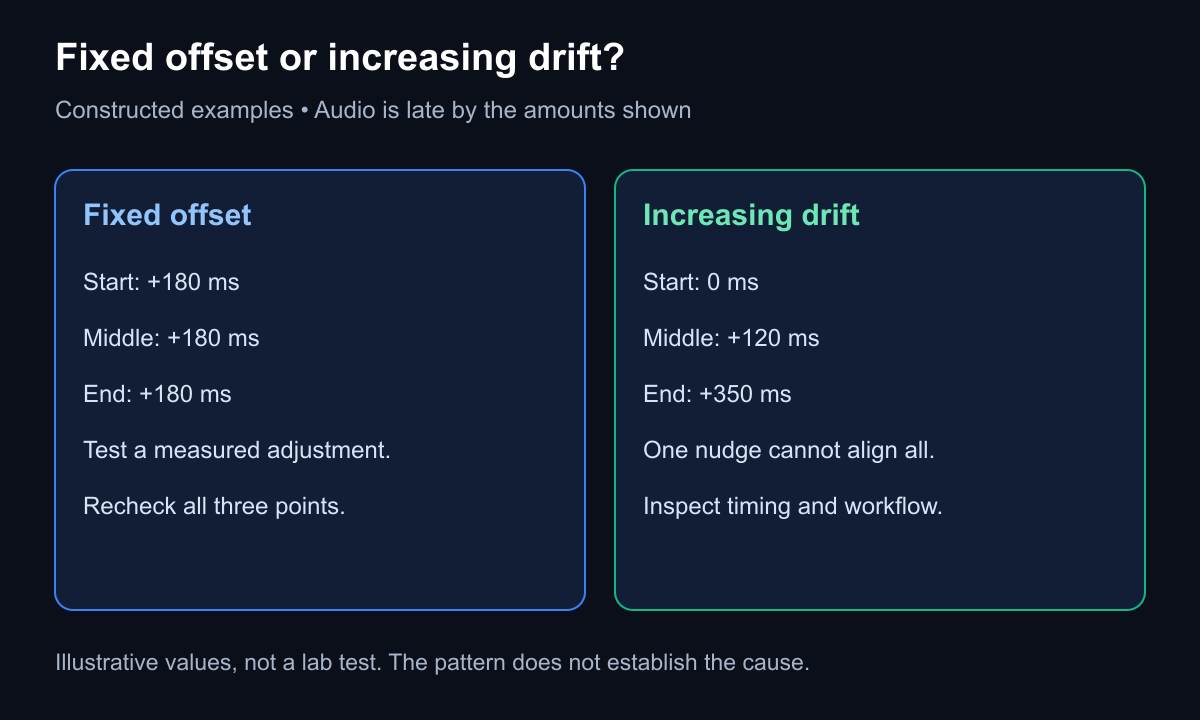
Constructed timing examples, not measurements from a customer recording. Marker spacing is schematic.
A fixed offset means the audio leads or lags by the same amount at several checkpoints. If audio is consistently 180 ms late, an editor with suitable audio timing controls may let you move it earlier by that amount. Recheck the beginning, middle, end and final export after the adjustment.
At 30 fps, one frame lasts about 33.33 ms. Moving audio by five frames changes its position by about 166.67 ms, not 180 ms. Use subframe audio adjustment where supported, or document the remaining difference. A frame-based nudge should not be presented as an exact millisecond repair.
Drift means the gap changes over time. In an illustrative example it could be 0 ms near the beginning, 120 ms later and 350 ms near the end. Moving the whole audio track cannot independently correct all three checkpoints. Investigate how the app handles the file before stretching audio or changing clip speed.
Check these properties before converting a file
Enjoying this read?
Get weekly insights on video editing, AI workflows, and creator growth straight to your inbox.
Frame-rate mode and timestamps
Use MediaInfo to inspect frame-rate mode, codecs, duration and audio properties. Variable frame rate is a valid recording format; its presence does not establish a sync defect. An editor may handle it correctly, or a particular file/workflow may expose a timing problem.
Adobe documents VFR support and Preserve Audio Sync, including limitations for some files. If the evidence points to an import-specific VFR problem, test a constant-frame-rate copy in a duplicate project, then compare all checkpoints. The variable vs constant frame rate guide covers inspection and a separate conversion example.
Audio sample rate and separate recording clocks
Record the source and project sample rates. A 44.1 kHz source in a 48 kHz project is not, by itself, evidence of drift: correct resampling preserves duration. Incorrect interpretation, timing metadata, speed settings or independently clocked recordings need separate investigation. Changing a label is not the same as resampling audio.
Preview load and edit boundaries
If only preview is affected, test reduced preview resolution, fewer effects or the editor's documented proxy workflow. Keep proxies linked to the intended source. If the error starts at a cut, inspect that edit before changing the whole project. Follow the documentation for your editor version rather than applying an arbitrary buffer or driver setting.
What to send with a support request
Include the codec/container, dimensions, frame-rate mode, duration and audio sample rate; editor/player and OS versions; listening device; and the exact checkpoints where sync differs. Say whether the problem appears in source playback, the imported source, the timeline, the export or more than one stage.
A useful report reads: “The source is in sync in two players; the preview and export are about 180 ms late at three checkpoints after import.” That is an example report, not a test result from this article.
For a Cubix-specific issue, use the troubleshooting guide. Once you have a usable source, explore the screen-recording workflow for editing and reviewing it. Importing into another editor is a separate test, not a guaranteed sync repair.
Don’t miss the next one.
Join our newsletter for exclusive tips, product updates, and the latest from the Cubix team.