
H.264/AVC is often the practical starting point for sharing with an unknown audience. H.265/HEVC is worth considering when the receiving devices and apps support it and its encoding tradeoffs suit your workflow. Neither choice guarantees playback, faster editing or a particular percentage saving.
Both are video compression standards. They are separate from MP4 and MOV, which are containers; see MP4 vs MOV for that decision. This article focuses on choosing a codec for a destination and workflow. For step-by-step size reduction, use the existing video compression guide.
H.264 vs H.265: practical differences
| Question | H.264 / AVC | H.265 / HEVC |
|---|---|---|
| Will it play? | Broad support for common delivery profiles, but check the actual recipient and file | Support depends on device, OS, app, profile and sometimes an installed decoder |
| Will it be smaller? | Size depends on bitrate, duration, content and encoder settings | Can deliver useful compression efficiency, but a smaller file at acceptable quality must be checked |
| Will it edit smoothly? | Hardware decoding, clip properties, effects and timeline load matter | The same checks matter; supported hardware decoding can make a substantial difference |
| Can it carry HDR? | Check the supported profile and destination workflow | Main 10 is used in many HDR workflows, but the codec alone does not establish HDR |
| Can I export it? | Your app needs a suitable encoder | Playback support does not imply that your editor can encode HEVC |
The MDN codec guide describes capabilities and compatibility limits. Apple's HEVC guidance also makes device, resolution, frame rate and app support relevant. Check current destination specifications before a long export; an OS name alone is not a compatibility test.
Choose for the job
| Your situation | A practical next step |
|---|---|
| Sending to unknown recipient devices | Start with a common H.264/AAC MP4 specification and test with the recipient |
| Recording into a known HEVC-capable workflow | Test a short HEVC recording through playback, import, edit and export before committing |
| Editing several high-resolution tracks | Check your editor's hardware decoding and proxy options with your actual clips |
| Capturing software UI or fine text | Compare text at the intended viewing size; motion and detail both affect encoding results |
| Delivering to an upload platform | Follow its current codec, profile, audio and color requirements |
| Delivering HDR | Verify bit depth, color primaries, transfer function, metadata and destination support together |
A device may decode a file but lack a suitable hardware encoder, or your editor may offer an encoder while a recipient cannot play its output. Treat encoding, playback and timeline editing as separate checks.
Why a codec choice is not a file-size promise
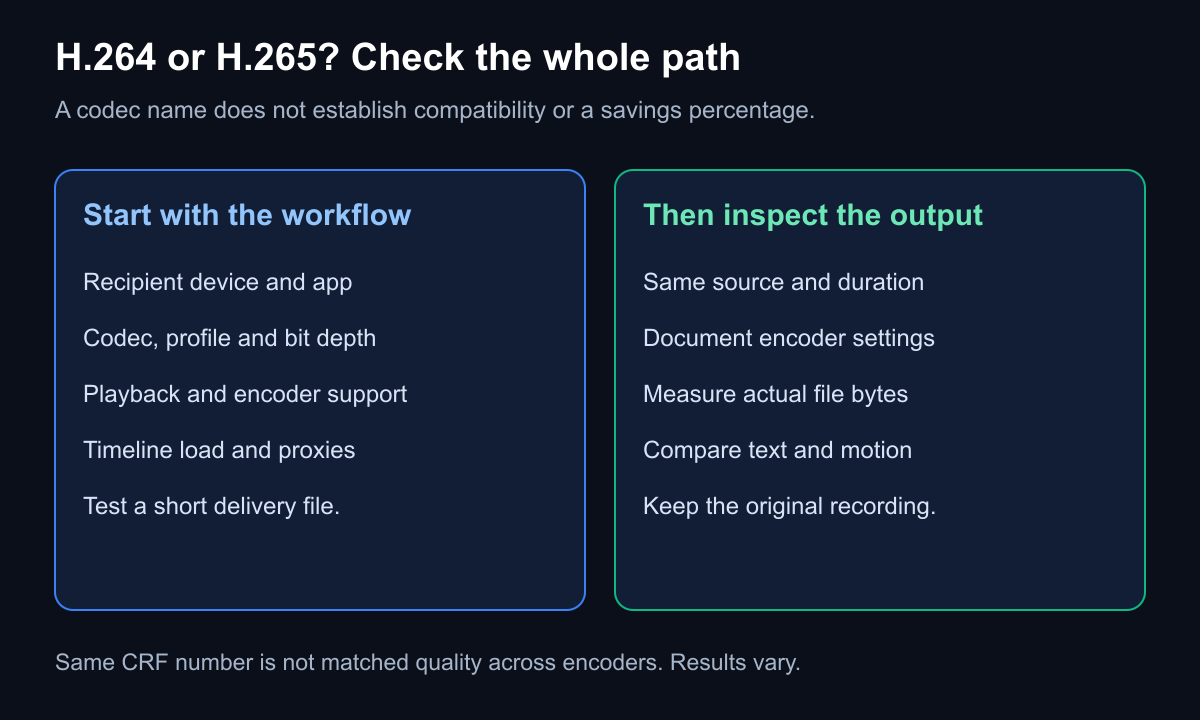
Original decision diagram. It contains no measured savings by footage category.
For an estimate, file bytes ≈ total average bitrate in bits per second × duration in seconds ÷ 8. Include audio and allow for container overhead. At the same total average bitrate and duration, the sizes will be similar regardless of the codec name; exact output bytes can differ.
HEVC may reach an acceptable visual result at a lower bitrate for a particular source. How much lower depends on the source, encoder, preset and quality target. Do not apply a universal “50% smaller” rule or assign fixed savings to drone footage, talking heads or screen recordings.
Constant-quality encoding is another case: you choose a quality setting and the encoder varies bitrate. HandBrake explains its quality control. CRF/RF values are not proof of equal quality across different encoders; matching a number is not a controlled quality comparison.
Enjoying this read?
Get weekly insights on video editing, AI workflows, and creator growth straight to your inbox.
A reproducible eight-second example
On October 22, 2026 we encoded an original synthetic source containing fine text, a moving test pattern and a tone. It is not a camera recording or a codec benchmark.
Both outputs use 1280 × 720 pixels, 30 fps, eight seconds, 8-bit YUV 4:2:0 SDR with BT.709 tags, and AAC audio at a requested 128 kbps/48 kHz. FFmpeg 8.0.1 used the software libx264 and libx265 encoders, the medium preset and CRF 26. The HEVC MP4 uses the hvc1 tag. Neither encode used a hardware encoder.
| Output | Settings | Observed total bytes |
|---|---|---|
| H.264 MP4 | libx264, medium, CRF 26 | 740,664 |
| H.265 MP4 | libx265, medium, CRF 26, hvc1 | 917,831 |
These settings are not matched quality. Different encoders and rate-control scales make the same CRF value an insufficient basis for an efficiency claim. These bytes describe only the supplied files; they establish no general savings percentage, encode-speed ranking or device-support result.
The crops below use the same frame time (4 seconds) and the same text region. They are enlarged 2× with nearest-neighbor scaling so you can inspect edges; they are not screenshots from an editing app.
H.264 text crop

H.265 text crop

Open the H.264 sample and H.265 sample in your intended playback app. The inspection record supplies full file hashes, stream properties and encoder-build information. Both files passed a local FFmpeg 8.0.1 decode check; that does not establish hardware acceleration, editor responsiveness or support on another device.
Reproduce the encoding settings
Starting with your own suitable source, these commands illustrate the settings used. A different source produces different results.
ffmpeg -i source.mkv -map 0:v:0 -map 0:a:0 -c:v libx264 -preset medium -crf 26 -threads 2 -c:a aac -b:a 128k -pix_fmt yuv420p -movflags +faststart h264-example.mp4
ffmpeg -i source.mkv -map 0:v:0 -map 0:a:0 -c:v libx265 -preset medium -crf 26 -threads 2 -x265-params pools=2:frame-threads=2 -tag:v hvc1 -c:a aac -b:a 128k -pix_fmt yuv420p -movflags +faststart h265-example.mp4
Test a short file before a long recording
Keep the original. Send a short representative file through the actual playback and editing path. Check motion, fine text, sound, seeking and your final delivery. Record device, OS and app versions alongside the result. Do not infer smooth multi-track editing from successful standalone playback.
HEVC encoding alone does not create HDR. Likewise, converting an existing lossy H.264 recording into HEVC cannot restore lost detail; weigh additional encoding loss and time against any storage benefit. A separate delivery copy may be useful, but retain the original where possible.
For a recording-size estimate, use the screen recording planner. Its estimate is not a measured encode result. For reducing an existing file, continue with the compression workflow.
Don’t miss the next one.
Join our newsletter for exclusive tips, product updates, and the latest from the Cubix team.