
If you have ever tried to record your screen on a Mac, you have likely run into one of the most frustrating roadblocks in the Apple ecosystem: the silent video.
You hit record, play a video, join a webinar, or run a piece of software, and when you watch the playback, your microphone audio is there, but the actual computer sound is completely missing.
When you search for a solution to capture internal sound on macOS, the answers are usually exhausting. Most guides tell you to download third-party virtual audio drivers (like BlackHole or Soundflower), restart your computer, open the Audio MIDI Setup app, and create complex "Aggregate Devices."
If you just want to record a quick tutorial or capture desktop audio on your Mac, you shouldn't need a degree in audio engineering. Here is why Mac blocks your audio, and the modern way to capture system audio on a Mac without installing a single driver.
Why macOS Blocks Internal Audio by Default
Unlike Windows, macOS is built with a very strict, walled-off approach to privacy and security. By default, Apple does not allow applications to intercept the audio that is being routed to your speakers.
They do this to prevent malicious software from secretly recording your background conversations or private calls. However, this security measure also blocks basic, helpful tools like screen recorders.
For years, the only way around this "Apple Audio Wall" was to install a kernel extension or a virtual audio cable. These drivers trick your Mac into sending the audio to a fake microphone so your screen recorder can hear it. It is a clunky, outdated workaround that often breaks whenever Apple updates macOS.
Why Virtual Audio Drivers Cause Ongoing Issues
Even if you manage to follow a complex tutorial and install an audio driver, the daily experience is rarely smooth.
- Audio Routing Headaches: You constantly have to switch your Mac’s output settings back and forth between your headphones and the "virtual driver" every time you want to record.
- Volume Control Issues: Often, when routing audio through these drivers, you lose the ability to control your Mac's volume using your keyboard keys.
- Update Breakages: When macOS releases a major update, these deep-system drivers frequently break, leaving you scrambling for a new solution right before an important presentation.
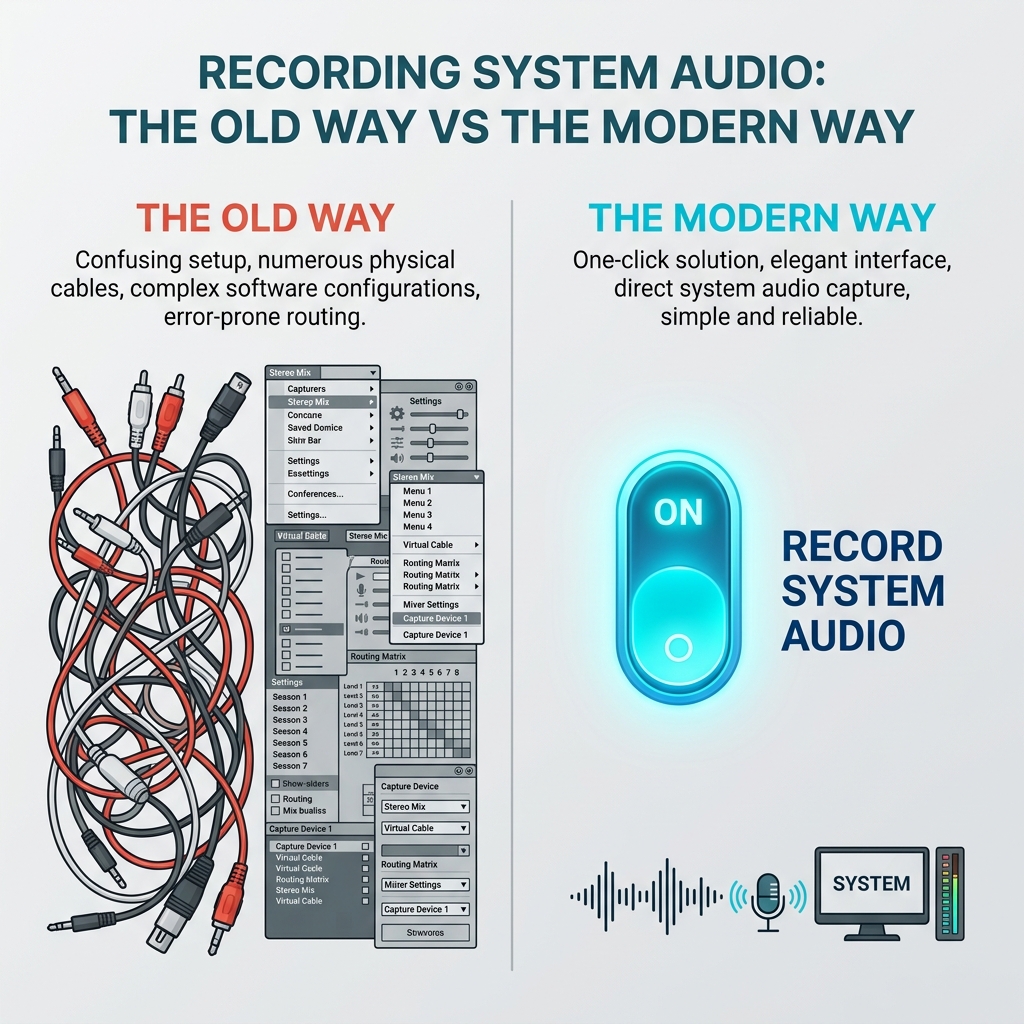
The Modern No-Driver Approach
The secret to recording Mac system audio without drivers isn't a terminal hack or a hidden Apple setting. The secret is simply upgrading your software.
In recent years, Apple introduced modern screen capture frameworks that allow authorized apps to record internal audio natively, securely, and seamlessly—without requiring any third-party driver installations. The problem is that many legacy screen recorders haven't updated their technology to use these new pathways.
If you want to record desktop audio on Mac instantly, you need a modern screen recorder built specifically to handle this automatically.
Enjoying this read?
Get weekly insights on video editing, AI workflows, and creator growth straight to your inbox.
A Practical One-Click Workflow
To completely bypass the headache of Audio MIDI setups and virtual cables, you need a tool that just works the moment you open it.
This is where Cubix Capture shines for Mac users. It is designed to capture your screen, your microphone, and your internal system audio perfectly, straight out of the box. There are no drivers to install, no system restarts required, and no confusing audio routing menus to navigate.
You simply toggle the system audio button on, and it perfectly captures whatever is playing through your Mac's speakers.
Because Cubix Capture is built as a presentation tool first and a system-audio capturer second, the same session that solves your BlackHole-and-Audio-MIDI nightmare also hands you a finished-looking deliverable. While the system audio is being routed cleanly inside the app, the camera is already tightening on whichever Mac UI element you are clicking, the trackpad input is being interpreted into a weighted cursor path, and the macOS desktop clutter is hidden behind a clean stage—so a tutorial that demos a CLI command with audio playing out of the same Mac no longer needs a follow-up edit.
You get system audio capture plus presentation quality in one flow, without maintaining fragile routing hacks.
Mac System Audio Checklist
Before recording:
- verify app has screen + audio permissions
- select the correct recording source/output
- run a 10-second audio test clip
- confirm playback includes both mic and system audio
- lock in levels before recording full take
Common Mac Audio Recording Mistakes
- Assuming microphone capture includes system audio
- Skipping permission verification after OS updates
- Recording full session without a short test clip
- Relying on old virtual-driver setups that break on update
Related reading:
- How to Record Screen and Webcam Simultaneously
- How to Record Your Screen with Gradient Backgrounds on Mac & Windows
📖 Keep reading: how to record system audio on Mac without BlackHole and how to record both your mic and system audio at once.
Don’t miss the next one.
Join our newsletter for exclusive tips, product updates, and the latest from the Cubix team.