
Have you ever tried to learn a new programming skill or server configuration, only to find yourself staring at a video of a completely black screen filled with microscopic white text?
The presenter is typing commands at lightning speed, text is scrolling up the screen endlessly, and you have absolutely no idea what is going on. You try watching it on your phone, but the words are so small that you have to give up.
Recording a terminal or command line (CLI) tutorial is one of the hardest things to do well. Because there are no big, colorful buttons or clean user interfaces to guide the viewer's eyes, a terminal video can quickly turn into a confusing, unreadable wall of text.
If you want to teach other developers how to use Git, configure a server, or run scripts, clarity is your top priority. Here is the exact recipe to record a terminal tutorial clearly, so your viewers can actually read your code and understand your lesson.
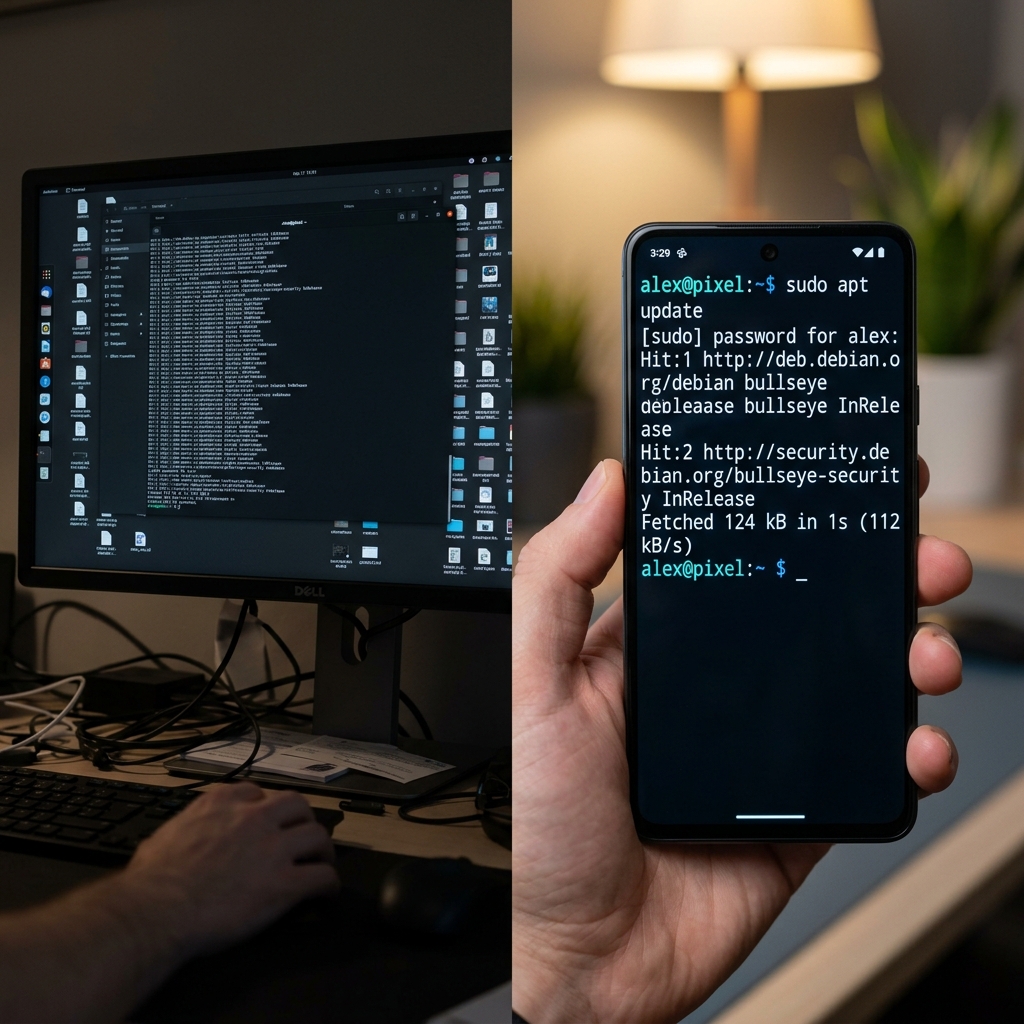
The "Wall of Text" Problem
The command line is intimidating for many people. It is a purely text-based environment.
When you record your entire desktop monitor with a small terminal window open, you are wasting 80% of the screen space. If your viewer watches this on a mobile device, the tiny text size makes it physically impossible to differentiate between a comma, a period, or a space. In the command line, missing a single space means the command will fail.
If your viewer types the command wrong because your video was blurry or too small, they will get an error, feel frustrated, and leave your tutorial.
To create a great command line tutorial, you must manage the viewer's visual focus perfectly.
The 3-Step Recipe for Clear Terminal Videos
You do not need to be a professional video producer to make your terminal videos look amazing. You just need to follow these three visual rules to make the experience effortless for your audience.
1. Frame It Over a Clean Aesthetic
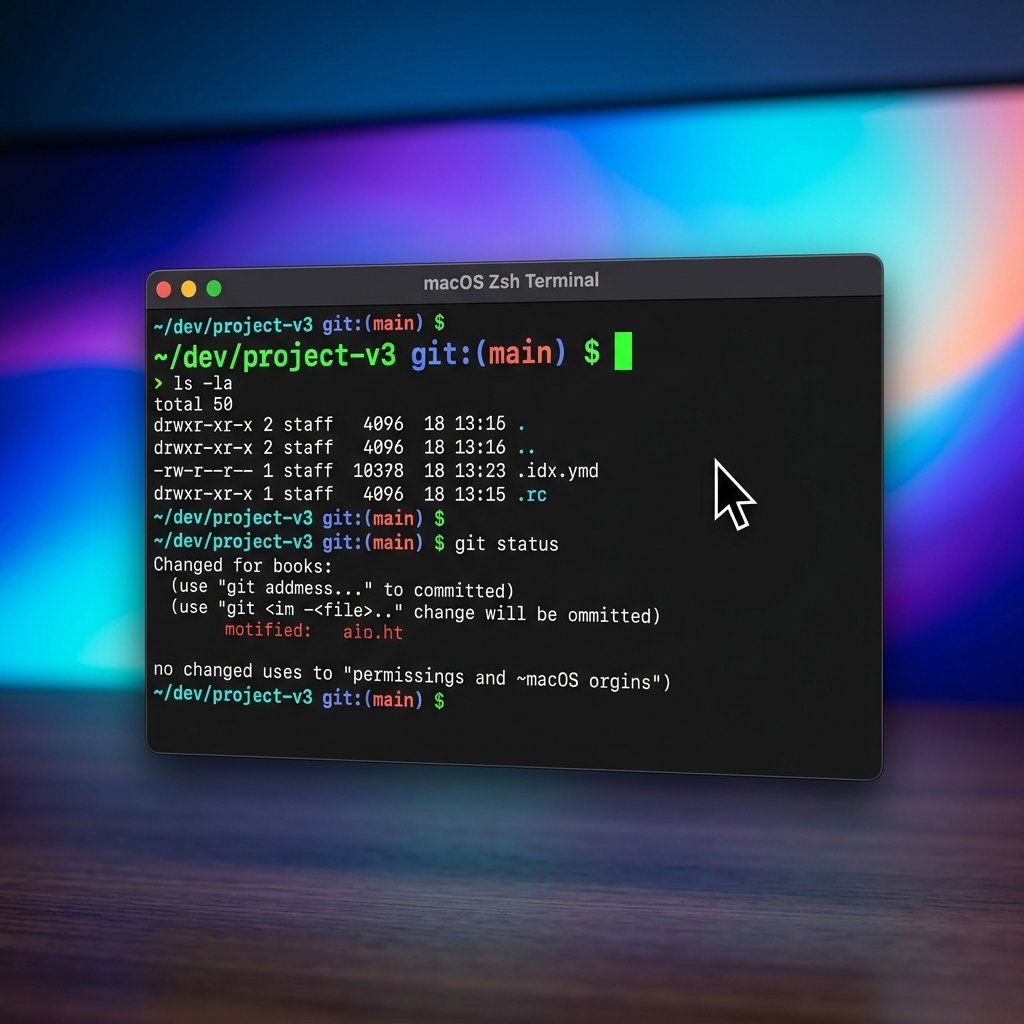
A pure black terminal window sitting on top of a messy computer desktop (or just a plain black background) looks very dry and boring. To make your technical tutorial feel premium and engaging, isolate just the terminal window and place it over a clean, colorful background. This creates visual contrast and instantly makes the video look like a high-end educational course.
2. Follow the Keystrokes (The Zoom Rule)
This is the most critical step. When you start typing a command like npm install or git commit, the camera must smoothly zoom in tightly on the blinking text cursor. The text should fill the center of the screen. When you hit "Enter" and a long list of log files prints out, the camera should gently pan to show the output. If the viewer does not have to squint, they will stay engaged.
Enjoying this read?
Get weekly insights on video editing, AI workflows, and creator growth straight to your inbox.
3. Point with Purpose
Even though the terminal is keyboard-driven, presenters often use their mouse cursor to point at specific error codes or log outputs to explain what happened. If you wiggle your mouse nervously over the text, it creates visual anxiety. Your mouse movements should glide smoothly and act like a calm, professional laser pointer.
The Trap of Manual Video Editing
Knowing this recipe is great, but actually executing it can be a nightmare.
Traditionally, if a developer wanted their terminal tutorial to be readable, they had to record the screen, import that video into a heavy editor like Premiere Pro, and manually add zoom keyframes every single time they typed a command.
If you are typing twenty commands in a five-minute video, you will spend hours editing that timeline. Most developers simply do not have the time to edit videos manually. They just want to write code and share their knowledge.
The Best Screen Recorder for Command Line Videos
You need a way to make your terminal text massive, clear, and perfectly focused without wasting your evening doing video editing.
This is exactly why Cubix Capture has become a popular screen recorder for technical educators and DevOps teachers. It treats your terminal session as the subject of the video, not just one of many windows on your desktop.
Three things make it especially good for command line tutorials:
- Cursor-aware zoom for typed commands. Instead of zooming on mouse clicks, the recorder follows the active text cursor. The moment you start typing
git checkout,docker compose up, or a longcurlrequest, the camera frames the prompt tightly so every flag and path remains legible on a phone. - Output-aware framing for log streams. When a command spits out a wall of log output, the camera gently widens to show the relevant section and pans down with new lines—so viewers can read errors, stack traces, and config dumps without pausing the video.
- Studio-style staging for dark themes. A pure black terminal on a black desktop looks flat. The recorder isolates the terminal window and places it over a soft gradient or live background, which adds depth and contrast and makes a CLI lesson feel like a polished screencast instead of a raw recording.
Teach Code with Clarity
When you share your technical knowledge, your goal is to make complex topics easy to understand. Do not let a microscopic, hard-to-read screen recording ruin a great lesson.
When your terminal commands are perfectly readable, your movements are smooth, and your presentation looks professional, your audience will actually enjoy learning from you.
You no longer have to spend hours in complex video editors to make your command line tutorials look amazing. If you are ready to start creating beautiful, high-retention technical videos instantly, you can upgrade your digital workspace today with Cubix Capture.
Related reading:
- How to Record a VS Code Tutorial (Best Screen Recorder for Developers)
- Best Screen Recorder for Developer Walkthroughs & Code Demos
- How to Add Auto-Zoom to Screen Recordings (No Editing)
Don’t miss the next one.
Join our newsletter for exclusive tips, product updates, and the latest from the Cubix team.