
You click Start Recording and OBS stops you immediately with a dialog reading "Failed to open NVENC codec", usually followed by either Function not implemented or Generic error in an external library.
The precise meaning is narrower than it looks, and the precision is useful. OBS asked the NVIDIA driver to open an encode session and the driver refused before a single frame was submitted. Nothing was encoded, nothing was dropped, no performance ceiling was hit. That is why advice about lowering your bitrate or closing background apps to free up CPU does nothing here — none of it is relevant to a session that never opened.
If your log shows a different NVENC code —
NV_ENC_ERR_OUT_OF_MEMORY,NV_ENC_ERR_UNSUPPORTED_DEVICE,NV_ENC_ERR_INVALID_VERSION, or "no NVENC capable devices found" — those are separate failures with separate causes, and the full OBS NVENC error index covers each one. This page is specifically about the two "Failed to open NVENC codec" variants.
Two Variants, Two Different Causes
Most guides treat the whole message as one problem. The suffix is the diagnostic, and it tells you which of two encoder implementations failed.
| Exact message | What it means | Start at |
|---|---|---|
Failed to open NVENC codec: Function not implemented | The driver did not expose the encode API that OBS asked for. A driver-side handshake failure. | Fix 1 |
Failed to open NVENC codec: Generic error in an external library | The FFmpeg-wrapped encode path failed to initialise. Usually GPU routing or a session already in use. | Fix 2 and Fix 3 |
Failed to open NVENC codec: Invalid argument | The configuration OBS submitted is not one this card accepts. | Fix 4 |
Why the Wording Tells You Which Path Failed
Current OBS versions ship a native NVENC implementation — you will see it logged with an [obs-nvenc] prefix — alongside the older FFmpeg-based path, which appears in encoder dropdowns under names containing ffmpeg. They are different code talking to the same hardware.
The phrase "Generic error in an external library" is FFmpeg's wording for a failure inside a library it wrapped. If you see it, you selected an FFmpeg-based NVENC entry, and one immediately useful experiment is to switch to the native NVIDIA NVENC H.264 entry in the encoder dropdown and try again. The native implementation reports failures more specifically, so even if it also fails, you get a better error to work from.
Read Two Lines of the Log First
Thirty seconds here saves an hour of guessing.
- Help → Log Files → View Current Log.
- Search for
nvenc(case-insensitive). - Read the last matching line before the session ended.
You are looking for one of the messages in the table above. If NVENC appears nowhere in the log at all, the encoder never got as far as being asked, and the problem is upstream — OBS "Starting the Output Failed" covers that case.
The 60-Second Workaround
If you need to be recording now, move encoding off the GPU entirely:
- Settings → Output, set Output Mode to Advanced.
- On both the Recording and Streaming tabs, change Video Encoder to Software (x264).
- Apply and start.
x264 runs on your CPU and works on every machine. At equivalent settings it produces quality comparable to NVENC, sometimes slightly better — the cost is CPU load, which matters if you are simultaneously running a game or a heavy application. If you have integrated Intel graphics available, QuickSync is often a better fallback than x264 for the same reason NVENC was: it is dedicated hardware.
This is a bypass, not a fix. Come back to the sections below afterwards.
Fix 1: Clean Driver Install, Done Properly
For: Function not implemented.
This message means the driver did not offer the encode API OBS expected. Either the driver is genuinely too old for your OBS build, or — far more common — a routine driver update layered itself over the previous install and carried a damaged encoder registration forward.
That distinction is why "I already updated my drivers" and "I clean installed my drivers" are different statements with different outcomes. An in-place update preserves exactly the state that is broken.
- Identify your card precisely: Windows + R, type
dxdiag, Enter, read the Display tab. - Download the driver for that exact model from nvidia.com directly. Not Windows Update, not a third-party driver utility, not an in-place updater.
- Run the installer and choose Custom (Advanced), not Express.
- Tick Perform a clean installation.
- Reboot, then set the encoder back to NVIDIA NVENC H.264 in OBS.
Game Ready or Studio branch? Either works. Studio drivers validate on a slower cadence and are the safer choice if you record for work.
If the clean install does not fix it, try a driver from a few releases earlier rather than the newest. NVIDIA occasionally ships a branch with a broken encode path, and the OBS forums will tell you within a day of release whether a specific driver number is the culprit.
If even that fails, the nuclear option is removing the driver with a dedicated display driver removal utility in Windows safe mode before installing fresh. It is genuinely more thorough than the built-in clean install, and genuinely more disruptive — try the ordinary route first.
Fix 2: Something Else Is Holding the Encode Session
For: Generic error in an external library, especially when it fails only sometimes.
NVENC supports a limited number of simultaneous encode sessions. Anything already holding one can prevent OBS from opening its own, and a crashed process does not release its session until the process is actually gone.
The usual holders:
- NVIDIA App or GeForce Experience Instant Replay / ShadowPlay. The most common single cause, and the least obvious — it holds a session continuously while the feature is enabled, not only while it is recording.
- A leftover
obs64.exefrom a previous crash. Check Task Manager and end any orphans. - Discord Go Live or screen share with hardware acceleration enabled.
- Xbox Game Bar background recording.
- A browser with hardware acceleration and video playing.
Close them all, retry, and if it works, re-enable them one at a time to find which one you can live without. A strong tell for this cause: it works after a reboot and fails again later in the day.
Enjoying this read?
Get weekly insights on video editing, AI workflows, and creator growth straight to your inbox.
Fix 3: OBS Is Being Handed the Integrated GPU
For: Generic error in an external library, and any case where NVENC fails consistently on a laptop.
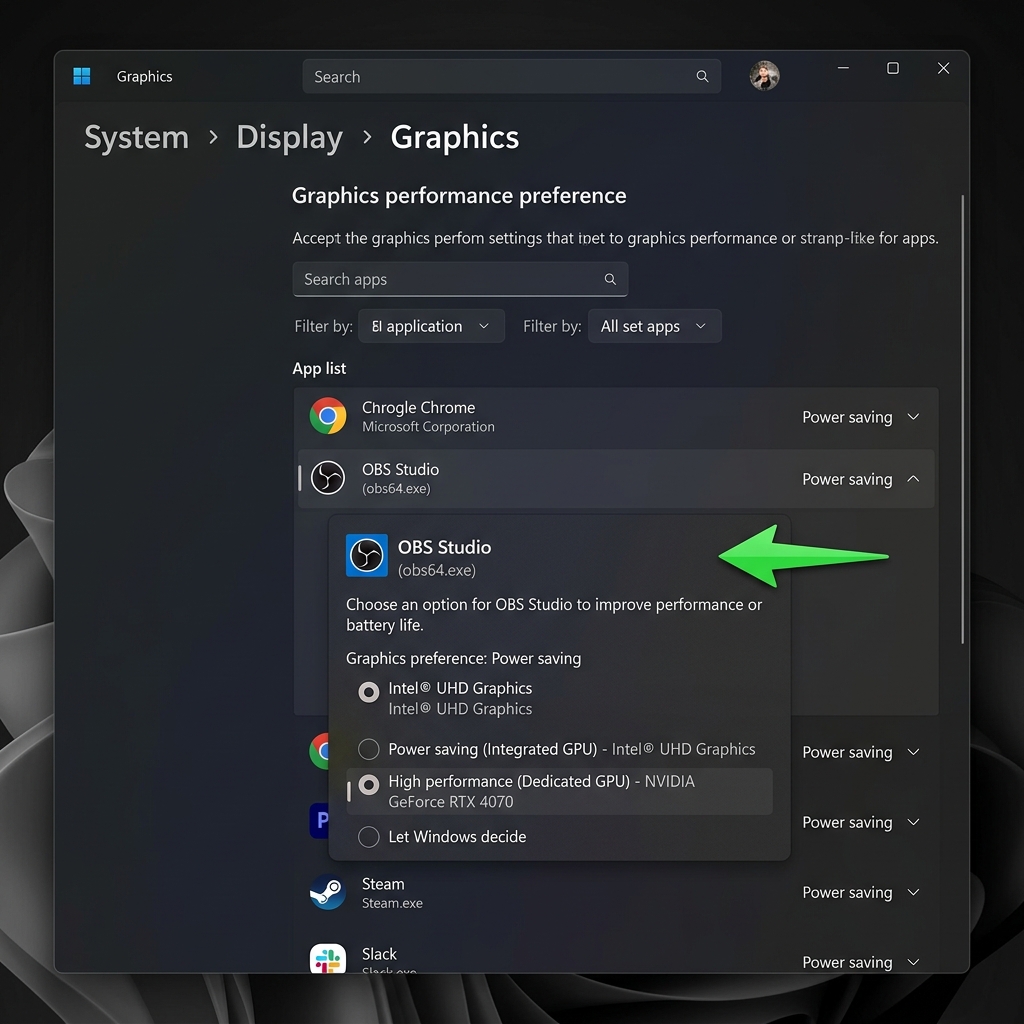
Windows decides which GPU each application uses, and it defaults new applications to the power-saving one — which on most laptops and many pre-built desktops is the integrated graphics on the CPU. Integrated graphics have no NVENC, so the request fails before it reaches your NVIDIA card.
Assign OBS to the NVIDIA GPU:
- Press Windows, type
Graphics settings, Enter. - Under Custom options for apps, click Browse and select
obs64.exe— normallyC:\Program Files\obs-studio\bin\64bit\obs64.exe. - Click Options, choose High performance, Save.
- Restart OBS.
Set the matching preference in the NVIDIA Control Panel under Manage 3D settings → Program Settings: add OBS, set Preferred graphics processor to High-performance NVIDIA processor.
On laptops specifically: many disable the discrete GPU entirely on battery, and NVENC disappears with it. Record on mains power, with the Windows power mode set to Best performance. If your laptop has a MUX switch or a "Discrete / Ultimate" GPU mode in its vendor utility, enabling it removes this class of problem permanently.
Disabling the integrated GPU in Device Manager also works and is what many guides recommend first. On a laptop it costs battery life and can occasionally break display output, so treat it as a last resort rather than a starting point.
Fix 4: The Configuration Is One NVENC Will Not Accept
For: Invalid argument, and for failures that appear only at particular settings.
The session is being refused because of what OBS asked for, not whether it could ask:
- A codec your card does not encode. AV1 and HEVC encoding require specific GPU generations. Switch to NVIDIA NVENC H.264, which every NVENC-capable card supports.
- An output size beyond what the encoder supports. Older cards can render 4K60 comfortably and still refuse to encode it. Lower Output (Scaled) Resolution under Settings → Video and test.
- B-frames requested on hardware without B-frame support. In Output → Recording or Streaming, set Max B-frames to
0. - A profile carried over from other hardware. If you migrated OBS from another machine or restored a backup, the encoder parameters may reference a GPU you no longer have. In the menu bar: Profile → New, then Scene Collection → New, configure NVENC in the clean profile and test. If it works there, rebuild rather than repair.
Fix 5: The Card Genuinely Has No NVENC
Worth ruling out before spending an evening on drivers. Not every NVIDIA GPU has an encoder:
- Entry-level GT-series cards generally do not.
- Some low-end laptop MX-series chips do not.
- Very old cards predate NVENC entirely.
If the NVENC entries are missing from the encoder dropdown altogether rather than present-but-failing, this is a likely explanation. NVIDIA publishes a support matrix listing every GPU's encode capability — check yours there. If the card has no encoder, no driver fixes it: use QuickSync if you have Intel integrated graphics, or x264 otherwise.
Which Fix Fits Your Symptom
| What you observe | Likely cause | Go to |
|---|---|---|
| Worked yesterday, nothing changed | Driver updated in the background | Fix 1 |
| Fails only when Discord or a browser is open | Encode session held elsewhere | Fix 2 |
| Works after a reboot, fails later in the day | Orphaned process holding a session | Fix 2 |
| Works plugged in, fails on battery | Discrete GPU disabled for power | Fix 3 |
| Consistent failure on a laptop or pre-built | OBS routed to integrated graphics | Fix 3 |
| Fails only at 4K, only at 60 fps, or only with AV1 | Configuration outside the card's limits | Fix 4 |
| Started right after moving OBS to a new PC | Profile carried over from other hardware | Fix 4 |
| NVENC missing from the dropdown entirely | Card has no encoder, or wrong GPU in use | Fix 5, then Fix 3 |
Confirm the Fix Actually Held
Do not judge it by "it started this time." Verify in the log:
- Record for ten seconds and stop.
- Help → Log Files → View Current Log.
- Search for
nvenc. A successful session logs the encoder initialising with its chosen settings, with no error line after it.
If it initialised cleanly but the recording stutters or drops frames, NVENC is working and you have a throughput problem instead — a genuinely different issue, covered by OBS encoding overloaded and OBS encoder lag: NVENC vs x264.
Why You Are Picking an Encoder at All
OBS asks you to choose an encoder because it is a broadcast tool, and broadcast work needs that control: pinning a specific bitrate to a specific hardware path matters when you are running a multi-camera production against a platform's ingest requirements.
It matters much less when you are recording a five-minute product walkthrough. That dropdown is the single point where driver state, session limits, GPU assignment and profile history all intersect — which is exactly why it keeps failing there, and why the failure looks different every time.
Cubix Capture does not expose an encoder choice. It resolves the capture and encode path itself on Windows and macOS, and applies zoom and cursor smoothing during capture rather than in an editing pass afterwards. The free Starter plan runs without an account if you want a working recording today while you sort out the driver situation at your own pace.
Keep Reading
- OBS NVENC Error: Every Code Decoded for any NVENC message other than this one.
- OBS "Starting the Output Failed" when NVENC never appears in the log.
- OBS Encoder Lag: NVENC vs x264 for the difference between a session that fails and one that falls behind.
- OBS High CPU Usage: How to Reduce It if the x264 workaround became permanent.
Don’t miss the next one.
Join our newsletter for exclusive tips, product updates, and the latest from the Cubix team.