
You are mid-stream or deep into recording a critical product walkthrough when you glance down at the OBS Studio status bar and spot that dreaded, bright red warning: "Encoding overloaded! Consider turning down video settings or using a faster encoding preset." Moments later, you check your file or stream archive only to find a visual disaster. Your voice tracks along perfectly, but the video is a jagged, stuttering slideshow that freezes for seconds at a time.
When OBS flags encoding lag, it isn't an arbitrary software bug. It is a literal cry for help from your hardware configuration. It means the mathematical engine responsible for compressing your raw visual frames cannot write the data fast enough to meet its strict real-time budget.
If you are recording at 60 fps, your system has exactly 16.6 milliseconds to process, render, and compress every single frame. If it takes even 20 ms, the frame budget overflows, and OBS throws away visual data to keep the audio running in real time.
To clear this bottleneck for good, you must resolve the battle happening inside your computer's silicon: NVENC vs. x264. Let’s break down how these two encoders work and exactly how to deploy them to eliminate encoding lag permanently.
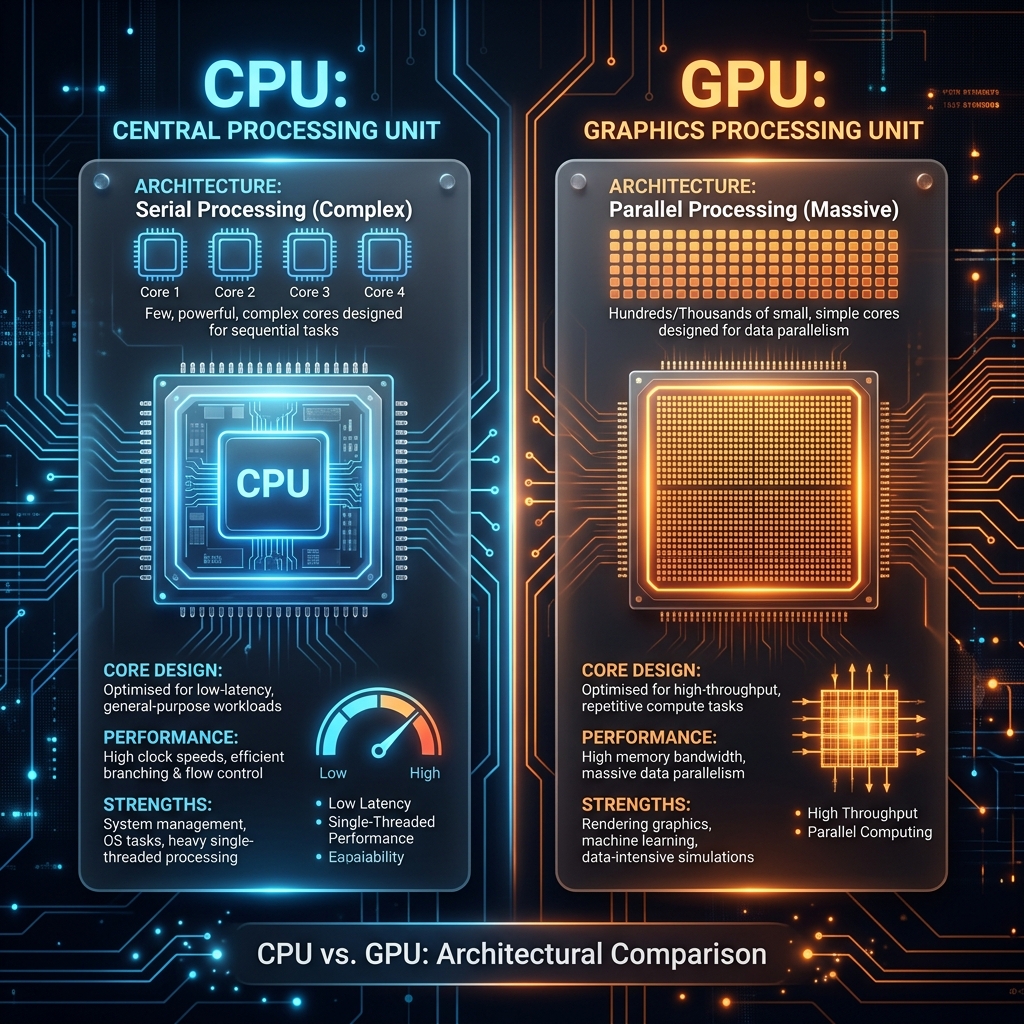
x264 vs. NVENC: The Architectural Split
To fix encoding lag, you need to know exactly where your video data is being routed. The primary difference between these two systems comes down to which chip on your motherboard is doing the heavy lifting:
The x264 Encoder (CPU-Bound Compression)
The x264 profile uses your computer's main Central Processing Unit (CPU) to handle the video compression math.
- The Catch: Because your CPU is designed as a general-purpose processor, forcing it to crunch millions of pixels in real time places a massive tax on its cores. If you are simultaneously running a web application, code sandbox, or heavy database engine in the foreground, your CPU will instantly redline to 100% utilization, dropping frames aggressively.
- When to use it: Only if you have a high-core dedicated streaming PC that handles zero foreground application tasks, or if your machine completely lacks a discrete graphics card.
The NVENC Encoder (Hardware-Accelerated GPU Compression)
NVENC is a dedicated, physical silicon chip embedded directly onto NVIDIA graphics cards.
- The Benefit: This hardware chip operates entirely independently from your main graphics engine and your CPU. Its sole job in life is to encode video frames. Shifting your encoding pipeline to NVENC means your CPU usage drops next to zero, and your main GPU cores remain completely unbothered by the recording process.
- When to use it: On any Windows machine containing a modern NVIDIA graphics card. (Note: If you are running an AMD card, look for AMD HW, or Apple VT Hardware if you are on an Apple Silicon Mac both act as equivalent hardware-accelerated chips).
The Step-by-Step Transition Blueprint
If your OBS stats telemetry panel is warning you of encoding lag, shifting from CPU-bound x264 processing to hardware-accelerated routing is the single most effective fix available.
-
Navigate to Output Settings: Open internal platform configurations. Launch OBS Studio, click on Settings in the bottom-right control corner, and select the Output tab from the left sidebar.
-
Switch the Output Mode to Advanced: Unlock advanced encoder profiling metrics. Locate the Output Mode dropdown at the very top of the window pane and change it from Simple to Advanced. Click onto the Recording or Streaming sub-tab depending on your primary workflow.
-
Modify Your Video Encoder Selection: Offload compression math from your CPU kernel. Locate the Video Encoder dropdown. If it is currently set to x264, change it immediately to NVIDIA NVENC H.264 (or HEVC / AV1 if your target platform supports next-gen containers).
-
Configure the Rate Control Profile: Stabilize your data transmission speeds. Set your Rate Control dropdown to CBR (Constant Bitrate). For a crisp 1080p recording or stream layout running at 60 fps, configure your Bitrate field to a stable, sustainable target of 6000 Kbps.
-
Optimize the Preset Target: Dial back computing strain while keeping text sharp. Locate the Preset dropdown. If your system was lagging, change this setting from Max Quality (P7) down to Quality (P5) or Balanced (P4). This minor shift dramatically eases hardware calculation steps while keeping text incredibly sharp. Click Apply.
Enjoying this read?
Get weekly insights on video editing, AI workflows, and creator growth straight to your inbox.
Companion Tuning: Run OBS as Administrator
Even after switching to NVENC, your recording can occasionally experience minor stuttering if your foreground applications are exceptionally heavy. This is because OBS still needs a tiny slice of regular GPU power just to composite your webcams, images, and window layouts onto its main canvas before handing it off to the NVENC chip.
- The Fix: Close OBS Studio completely. Right-click the OBS launcher shortcut or executable icon and select Run as administrator.
- Why it works: This commands the Windows kernel to grant OBS's background canvas rendering pipeline high priority, preventing heavy foreground apps from starving the video capture engine of essential graphics clock cycles.
Encoder Performance Metrics At a Glance
| Telemetry Metric | x264 (CPU) Profile | NVENC (NVIDIA GPU) Profile | Win Condition |
|---|---|---|---|
| CPU System Strain | High (40% – 80% spikes) | Minimal (1% – 3%) | NVENC (Protects system tasks) |
| System Stability | Vulnerable to background spikes | Completely Isolated | NVENC (Zero packet choke) |
| Text Legibility | High (Requires slow presets) | Excellent (Crisp at P5 Quality) | Tie (When configured correctly) |
| Encoding Lag Risk | High on single-PC setups | Extremely Low | NVENC (Bypasses CPU limits) |
Or Let the Encoder Choice Disappear
Picking NVENC over x264, dialing in the preset, and setting a sane bitrate is the correct fix inside OBS, and it is genuinely worth learning if you stream or capture with hardware cards.
For straightforward tutorials, though, Cubix Capture takes the encoder decision off your plate entirely. It compresses efficiently in the background on ordinary machines, with no overloaded warning to chase, and finishes a polished, auto-zoomed, cursor-smoothed video the moment you stop recording. There is simply no encoder tab to get wrong.
Related reading:
- OBS Encoding Overloaded: What It Means and How to Fix It
- OBS Using Too Much CPU: Best Settings to Fix It
- OBS FPS Drop Fix: Stop Frame Rate Issues
Don’t miss the next one.
Join our newsletter for exclusive tips, product updates, and the latest from the Cubix team.