
Task Manager says OBS is using 80 percent of your CPU. Your fans are at takeoff volume. Everything else on the machine feels like it is moving through treacle.
Before you change anything, answer one question, because it splits this into two genuinely different problems:
Is your recording actually bad?
| Situation | What you have | What to do |
|---|---|---|
| High CPU and the recording stutters or you see the red overload warning | Your encoder is missing its deadline | Go to OBS encoding overloaded. That article is your fix. |
| High CPU but the recording is perfectly smooth | You are out of headroom for everything else | This article. |
That second case is the one people underestimate. Your footage is fine, but your game is dropping frames, your build is crawling, your Chrome tabs are stuttering, and the laptop is thermal throttling. OBS is not broken. It has simply taken the machine, and you need it back.
Here is where OBS's CPU actually goes, ranked, with what each fix gives you.
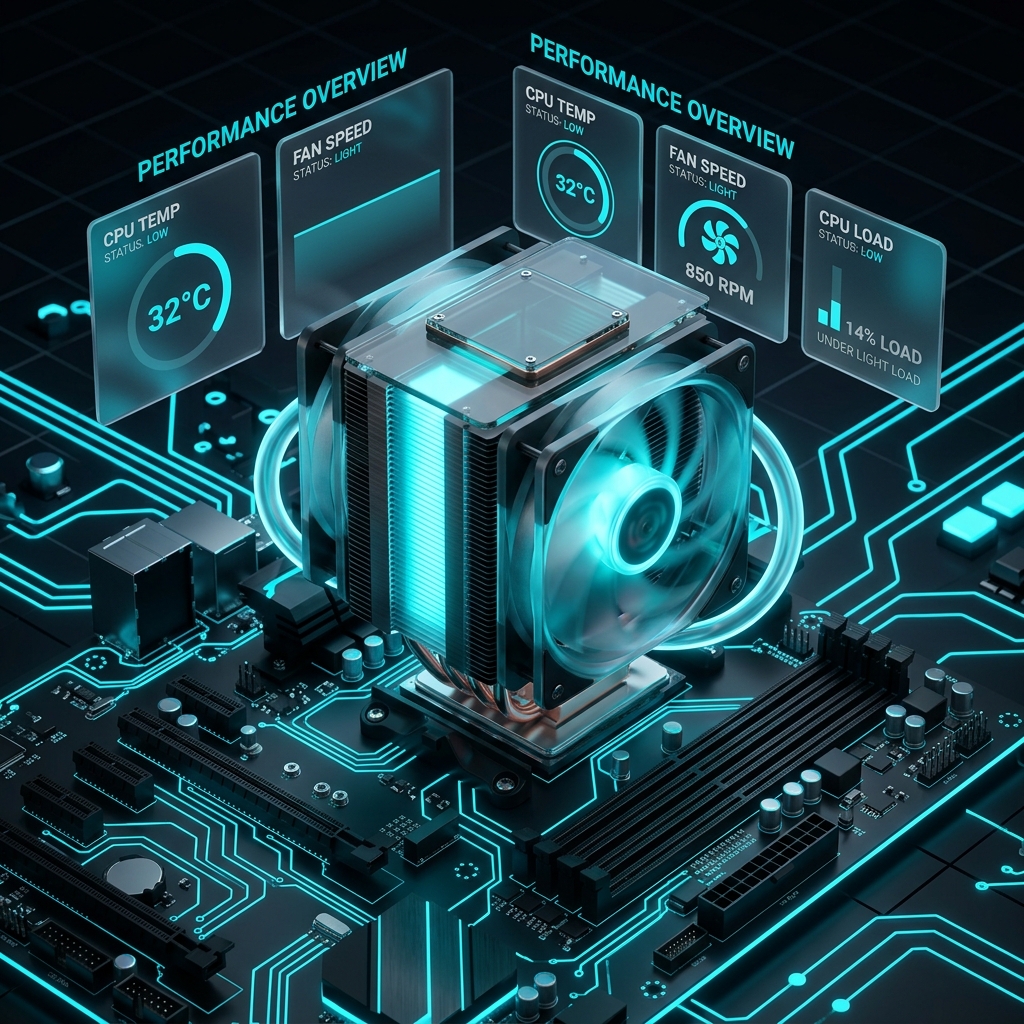
Where OBS's CPU actually goes
Roughly in order, for a typical setup:
- Video encoding (dominant, if you are on x264)
- Browser sources (each one is a full Chromium instance)
- Webcam decoding (badly configured, this is shockingly expensive)
- The preview (yes, really)
- Audio filters (small, but not nothing)
- Scene compositing, capture, and everything else (usually minor)
Notice that only the first one is the thing everyone talks about. Items 2 through 5 are where the surprises live, and on a machine that is already using a hardware encoder, they are the entire problem.
Fix 1: The encoder, briefly
If your Video Encoder is set to x264, your CPU is doing the video compression in software, and that is most likely 60 to 80 percent of the CPU load you are staring at.
Move it to your GPU's dedicated encoder chip: Settings, Output, Advanced mode, then Video Encoder to NVIDIA NVENC H.264, AMD HW H.264, QuickSync, or Apple VT H.264 Hardware. On a typical machine this alone takes OBS from tens of percent of CPU down to single digits, because encoding moves to a piece of silicon nothing else in your system uses.
That is the summary. The full version, with the preset ladder and the rate-control settings that matter, is in OBS encoding overloaded. Do that one first if x264 is your encoder, then come back here for everything else.
Everything below assumes you have already moved to a hardware encoder and OBS is still eating your machine.
Fix 2: Disable the preview
The least known fix on this list, and one of the most effective.
The preview panel is a live, continuously rendered composite of your entire scene, running at your full canvas resolution and frame rate. While you are recording a full-screen game, you are not looking at it. You are looking at the game. OBS is rendering that whole canvas a second time for a window you cannot even see.
Right-click anywhere in the preview area, then choose Disable Preview.
The scene keeps compositing, recording and streaming continue exactly as normal, and OBS stops drawing a picture for nobody. On a heavy scene at a high canvas resolution, this is a real and immediately measurable saving. Turn it back on the same way when you need to reposition something.
If you would rather keep it, right-click the preview and reduce the Scale setting instead. A preview rendered at a quarter size costs roughly a quarter as much.
Fix 3: Take your browser sources seriously
Every browser source is a full Chromium browser instance running inside OBS. A chat widget, an alert box, a follower goal and a now-playing overlay is four browsers, running permanently, on top of the browser you already have open.
Three things to do, in order of payoff:
Stop hidden ones from running. Double-click each browser source and tick Shutdown source when not visible and Refresh browser when scene becomes active. Without these, a browser source in a scene you switched away from keeps running and keeps costing you CPU. Most people have several of these burning cycles for scenes they are not in.
Size them correctly. A browser source has a Width and Height, and it renders at that size regardless of how small you have scaled it on the canvas. If your chat box is a narrow strip in the corner but the source is set to 1920x1080, you are rendering a full HD page to display a sliver. Set the source dimensions to roughly the size it appears at.
Turn on browser hardware acceleration. Settings, Advanced, Sources, tick Enable Browser Source Hardware Acceleration. This pushes browser rendering onto the GPU. It is usually on by default, but it is worth confirming, and it is worth turning off only if you are chasing a specific rendering glitch.
And the obvious one: delete the overlays you are not using. Half the scenes people have are archaeology.
Fix 4: Fix your webcam's pixel format
This one is invisible, expensive, and almost never mentioned.
Double-click your Video Capture Device and look at Video Format. If it says MJPEG, your CPU is decoding a compressed JPEG image for every single frame, thirty or sixty times a second, before OBS can even use it. On a 1080p60 webcam that is a genuinely heavy, entirely avoidable load.
Set Video Format to NV12 or YUY2 if your camera offers it. These are uncompressed and the CPU does essentially nothing with them.
The catch: many webcams only offer their highest resolutions and frame rates over MJPEG, because the USB bus cannot carry uncompressed 1080p60. So if NV12 forces you down to 720p30, take it. A 720p face cam in the corner of a screen recording is indistinguishable from a 1080p one, and you will get real CPU back.
While you are in there: set the webcam Resolution to 1280x720 and FPS to 30 unless you have a specific reason not to. Nobody has ever complained that a tutorial's webcam bubble was only 720p.
Enjoying this read?
Get weekly insights on video editing, AI workflows, and creator growth straight to your inbox.
Fix 5: Check your audio filters
Small compared to the above, but free.
Noise Suppression has two methods and they are not close in cost:
- RNNoise is a neural network. It sounds noticeably better and it is meaningfully more expensive.
- Speex is cheap and old and perfectly adequate for a decent microphone in a quiet room.
If you are running RNNoise on three separate audio sources, that is three neural networks running continuously. Run it on your microphone only. It is doing nothing useful on your desktop audio.
If you have NVIDIA Noise Removal available, use that instead: it is better than both and it runs on the GPU's tensor cores rather than your CPU.
Compressors, limiters, gain and gates are all cheap. Leave them alone.
Fix 6: Stop sources you are not using
A source in the current scene is being rendered. A source in another scene generally is not. But there are exceptions, and they are the ones that hurt:
- Browser sources keep running unless you tick Shutdown source when not visible (see Fix 3).
- Video Capture Devices stay initialised and keep pulling frames from the camera. Tick Deactivate when not showing in the source properties.
- Media Sources looping a video keep decoding. Tick Close file when inactive.
None of these is huge on its own. Together, on a scene collection that has accumulated over a year, they add up to a meaningful idle load.
What is actually normal?
Useful to know when to stop optimising. Rough figures for a modern six-to-eight-core desktop, recording 1080p at 60 fps:
| Setup | Typical OBS CPU |
|---|---|
| Hardware encoder (NVENC / QuickSync / Apple VT), simple scene | Roughly 3 to 10 percent |
| Hardware encoder, several browser sources and a webcam | Roughly 10 to 20 percent |
| x264 at veryfast | Roughly 20 to 40 percent |
| x264 at fast or medium | 50 percent and up, and climbing |
If you are on a hardware encoder with a clean scene and still seeing 40 percent, something on this page applies to you. If you are at 8 percent and still tuning, stop. You have won.
One thing that does not work
Raising Process Priority does not reduce CPU usage. It is in Settings, Advanced, and it is widely recommended as a lag fix, but understand what it does: it changes how the scheduler shares the CPU, so OBS gets served before other applications. That can help OBS hit its deadlines. It does not make OBS do less work, and if your complaint is that everything else on the machine is sluggish, raising OBS's priority makes that worse, not better.
Use it to fix stutter in OBS. Do not use it to free up your machine.
The machine you were trying to use
Everything on this page is you paying rent on a live-production tool. OBS composites a preview you cannot see, runs full browsers for overlays, decodes JPEG webcam frames, and hands you a priority slider that does the opposite of what you want, all because it was built to run a broadcast studio and it assumes you are one.
Cubix Capture captures your screen with your machine's native pipeline and its hardware encoder, without a scene graph, a preview composite or a browser engine in the middle. It stays out of your CPU because there is far less of it. And it produces something OBS never will: zooms that follow your cursor, cursor movement smoothed into a clean glide, and a tutorial that is finished the moment you stop recording.
Keep reading: OBS encoding overloaded · OBS dropping frames · OBS lagging, diagnose it first · record a 4K screen on a MacBook without lag
Don’t miss the next one.
Join our newsletter for exclusive tips, product updates, and the latest from the Cubix team.