
The recording format dropdown in OBS looks like a formality. It is the one setting in the whole application that decides whether a crash costs you thirty seconds or the entire session.
MP4 is what everything plays and every editor imports. MKV is what survives when your machine falls over mid-recording. Choosing between them feels like trading safety for convenience, and for a long time it was. It is not any more, because OBS can give you both.
Here is what the containers actually do differently, why the difference matters, and the configuration that removes the trade-off.
Why MP4 Breaks
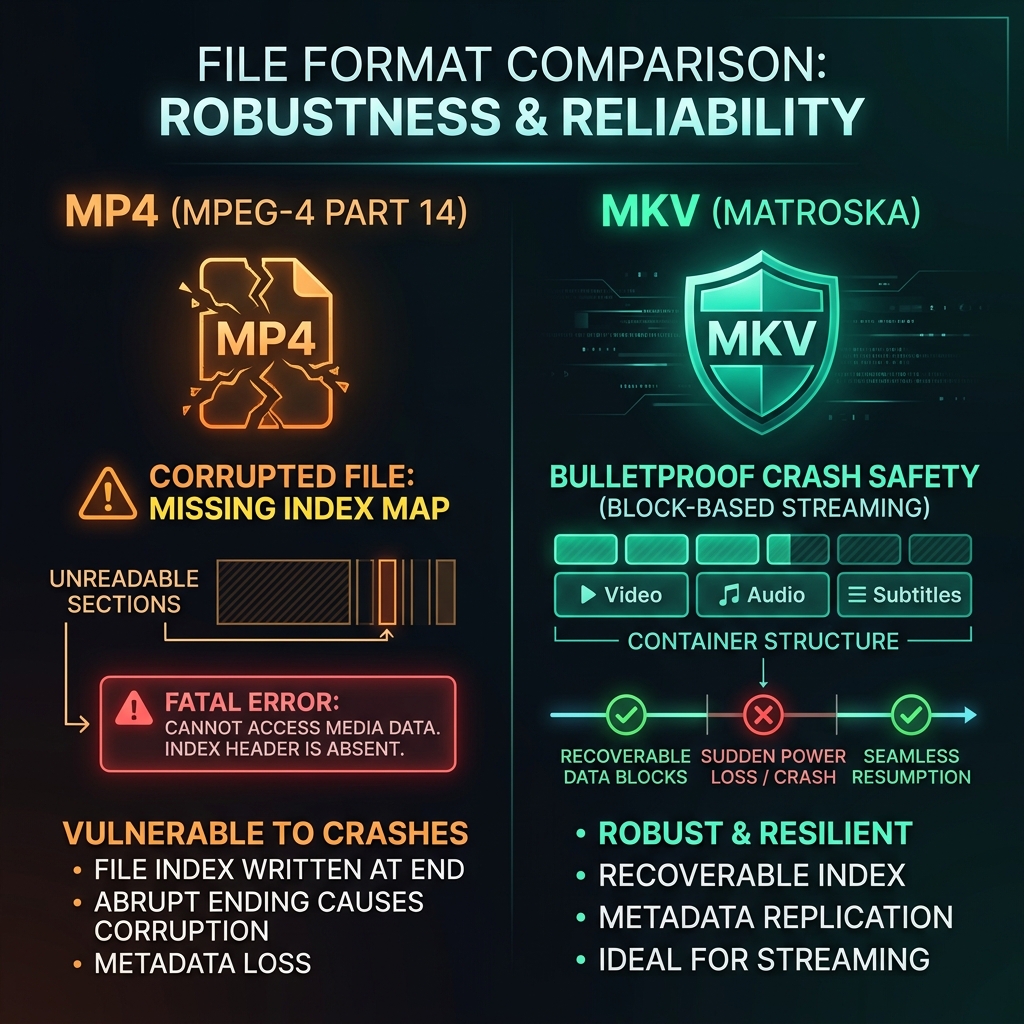
MP4 stores its index in a structure called the moov atom. The moov atom is the map: it records where every frame sits in the file, how audio aligns to video, and how long the recording runs. A player that cannot read it cannot play the file at all, no matter how much valid video data sits alongside it.
In a standard MP4, that index is written when the recording stops. Not continuously, not incrementally. At the end.
The consequence is unforgiving. If OBS crashes, the machine blue-screens, the power cuts, or you force-quit the process, the moov atom is never written. You are left with a file containing every frame you recorded and no way to read any of them. Double-clicking it produces "file is corrupt or unplayable" and the recovery path involves command-line tools and no guarantee of success.
This is not a rare edge case. It is the single most common way people lose screen recordings.
Why MKV Does Not
MKV (Matroska) was designed for continuous streams that might be cut off at any moment. It writes video and audio in self-contained clusters as it goes, with no trailing index required to make the file readable.
If your machine dies fifty minutes into an hour-long recording, the MKV holds fifty minutes of playable video. Open it in VLC and it plays. Nothing needs repairing.
The cost is compatibility. Some editors, notably several Adobe Premiere Pro builds, will not import MKV directly. DaVinci Resolve, Final Cut Pro and most modern tools handle it, but it is not the universal format MP4 is, and MKV is not what you want to hand a client or upload to some platforms.
The Third Option: Fragmented MP4
OBS also offers Fragmented MP4 (and Fragmented MOV), which is genuinely a middle ground rather than a compromise.
Fragmented MP4 breaks the file into segments, each carrying its own index, so an interrupted recording remains playable in the same way MKV does while keeping the .mp4 extension.
It is not the default recommendation, for two practical reasons. Some editors and older players handle fragmented MP4 badly or refuse it outright, and support is inconsistent enough that you have to test your specific tool rather than assume. It is a good choice if you are on macOS working in Final Cut Pro, where fragmented MOV imports cleanly, and a poor one if you cannot verify your pipeline accepts it.
The Configuration That Removes the Trade-Off
Record in MKV, and have OBS produce an MP4 automatically the moment you stop. This is called remuxing, and it is not a re-encode. It lifts the finished video and audio streams out of the MKV and rewraps them in an MP4 container with a freshly written moov atom.
Because nothing is decoded or recompressed, there is zero quality loss, and it takes seconds rather than the minutes a real encode would.
Step 1: Set the recording format to MKV
- Open Settings > Output.
- In Simple mode, use the Recording Format dropdown. In Advanced mode, open the Recording tab first.
- Set it to MKV (Matroska Video).
Step 2: Turn on automatic remuxing
- In the same Settings window, click Advanced in the left sidebar.
- Scroll to the Recording section.
- Tick Automatically remux to mp4.
- Click Apply, then OK.
From here on, every session writes a crash-proof MKV, and produces an editor-ready MP4 a few seconds after you stop. Both files stay in your recording folder, so remember to clear the MKVs periodically or your drive fills twice as fast as you expect.
If you ever need to remux manually, File > Remux Recordings does the same job on any existing file.
Enjoying this read?
Get weekly insights on video editing, AI workflows, and creator growth straight to your inbox.
The Multi-Track Audio Caveat
One difference that catches people editing with separate mic and desktop audio.
MKV holds multiple audio tracks cleanly and every editor that reads MKV sees them as separate. MP4 supports multiple tracks too, but editor and player handling is inconsistent, and some tools will only ever expose the first one.
If you record mic and system audio to separate tracks so you can mix them later, keep the MKV as your editing source and treat the remuxed MP4 as your delivery copy. If you record a single mixed track, this does not affect you.
Direct Comparison
| MP4 | MKV | MKV plus auto-remux | |
|---|---|---|---|
| Survives a crash | No, file is unreadable | Yes, playable to the last frame | Yes |
| Editor compatibility | Universal | Good, but not Premiere | Universal, via the MP4 |
| Quality loss | None | None | None, remux does not re-encode |
| Multi-track audio | Inconsistent | Clean | Clean in the MKV |
| Extra work after recording | None | Manual conversion | None, it is automatic |
| Disk used | One file | One file | Two files until you clean up |
The Short Answer
Record MKV. Enable automatic remux to MP4. Edit from whichever file your editor prefers, and delete the MKVs once a project ships.
The only reason to record straight to MP4 is a workflow that reads the file the instant recording stops and cannot wait a few seconds for the remux. That is rare, and it is not worth the risk of losing a session you cannot re-record.
A Recorder With No Container Decision to Make: Cubix Capture
The reason this choice exists is that OBS writes directly to a container of your choosing and leaves the consequences to you. That is the right design for a broadcast tool feeding a streaming pipeline. It is an odd thing to have to understand before recording a product demo.
Cubix Capture manages its own capture format and hands you a finished, editor-ready file at export, so there is no format dropdown, no remux setting, and no moov atom to lose. What it does with the recording afterwards is the more interesting part: it auto-zooms into whatever you click, so the file you export is already framed for the phone screens most of your viewers are on.
Keep Reading
- OBS Crashed and Recording Corrupted: Can You Recover It? if you recorded to MP4 and already lost one.
- OBS Can't Find Recording: Where Are OBS Files Saved? when the remuxed file is not where you expected.
- OBS Recording File Too Large: How to Reduce Size now that every session leaves two files behind.
- OBS Keeps Crashing: How to Fix It to address the crashes rather than just surviving them.
- OBS "An Error Occurred While Starting the Output": Fix if the container choice is stopping recording from starting at all.
- OBS "No Space Left on Device" Error: Fix on which container survives an interrupted write.
Don’t miss the next one.
Join our newsletter for exclusive tips, product updates, and the latest from the Cubix team.