
A corrupted OBS recording is rarely corrupted in the way people assume. The pixels are usually fine. What breaks is the paperwork: the small block of metadata that tells a media player how to read the pile of video packets sitting on your drive.
That distinction is the whole reason recovery is possible at all. It also explains why the same word, "corrupted", describes five different problems with five different outcomes. A file that opens but will not seek is a very different situation from one VLC refuses outright, and one of those is trivially fixable while the other needs real work.
This is the repair bench. We will identify which failure you actually have, then work through the tools that fix it.
Just crashed and not sure the file is even worth saving? Start with the five-minute triage in OBS Crashed Mid Recording: Is the File Recoverable? and come back here once you know you are facing a salvage job.
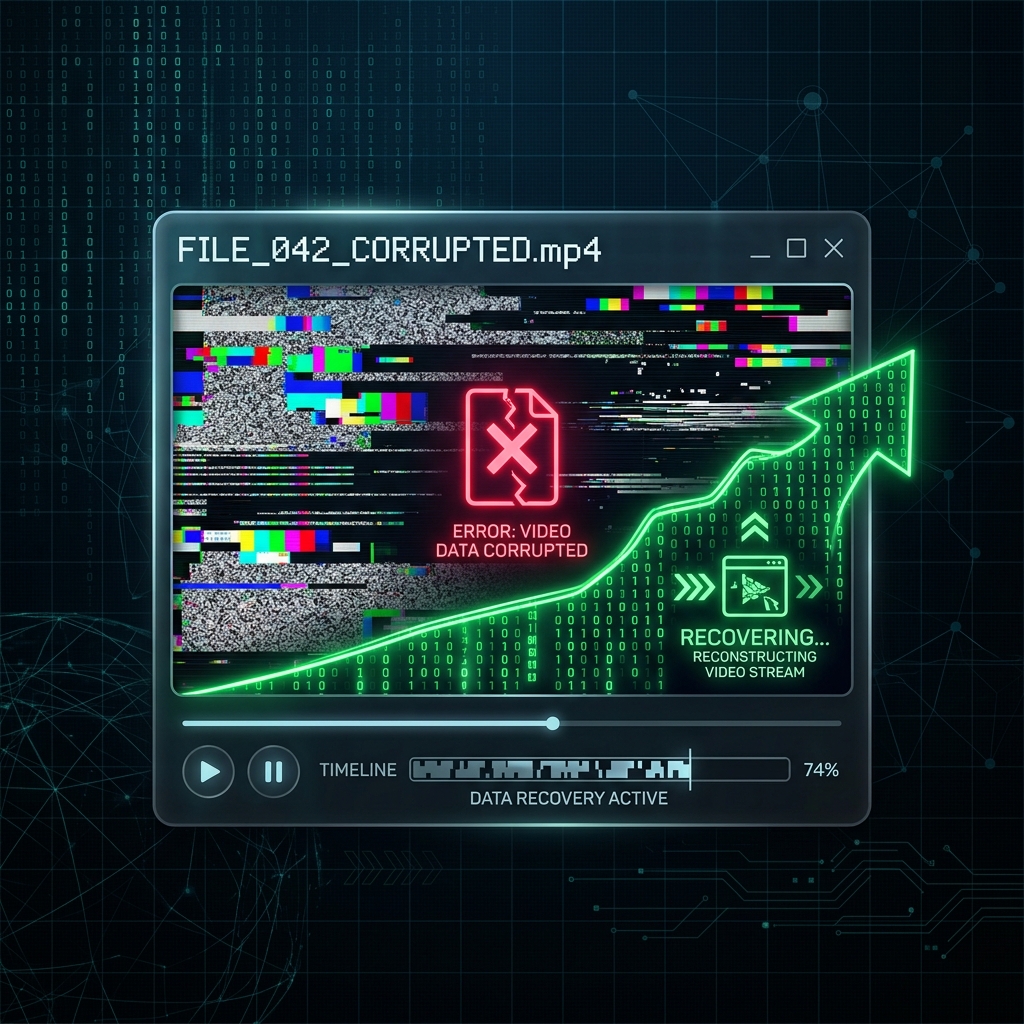
Step 1: Match Your Symptom to the Actual Fault
Find the row that matches what your file is doing. It tells you whether to keep reading or stop wasting your evening.
| What you are seeing | What is actually wrong | Realistic outcome |
|---|---|---|
| Won't open. VLC says "moov atom not found" | The index was never written | Rebuildable. Go to Step 3. |
| Opens, plays, but the seek bar is dead or duration reads 00:00 | Index is partial or malformed | Rebuildable. Go to Step 2, then 3. |
| Video plays, audio is missing entirely | Track mapping lost, or a track the player cannot parse | Usually fixable. Step 2. |
| Green blocks or smearing partway through, then recovers | Dropped frames at encode time | Not container damage. Those frames were never captured. Unrecoverable. |
| Green blocks or smearing that never recovers | Encoder died mid-stream | Everything before the corruption is salvageable. Nothing after it exists. |
| File is genuinely 0 bytes | Nothing was ever flushed to disk | Gone. No tool recovers this. Stop here. |
The two rows worth internalising are the green-artifact ones. Visual corruption is not the same as file corruption, and no repair tool on earth fixes it, because those frames never made it out of the encoder. If your footage shows blocky garbage, your problem was a GPU or encoder fault during the take, and the fix belongs to OBS Encoding Overloaded: What It Means and How to Fix It rather than to any recovery utility.
Step 2: Try ffmpeg First. It Costs You Thirty Seconds.
Before reaching for a rebuild, try a straight copy-remux. If any usable index survives, ffmpeg will lift the streams into a fresh container without re-encoding, and you are done.
Install ffmpeg, then run:
ffmpeg -i broken.mp4 -c copy repaired.mp4
If that fails with an "Invalid data found when processing input" error, try forcing ffmpeg to scan the file rather than trust its header:
ffmpeg -err_detect ignore_err -i broken.mp4 -c copy repaired.mp4
Be clear about what this can and cannot do. If ffmpeg reports moov atom not found, no combination of flags will help. There is no index for it to read, and ffmpeg does not invent one. That is precisely the job of the next step.
Worth knowing: if your source is MKV, TS or FLV rather than MP4, this almost always just works, and OBS's own File > Remux Recordings does the same thing with a friendlier interface.
Step 3: The Rebuild. Untrunc and a Reference File.
When the index is missing outright, the only route left is to reconstruct it by copying the structure of a healthy file. Untrunc reads a known-good recording, learns how your encoder lays out frames, and applies that pattern to your broken packets.
Everything depends on the reference file. This is where most failed recoveries go wrong, so get it right before you start.
Your reference must be a complete, playable OBS recording from the same machine with the same settings, matching on:
- Encoder (x264, NVENC and QuickSync produce structurally different streams, and mixing them fails)
- Resolution and frame rate
- Audio track count and sample rate
- Container format
A thirty-second test clip recorded right now on your current settings makes a perfect reference, provided you have not touched your settings since the broken take. If you have, the rebuild will fail or produce garbage.
Then:
- Get Untrunc. Download a compiled build from the project's GitHub releases and extract it locally. Command-line and GUI builds both exist; the GUI is fine for a one-off.
- Load the reference into the Reference/Working file field.
- Load a copy of the broken file into the Truncated/Broken file field. Never point it at your only copy.
- Run the repair. Untrunc mirrors the reference's structure onto your data and writes a new playable file beside the original. Expect several minutes on a large recording.
What a successful rebuild actually looks like: the video returns intact, and the last few seconds may drift out of audio sync or drop entirely. That is normal and it is not a failed repair. Cut the tail in any editor and move on.
If Untrunc produces nothing usable across two or three different reference files, the stream itself is damaged rather than merely unindexed, and it is time to stop. Hard power cuts and bluescreens land here far more often than a plain OBS quit does, because the drive never flushed its write cache.
Enjoying this read?
Get weekly insights on video editing, AI workflows, and creator growth straight to your inbox.
Step 4: Take the Failure Mode Off the Table
Everything above exists because MP4 writes its index last. Remove that single condition and the entire category of problem disappears.
In OBS, open Settings > Output > Recording, set Recording Format to MKV or hybrid MP4, then open Advanced and tick Automatically remux to mp4. You record into a container that survives anything and still get a clean MP4 handed to you on every normal stop.
The full walkthrough and the reasoning behind it live in OBS Crashed Mid Recording: Is the File Recoverable?.
Why This Skill Should Not Be Part of Your Job
Untrunc, reference files and moov atoms are genuinely interesting if you work in video engineering. They are an absurd tax if you were just recording a walkthrough of your own product on a Tuesday afternoon.
OBS asks you to understand container internals because it was designed for broadcasters, where a stream ending abruptly is a normal event with no file to protect. Cubix Capture starts from the opposite premise: the recording is the deliverable, so it is written to survive interruption from the first frame. Nothing to rebuild, no reference file to hunt for, no forum thread to read at midnight.
The best repair guide is the one you never need to open twice.
Keep Reading
- OBS Crashed Mid Recording: Is the File Recoverable? is the five-minute triage that comes before this page.
- OBS Keeps Crashing: How to Fix It removes the root cause.
- OBS Encoding Overloaded: What It Means and How to Fix It is the right guide for green blocks and smearing.
- OBS Best Settings for Screen Recording covers a recording profile that does not fight your hardware.
Don’t miss the next one.
Join our newsletter for exclusive tips, product updates, and the latest from the Cubix team.