
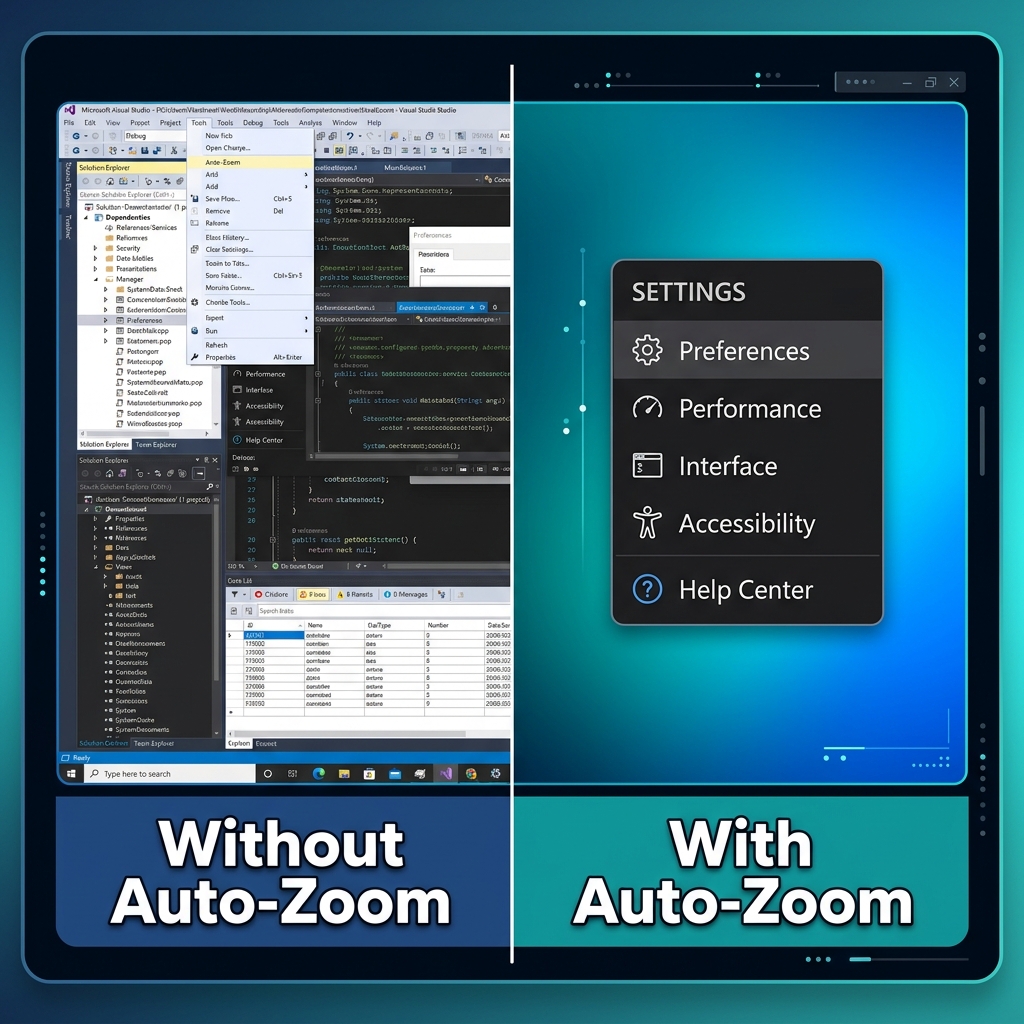
If you are recording software tutorials on a modern 4K monitor, you are likely creating a terrible viewing experience for your audience without even realizing it.
When your viewer watches your video on a mobile phone or a 13-inch laptop, your massive screen shrinks. The text becomes illegible, and the specific buttons you are clicking become invisible dots. If your audience has to squint to follow your tutorial, they will simply stop watching.
The solution to this is camera movement, specifically zooming in on the action. But if you have ever tried to manually keyframe zoom effects in a traditional video editor, you know it takes hours. To save time and keep viewers engaged, creators in 2026 are shifting to screen recorders that feature auto-zoom. These tools track your clicks and automatically magnify the screen in real-time.
Here is a breakdown of the top 5 auto-zoom screen recorders on the market, compared so you can find the exact right fit for your workflow.
The Auto-Zoom Comparison at a Glance
| Screen Recorder | Platform | Best For | Production Style |
|---|---|---|---|
| Cubix Capture | Windows & Mac | Premium tutorials instantly | Fully Automated |
| Screen Studio | Mac Only | High-end macOS demos | Fully Automated |
| FocuSee | Windows & Mac | Quick interactive demos | Automated |
| Camtasia | Windows & Mac | Corporate training | Traditional / Smart Focus |
| Detail | Mac & iOS | Camera-first creators | Automated |
1. Cubix Capture (The Best All-Rounder)
For teams and creators who want studio-quality videos without spending any time editing, Cubix Capture is the top choice, especially for Windows users who have been left out of the auto-zoom trend.
Cubix Capture treats every recording session as if a video editor were sitting next to you, making decisions in real time. The framing tightens on the part of your software you are actively using, the cursor inside that frame is interpreted into a deliberate path, and the result is a take that does not require a second editing project to look finished.
- Key Features: It pairs auto-zoom with automatic cursor smoothing (removing jerky mouse movements) and places your software over beautiful live gradient backgrounds.
- The Verdict: It is the ultimate "no-edit" solution. You hit stop, and you immediately have a world-class, engaging tutorial ready to publish.
2. Screen Studio (The Mac-Only Standard)
Screen Studio is the app that popularized the cinematic, auto-zooming tutorial format. It is a beautifully designed, highly intuitive application that makes macOS recordings look incredibly premium.
Like Cubix Capture, Screen Studio handles the cinematic basics—click-following zoom targets, cursor smoothing on raw input, and a staged composition behind the recording window. Where it differs is the post-recording surface: Screen Studio gives you a dedicated editor to nudge the zoom targets manually if the automated detection misses an interaction you wanted spotlighted.
- Key Features: Deep macOS integration, beautiful default animations, and easy post-recording adjustments.
- The Verdict: If you are strictly in the Apple ecosystem and want a gorgeous, polished look, Screen Studio is phenomenal. However, its strict Mac-only limitation leaves Windows users completely locked out.
Enjoying this read?
Get weekly insights on video editing, AI workflows, and creator growth straight to your inbox.
3. FocuSee (The Interactive Alternative)
Built by the team at Gemoo, FocuSee is another strong contender that works on both Windows and Mac. It uses auto-zoom technology to track your mouse and highlight your clicks automatically.
FocuSee sets itself apart by leaning into interactive elements. You can add interactive quizzes or buttons directly onto the video, making it a unique tool for sales teams or educators who want to capture leads directly from their tutorials.
- Key Features: Cross-platform availability, customizable zoom styles, and interactive call-to-action buttons.
- The Verdict: A solid, affordable choice if you need basic auto-zoom and want to add interactive marketing elements to your screen recordings.
4. Camtasia (The Heavy-Duty Editor)
Camtasia by TechSmith has been the giant of the corporate screen recording world for over a decade. While it is primarily a heavy, traditional video editing suite, it includes a proprietary feature called "Smart Focus."
When you record your screen using Camtasia, Smart Focus uses an algorithm to guess where the viewer should be looking and automatically drops zoom keyframes onto your editing timeline.
- Key Features: Massive asset library, quizzes, and deep traditional timeline editing.
- The Verdict: Camtasia's Smart Focus is rarely perfect on the first try, meaning you will still spend significant time manually adjusting keyframes on the timeline. It is best for dedicated training departments, but far too slow for creators who need quick, daily updates.
5. Detail (The Camera-First Option)
Detail approaches auto-zoom a bit differently. While it does capture your screen, it is heavily focused on the presenter. It is designed for creators who want their face front-and-center alongside their software.
Detail uses AI to automatically reframe and track your face through your webcam, while also offering smart layouts that dynamically shift between you and your screen content. It creates highly engaging, podcast-style video layouts automatically.
- Key Features: Incredible webcam tracking, dynamic layouts, and built for vertical (TikTok/Reels) and horizontal video.
- The Verdict: If your tutorials are 80% you talking and 20% screen sharing, Detail is amazing. If you need tight, technical zooms on complex software logic, you will want a more screen-focused tool.
The Bottom Line: Your time is your most valuable asset. If you are manually zooming in on your videos, you are wasting hours of it. Choose a tool that does the heavy lifting for you so you can focus on sharing your expertise.
Related reading:
- How to Add Auto-Zoom to Screen Recordings (No Editing)
- How to Record a Software Tutorial in Under 10 Minutes
- How to Create Cinematic Screen Recordings Without a Video Editor
Don’t miss the next one.
Join our newsletter for exclusive tips, product updates, and the latest from the Cubix team.