
Event recap video editor. Make the moments connect.
Bring the event clips you have already chosen and a music track you can use. Beat Edits times them to the music on an editable timeline, so you can shape the opening, the key moments and the ending, then review timing and framing before you export.
You bring: event clips you have already selected, and a music track. You get: a recap on an editable timeline to review and refine. It does not find highlights in a full recording for you.
- 1 · Opening
- 2 · People & activity
- 3 · Key moment
- 4 · Closing
Place first · quick arrivals · time for the action · room to end
A six-shot recap plan
A plan for a fictional Saturday clay workshop. Each shot has a job in the story of the day, and the job decides how long it stays on screen.
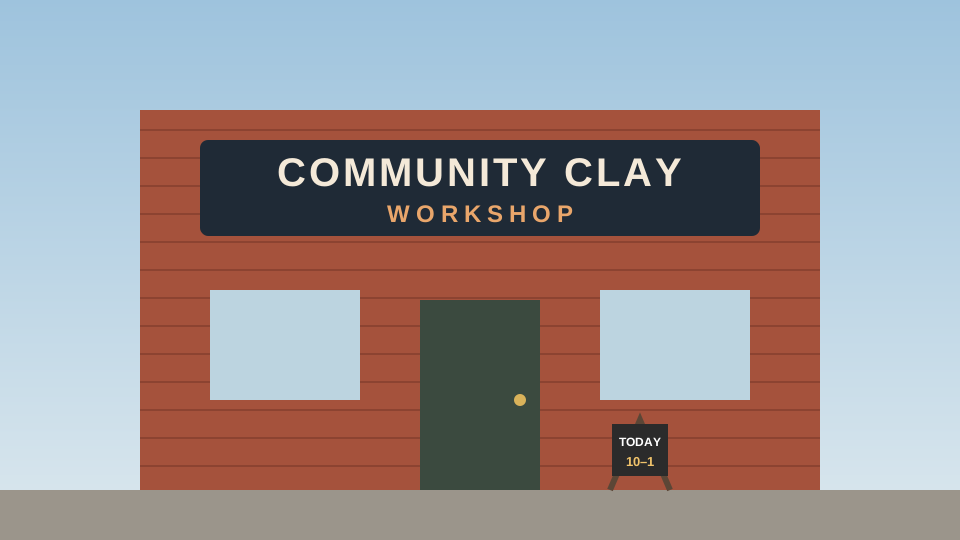
1 · Opening
The venue and its sign
Start with where it happened. Hold long enough for the sign to be read before the quicker cuts begin.
Establish the place · 4 beats
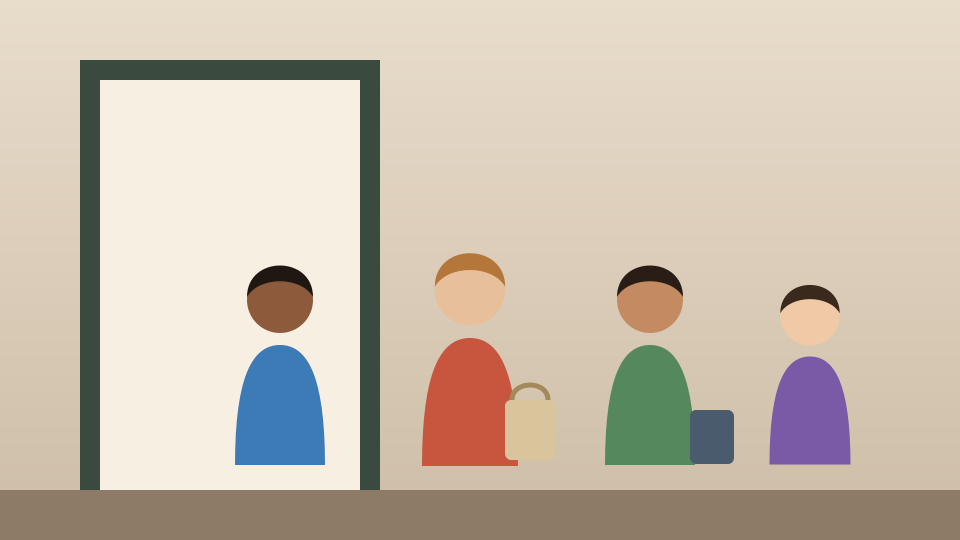
2 · Arrivals
People coming in
Shows that people came. A short shot is enough once the place is established.
Quick · 2 beats
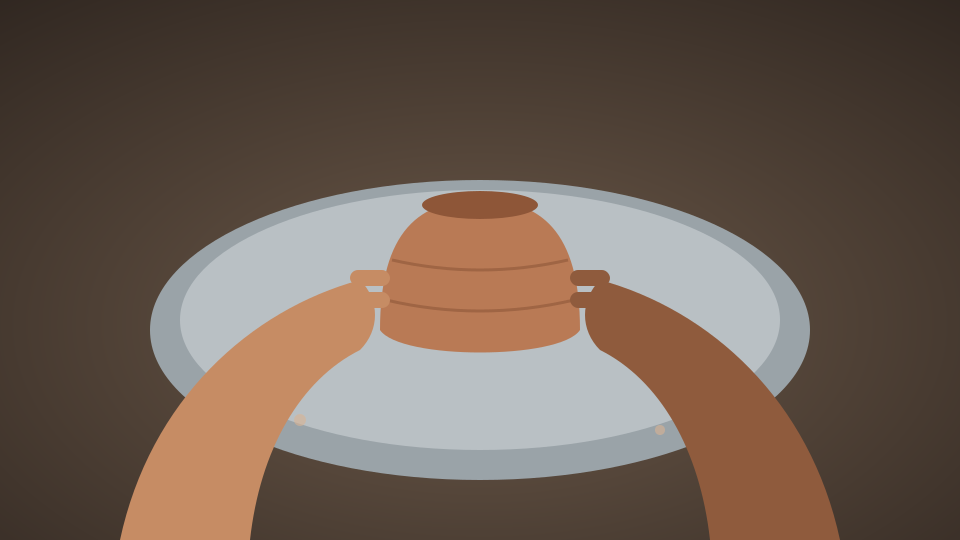
3 · Hands-on activity
Shaping a pot on the wheel
The point of the event. Keep the movement long enough to understand what is being made.
Let the action finish · 4 beats
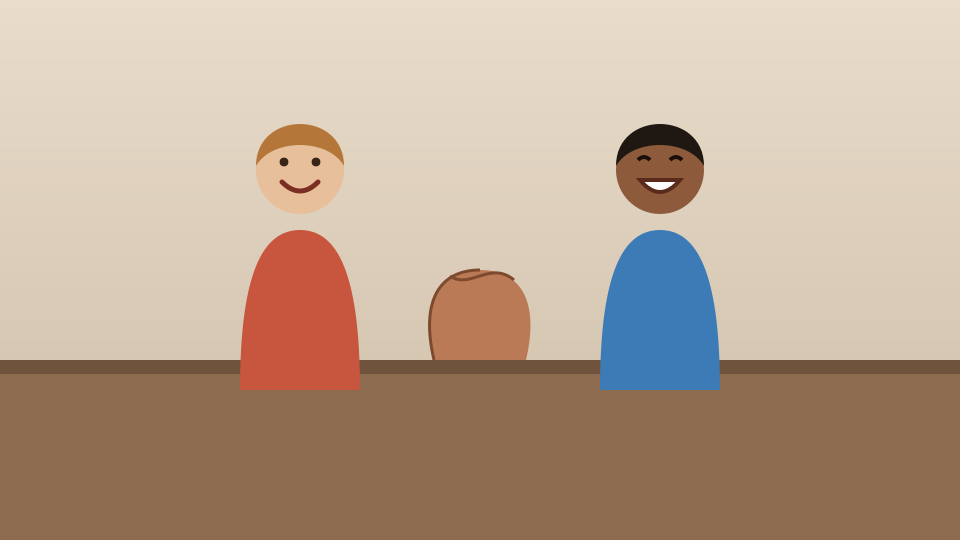
4 · Shared reaction
A laugh across the table
People reacting to each other. Faces need time to register, so this is not the place for the fastest cuts.
Time for faces · 4 beats
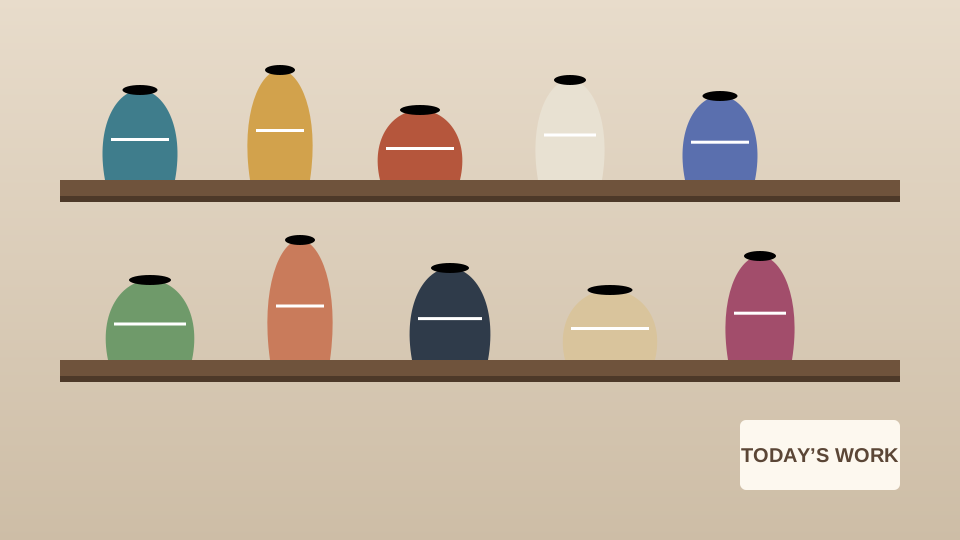
5 · Key moment
The finished work
What the day produced. Place it where the music lifts.
Show the result · 4 beats
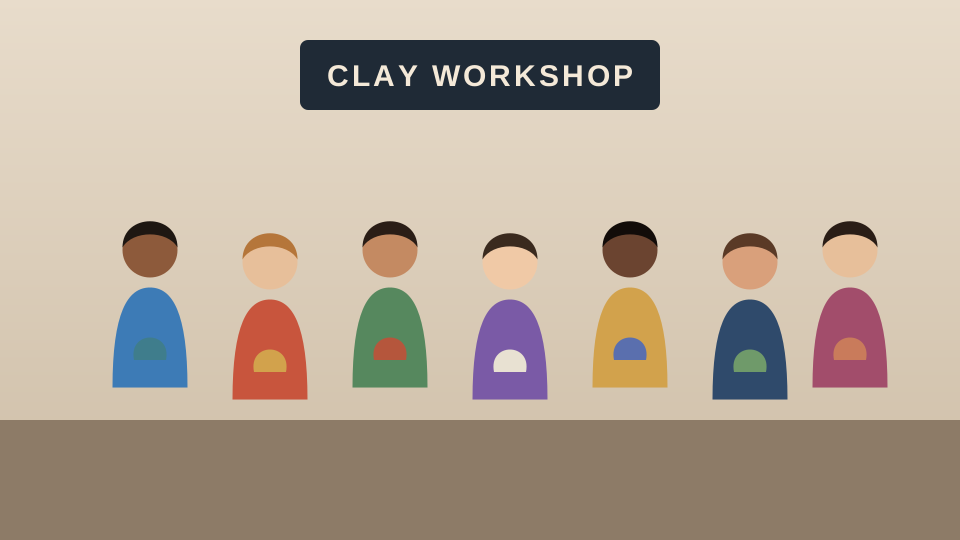
6 · Closing
Everyone together
A wide group shot closes the story. Give it the longest hold so it ends with the music, not before it.
Room to end · 6 beats
The same plan as one 24-beat phrase
Beat counts are a planning example. They show relative length, not the exact order or duration Beat Edits will produce.
A cut between two shots
Illustration · a fictional event drawn for this page, arranged as a recap plan. Not footage, a Cubix-produced recap or a customer result.
Faces, signs and speech
An event recap is about real people and a real place. Check these before anyone else sees it.
- Faces and signs are in focus and on screen long enough to read.
- Every action that starts also finishes on screen.
- The opening establishes the event; the ending feels intentional.
- The order does not suggest something happened before it did.
- You know what happened to sound recorded on each clip.
- Each shot is framed for the shape you will export.
A recap shows what happened. It does not, on its own, make a post perform better, so judge it by whether people who were there would recognise their day.
Speech is not protected by a music-led cut
A montage built around music may change, lower or replace the sound recorded on your clips. Do not rely on it to keep a speech, a toast or a quote intact.
- If a spoken line matters, keep the complete sentence and check its audio before you publish.
- A talk, a panel or a full session suits a session-editing workflow better than a music recap.
How to build an event recap and review it
- 1
Add the clips you chose
Add the opening, people, activity, key moment and closing shots in the order you plan. Event photos can join them.
- 2
Choose the music
Upload a track you are allowed to publish, or choose one from the built-in library. Listen for a lift for the key moment and a clear ending.
- 3
Create the recap
Run Beat Edits. Cut on the hits is on by default; turn it off for a steady BPM grid. Style, Energy and Length change the result.
- 4
Review and refine
Play it with sound. Compare the order with your plan, check faces, signs and complete actions, then adjust cuts and framing on the timeline before export.
Your plan is the clips you chose and the order you add them in. The recap is what Beat Edits returns. Check the order, and keep the day’s chronology honest where it matters.
Every control in detail: Beat Edits · the beat editing guide
Event recap FAQs
How do I make an event highlight video from selected clips?
Choose an opening shot, people arriving, the main activity, a key moment and a closing shot. Add those clips and a music track to Cubix Beat Edits, create the music-timed sequence, then review the order, complete actions, faces, signs and ending. Select the clips first; this workflow does not search a full event recording for highlights.
What happens to speeches or spoken moments?
A music-led montage is built around the track, so clip audio may be changed or replaced by the music. If a spoken line matters, keep the complete sentence and check its audio before you publish. A full session or a talk belongs in a session-editing workflow instead.
How do I keep faces and signs recognisable?
Choose clips where faces and signs are in focus and large enough, then check each one in the frame you will export. Give a sign or a name long enough on screen to be read, and check crops in a vertical frame, where the edges are lost first.
Can I change the orientation or the timing after the first pass?
Choose the frame for where the recap will be watched, then check every shot in it. For timing, switch between Cut on the hits and a steady BPM grid, change Style, Energy or Length, or adjust individual cuts on the timeline. Revert returns to the state before the Beat Edits pass.
What access do I need to make and export an event recap?
You can explore the Cubix editor before choosing a plan. Current plans, trial availability, export options and billing are listed on the pricing page.
Make your event moments connect.
Bring your selected clips and music. Build your recap in Beat Edits, then review the moments and the ending.
Make my event recap