
A portrait photo in a landscape video

Filling a landscape frame keeps a band across the middle of the photo. Here that band holds the face but loses most of the hat and the shoulders.
Keep the face inside the frame, or fit the whole photo instead.
Turn your selected photos into a video montage or slideshow with music. Cubix Beat Edits times image changes to the track on an editable timeline. Refine how long each photo stays on screen, check crops and movement, and give the final image a clear ending.
Start with at least two photos and a music track. Mix portrait and landscape images, or add video clips when they belong in the sequence.

1 · 4 beats
2 · 4 beats

3 · 2 beats
4 · 4 beats

5 · 6 beats
6 · 4 beats
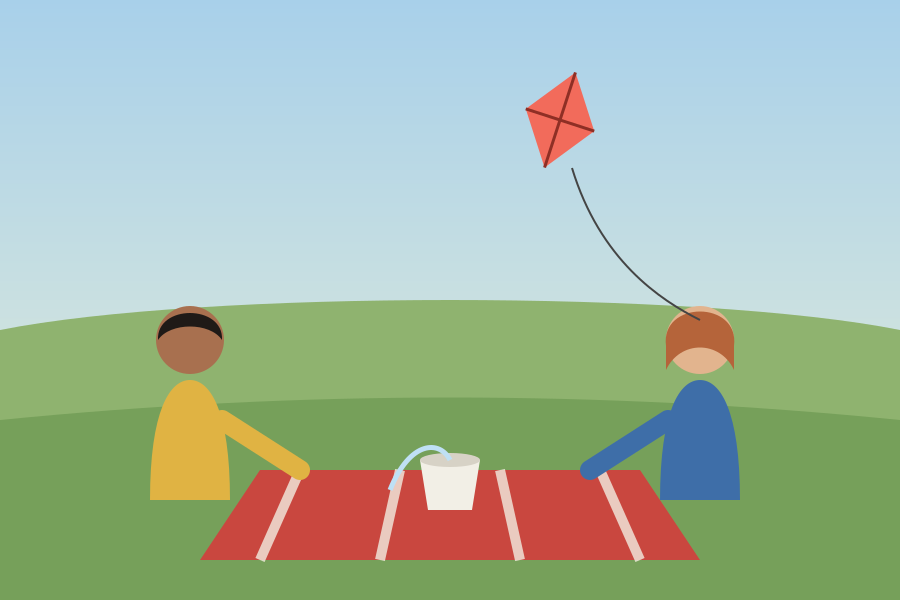
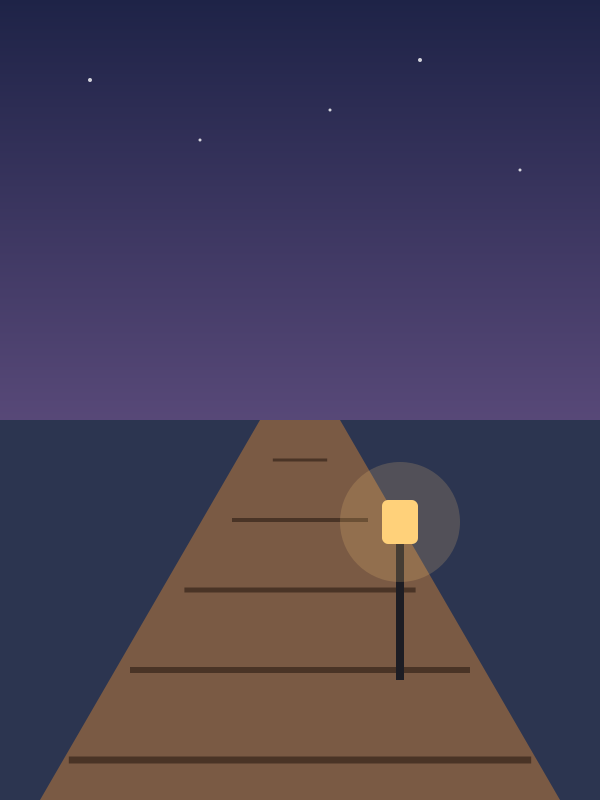
An illustrated photo diary of one afternoon at a lake. Two of the six are portrait shots. The beat groups show how long each image might hold relative to the others; they are a plan, not a setting in the editor.
1 · Establishing sceneSteady hold · 4 beats
Sets the place. A wide image needs a moment for the eye to travel across it.
Landscape still
2 · PortraitTime to register · 4 beats
A face is what viewers look for first. Give it long enough to be recognised before the next image replaces it.
Portrait still
3 · Texture or detailQuick · 2 beats
A simple detail reads at once, so it can be the short beat that changes the pace.
Landscape still
4 · Shared activitySteady hold · 4 beats
Two people and what they are doing. Hold long enough for both to be seen, and check that a crop does not drop one of them.
Landscape still
5 · Standout imageLongest hold · 6 beats
The picture people remember. Place it where the music opens up and let it stay.
Landscape still
6 · Closing frameFinal hold · 4 beats
A quiet ending. Hold it into the end of the track so the last image and the music finish together.
Portrait still
Beat groups are relative, to compare one photo with another. A cut can land on a beat without the photo changing on every beat.
A cut between two shots
Illustration · six author-drawn stills and an illustrative timing plan. Not a Cubix-produced montage or a customer result.
A video has one frame shape; your photos may not match it. Filling the frame crops the photo. Fitting it keeps the whole image with space around it. Either way, check what each photo keeps.
Filling a landscape frame keeps a band across the middle of the photo. Here that band holds the face but loses most of the hat and the shoulders.
Keep the face inside the frame, or fit the whole photo instead.
Filling a vertical frame from the centre of this photo keeps the blanket and the cup, and loses both people.
Fit this photo, or choose a different one for a vertical montage.
The Beat Edits guide documents a Motion option that adds slow zoom movement to photos. Movement can bring a still to life, and it can also push a face or a subject out of the frame. Watch every photo that moves.
Illustration · crop boxes drawn over author-made stills. Cubix is not shown choosing these crops, and no automatic subject-safe crop is claimed.
Choose the stills you want, in the order you plan them to play. Beat Edits needs at least two shots; video clips can join them.
Upload a track you are allowed to publish, or choose one from the built-in library. Listen for where the music settles and where it ends.
Run Beat Edits. Cut on the hits is on by default; turn it off for a steady BPM grid. Style, Energy, Motion and Length change the result.
Play it through. Check each photo’s hold, its crop in the video frame and any movement, compare the order with your plan, then refine on the timeline.
Your plan is the photos and the order you add them in. The montage is what Beat Edits returns. Compare the two, rather than assuming every photo kept its place or its length.
Every control in detail: Beat Edits · the beat editing guide
Play the montage through with sound and check each of these before you export.
A cut can land on a beat without replacing the photo on every beat. Hold the images that need time and let the quick ones carry the rhythm.
Yes, but a single video frame has one shape. A photo with a different orientation either fills the frame and loses part of the image, or sits inside it with space around it. Decide the frame first, then check that every face, horizon and line of text is still inside it.
A photo montage is a video sequence of still images timed to music, often called a photo slideshow with music. A collage arranges several photos in one still image. In Cubix, the montage stays on an editable timeline so you can review each image’s timing and framing.
It depends on the image. A simple detail can pass quickly; a portrait, a busy image, an image with text or the final photo needs enough time to be read. A cut can land on a beat without changing the photo on every beat, so compare a few holds with the music before you settle.
Yes. Beat Edits accepts photos and video clips together; add at least two shots and a music track. Check that a clip’s motion and any sound recorded on it suit the stills around it.
You can open Cubix and explore the editor before choosing a plan. Plans, trial availability, export options and billing details are listed on the pricing page.
Add your selected photos and a track. Build your montage in Beat Edits, then refine the timing and framing.
Make my photo montage