Real estate montage maker

Make a property montage that keeps the rooms connected

Bring the exterior, room and detail shots you chose for one property, and a track you may use. Cubix Beat Edits times them into a montage on an editable timeline. You set the route, check that every room reads and the details are accurate, then add your contact frame.

What the montage shows about the property, and its accuracy, stay your decision.

One route through one house6 shots · 1 track
  1. 1

    Exterior approach

  2. 2

    Entrance

  3. 3

    Main living space

  4. 4

    Connected kitchen

  5. 5

    Distinguishing feature

  6. 6

    Closing and contact

Shots 2 and 4 connect the rooms. Without them, the viewer jumps from outside into a room they cannot place.

Illustration · one fictional house with illustrative beat counts. Not a listing, a real address or a Cubix-produced montage.

One house, one route

A plan for one fictional house: outside, in through the door, room to connected room, and back out to a contact frame. Each shot leads the viewer into the next.

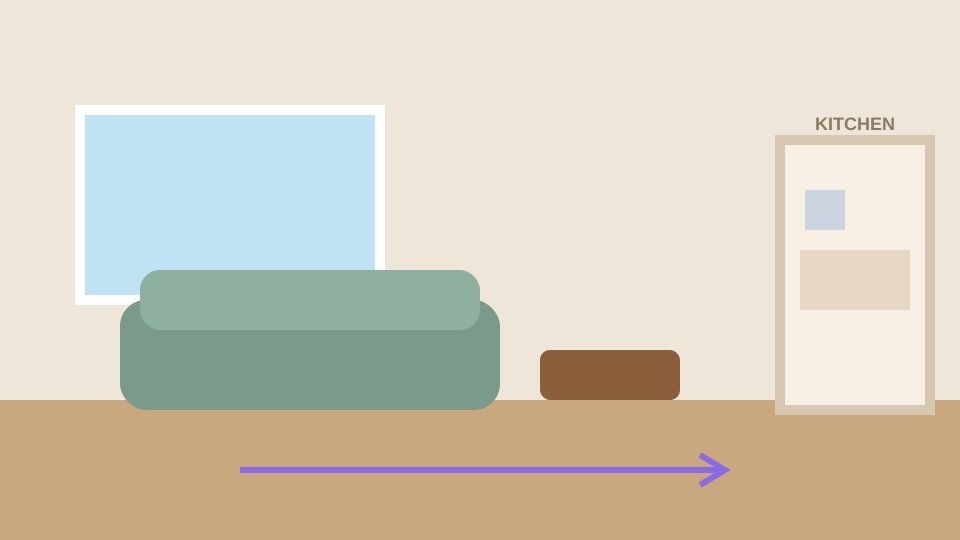
  1. Illustration of a two-storey house with a blue front door, a path leading up to it and trees either side1

    Exterior approachEstablish · 4 beats

    The front of the house from the path

    Tells the viewer which property this is before they go inside.

    Keep visible:
    The whole front, the door and the path, with the roofline level.
    Hold longer when:
    When it is your only exterior shot.

    Up the path to the front door

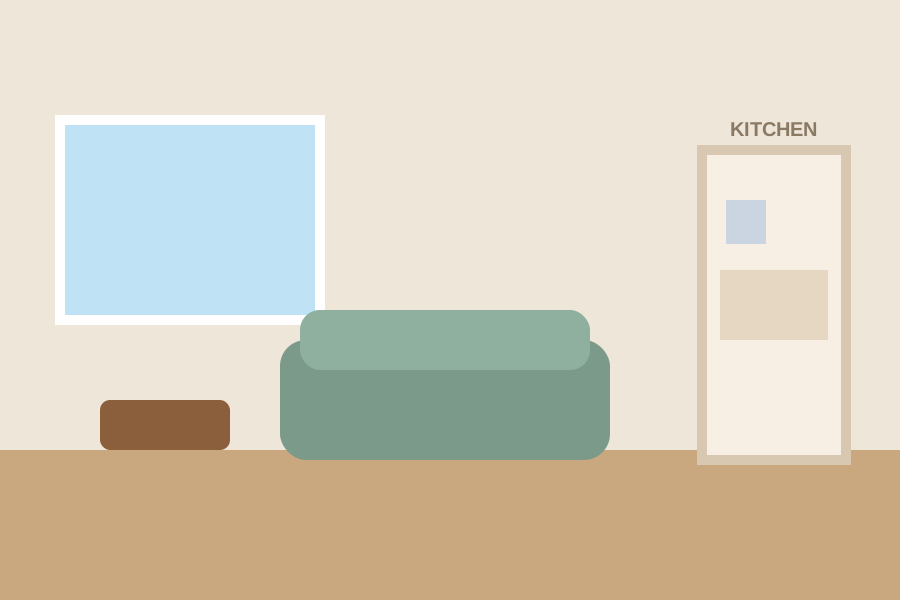
  2. Illustration of an open blue front door with a hall leading to a bright living room2

    EntranceConnect · 3 beats

    The open door, the hall and the room ahead

    The bridge between outside and inside. It shows the viewer they have stepped into this house.

    Keep visible:
    The doorway and what lies beyond it.
    Hold longer when:
    Rarely. It is a passage, not a destination.

    Through the hall into the living room

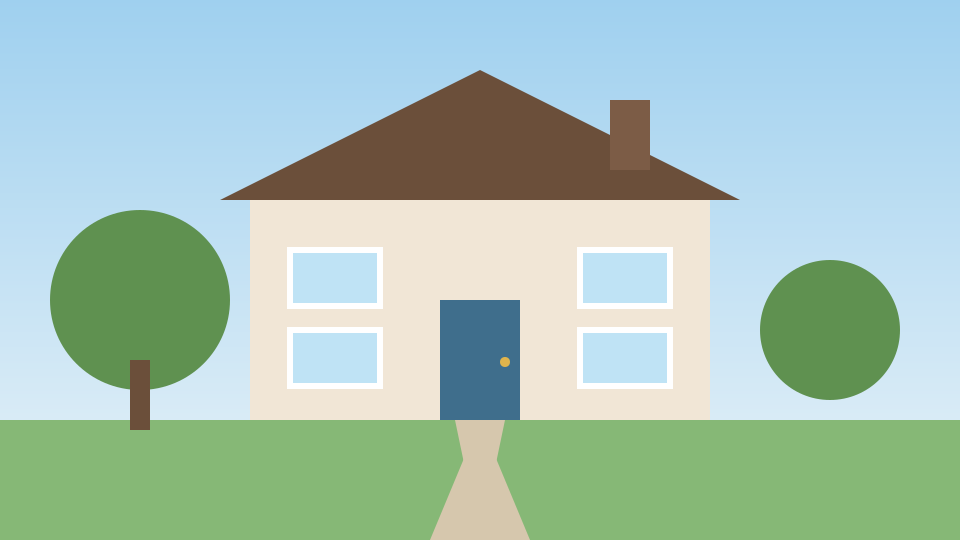
  3. Illustration of a living room with a large window, a green sofa and a doorway labelled kitchen on the right3

    Main living spaceHold it · 5 beats

    The living room, wide, with the kitchen doorway

    The first room needs a wide view long enough to understand its size and light.

    Keep visible:
    The window, the seating and the doorway to the kitchen at the right edge.
    Hold longer when:
    Always. A wide room read too quickly is a blur of furniture.

    Through that doorway into the kitchen

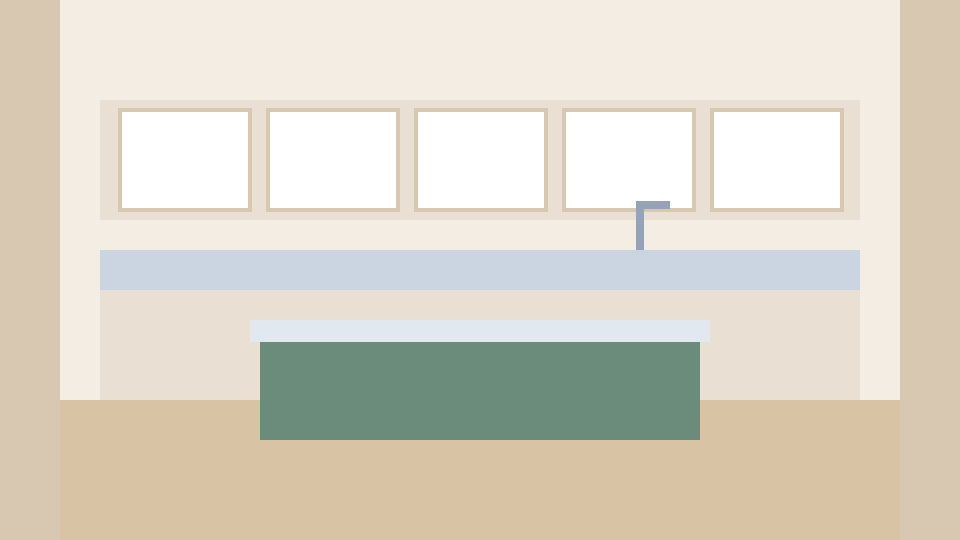
  4. Illustration of a kitchen with wall cabinets, a long counter and a green island, framed by doorway edges4

    Connected kitchenConnect, then detail · 4 beats

    The kitchen and island, seen from the doorway

    Seen from the doorway, it reads as the room next door, not a room in a different house.

    Keep visible:
    The island, and the edge of the doorway that shows where you came from.
    Hold longer when:
    When the kitchen is a selling point.

    Across the kitchen to the garden doors

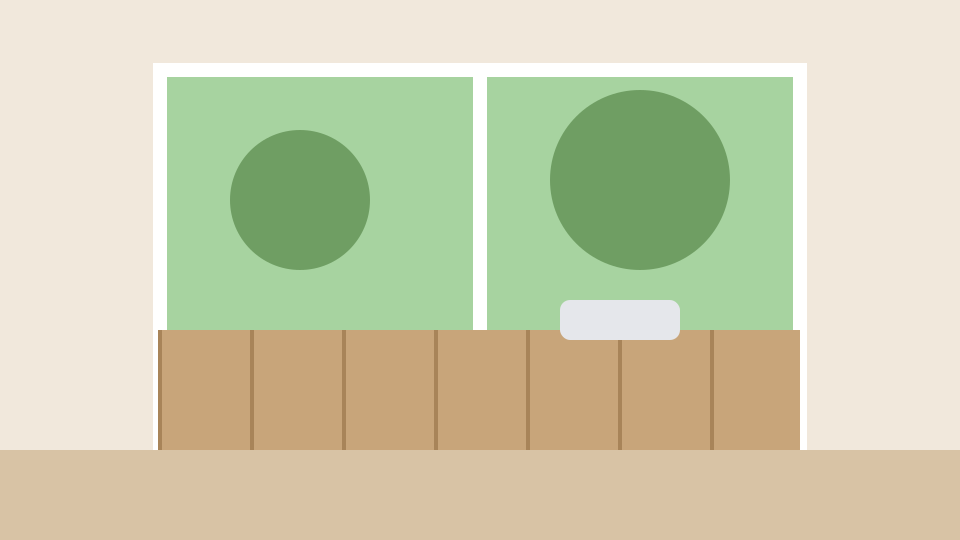
  5. Illustration of tall glass doors opening onto a wooden deck and a green garden5

    Distinguishing featureFeature · 4 beats

    Glass doors onto the garden deck

    What this house has that others may not. It gets a clear, unhurried shot.

    Keep visible:
    Both doors and the deck beyond them.
    Hold longer when:
    When the feature is the reason someone will book a viewing.

    Back outside for the closing frame

  6. Illustration of the house at dusk with lit windows and a text bar reading Example Agent, 555-0100, sample listing, fictional6

    Closing and contactRoom to read · 4 beats

    The house at dusk with the contact frame

    Ends where the route began, with time to read who to contact.

    Keep visible:
    The house and the contact text, inside the frame you export.
    Hold longer when:
    Until the contact text can be read twice. A contact frame that flashes past is wasted.

The same plan as one 24-beat phrase

Beat counts are a planning example. They show relative length, not the exact order or duration Beat Edits will produce.

A cut between two shots

Illustration · one fictional house drawn for this page and arranged as a plan. Not a listing, a real property or a Cubix-produced montage.

Keep what explains the space

Two shots from the same fictional house were left out. Each looked useful on its own and confused the route.

Left out

A second pan of the living room
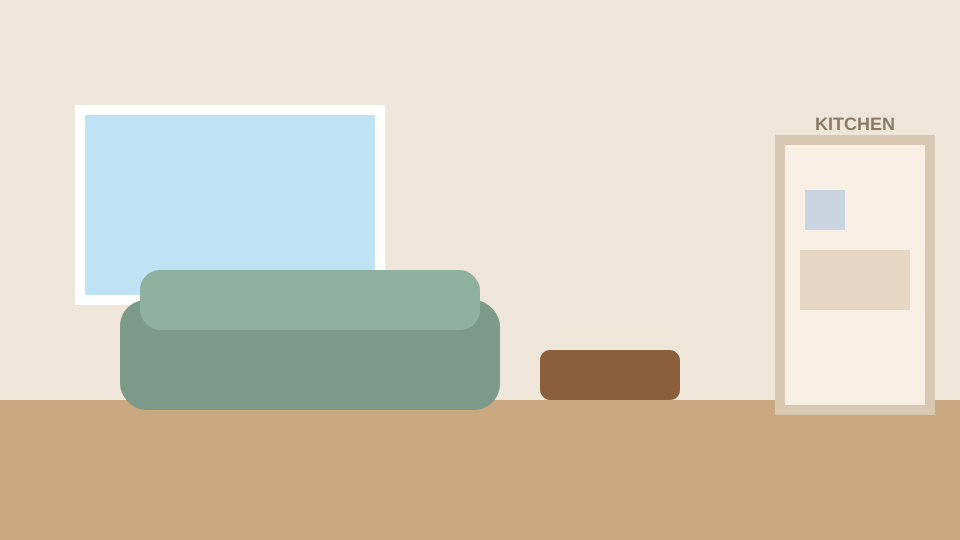
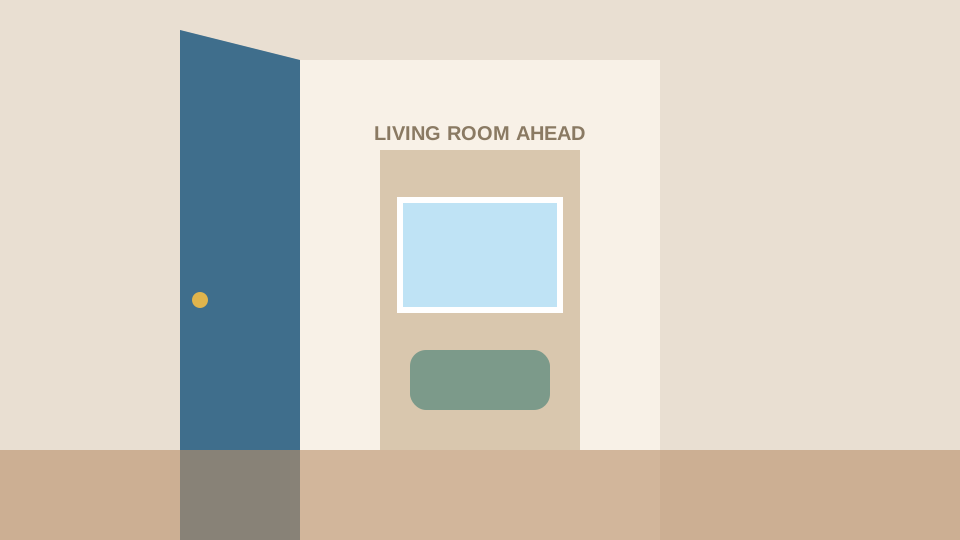
  1. Illustration of the living room, the kept wide view

    Kept: one wide view

  2. Illustration of the same living room with an arrow marking a camera pan

    Left out: the same room again

Why: It shows the same sofa, window and doorway with a camera move. Going through one room twice makes the house feel smaller and the montage slower.

Instead: Keep the steadier wide view and spend the time on the kitchen and the garden doors.

Left out

A close-up of the tap with no room around it

  1. Illustration of a close-up of a kitchen tap with water dripping, no room visible

    Left out

Why: A close-up with no context could be any kitchen. The viewer cannot place it in the route.

Instead: Use the kitchen from the doorway, and put any close-up straight after it.

Upload the shots in route order and choose Keep my order. Cubix does not know the floor plan, and it still picks which part of each video plays, so compare the first pass with your route before you refine anything else.

Illustration · author-drawn frames from the same fictional house.

Crops that keep the doorway

A wide room cut down to vertical keeps a narrow slice of it. Check what each shape keeps.

Centred vertical crop

Illustration of the living room in a 3:2 frame, with a narrow vertical crop marked in the centre that leaves out the kitchen doorway on the right

The crop keeps the sofa and loses the doorway on the right. The next shot, the kitchen, now seems to come from nowhere.

If a doorway explains the route, make sure it is inside the frame.

Square crop

Illustration of the same living room with a square crop marked on the right two-thirds, keeping the sofa and the kitchen doorway

A square frame keeps the sofa and the doorway together. For a vertical post, use a shot filmed with the doorway nearer the middle instead.

Pick the shape at setup to suit the shots you actually have.

Photos alongside filmed shots

Beat Edits takes photos and clips together. A photo filled into a frame of a different shape is cropped hard, and Motion can add a slow zoom on photos.

  • Doorways, windows and features that explain a room stay in the frame.
  • Door frames and walls look straight, not tilted by a crop or a zoom.
  • Photos and clips look like the same house in the same light.

Illustration · a fictional living room cropped two ways. The marked areas are approximate.

Restraint is an editing choice

Cuts can land on beats without landing on every beat. Two plans for the same 24 beats, drawn as bars.

Hurried

A new shot every two beats

Twelve shots in 24 beats. Each room is gone before the viewer has found the window.

  • Feels energetic for a moment
  • Rooms blur together and the route is lost
  • The contact frame flashes past

Readable

Hold each room, move on the phrase

Six shots in the same 24 beats. Each room stays on screen long enough to understand.

  • Every room is established before the next
  • A detail comes after its room, not instead of it
  • The contact frame can be read

There is no real-estate preset. Try the Clean style or a lower Energy and compare: can you name each room as it passes?

Illustration · two beat plans for the same fictional house. Not a Cubix setting or result.

Make the montage and refine it

  1. 1

    Choose shots for the route

    One exterior, the entrance, each room wide then detail, the feature and a closing exterior. Leave out repeats.

  2. 2

    Set up Beat Edits

    Upload the shots in route order and choose Keep my order. Pick a track from the Cubix library or upload one you may use, then the shape you will post in and a style.

  3. 3

    Compare the first pass with your route

    Check the rooms appear in a sensible order and none repeats. Swap a shot or adjust a cut where the route breaks.

  4. 4

    Add contact text, then export

    Add your contact details as on-screen text on the closing shot and read them twice at full speed. Downloading the result depends on your plan.

Your plan is the route and the shots you chose. The montage is what Beat Edits returns: check that the rooms still connect and none appears twice.

Every control in detail: Beat Edits · the beat editing guide

Check the property before you share it

Watch it with sound in the shape you will post, then go through these.

  • Rooms follow a believable route: outside, in, room to connected room, back out.
  • Every room gets a wide view before its details, and no room appears twice.
  • Horizons and door frames are level, and crops keep the doorways that connect rooms.
  • Features you mention are visible and readable, not a blur between cuts.
  • Any text about the property is accurate: no invented sizes, prices or features.
  • The contact frame stays on screen long enough to read twice.

A higher export resolution does not add detail the shots lack. If a room looks soft, replace the shot.

Illustration of the closing frame: the house at dusk with fictional contact text in a bar along the bottom
Illustration · fictional contact text, on screen long enough to read

Property montage FAQs

Can I import a listing instead of choosing shots?

No. Cubix does not read listing pages or property portals. Choose and upload the clips and photos yourself; that also keeps the decision about what the montage shows, and its accuracy, with you.

Can I mix property photos with filmed footage?

Yes. Beat Edits takes photos and clips together. Check each photo in the export shape: a fill crop can remove a doorway, and the slow zoom on photos can push a feature out of frame.

Will Cubix put the rooms in the right order?

Not by itself: it does not know the floor plan. Upload the shots in route order and choose Keep my order, then watch the first pass. Cubix still picks which part of each video plays, so swap a shot or adjust cuts where the route breaks.

How do I keep a room or feature on screen long enough?

Lengthen that cut on the timeline. A calmer style or lower Energy slows the whole montage, but those settings re-plan everything, so use them for overall pace and the timeline for a single room.

Should I export vertical or landscape?

It depends on the shots. A vertical crop of a wide room keeps a narrow slice and can lose the doorway to the next room. Choose Vertical 9:16, Square 1:1 or Wide 16:9 at setup to suit the shots you have, and check each crop.

How do I add my contact details?

Add them as on-screen text on the closing shot in the editor, then read them back at full speed, checking every digit and keeping the text inside the frame. Cubix does not create a contact card; what appears is what you type.

Can I keep my own narration over the montage?

Not in the beat edit itself, which mutes each clip’s own sound so the music plays. A narrated walkthrough is a different job; the broader property editing page covers that wider work.

What do I need to create and download the montage?

See the pricing page for current first-edit eligibility and download access. Check what your account can do before you start, especially if you plan to share the edit and need a downloadable file.

Show the house the way you would walk it.

Bring the shots you chose and a track. Build the montage in Beat Edits, then check the route, the crops and the contact frame before you export.

Make my property montage
CUBIX