Zoom recording to clips

Turn a downloaded Zoom recording into standalone clips

Start with a Zoom video recording you have downloaded and may use. Upload the file to Social Clips, review the candidate excerpts it proposes and keep the ones that make sense on their own. Then refine each one’s opening, ending, captions and layout before you export it.

File first: Cubix does not connect to Zoom, record meetings, open cloud links or post the clips for you.

Recording to excerpts1 file · 3 kept · 1 rejected

Downloaded workshop recording · 58:00

  1. 1 · Speaker view

    complete practical answer

  2. 2 · Screen share

    explanation that needs the slide

  3. 3 · Gallery, then speaker

    audience question and its answer

Rejected: opens on “As I said earlier” and ends before the answer.

  1. Speaker view

  2. Gallery view

  3. Screen share

Illustration · a fictional workshop; not a Zoom screenshot, an integration or a Social Clips result.

Start from the downloaded file

Social Clips takes an uploaded video or audio file. A meeting link, a cloud share link or a transcript is not the same input, so get the file first.

What Zoom’s help centre says

  • A cloud recording is downloaded from its own page: open the recording, then choose Download.
  • Whether you can download depends on your role and settings; a share setting decides whether viewers may download.
  • Cloud recordings can capture speaker view, gallery view and shared-screen layouts, but several layouts at once must be set in the recording settings before the meeting starts.

Checked November 18, 2026: Zoom: managing and downloading cloud recordings · Zoom: cloud recording layouts

What that means in Cubix

  • Upload the file you actually have. If only one layout was recorded, that is the picture every clip will come from.
  • Cubix cannot recreate a layout, a camera or slide detail that is not in the uploaded file.
  • An accepted file type is not a guarantee: an unusual encoding may still fail to process, so try one recording first.

One workshop, four candidates

A fictional hour-long workshop on matching payments to invoices: a presenter, shared slides and questions from the audience. Four candidate excerpts, three worth keeping. Each kept clip has to make sense to someone who was not in the room.

A fictional workshop about an invoicing tool · 58:00

  1. 07:12–07:58

    Keep · clip 1

    Speaker view

    A complete practical answer

    “If a payment doesn’t match an invoice automatically, check the reference first, not the amount.”

    Why it works: The first sentence states the problem and the answer. It runs to the end of the reason, where the presenter explains why amounts mislead.

    Must stay in: The condition “unless the customer paid two invoices at once”, which changes the advice.

  2. 21:40–22:25

    Keep · clip 2

    Screen share

    An explanation that needs the slide

    “On this screen, the green column is what the bank sent and the purple row is the invoice it matched.”

    Why it works: Only useful if the viewer can see the slide while it is described. As a talking head it would be a list of colours.

    Must stay in: The slide, readable: the clip only works in a layout that keeps the whole table visible.

  3. 43:05–44:10

    Keep · clip 3

    Gallery, then speaker

    An audience question and its answer

    “Someone’s asking: what happens when a customer pays in two parts?”

    Why it works: The question is the setup. With it, the answer is a complete exchange; without it, the presenter seems to start mid-thought.

    Must stay in: The question, read out in full, and the answer’s last sentence, where the two parts are matched.

  4. 33:50–34:20

    Reject

    Speaker view

    Rejected candidate

    “As I said earlier, that’s why we switched it off.”

    Why not: “As I said earlier” and “it” point to something from twenty minutes before, and the clip ends before the presenter says what replaced it.

    To save it: Nothing, as it stands. Start where the setting is named and end after the replacement is explained, or leave it out.

A strong opening cannot justify changing what the speaker meant. Keep the qualification, even when the clip would feel punchier without it.

Illustration · a fictional workshop, lines and timecodes written for this page. Not a recording, a transcript, a Social Clips result or a recommended length.

The recorded layout decides the clip

Social Clips makes vertical clips. A tall frame suits one face; it does not suit a wide slide or a grid of tiles. Decide per excerpt, from the picture you actually recorded.

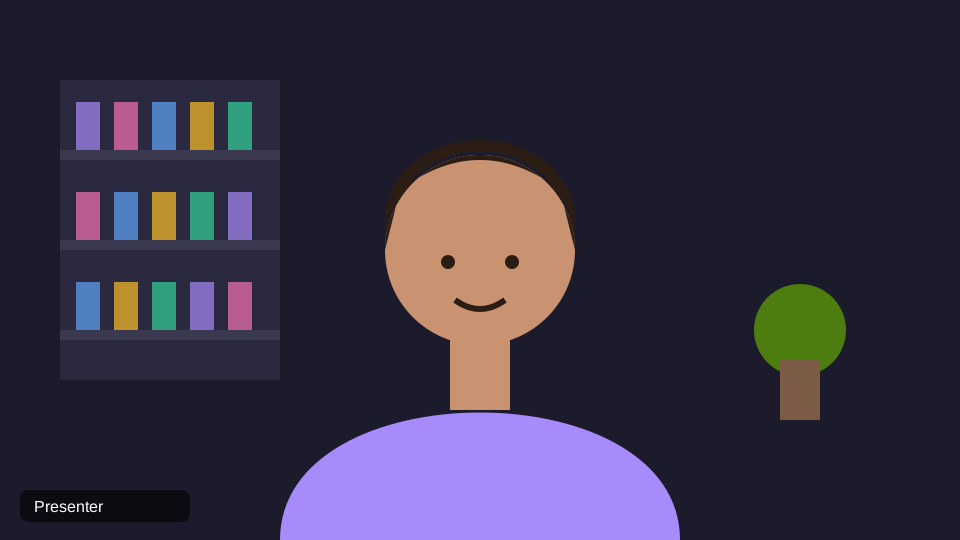
  1. Illustration of a speaker-view recording: one presenter centred in front of a bookshelf, labelled Presenter

    Speaker view

    One person at a time, switching as different people speak.

    Check
    The speaker stays in frame for the whole excerpt, including when the recording switches to someone else.
    Choose
    Fill screen, or turn on Reframe to speaker in Stand Out to follow the largest face.
    Avoid
    An excerpt where the view switches to a listener halfway through the answer.
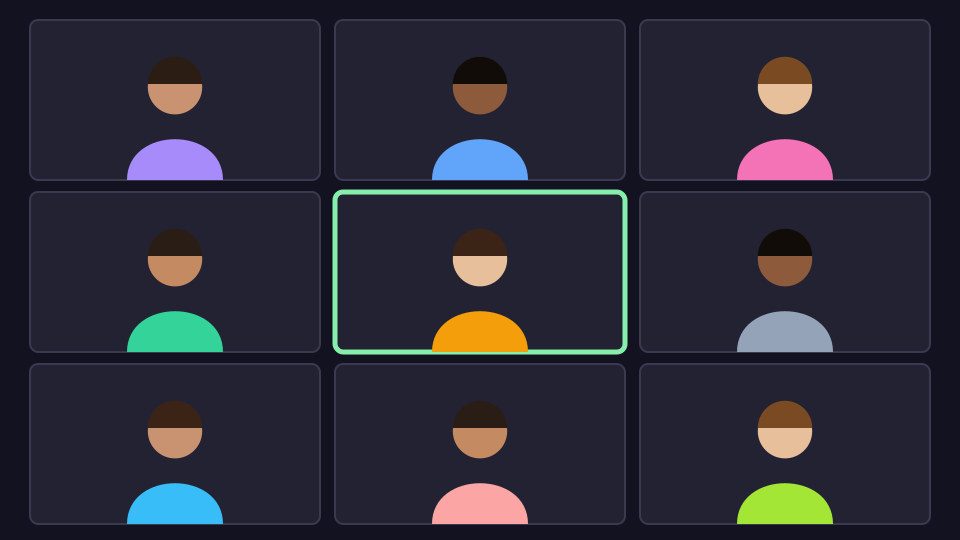
  2. Illustration of a gallery-view recording: a three-by-three grid of participant tiles, the centre tile highlighted

    Gallery view

    Everyone’s camera as a grid of small tiles in one picture.

    Check
    The person speaking is not a tiny tile at the edge, and a crop has not landed on the wrong face.
    Choose
    Best fit, which keeps the whole wide picture under a headline, so the exchange between people still reads.
    Avoid
    Cropping in on one tile and expecting a sharp close-up: the detail is not in the file.
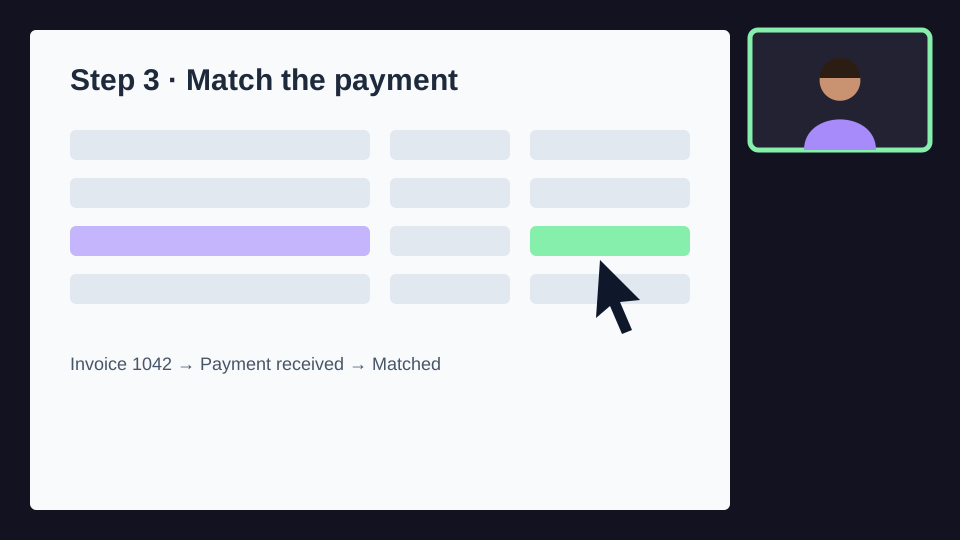
  3. Illustration of a screen-share recording: a slide with a table titled Step 3, Match the payment, a cursor, and a small presenter tile in the corner

    Screen share

    The shared slide or app, with a small speaker tile if that layout was recorded.

    Check
    The text and the part the speaker points to stay readable at phone size, and what they say still matches what is on screen.
    Choose
    Best fit, so the whole slide stays visible, with a headline that says what it shows.
    Avoid
    Fill screen on a dense slide: a narrow crop keeps a third of the table and loses the cursor.

Cubix works with the picture in the file. It cannot pull out an individual participant camera, recover slide text that is too small to read, or add pixels that a low-resolution tile never had, and exporting larger does not change that.

Illustration · three recorded layouts of one fictional workshop. Not Zoom screenshots and not an integration.

From one recording to reviewed excerpts

How Social Clips works in Cubix today, applied to a recorded meeting.

  1. 1

    Upload the recording file

    On the app home, choose Create clips and upload the video. Social Clips accepts video and audio files; pasting a link is not available. The button on this page opens the app; it does not upload anything for you.

  2. 2

    Choose Length and Clips

    The only two settings before Cubix looks for moments. For a workshop, 30–60s leaves room for a question and its answer.

    • Length: Auto, 15–30s or 30–60s
    • Clips: Auto, 3, 5 or 10
  3. 3

    Review every candidate

    Watch each one from its first word to its last. Ask whether it needs the question, the slide or the minute before it to make sense.

  4. 4

    Refine and export one at a time

    Quick edit sets the layout, headline and captions. Continue in full editor opens the clip on the timeline for further edits. Export each clip you keep, then post it yourself.

Candidates arrive ranked, with a Best pick and a virality score. Cubix describes the score as an AI estimate based on the clip’s hook, payoff and social potential that does not guarantee performance. In a workshop, a high score on a clip that needs the slide still needs the slide.

Generate a new set only when none of the candidates work. It replaces every current clip and any edits you made to them, and it is a full new run.

An excerpt should stand alone

Check each clip you keep against these before export. Automatic captions and layouts are a starting point; you know what was said and what was on screen.

  • The question or setup the answer depends on is inside the clip.
  • The speaker’s condition or caveat is still there.
  • The clip ends after the answer resolves, not on “and the other thing is”.
  • Names, product terms and numbers in the captions match what was said.
  • A slide or cursor reference (“this column”, “here”) still points at something visible in the chosen layout.
  • Captions and the headline stay readable at phone size and do not cover the slide text.

Repair

Restore the question

Before
Starts at 43:12: “…so you match each part to the same invoice.”
After
Starts at 43:05: “Someone’s asking: what happens when a customer pays in two parts?”

The candidate began with the answer. The full exchange starts seven seconds earlier. If that lead-in is outside the available timeline footage, cut the wider excerpt from the original recording.

Change the format

A dense table in a narrow crop

Before
Fill screen: a third of the table, the cursor out of frame.
After
Best fit: the whole slide under a headline, or a different excerpt.

If even Best fit leaves the table too small to read at phone size, the passage is not a good vertical clip. Keep it for a wider edit and choose another excerpt.

If only a flattened recording exists, such as one gallery file, work with what that picture shows or choose a passage where it is enough.

Step by step: add and edit captions · cut, trim and reorder clips

Zoom recording clips FAQs

Can I paste a Zoom meeting or cloud recording link?

No. Download the video recording first, then upload the file. Cubix does not connect to a Zoom account, join meetings, record them or open cloud share links, and pasting a YouTube link is not available either. A transcript alone is not enough: Social Clips needs the video or audio.

How do I get the recording file?

Zoom’s help centre explains downloading a cloud recording from the recording’s page. Whether you can download depends on your role and the account’s settings; a shared recording may allow viewing only. Local recordings are already files on the computer that recorded them.

Which recorded layout should I upload?

Use the file that shows what the excerpt needs. Speaker view suits a single person explaining; a shared-screen recording suits a passage about a slide. Zoom records several layouts only when that was set up before the meeting, so you may have just one file.

Can Cubix pull out each person’s camera from a gallery recording?

No. Cubix works with the picture in the file you upload. A gallery recording is one image of many small tiles, so a single tile cannot become a sharp close-up, and exporting at a higher resolution does not add the missing detail.

How do I fix where an excerpt starts or ends?

Open the clip in the full editor to adjust the cut. If the question or the end of the answer falls outside the footage available on the timeline, bring in the original recording and cut the complete passage from that. Generating a new set replaces the current candidates and their edits.

Which shape should the clips be?

Social Clips makes vertical clips. For a wide slide or gallery, the Best fit layout keeps the whole wide picture with a headline above it rather than cropping it, while Fill screen crops to the full height. Check the text and faces in whichever you choose.

Does Cubix post the clips to LinkedIn, YouTube or other platforms?

No. Export each clip you keep and post it yourself. Clips export one at a time; there is no option to export every clip at once, and no scheduling or publishing from Cubix.

What do I need to make and download clips?

See the pricing page for current first-edit eligibility and download access. Create Clips uses credits based on the length of the uploaded recording, so check the access and usage shown for your account before running a long file.

Turn your recording into excerpts that make sense.

Upload the file you downloaded, review the candidates Social Clips proposes, and check each excerpt’s question, ending and layout before you export it.

Make clips from my recording
CUBIX