
It is 2026, and screen recording is no longer just for tech experts. Whether you are a teacher walking students through a lesson, a professional documenting a workflow for your team, or a creator sharing tips online, video is the language we all speak.
But if you have spent any time searching for the "best free screen recorder for Windows," you know how frustrating the process can be. You download a promising app, only to find out it limits your recordings to five minutes, stamps a massive watermark across your screen, or requires a degree in video production just to hit the record button.
Finding a tool that is genuinely helpful without hidden traps is the real challenge. Here is a clear, straightforward look at the landscape of free recording tools this year, and how to choose the right one to make videos that people actually want to watch.

The Reality of "Free" Recording Tools
Right now, Windows users generally have two paths when looking for free screen capture software.
Path 1: The Built-In Basics Windows 11 comes with the Snipping Tool and the Xbox Game Bar. These are fast and cost nothing. They are perfect if you just need to capture a rapid five-second clip of an error message to send to IT. However, they are incredibly basic. The Game Bar often refuses to record your desktop, and both tools leave you with raw, unedited footage.
Path 2: The Complex Giants Then there are open-source programs like OBS Studio. It is completely free and incredibly powerful. The catch? The learning curve is incredibly steep. Setting up your audio, adjusting your bitrates, and configuring your scenes can take hours.
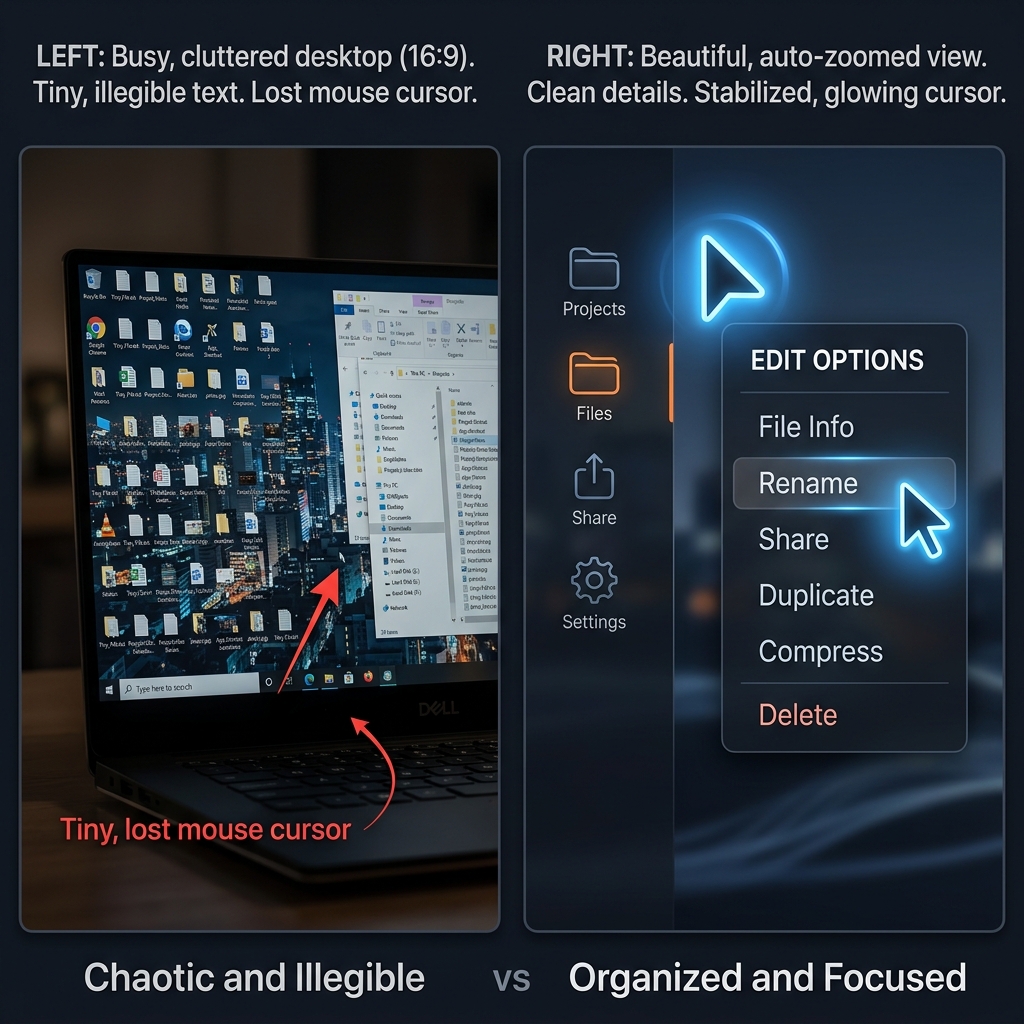
But there is a bigger problem with both of these paths. They only capture exactly what is on your screen. If you are using a large desktop monitor, the text and menus will look microscopic to anyone watching your video on a mobile phone. Furthermore, standard trackpad or mouse movements often look erratic and jittery on video, making your tutorial exhausting to follow.
What Makes a Video Actually Watchable?
If your goal is to provide a real-life solution or teach a clear lesson, a raw screen recording is not enough. Viewers lose attention the moment they have to squint to read a menu or get distracted by a messy background.
Enjoying this read?
Get weekly insights on video editing, AI workflows, and creator growth straight to your inbox.
The recipe for a high-quality, professional tutorial requires three essential elements:
- Visual Focus: The video must guide the viewer's eyes by zooming in on the important actions.
- Calm Navigation: The mouse pointer needs to glide smoothly, rather than dart around nervously.
- A Professional Environment: If your webcam is on, your physical background should be clean and free of distractions.
If your free tool forces you to spend three hours in a separate video editing program to manually fix these issues, it is not actually free. It is costing you your valuable time.
The Smarter Approach to Screen Recording
You do not have to choose between a basic, hard-to-read video and spending hours learning complicated video editing software. The smartest choice for Windows users in 2026 is to use a tool that does the heavy lifting for you automatically.
This is exactly why Cubix Capture is transforming the way people share information. It is designed specifically to turn your everyday screen captures into polished, human-centric tutorials effortlessly.
Instead of leaving you with a messy raw file, Cubix Capture acts as an intelligent assistant while you record:
- Auto-Zoom: It intelligently tracks your actions and automatically zooms in on the important areas of your screen. Your audience will never miss a detail, even on the smallest screens.
- Smooth Cursor: It actively removes the jittery, nervous movements of your mouse, giving your presentation a sleek, professional flow that is easy on the eyes.
- Live Backgrounds: It instantly masks out your physical environment, allowing you to apply a clean, distraction-free background to your webcam feed without needing a green screen.
Finding a screen recorder is easy, but finding one that respects your time and your viewer's attention is rare. Stop settling for basic tools that make your audience work hard to understand your message. Choose a solution that automatically elevates your content, making every video you share clear, engaging, and genuinely helpful.
📖 Keep reading: our built-in vs third-party Windows recorder comparison, how to record without the Xbox Game Bar, and how to screen record on Windows 11.
Don’t miss the next one.
Join our newsletter for exclusive tips, product updates, and the latest from the Cubix team.