
If you use a Windows PC, you have probably encountered the Xbox Game Bar. It is the default tool Microsoft provides for capturing video. While it is great for recording video games, it has some major limitations when it comes to everyday work.
The biggest frustration? Xbox Game Bar is designed specifically for apps. The moment you try to record your entire desktop, open a file explorer, or switch between different windows, it often stops recording or throws an error message. If you are trying to create a tutorial, record a presentation, or show a colleague a software bug, you need a tool that is much more flexible.
Fortunately, you are not stuck with the Game Bar. Whether you want to use hidden tools already installed on your computer or upgrade to a more professional solution, here is the straightforward recipe for capturing your Windows screen without the hassle.

The Hidden Built-In Alternatives
If you are in a rush and cannot download new software, Windows actually has two other built-in methods for recording your screen.
1. The Snipping Tool (Windows 11)
Most people use the Snipping Tool to take quick screenshots, but in newer versions of Windows 11, it now includes a video recorder.
- Open the Start Menu and type "Snipping Tool."
- When the app opens, click the Video Camera icon at the top.
- Click New, and your screen will dim.
- Click and drag a box around the specific area you want to record.
- Hit Start. When you are done, hit stop and save the MP4 file.
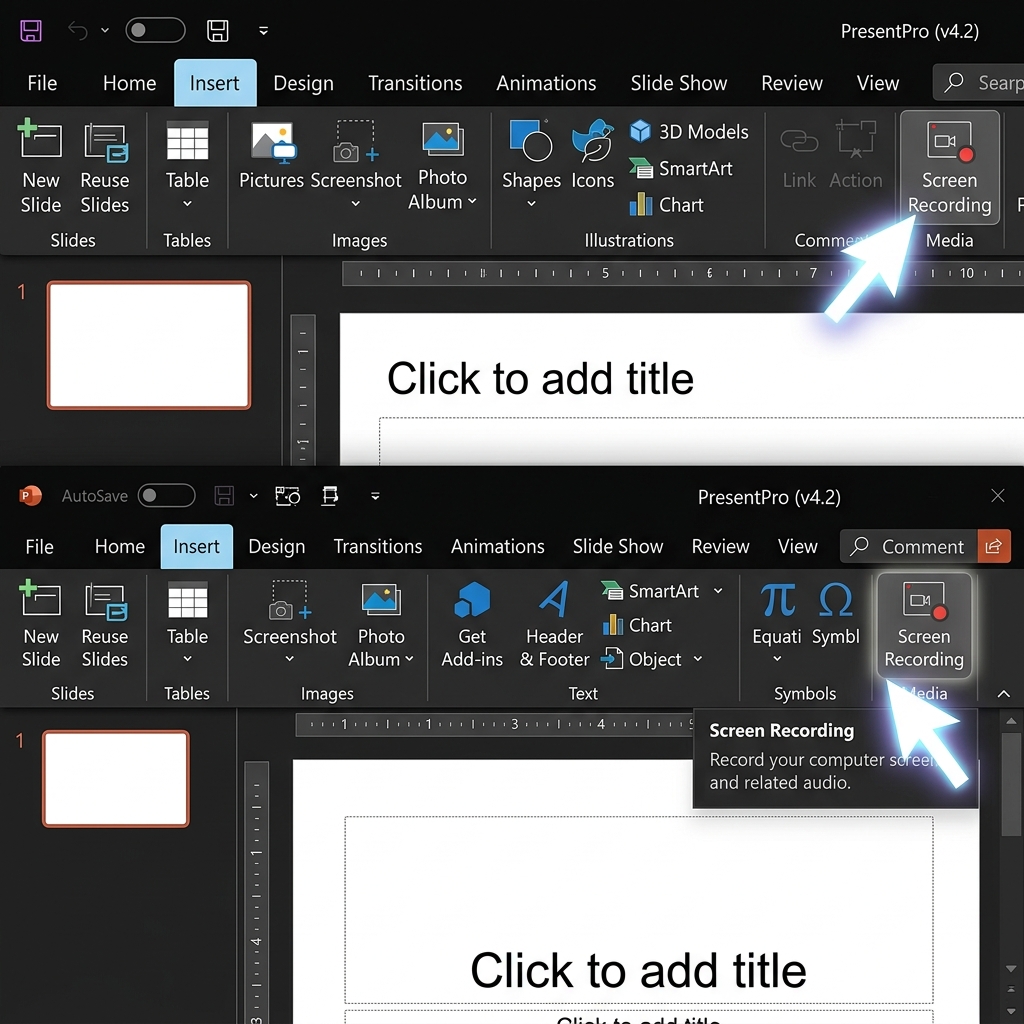
2. The PowerPoint Secret
If you are on Windows 10 or just prefer using Office tools, Microsoft PowerPoint has a hidden screen recorder built right into it.
Enjoying this read?
Get weekly insights on video editing, AI workflows, and creator growth straight to your inbox.
- Open a blank PowerPoint presentation.
- Go to the Insert tab at the top of the window.
- Look to the far right and click Screen Recording.
- A small dock will appear. Select your recording area, make sure your microphone is on, and hit the red Record button.
- When finished, right-click the video that appears on your slide and select Save Media As to export it as a video file.
Why Basic Tools Are Not Enough for Good Content
Using the Snipping Tool or PowerPoint is a great workaround, but these tools share a common problem: they capture raw, unedited footage.
If you are recording a tutorial to help someone solve a problem, raw footage is rarely a good experience for the viewer. Computer screens are massive, but the menus you are clicking are tiny. If someone watches your video on their mobile phone, they will have to squint to read the text. Furthermore, standard mouse movements often look erratic and jittery on video, making it hard for the audience to follow your instructions smoothly.
To make a video that is genuinely helpful, you need to provide visual clarity. The viewer needs to easily follow your mouse and see exactly what you are highlighting without getting distracted.
The Professional Screen Recording Recipe
Instead of recording a basic video and spending hours in heavy editing software trying to zoom in on menus and fix your mouse path, you can use a tool designed to do all of this automatically.
This is exactly why Cubix Capture is the ultimate alternative to the Xbox Game Bar. It is a screen recorder built from the ground up to create clear, human-centric, and professional videos with zero editing required.
Here is how it upgrades your Windows recording experience:
- Auto-Zoom: It acts as an intelligent camera operator. It tracks your actions and automatically zooms in on the important areas of your screen, ensuring your viewers never miss a detail, no matter what device they are using.
- Smooth Cursor: It removes the nervous, shaky movements of your standard mouse. Your cursor becomes a sleek, elegant guide that directs the viewer's eye calmly.
- Live Backgrounds: If you are using your webcam to present, it instantly removes messy room backgrounds and applies a clean, distraction-free environment.
📖 Keep reading: How to screen record on Windows 11, how to screen record on Windows 10, and our built-in vs third-party recorder comparison.
Finding an alternative to the Xbox Game Bar is the first step toward better content. By moving past basic, raw capture tools and choosing software that automatically enhances the visual experience, you ensure every video you share is a clear, engaging, and real-life solution.
Don’t miss the next one.
Join our newsletter for exclusive tips, product updates, and the latest from the Cubix team.