
Have you ever tried to explain a complicated computer problem to a coworker or a friend using just words? You end up typing a massive paragraph, and they still do not understand what you mean.
The easiest and fastest way to show someone exactly what to do or to save a visual tutorial for yourself is to record your screen. If you are using Windows 11, you do not need to buy complicated or expensive software to do this. The tools you need are already hidden right inside your computer.
The Simple Recipe for Screen Recording on Windows 11
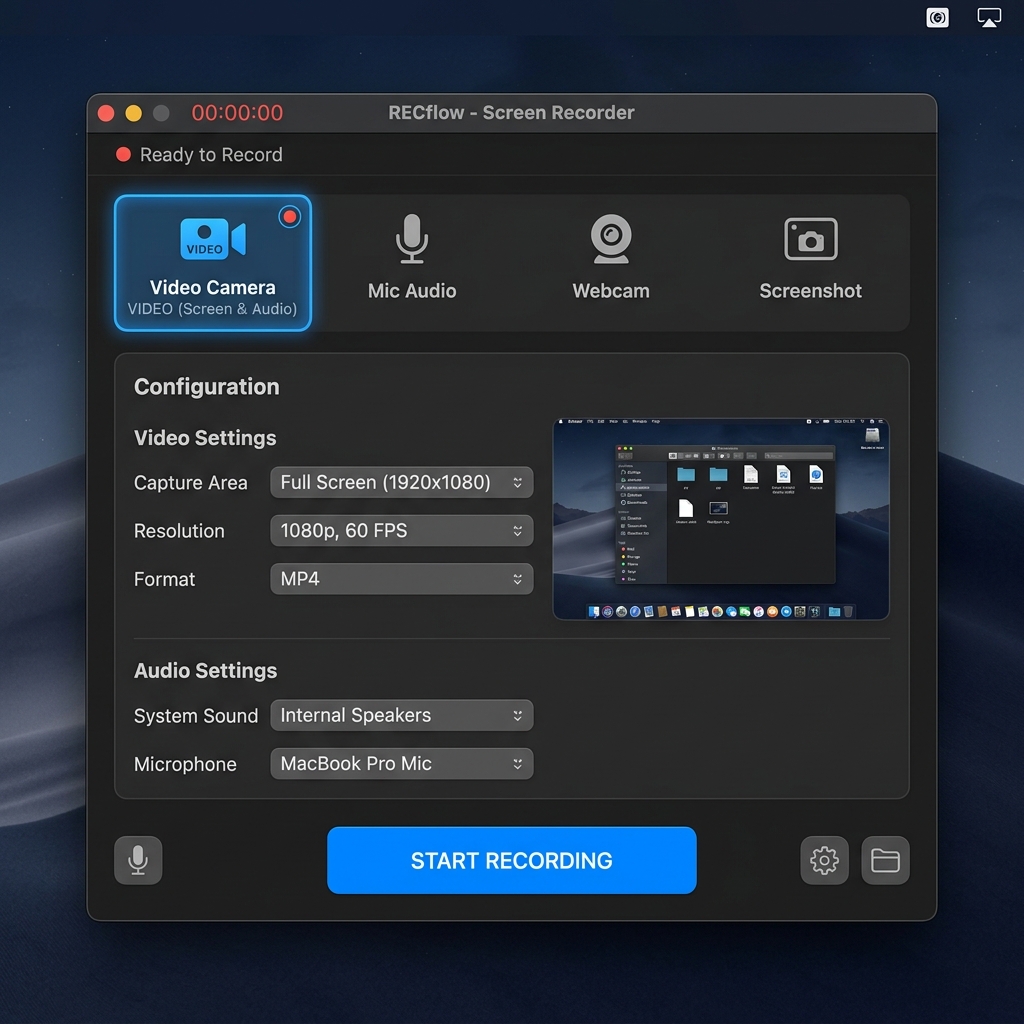
Windows 11 recently updated its classic screenshot app, the Snipping Tool, to include a fantastic screen recording feature. It is clean, simple, and perfect for everyday use.
Here is your straightforward recipe to start recording in seconds:
- Open the Tool: Click on your Windows Start menu at the bottom of your screen, type "Snipping Tool," and click to open the app.
- Switch to Video: At the top of the Snipping Tool window, you will see a camera icon (for pictures) and a video camera icon. Click the video camera icon.
- Select Your Area: Click the "New" button. Your screen will slightly darken. Click and drag your mouse to draw a box around the exact part of the screen you want to record.
- Hit Record: A small menu will appear at the top of your screen. You can choose to mute or unmute your microphone by clicking the microphone icon. When you are ready, click the blue "Start" button.
- Stop and Save: You will get a quick 3-second countdown. Do what you need to do on your screen! When you are finished, click the red "Stop" button. You can then save your new video file directly to your computer.
It is really that simple. You have now captured a perfect visual history of your workflow to share with anyone.
Why a Raw Snipping Tool Recording Often Falls Flat
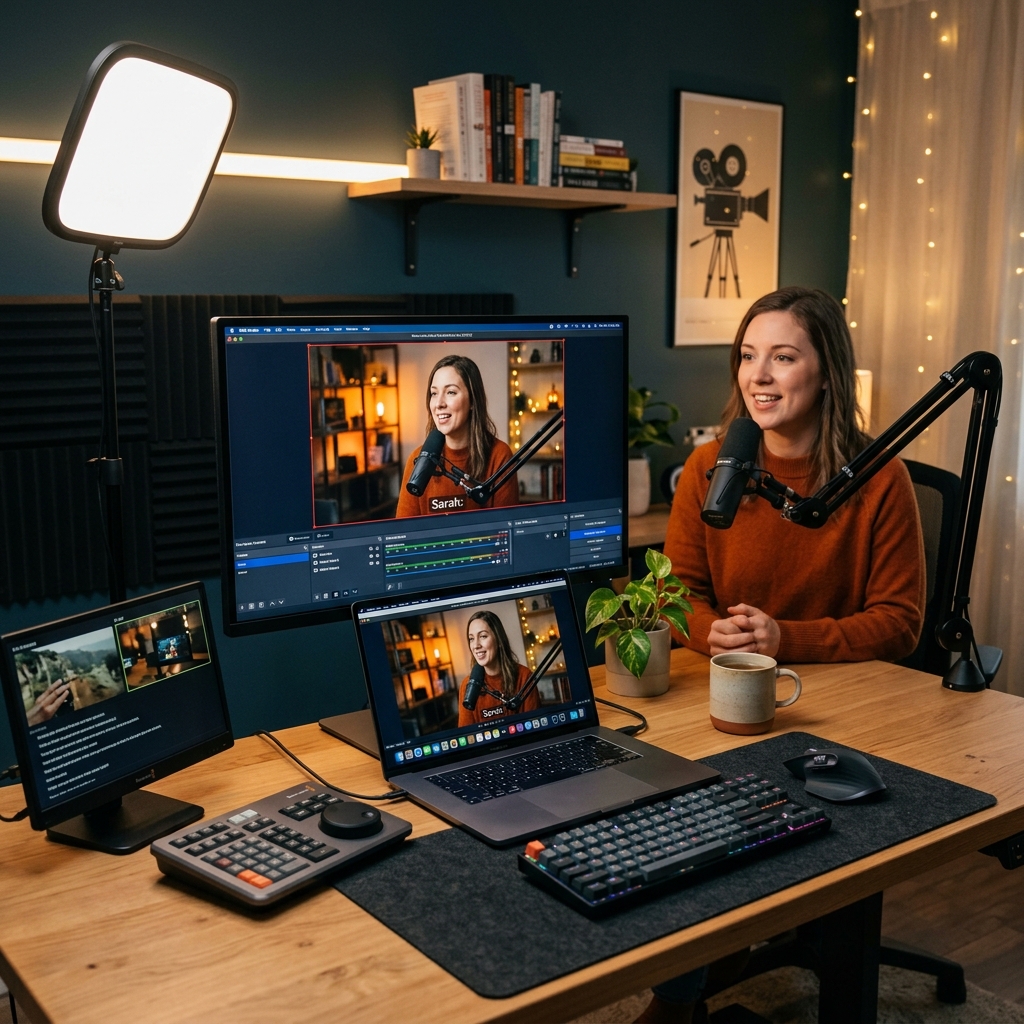
The Snipping Tool is perfect for capturing a quick clip. But if you are recording a tutorial, an onboarding walkthrough, or a product demo, raw footage has a hidden problem.
Computer screens are huge, yet the buttons and menus you click are tiny. When someone watches your video on a phone, they have to squint to follow along. Standard mouse movements also look jittery and nervous on camera, which makes your instructions harder to follow than they should be.
To make a recording people actually enjoy watching, you need three things the Snipping Tool cannot give you: automatic focus on what matters, smooth cursor movement, and a clean, professional presentation.
Enjoying this read?
Get weekly insights on video editing, AI workflows, and creator growth straight to your inbox.
The Free Way to Make Windows 11 Recordings Look Professional
You do not have to choose between a basic raw clip and spending hours in heavy editing software. The smarter approach is to use a recorder that handles the polish for you while you record.
This is exactly why Cubix Capture is the easiest upgrade for Windows 11 users. It is a screen recorder built to turn everyday captures into clear, professional tutorials with zero editing:
- Auto-Zoom: It tracks your clicks and automatically zooms in on the important areas, so viewers never miss a detail no matter what device they watch on.
- Smooth Cursor: It removes the shaky, nervous movements of your mouse, turning your pointer into a calm, elegant guide.
- Live Backgrounds: If your webcam is on, it instantly masks your room and applies a clean, distraction-free background no green screen required.
If you want your Windows 11 recordings to look polished without learning complicated software, you can get it free here: Cubix Capture for Windows.
📖 Keep reading: How to screen record on Windows 10, how to screen record without the Xbox Game Bar, and our built-in vs third-party recorder comparison.
Final Thoughts
Recording your screen on Windows 11 is genuinely easy the built-in Snipping Tool gets you a clip in seconds. But if that clip is meant to teach, sell, or onboard, give it the clarity it deserves. Capture with the Snipping Tool for quick notes, reach for a tool like Cubix Capture when the video actually matters, and you will share ideas faster and with far less effort.
Don’t miss the next one.
Join our newsletter for exclusive tips, product updates, and the latest from the Cubix team.