
If you use a Windows PC for work, school, or creating content, you already know how important video has become. When you need to explain a complex software issue, train a new team member, or show off a project, a quick screen recording is infinitely better than typing a long email.
But when it comes time to hit the record button, you face a common decision: Should you use the free tools already built into Windows, or is it time to find a dedicated third-party screen recorder?
Understanding the strengths and weaknesses of both options will save you a lot of time and frustration. Here is a straightforward breakdown of the built-in Windows tools versus third-party software, and how to choose the right recipe for your specific needs.
The Built-In Windows Tools: Quick and Casual
Microsoft has added a few different ways to capture your screen directly inside Windows 10 and Windows 11. You do not have to download anything, which makes these tools incredibly convenient for quick tasks.
1. The Snipping Tool Originally just for screenshots, the Snipping Tool in Windows 11 now records video. You just open the app, click the camera icon, draw a box around what you want to record, and click start. It is lightweight and perfect for capturing a quick ten-second clip to show a friend.
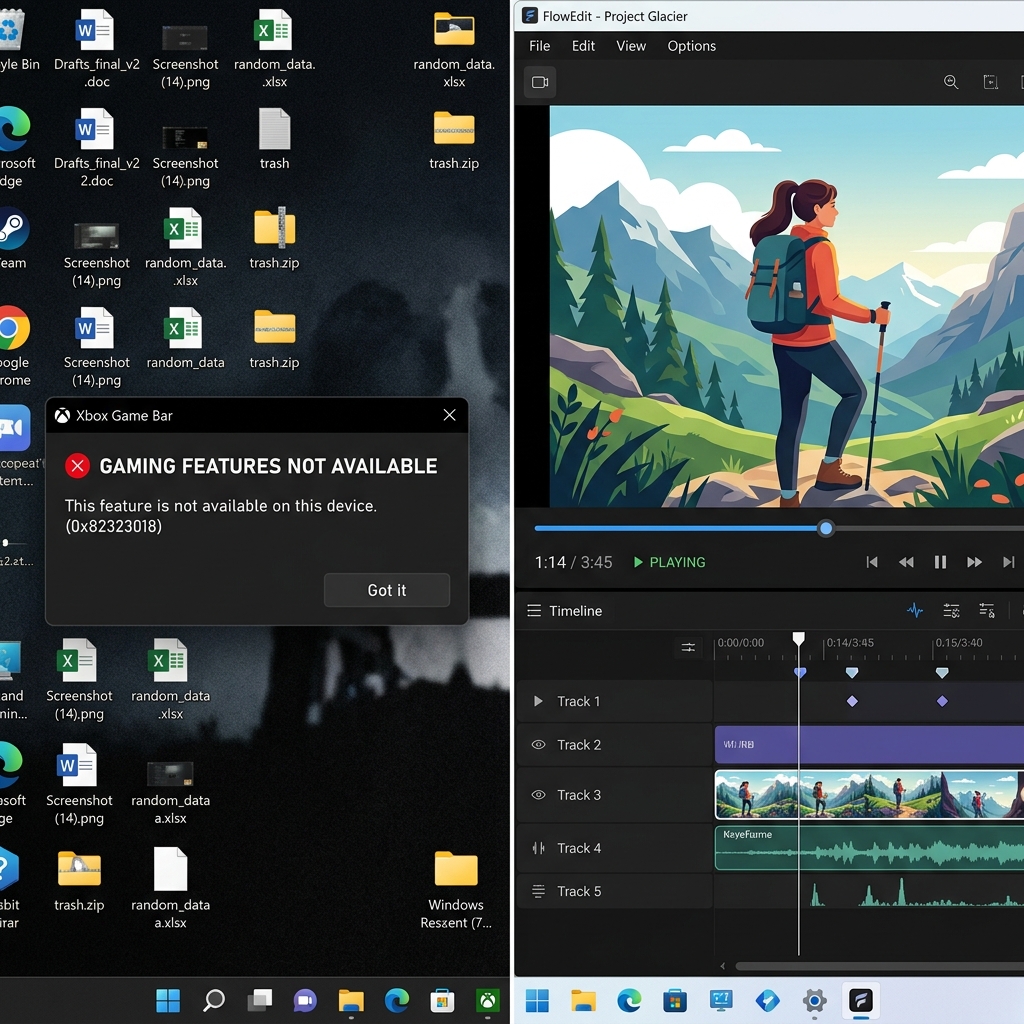
2. Xbox Game Bar If you press Windows + G, the Xbox Game Bar appears. It is great for recording PC games, but it has a major flaw for office work: it can only record one application window at a time. If you try to record your entire desktop or switch between a web browser and a Word document, it often stops recording or gives you an error message.
3. Microsoft Clipchamp Windows now includes Clipchamp, a basic video editor that also has a screen recording feature. It is useful, but it requires you to manually edit your video after you finish recording.
The Verdict on Built-in Tools: If you just need a fast, disposable video for a casual conversation, the built-in Windows tools are perfect. However, they only capture raw footage. They do nothing to make that footage look professional or easy to watch.
The Third-Party Advantage: Professional and Human-Centric
Enjoying this read?
Get weekly insights on video editing, AI workflows, and creator growth straight to your inbox.
If you are creating a tutorial, an educational guide, or a presentation for clients, raw footage is a problem.
Standard Windows recordings capture your entire screen exactly as it is. If you are using a large monitor, the text and menus will look microscopic when someone watches your video on their mobile phone. Additionally, standard mouse movements often look erratic and jittery on video, making it exhausting for the viewer to follow along.
A good third-party screen recorder does not just capture the screen; it enhances the visual experience. The recipe for a video that actually helps people requires three things:
- Visual Focus: The video should automatically guide the viewer's eyes to the important clicks.
- Smooth Navigation: The mouse pointer should glide calmly, not dart around nervously.
- A Clean Environment: If you are speaking on camera, your background should look professional.
To achieve this with built-in tools, you have to record the video and then spend hours in heavy editing software trying to zoom in and fix your mistakes.
The Smart Alternative: Edit While You Record
You do not have to choose between a basic, hard-to-read video and spending hours editing in post-production. The best third-party tools are designed to do the hard work for you.
This is exactly why upgrading to Cubix Capture is the smartest choice for Windows users. It is a screen recorder built to instantly create clear, engaging, and professional content without the headache of manual video editing.
While you focus on sharing your knowledge, Cubix Capture acts as an intelligent assistant:
- Auto-Zoom: It tracks your actions and automatically zooms in on the important areas of your screen. Your viewers will never have to squint to read text or see a tiny button.
- Smooth Cursor: It actively removes the messy, shaky movements of your mouse, giving your presentation a sleek, professional flow.
- Live Backgrounds: If you include your webcam, it instantly removes your physical environment and applies a clean, distraction-free background.
The built-in Windows screen recorders are a great starting point for quick clips. But when you want to provide real-life solutions and create tutorials that people actually enjoy watching, a smart third-party tool like Cubix Capture is exactly what you need to stand out.
📖 Keep reading: How to screen record on Windows 11, how to screen record on Windows 10, and the best free screen recorder for Windows in 2026.
Don’t miss the next one.
Join our newsletter for exclusive tips, product updates, and the latest from the Cubix team.