
If you have spent any time browsing tech Twitter, TikTok, or YouTube lately, you’ve probably seen a stunning new style of software tutorial. The cursor glides across the screen with cinematic smoothness, and the camera automatically and elegantly zooms in on menus the exact millisecond the presenter clicks.
Almost all of those videos are made with Screen Studio. It is a fantastic piece of software that has single-handedly raised the production bar for product demos and digital design tutorials.
But there’s a massive problem for a huge portion of creators: Screen Studio is built exclusively for macOS.
If you are a software developer, business professional, or educator running a Windows 11 PC, you are completely locked out. For years, Windows users have been forced to record flat, raw videos in OBS or Clipchamp, and then waste hours inside complex editing timelines manually keyframing zoom animations just to replicate that look.
Fortunately, you don’t need to buy a Mac to make cinematic videos. Here is the definitive guide to the best Screen Studio alternative for Windows users.
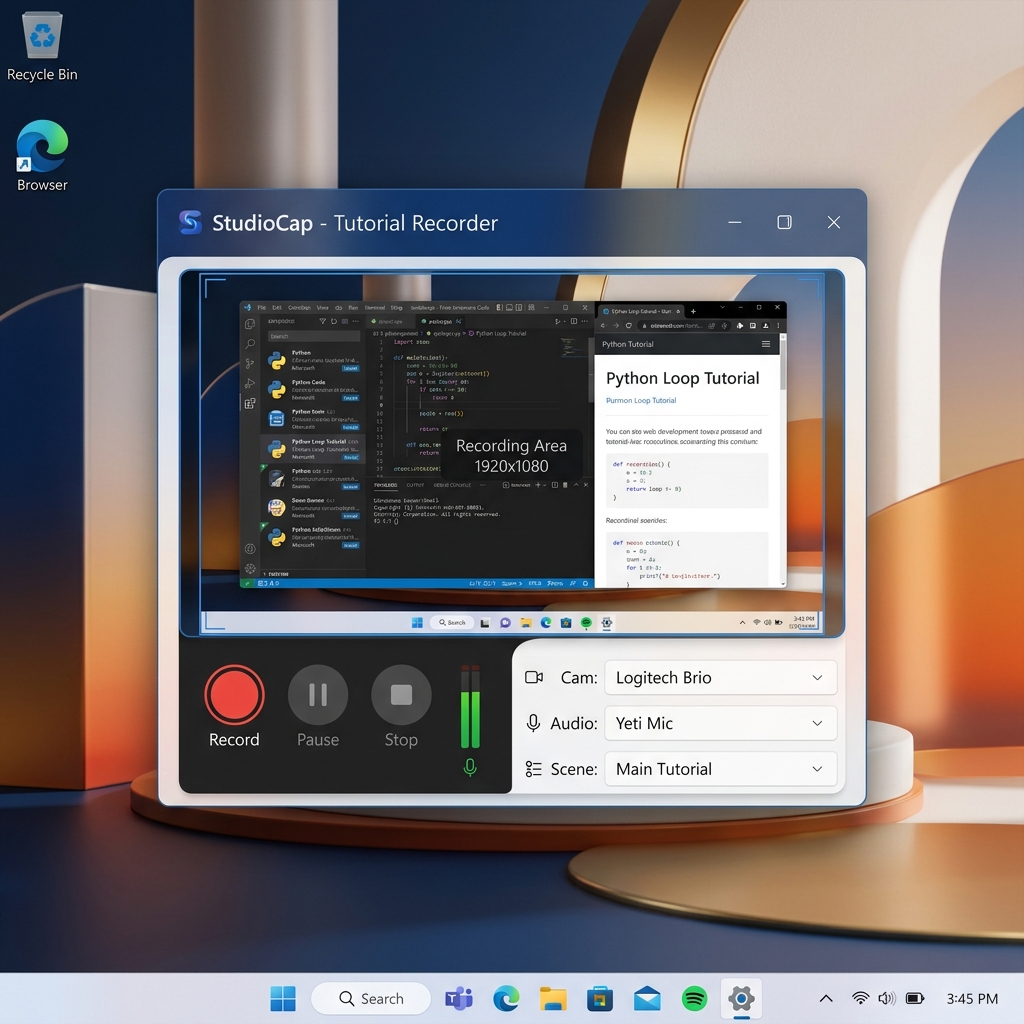
The Winner: Cubix Capture
When it comes to matching—and in many ways, exceeding—the automated magic of Screen Studio on a Windows machine, Cubix Capture is the undisputed champion.
Instead of acting like a passive security camera that just records a flat grid of your monitor, Cubix Capture functions as an intelligent virtual camera director right while you speak. It bridges the gap between Windows performance and high-end design aesthetics, requiring absolutely zero video editing experience to get a studio-grade result.
Here is how Cubix Capture brings the cinematic tutorial look to the Windows ecosystem:
1. Real-Time Algorithmic Focal Zooming
Screen Studio’s claim to fame is its ability to zoom in on clicks. Cubix Capture handles this flawlessly on Windows. The software dynamically tracks your mouse coordinates and active window parameters. The moment you select an item, expand a drop-down menu, or type into a code block, the canvas smoothly pans and magnifies that region.
This completely eliminates the "tiny text" crisis. Since over 60% of modern video content is consumed on mobile phones, Cubix Capture ensures your tutorials are automatically optimized for smartphone displays without you ever touching a keyframe timeline.
2. AI Cursor Path Smoothing
Moving a physical mouse or tracking on a laptop pad naturally translates into jittery, frantic micro-movements on video. Cubix Capture intercepts your physical mouse behavior in real-time, converting your tracking into a silky-smooth, fluid glide. It looks incredibly intentional and keeps your viewer’s eyes naturally anchored to the focal point of your lesson.
3. Instant Premium Framing & Background Blur
Windows recorders typically leave your application floating over a messy desktop or surrounded by dead black bars. Cubix Capture automatically isolates your target window and frames it against gorgeous, dynamic gradient canvas backdrops.
If you choose to record your webcam, you don't need a physical green screen or heavy, processor-hogging background apps. Cubix Capture drops your facecam into a clean, geometric floating bubble and applies a seamless, hardware-optimized studio background blur automatically.
The Standard Production Blueprint on Windows
Paired with a smart workflow engine, recording an elite software tutorial on Windows 11 becomes incredibly fast. Here is how to execute a frictionless recording session:
-
Sanitize Your Workspace: Eradicate visual noise before clicking record. Right-click an empty space on your Windows desktop, hover over View, and uncheck Show desktop icons. Close unrelated browser tabs, hide your browser bookmarks bar (
Ctrl + Shift + B), and toggle your taskbar notifications to Do Not Disturb mode. -
Select Your Targeted App Window: Locks the software onto your exact application layer. Launch Cubix Capture. Instead of selecting "Entire Screen" (which exposes your whole desktop), choose the specific application window you are teaching (like VS Code, Figma, or Chrome). Cubix Capture will instantly frame it against a premium background.
-
Execute Calm Screen Choreography: Gives the zoom algorithms perfect triggers. Move your physical mouse at half-speed. When navigating to a button, hover over it for one full second before clicking, and leave your cursor there for a moment afterward. This deliberate pacing keeps your audience locked in and allows the real-time camera tracking to look incredibly natural.
-
Publish Instantly via Cloud Handoff: Skip the rendering timeline completely. Because all the cinematic auto-zooms, pointer stabilization, and webcam framing are rendered on the fly, there is no heavy post-production pipeline. The moment you hit stop, an elite cloud link is instantly copied to your clipboard, ready to send to your team, clients, or upload straight to YouTube.
Enjoying this read?
Get weekly insights on video editing, AI workflows, and creator growth straight to your inbox.
How Other Windows Options Stack Up
While Cubix Capture is the closest direct alternative to Screen Studio's automated workflow, it helps to understand why traditional Windows options fall short for tutorial creators:
- Microsoft Clipchamp: While it is free and built straight into Windows 11, Clipchamp is a traditional linear video editor. It only records raw, flat pixels. If you want a zoom effect, you have to manually cut the clip on a timeline, scale the frame, and position it yourself for every single click.
- Camtasia: A highly robust, legacy desktop suite for Windows. It features excellent cursor smoothing tools, but it requires full manual assembly. You have to drop your recording into a heavy editing dashboard and manually drag annotations, arrows, and custom zoom behaviors onto your tracks. It takes immense time and carries a steep licensing cost.
- OBS Studio: The open-source king of live streaming. However, for everyday screen recording, OBS is a passive recorder with an incredibly steep learning curve. It demands constant technical configuration regarding bitrates and encoders, and it offers zero automated zoom or formatting features out of the box.
Summary
Windows users no longer have to suffer from "Mac envy" when looking at high-end, cinematic software videos. While Screen Studio remains locked to Apple hardware, upgrading your Windows recording setup to Cubix Capture gives you the exact same automated luxury.
By offloading the cursor smoothing, window styling, and focal zooming to an automated system while you speak, you can save hours of editing time every single week and deliver tutorials that keep your audience completely engaged from start to finish.
Don’t miss the next one.
Join our newsletter for exclusive tips, product updates, and the latest from the Cubix team.