
Ask ten Mac users which screen recorder they use and you will get ten different answers. Some swear by the keyboard shortcut they stumbled onto by accident. Others wrestle with OBS every time they need a clip. A few quietly pay for something and never touch half of its features. The truth is that "best" depends entirely on what you are trying to make, so this guide breaks the options down by the job you actually need done.
We will compare what is already on your Mac against the dedicated tools worth paying attention to in 2026, and lay out the handful of features that separate a recording people watch from one they close after ten seconds.
Best for a Quick Clip: macOS Command + Shift + 5
If you only need to fire off a ten-second recording to a teammate, the recorder already built into macOS is genuinely the right tool. Press Command + Shift + 5 and a control strip appears along the bottom of the screen. You can grab the whole display or drag a box around a single window, flip on your microphone under Options, and click record. The file lands on your desktop as a .mov the moment you stop.
It is free, instant, and impossible to mess up. The catch is that it does exactly one thing: it copies your pixels. There is no zoom, no cursor smoothing, and — the part that trips everyone up — no easy way to capture the audio playing inside your Mac, because macOS deliberately walls off system sound from recorders.
Best for Streamers and Power Users: OBS Studio
OBS is the free, open-source workhorse that streamers reach for. It records multiple sources, layers webcam over screen, and gives you frame-level control over bitrate and encoding. If you are building a live setup or need custom scenes, nothing beats the price-to-power ratio.
The trade-off is the learning curve. OBS hands you a mixing desk, not a record button. For a one-off product demo or a client walkthrough, configuring scenes and audio routing is far more effort than the task deserves, and you still finish with raw footage that needs editing.
Enjoying this read?
Get weekly insights on video editing, AI workflows, and creator growth straight to your inbox.
Best for Tutorials and Demos: A Recorder That Edits As You Go
Here is the gap none of the above fills. The hardest part of a Mac recording is not capturing it — it is making it watchable afterwards. Three problems show up every single time:
- Microscopic text. Retina displays pack enormous resolution into the glass. Beautiful for you, unreadable for the viewer on a laptop or phone who now has to squint at a menu that is forty pixels tall.
- A jittery cursor. A finger sliding across the trackpad produces a frantic, twitchy pointer on playback that quietly exhausts whoever is watching.
- A cluttered webcam shot. Put your face on screen and your messy room comes along for the ride, pulling attention off the actual content.
Fixing all three by hand means dragging the file into Final Cut or Premiere and burning an afternoon on zoom keyframes and cursor cleanup.
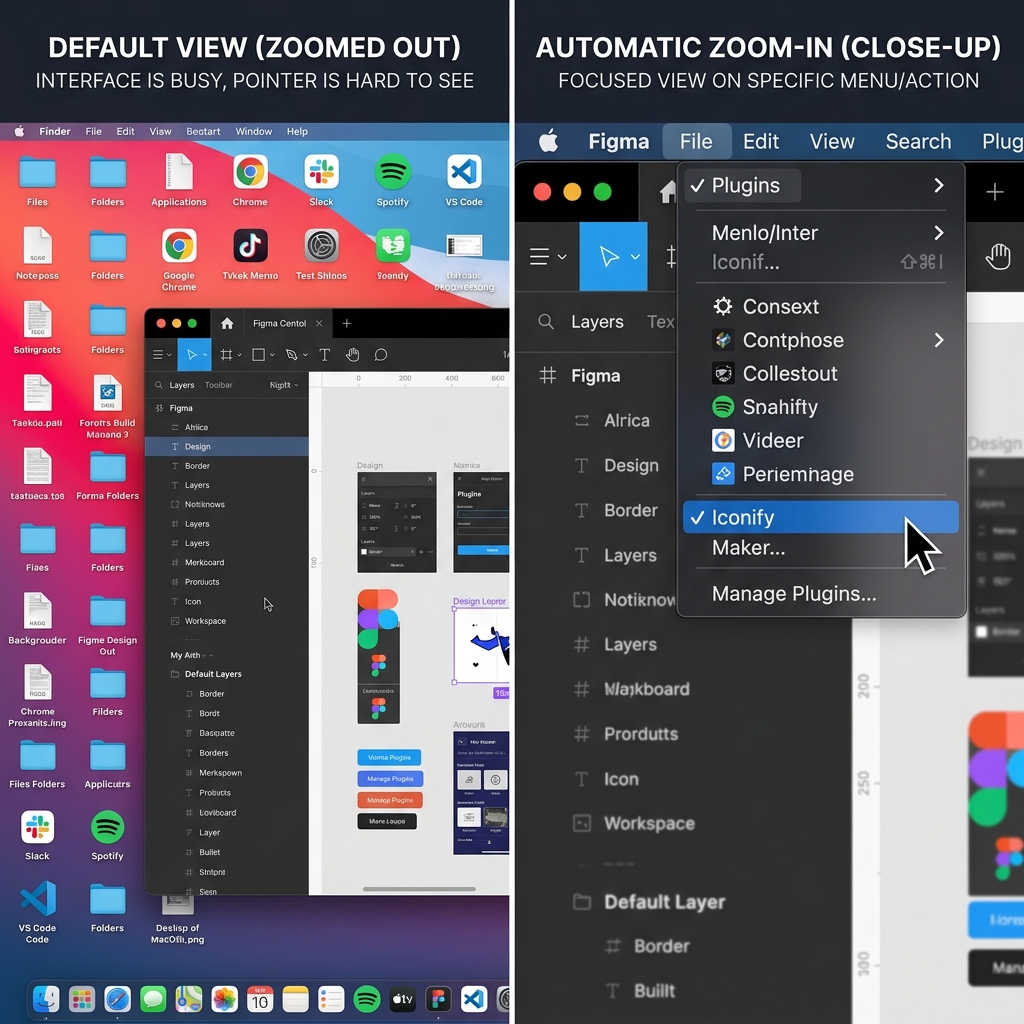
Cubix Capture was built specifically for this category — the tutorials, onboarding videos, and demos where clarity decides whether anyone watches to the end. Instead of leaving editing for later, it handles it live: it zooms in automatically on whatever you are clicking so the detail is always legible, it steadies the cursor into a calm glide, and it can swap a cluttered webcam background for a clean one on the fly. You hit stop and the video is already presentable.
So Which One Is Actually Best?
There is no single winner, only the right fit:
- Sending a fast clip? The built-in Command + Shift + 5 shortcut is all you need.
- Live-streaming or building a complex multi-source setup? OBS earns its keep.
- Making content other people are meant to learn from? Reach for a recorder like Cubix Capture that delivers a clear, edited result without the editing.
The best video recorder for your Mac is the one that matches the job in front of you — and for anything people are supposed to watch and follow, the value is in what happens automatically after you press stop.
Don’t miss the next one.
Join our newsletter for exclusive tips, product updates, and the latest from the Cubix team.