
You are on a Windows PC, you have seen those buttery-smooth product demos with the automatic zooms and the floating gradient background, and you have traced the look back to a Mac app called Screen Studio. The obvious next thought: can you just install it on your PC and get the same result?
It is a fair question, because nothing about the finished videos screams "Mac only." The exports are ordinary MP4 files that play anywhere. The app that makes them, though, is a different story.
So here is the direct answer: no, you cannot use Screen Studio on a PC. It is a native macOS application with no Windows version, no web version, and no supported way to run it on Windows hardware.
That sounds like a dead end, but it is not. In the sections below we cover why the app is welded to macOS, whether any of the usual workarounds actually get it running on a PC (spoiler: they do not), and the Windows-native tools that produce the same automatic-zoom look without a Mac in sight.
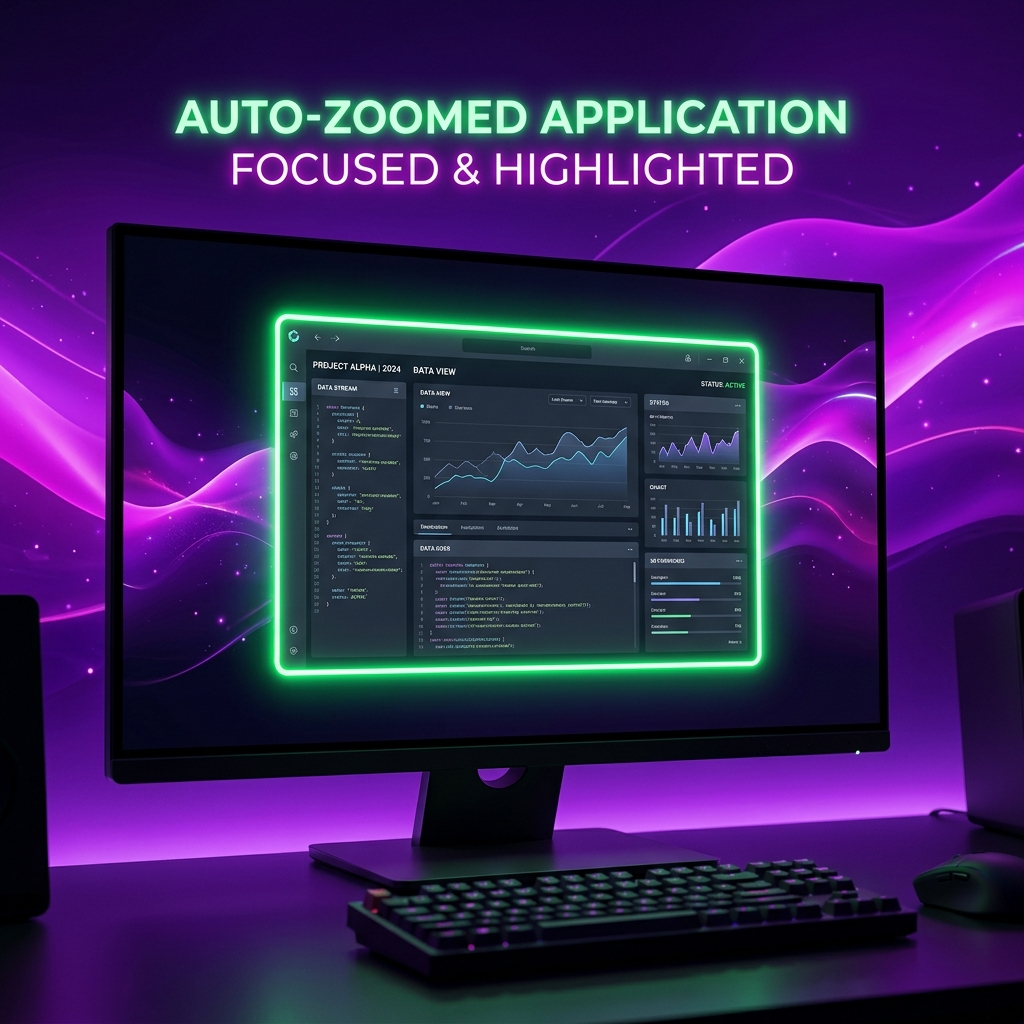
Why Screen Studio Remains a Mac Exclusive
The lock-in is technical, not a marketing decision. Screen Studio is built on frameworks that simply do not exist outside macOS.
Its capture layer relies on ScreenCaptureKit, Apple's low-latency recording API, to pull high-resolution windows, cursor data, and app boundaries with almost no CPU cost. Its silky cursor motion and live zooms lean on Metal, Apple's GPU framework, to process trackpad input frame by frame in real time.
Windows offers no drop-in equivalent for either piece, and the PC hardware landscape (a mix of Intel, AMD, and NVIDIA graphics that all behave differently) would force a ground-up rewrite rather than a simple recompile. That is why the team has stayed on Mac, and why a straight Windows port is not something to hold your breath for.
Can You Force It to Run With a Workaround?
Since the app itself is off-limits, the next question is usually whether some trick can run it on a PC anyway. People try three routes, and all three fall down for this specific app:
- A macOS virtual machine (VMware or VirtualBox): You can sometimes boot macOS inside a VM, but Screen Studio leans on ScreenCaptureKit and Metal GPU acceleration, and a virtual machine only exposes a generic emulated graphics adapter. The capture ends up choppy or refuses to start, and running macOS this way violates Apple's licensing terms outside of Apple hardware.
- A Hackintosh: Installing macOS directly on custom PC hardware is fragile, breaks on system updates, and still depends on unofficial GPU drivers that rarely deliver the low-latency capture Screen Studio needs. It is a weekend project, not a workflow.
- A cloud Mac (MacinCloud and similar): Renting a remote Mac technically runs the app, but you are recording over a streamed remote desktop, so cursor smoothing and zooms look laggy, and it is the remote screen that gets captured rather than your own PC. It defeats the entire purpose.
The short version: there is no reliable way to run Screen Studio on a PC. Rather than fighting the hardware, the tools below give you the same output natively on Windows.
The Best Windows Alternatives to Achieve the "Screen Studio Look"
Each of these three Windows tools rebuilds a large slice of what Screen Studio does, without dragging you into a Premiere or DaVinci timeline to hand-place every zoom and anchor point:
1. The Full-Featured Standard: Cubix Capture
For Windows creators whose primary metrics are rapid execution, premium design aesthetics, and a completely zero-edit post-production workflow, Cubix Capture is the absolute premier functional equivalent to Screen Studio on PC.
Instead of acting like a passive screen recorder, Cubix runs as an intelligent virtual camera director live in the background while you talk.
-
Initialize the Dynamic Staging Canvas: Capture the raw application workspace. Launch the tool and target your active software window. Cubix instantly crops out your messy Windows taskbar, desktop clutter, and system tray alerts, automatically centering your chosen application window over gorgeous, high-end gradient canvas backdrops.
-
Record with Live Algorithmic Focusing: Let the background engine track your focus points. Record your software walkthrough naturally. The exact millisecond you execute a mouse click or focus an input window, the camera smoothly pans and magnifies that quadrant dynamically, keeping text at a highly readable 1:1 scale on mobile viewports.
-
Deploy AI Cursor Path Smoothing: Translate physical movement into vector cinema. As you record, the underlying system architecture catches naturally frantic or jittery trackpad and mouse gestures, instantly ironing them out into fluid, sweeping glides that anchor viewer attention perfectly.
-
Instant Export and Mobile Optimization: Generate instantaneous, polished outputs. Click stop recording. The tool packages your floating, circular webcam overlay, smoothed tracking lines, and dynamic zoom paths into a finalized video asset instantly, allowing you to bypass the traditional video editor entirely.
Enjoying this read?
Get weekly insights on video editing, AI workflows, and creator growth straight to your inbox.
2. The Local Click Tracker: Rapidemo
Rapidemo is a small, Windows-only app built to do the one thing PC users kept asking for: add automatic zoom to a screen recording.
- How it Zooms: It logs where you click while you record, then drops pan-and-zoom cuts onto those spots afterward.
- Pros: Barely touches system resources, and its review screen lets you nudge how far each zoom pushes in and how long it lingers.
- Cons: Styling is bare-bones, with no real cursor-path stabilization and none of the polished gradient staging the higher-end tools include.
3. The Interactive Hybrid: FocuSee
FocuSee is the pick for teams that straddle Windows and Mac and want matching output on both platforms.
- How it Zooms: It builds the camera moves on its own from your live cursor path, the same broad approach Screen Studio takes.
- Pros: Bundles AI editing that can strip silences and filler words out of your narration automatically.
- Cons: Its free tier stamps a watermark on exports, and it steers you toward a cloud timeline rather than instant local files.
Windows Screen Recording Feature Matrix
| Visual Capabilities | Cubix Capture (Windows/Mac) | Rapidemo (Windows Only) | FocuSee (Windows/Mac) |
|---|---|---|---|
| Auto-Zoom Trigger | Real-time Cursor Tracking | Post-Capture Clicks | Algorithmic Tracking |
| Cursor Path Smoothing | Yes (AI Vector Smoothing) | Minimal | Yes (Basic) |
| Canvas Backgrounds | High-End Custom Gradients | Fixed Color Fills | Multi-Preset Templates |
| Production Speed | Instant (Zero Edit) | Fast Local Review | Cloud Sync Processing |
The Bottom Line for PC Creators
Most technical video is now watched on a phone. A flat, full-screen desktop capture forces mobile viewers to squint at tiny UI, and they bail. That is the real reason the Screen Studio look matters: it keeps the part of the screen that counts large and legible.
You cannot run Screen Studio on a PC, and no workaround reliably changes that, but you do not need it. A Windows-native recorder like Cubix Capture does the zooming, cursor smoothing, and background staging live while you record, so you get the same polished, mobile-friendly result without ever touching a Mac or a timeline.
Related reading:
- Is Screen Studio Available for Windows? (The Real Answer)
- Screen Studio Windows Download: Does It Exist?
- Best Screen Studio Alternatives in 2026
Don’t miss the next one.
Join our newsletter for exclusive tips, product updates, and the latest from the Cubix team.