
"How do I record my screen?" is one of those questions where the answer is yes, you can, and it's easier than you think — but the exact steps depend on what is in your hand right now. The button lives in a different place on every device, and each one has a small quirk that catches people out.
So here is the direct answer for whichever device you are holding, plus the one gotcha that trips most people up on each. Pick your device and go.

"I'm on an iPhone"
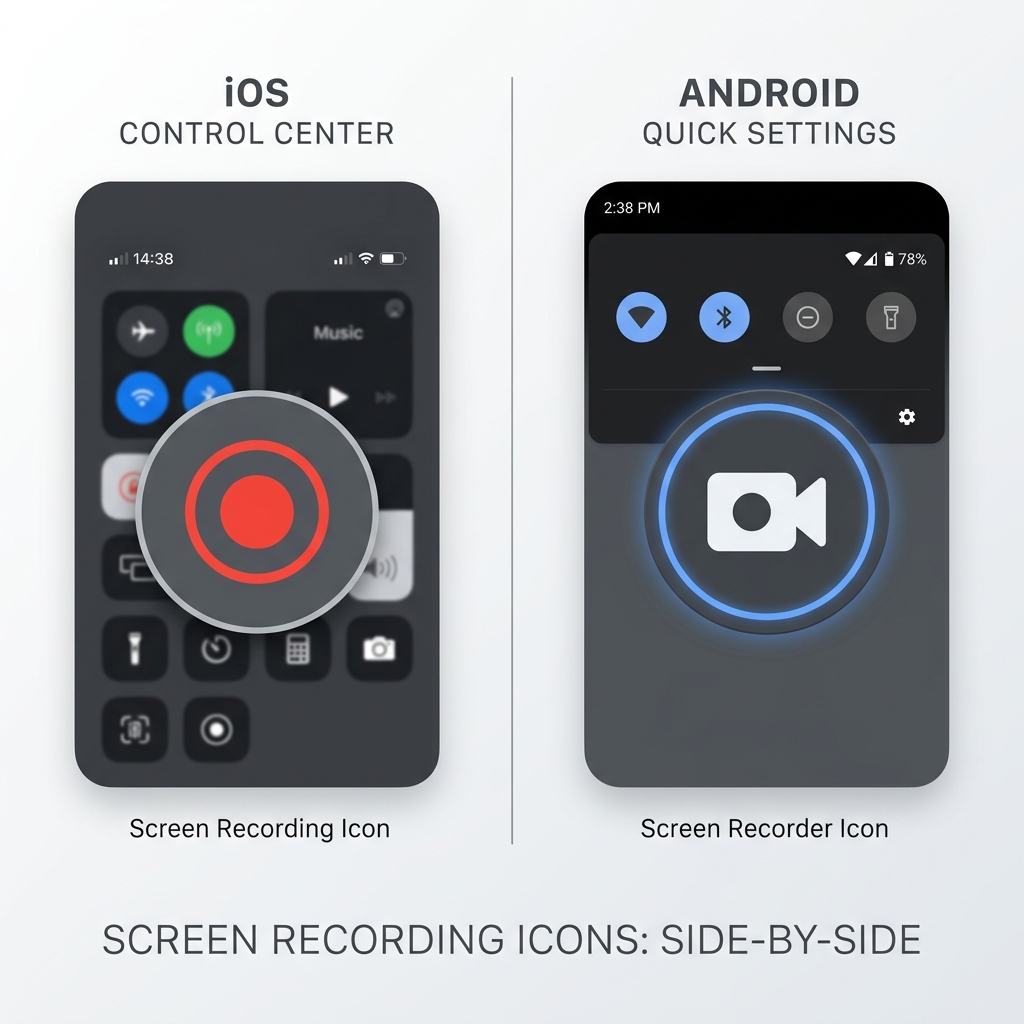
The button exists, but Apple hides it until you add it. Open Settings → Control Center, scroll to More Controls, and tap the green (+) next to Screen Recording. From then on, swipe down from the top-right corner, tap the round Record icon, wait for the three-second countdown, and you are recording. Stop by tapping the red clock in the top-left.
The gotcha: by default it records the screen silently with your mic off. To narrate, press and hold the record button (don't just tap it) — a panel appears with a Microphone toggle. Most people record a whole video before realising the mic was off the entire time.
"I'm on Android"
Samsung, Pixel, OnePlus — they all bundle a recorder now. Swipe down twice from the top to open the full Quick Settings grid and look for Screen record. Don't see it? Tap the pencil/edit icon and drag it onto the panel. Tap it, choose your audio and whether to show taps, and hit Start. Stop from the notification shade.
The gotcha: some apps refuse to be recorded. Streaming services and banking apps use copy protection that turns the recording into a black rectangle. That is the app blocking you on purpose, not a bug on your end.
Enjoying this read?
Get weekly insights on video editing, AI workflows, and creator growth straight to your inbox.
"I'm on a Mac"
Press Command + Shift + 5 for the floating control bar. Choose the whole screen or a selected portion, open Options to enable your mic, and click Record. Stop from the icon in the menu bar at the top-right.
The gotcha: the mic records your voice, but macOS blocks the recorder from capturing the sound playing inside your Mac — a video, a call, a game. There is no toggle for it; Apple locks system audio away from recorders by design.
"I'm on Windows"
On Windows 11, press the Windows key, type Snipping Tool, and open it. Click the video camera icon, hit New, drag a box around your area, unmute the mic in the toolbar, and press Start.
The gotcha: the Snipping Tool is great for apps and windows, but for full-screen PC games it can struggle. For those, press Windows + G to open the Game Bar instead, which is built for capturing games and graphics-heavy apps.
The one issue every computer recording shares
Phone recordings are easy to share because a phone screen already fits another phone. Computer recordings are the opposite — film a 24-inch monitor, send it to someone on their phone, and the text shrinks to nothing while the mouse twitches across the frame. The recording technically worked, but nobody can follow it.
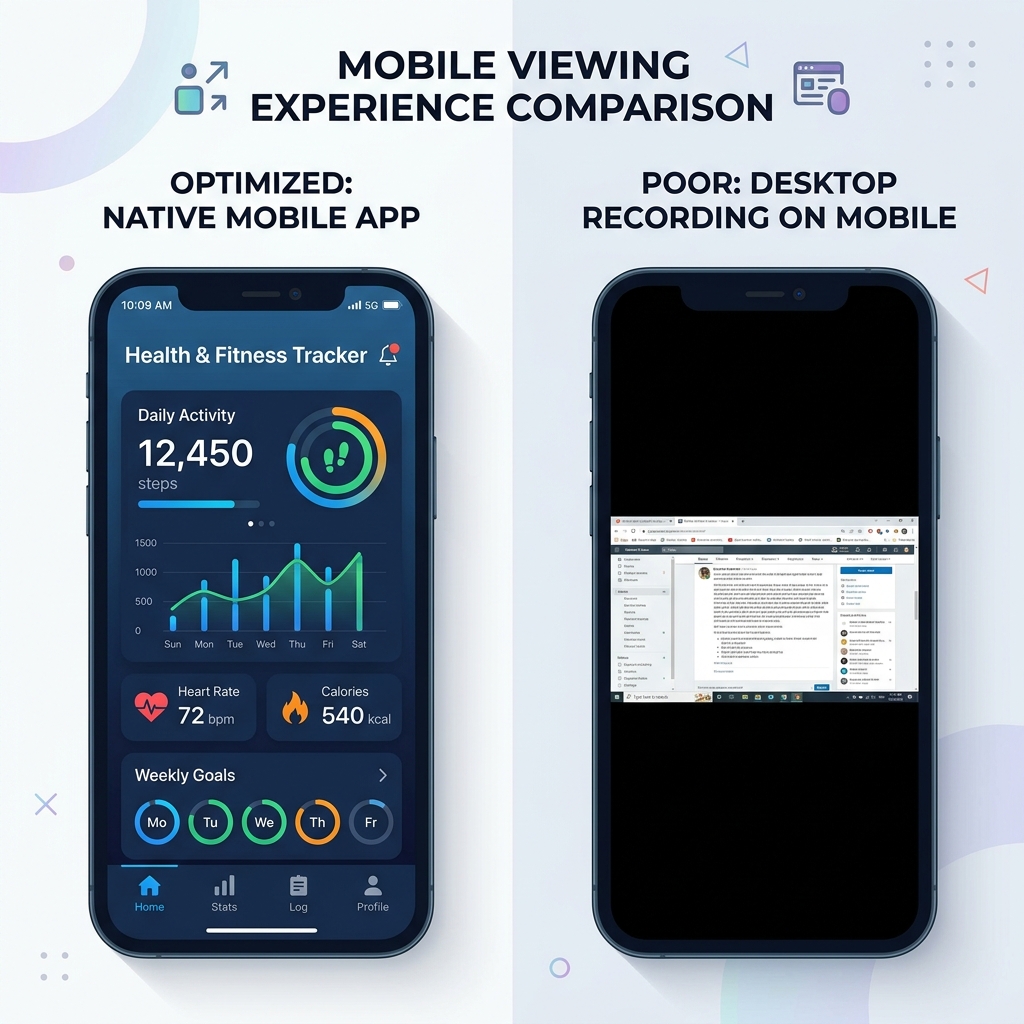
If you regularly record your computer screen for other people to watch, this is the problem worth solving. Cubix Capture records your Mac or PC like the built-in tools do, but automatically zooms in on whatever you are clicking and steadies the cursor, so the result stays readable even on a phone — without you opening an editor. For everyday phone clips the built-in buttons are all you need; for desktop tutorials, that automatic clarity is the difference between a video people finish and one they abandon.
Don’t miss the next one.
Join our newsletter for exclusive tips, product updates, and the latest from the Cubix team.