
There is nothing quite like finishing a video edit, only to have the excitement crushed by a 5-hour upload time. Worse is when the video finally goes live and it looks blurry or blocky compared to the original sitting on your hard drive.
The tradeoff feels impossible: you want a small file size so it uploads quickly, but you don't want to sacrifice the crisp details that make your content look professional.
Here is what most creators miss: YouTube re-compresses every single video you upload. There is no "lossless YouTube upload." The trick is to hand YouTube a file that is already in the exact format and quality envelope its servers expect, so the platform's automatic re-encode has very little work left to do. Speak YouTube's native language and the platform leaves your quality alone.
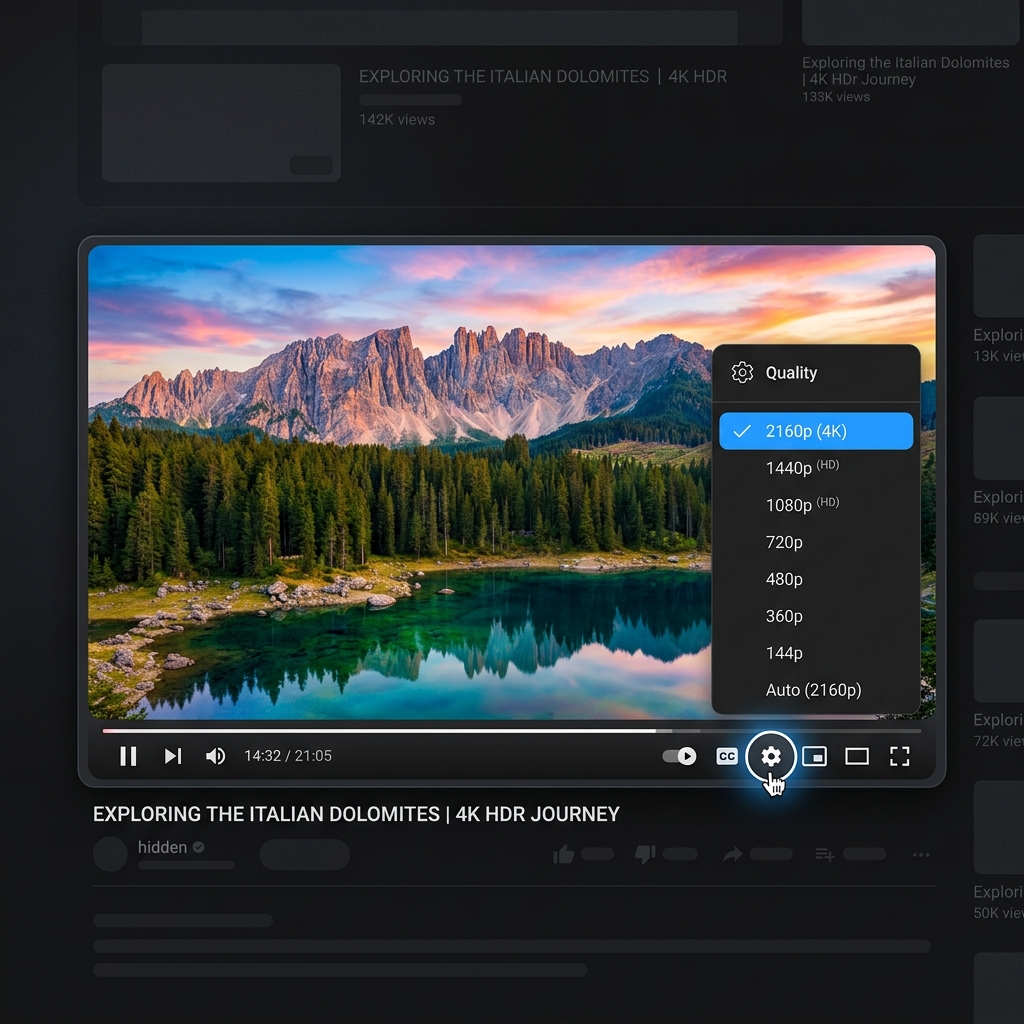
How YouTube Actually Handles Your Upload
Every video uploaded to YouTube goes through a two-stage process. First, the file is transcoded into a master copy. Then YouTube generates every playback resolution from that master — 144p, 360p, 480p, 720p, 1080p, and, if your file qualifies, 1440p, 4K, and 8K.
The codec YouTube picks for each resolution depends on the source file. Lower-resolution outputs typically use the older H.264 codec. Higher-resolution outputs (1440p and above) use VP9 or AV1, which preserve detail much better at the same bitrate. That is the single most important fact in this entire article — it is the reason the "upload at 4K even if you filmed 1080p" trick exists.
YouTube's Recommended Upload Settings (2026)
YouTube publishes its own recommendations in the Creator Hub, but they are buried. Here are the numbers that actually matter:
| Setting | Recommended value |
|---|---|
| Container | MP4 |
| Video codec | H.264 (or H.265 / HEVC if your editor supports it) |
| Audio codec | AAC-LC, stereo, 48 kHz, 384 kbps |
| Frame rate | Match your source (24 / 25 / 30 / 48 / 50 / 60) |
| Color space | Rec. 709 for SDR, Rec. 2020 with PQ for HDR |
| 1080p SDR bitrate | 8 Mbps (24/30 fps), 12 Mbps (48/60 fps) |
| 1440p SDR bitrate | 16 Mbps (24/30 fps), 24 Mbps (48/60 fps) |
| 4K SDR bitrate | 35–45 Mbps (24/30 fps), 53–68 Mbps (48/60 fps) |
| 1080p HDR bitrate | 10 Mbps (24/30 fps), 15 Mbps (48/60 fps) |
If your editor lets you choose between CBR (constant bitrate) and VBR (variable bitrate), pick 2-pass VBR with the recommended number as your target. Two-pass takes longer to render but produces noticeably better compression than a single pass at the same bitrate.
The 4K Codec Hack (Even for 1080p Videos)
Here is the trick that has made the rounds on YouTube forums for years and still works: even if you filmed and edited at 1080p, exporting and uploading the final master as 3840×2160 (4K) often triggers YouTube to encode it with VP9 or AV1 instead of H.264.
When viewers later watch your video at 1080p, YouTube downscales from the 4K VP9 master, which produces a noticeably sharper 1080p stream than if you had uploaded a native 1080p H.264 file. Text edges stay crisp, fast pans don't smear, and dark scenes don't macroblock.
The catch: your upload time and render time both go up, sometimes significantly. For tutorial content where text legibility matters, the tradeoff is almost always worth it. For 60-minute vlogs where viewers will mostly watch on phones, save your time and upload at native 1080p.
The Audio Setting Almost Everyone Gets Wrong
YouTube is shockingly strict about audio. The recommendation is AAC-LC stereo at 48 kHz with a 384 kbps bitrate. Most editing software defaults to 128 or 192 kbps, which is fine for podcasts but will get re-encoded by YouTube down to a lossier version anyway.
If you can hit 384 kbps on export, your audio comes out cleaner on the platform than it would otherwise. If you also have a 5.1 surround mix, upload it — YouTube preserves 5.1 audio for compatible players (smart TVs, soundbars), which can dramatically lift the perceived production quality of cinematic content.
Enjoying this read?
Get weekly insights on video editing, AI workflows, and creator growth straight to your inbox.
Aspect Ratio: 16:9 for Long-Form, 9:16 for Shorts
YouTube serves three surfaces: the main player (horizontal 16:9), Shorts (vertical 9:16), and the in-feed preview (which crops). If you upload a 4:3 or square video, YouTube pillarboxes it with black bars on both sides — viewers will assume the channel is unprofessional and skip.
For long-form, stay at 1920×1080 or 3840×2160. For Shorts, render at 1080×1920. Do not upload a horizontal video and rely on YouTube to crop it — the crop will not match what you intended.
Color Space: Rec. 709 Is the Right Default
If your editor exports in sRGB or doesn't tag color metadata at all, YouTube will sometimes display your video with washed-out, slightly green tones. Force the export tag to Rec. 709 for standard videos. If you are mastering in HDR, use Rec. 2020 with the PQ transfer function — YouTube serves the SDR fallback automatically.
Practical Upload Tips That Survive Compression
The technical settings are half the battle. The rest is filming choices that compress well.
- Light scenes well. Compression destroys noise. A grainy underexposed shot will look like blocky moving pixels once YouTube encodes it. A well-lit shot at the same bitrate looks clean.
- Wait for HD processing before going public. The moment a video uploads, YouTube serves a 360p version while it re-encodes the higher resolutions in the background. If you publish immediately, the first wave of viewers sees the worst version and the algorithm uses that retention data to score the video.
- Use the "Static Sharpness Enhancer" sparingly in your editor. Over-sharpening creates haloes that compression turns into halos with hard edges. Subtle is better.
- Keep cuts longer than 2 seconds wherever possible. Every cut triggers a new I-frame, which costs bitrate. Long takes compress noticeably better.
Common Mistakes That Lower Perceived Quality
- Uploading
.movfiles with the Apple ProRes codec. They are huge and YouTube has to re-encode them anyway, which often produces worse results than a properly tuned MP4. - Using a constant bitrate (CBR) for content with mixed motion. Action scenes get starved and static scenes get inflated. 2-pass VBR fixes this.
- Letting your render queue use only Intel Quick Sync or NVENC at default settings. Hardware encoders are fast but their default presets favor speed over quality. Switch to "high quality" or "max quality" before exporting your final master.
- Ignoring the audio peak. YouTube normalizes loudness to roughly -14 LUFS. A track mixed to -6 LUFS will be turned down, often making dialog sound thin compared to other channels.
Record Source Material That Already Compresses Well
The cleanest way to skip all this is to record content that compresses well to begin with. Camera footage is unpredictable — lighting, motion, and noise all change shot to shot. Screen-based content is predictable and almost always compresses 3-4x better than camera footage at the same resolution.
If your channel is built on tutorials, software walkthroughs, code reviews, or product demos, recording with Cubix Capture gives you source files that are already in YouTube's preferred envelope — 1080p or 4K H.264, Rec. 709 tagged, 30 or 60 fps, with an audio track at the correct bitrate. The export's smart auto-zoom keeps text legible after YouTube's downscaling, which is one of the biggest perceived quality wins on the platform.
When you need to compress an existing master before upload, the video compressor and YouTube-specific compressor hit YouTube's recommended bitrates automatically without guessing.
Related reading:
- How to Record a Software Tutorial in Under 10 Minutes — for creators making "how-to" content.
- Psychology of Zoom: Why Auto-Zoom Boosts Viewer Retention — YouTube rewards retention, and zoom keeps eyes on screen.
- How to Reduce Video Size Without Losing Quality — The Actual Answer — the deeper technical explainer on perceptual compression.
Your audience will never see the file on your hard drive. They will see the version YouTube serves them. Hand the platform a file that needs almost no re-encoding, and the version they see will look almost identical to the one you spent hours creating.
Don’t miss the next one.
Join our newsletter for exclusive tips, product updates, and the latest from the Cubix team.