
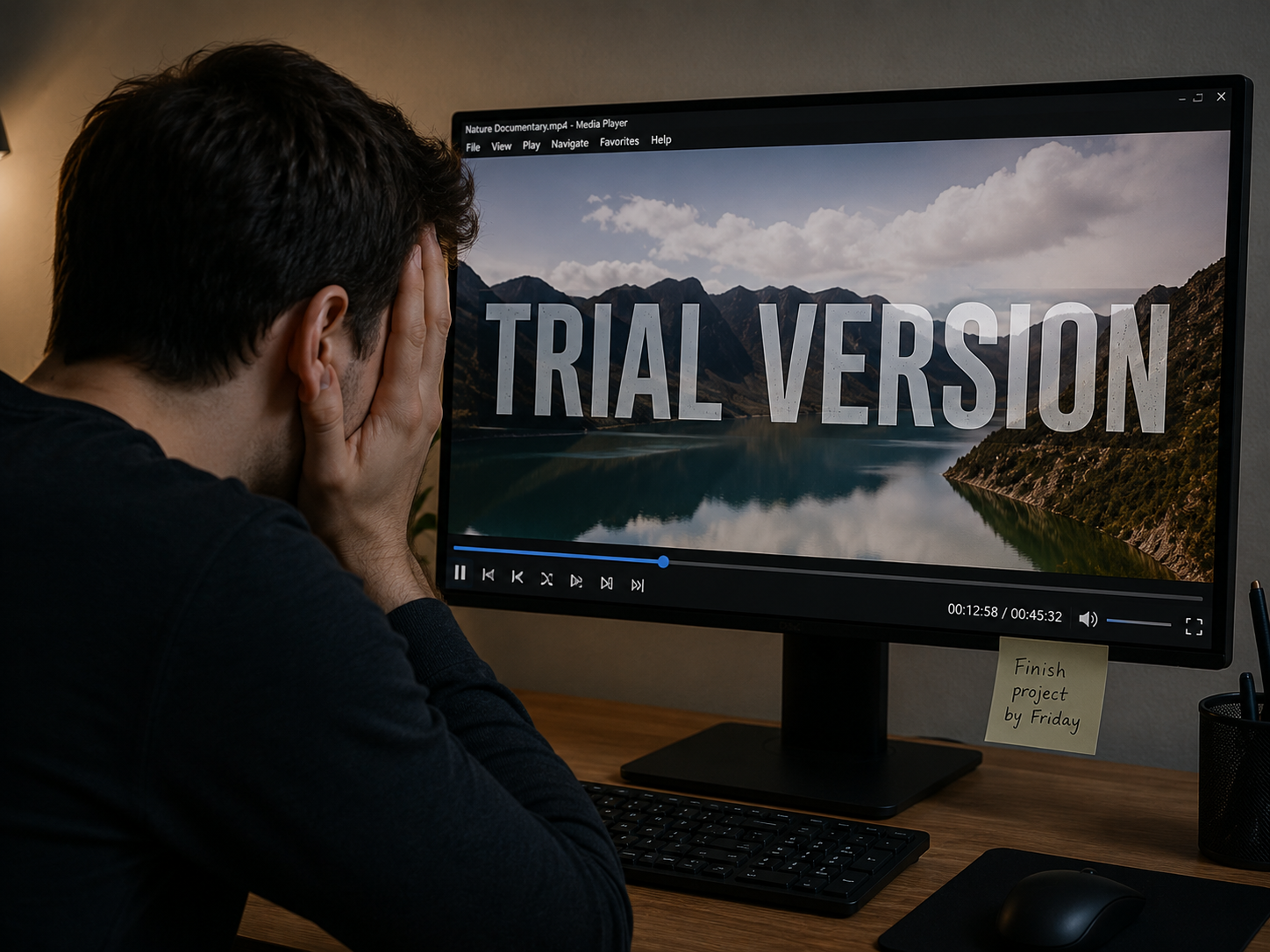
Imagine spending twenty minutes recording the perfect tutorial. You have explained every detail, your voice was clear, and you successfully demonstrated the entire process. You hit the stop button, eager to share the file. But when you play the video back, there is a massive, semi-transparent logo stamped right across the middle of your screen.
Finding a way to record your screen on Windows without a watermark is one of the most frustrating searches on the internet. Most free tools promise the world, but hide their watermarks in the fine print, forcing you to pay just to make your own video look clean.
If you want to share professional, clear, and unbranded videos, you do not have to fall into the watermark trap. Here is the straightforward recipe for capturing your screen cleanly on Windows, and how to ensure your final video actually looks like a premium, human-centric presentation.
The Built-In Recipe: No Downloads Required
The easiest way to avoid third-party watermarks is to avoid third-party software altogether. If you are using a modern Windows computer, Microsoft has already provided you with free, clean capture tools.
1. The Snipping Tool (Windows 11) If you are on the latest version of Windows, the Snipping Tool is your best quick-fix option.
- Open the Start Menu and search for "Snipping Tool."
- Click the Video Camera icon at the top.
- Click New, and draw a box around the area of your screen you want to capture.
- Hit Start. The resulting MP4 file will be completely clean, with absolutely no watermarks.
2. Xbox Game Bar (Windows 10 & 11) If you just need to record a single web browser or application, the Game Bar is incredibly fast.
- Press Windows + G on your keyboard.
- In the Capture menu, click the Record button.
- The video will save straight to your Videos folder, completely watermark-free.
While these built-in tools solve the watermark problem, they are very basic. The Game Bar will not record your entire desktop, and the Snipping Tool leaves you with a raw, unedited file.
Enjoying this read?
Get weekly insights on video editing, AI workflows, and creator growth straight to your inbox.
The Real Problem with "Raw" Recordings
Getting rid of the watermark is only the first step. If your goal is to provide a real-life solution to a colleague, a student, or a client, a clean screen is not enough. You have to consider the viewer's experience.
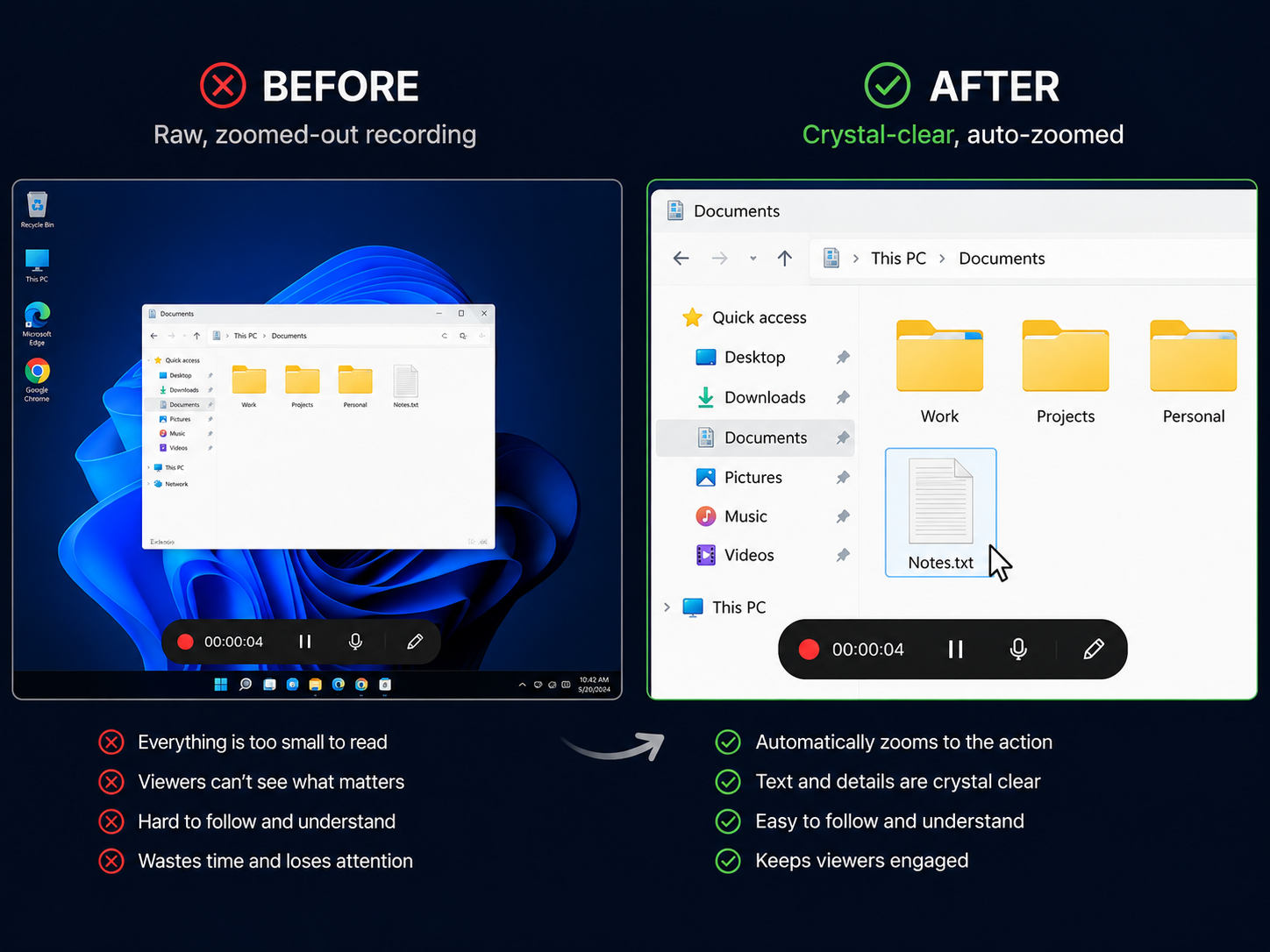
Think about the size of your Windows monitor. When you record that entire screen and send it to someone who is watching on a mobile phone, the text and menus shrink down to a microscopic size. A video without a watermark is useless if the viewer has to squint to see what you are clicking.
Furthermore, standard mouse movements often look erratic and jittery on video, which makes the presentation feel chaotic and unprofessional.
The Flawless, Professional Upgrade
You could try to fix these visual issues by downloading heavy video editing software, manually zooming in on your clicks, and trying to smooth out your mouse path. But that takes hours of work.
If you want to record your screen on Windows without a watermark and deliver a video that is incredibly easy for your audience to watch, the smartest choice is to use a tool that handles the visual editing automatically.
This is where Cubix Capture completely transforms the recording process. It is designed from the ground up to create human-friendly, professional content without the headache of manual editing.
Instead of just capturing a flat image, Cubix Capture acts as an intelligent visual assistant:
- Auto-Zoom: It follows what you are doing and zooms straight to the detail that matters, giving every viewer a close-up seat regardless of their screen size.
- Smooth Cursor: It tames the restless, darting movement of your mouse and turns it into a smooth, guided motion that leads the eye naturally.
- Live Backgrounds: Presenting on camera? It strips away the messy room behind you and drops in a clean, professional background instantly.
Finding a free screen recorder with no watermark is just the beginning. By choosing software that automatically provides visual clarity and removes the need for manual editing, you ensure every video you share is engaging, polished, and genuinely easy for your audience to understand.
📖 Keep reading: our guides on how to screen record on Windows with audio, how to screen record on Windows 11, and the top 7 screen recording tools for Windows in 2026.
Don’t miss the next one.
Join our newsletter for exclusive tips, product updates, and the latest from the Cubix team.