
There is nothing more frustrating than finishing a five-minute video tutorial, only to play it back and realize it is completely silent. Whether you are trying to explain a complex workflow to a colleague, record an important online meeting, or share a software tip, a video without sound is useless.
Windows has historically made capturing audio alongside a screen recording a bit confusing. Often, users find that their microphone was not picked up, or the sound coming from the computer itself (like a video playing on the screen) was completely ignored.
Fortunately, capturing both your voice and your computer's internal audio on a Windows PC is easier than ever once you know where to look. Here is the straightforward recipe to screen record with audio, and how to ensure your final video actually helps the person watching it.
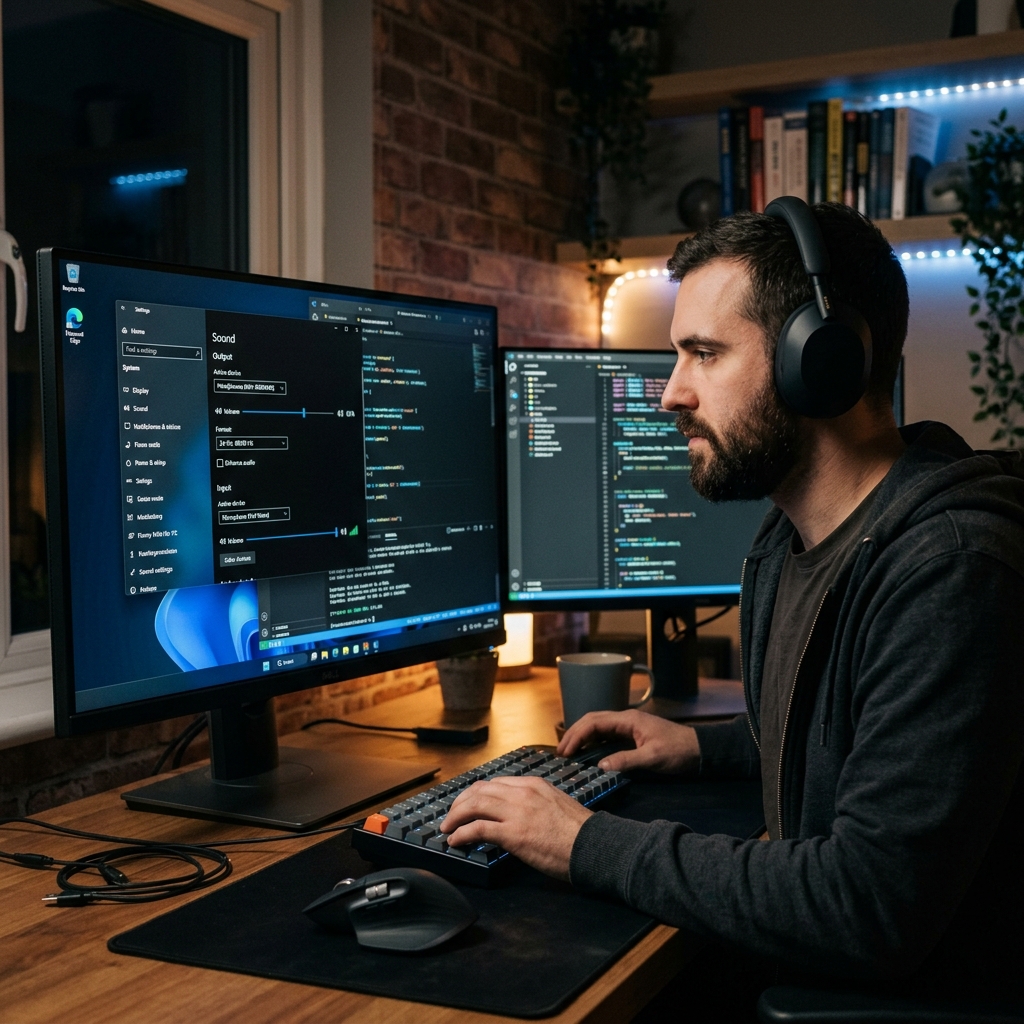
The Built-In Recipes: Snipping Tool and Game Bar
If you are using a modern Windows computer, you already have two free tools installed that can capture your screen and your audio at the same time.
Method 1: The Snipping Tool (Windows 11) Microsoft recently updated the Snipping Tool to include video recording, and it is the cleanest built-in option available.
- Open the Start Menu, type "Snipping Tool," and open the app.
- Click the Video Camera icon at the top of the window.
- Click New and drag a box around the area you want to record.
- The Audio Check: Before you hit Start, look at the top of your screen. You will see a microphone icon and a speaker icon (system audio). Make sure both are toggled on so it captures your voice and your computer's sound.
- Click Start to begin your recording.
Method 2: Xbox Game Bar (Windows 10 & 11) If you are recording a single application, the Game Bar is a fast alternative.
- Open the application you want to record.
- Press Windows + G on your keyboard to open the Game Bar overlay.
- In the "Capture" widget, look for the microphone icon. Click it to turn your mic on.
- Press the Record button (the white circle). (Note: To ensure it records system audio, you may need to click the Settings gear in the Game Bar, go to "Capturing," and select "All" under the audio settings).
Enjoying this read?
Get weekly insights on video editing, AI workflows, and creator growth straight to your inbox.
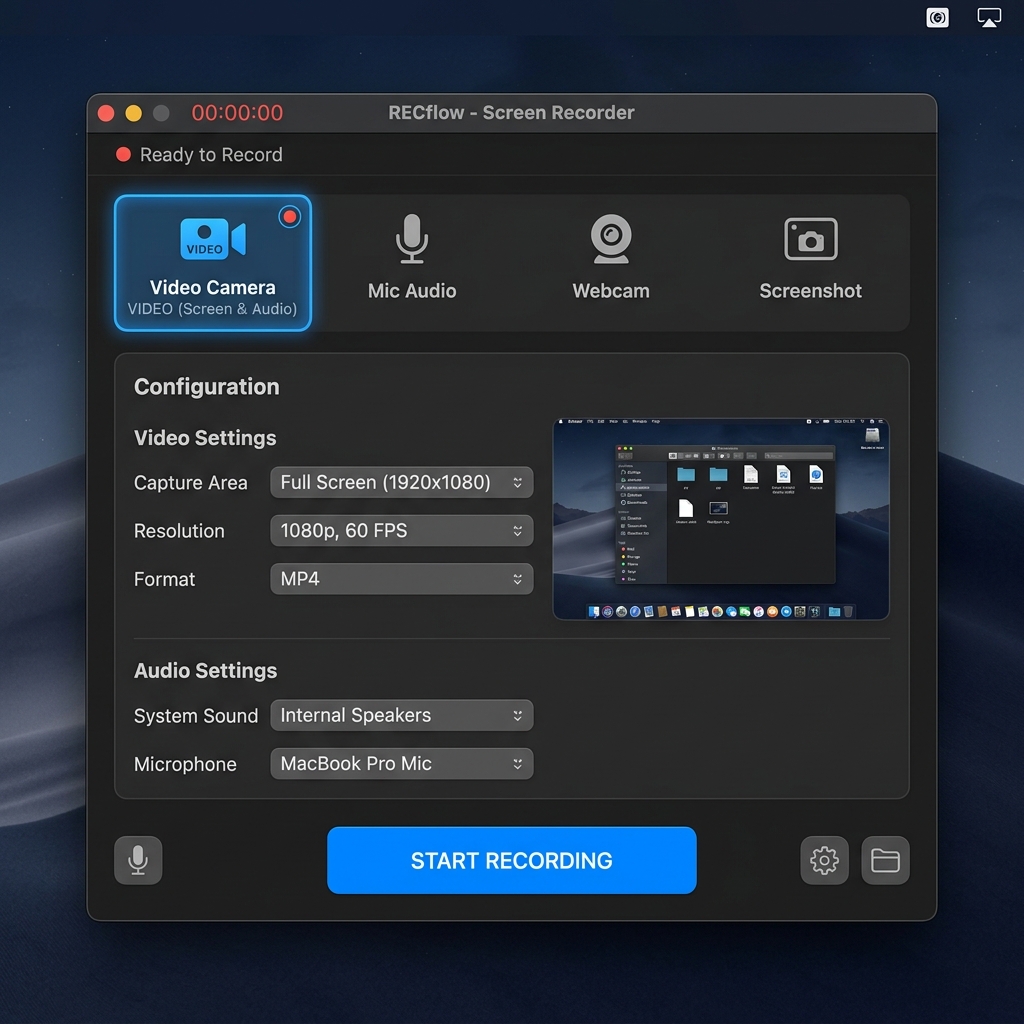
Audio Is Only Half the Solution
Solving the silent video problem is a huge relief. However, crisp audio is only one part of a truly helpful tutorial.
If you are using a standard desktop monitor, the text and menus on your screen are quite small. When you record the whole screen and send it to someone who watches it on a mobile phone, they will have to squint to figure out what you are clicking. Furthermore, standard mouse movements often look erratic and jittery on video, which can make your presentation feel chaotic.
You can have perfect audio, but if your audience cannot comfortably see the steps you are taking, the video fails to provide a real-life solution.
The Professional, Human-Centric Upgrade
Instead of recording a basic video and spending hours in an editing program trying to zoom in on menus and smooth out your mouse movements, the smartest approach is to use a tool that does the visual editing for you automatically.
This is exactly why Cubix Capture completely changes the recording workflow for Windows users. It is designed to pair your clear audio with a flawless visual experience, requiring zero editing effort from you.
While you talk through your lesson, Cubix Capture acts as an intelligent assistant:
- Auto-Zoom: As you narrate each step, it follows your actions and pushes in on the exact menu or button you are talking about, so your words and the visuals always stay in sync.
- Smooth Cursor: It irons out the jittery, restless motion of your mouse into a steady, deliberate glide that is easy to track while you speak.
- Live Backgrounds: If your webcam is on while you talk, it swaps your real-life room for a clean, distraction-free backdrop in real time so nothing competes with your voice.
Capturing your screen with audio on Windows is easy with the built-in tools. But by stepping up to a platform designed to provide automatic visual clarity, you ensure every video you create is engaging, professional, and genuinely easy for your audience to understand.
📖 Keep reading: our guides on how to screen record on Windows 11, how to record your screen on a PC, and the best free screen recorder for Windows in 2026.
Don’t miss the next one.
Join our newsletter for exclusive tips, product updates, and the latest from the Cubix team.