
We all know the feeling. You are trying to show a coworker how to fix a software issue, or maybe you are a teacher trying to walk your students through a new online tool. Typing out a long email with a dozen screenshots is exhausting, so you decide to record your screen.
But then the real headache begins. You search for a screen recorder and get hit with hundreds of options. Some are incredibly complicated, some put a massive, ugly watermark right in the middle of your video, and others limit you to just three minutes of recording.
In 2026, screen recording is no longer just for professional gamers or tech experts; it is an everyday communication tool. But the standard for a good video has changed. A raw, unedited recording where the viewer has to squint to read tiny text just does not cut it anymore. You need a tool that makes your videos look clean, clear, and easy to follow.
If you are looking for the right software to capture your Windows screen this year, here is a straightforward breakdown of the top 7 options that actually work and solve real-life problems.
1. Cubix Capture
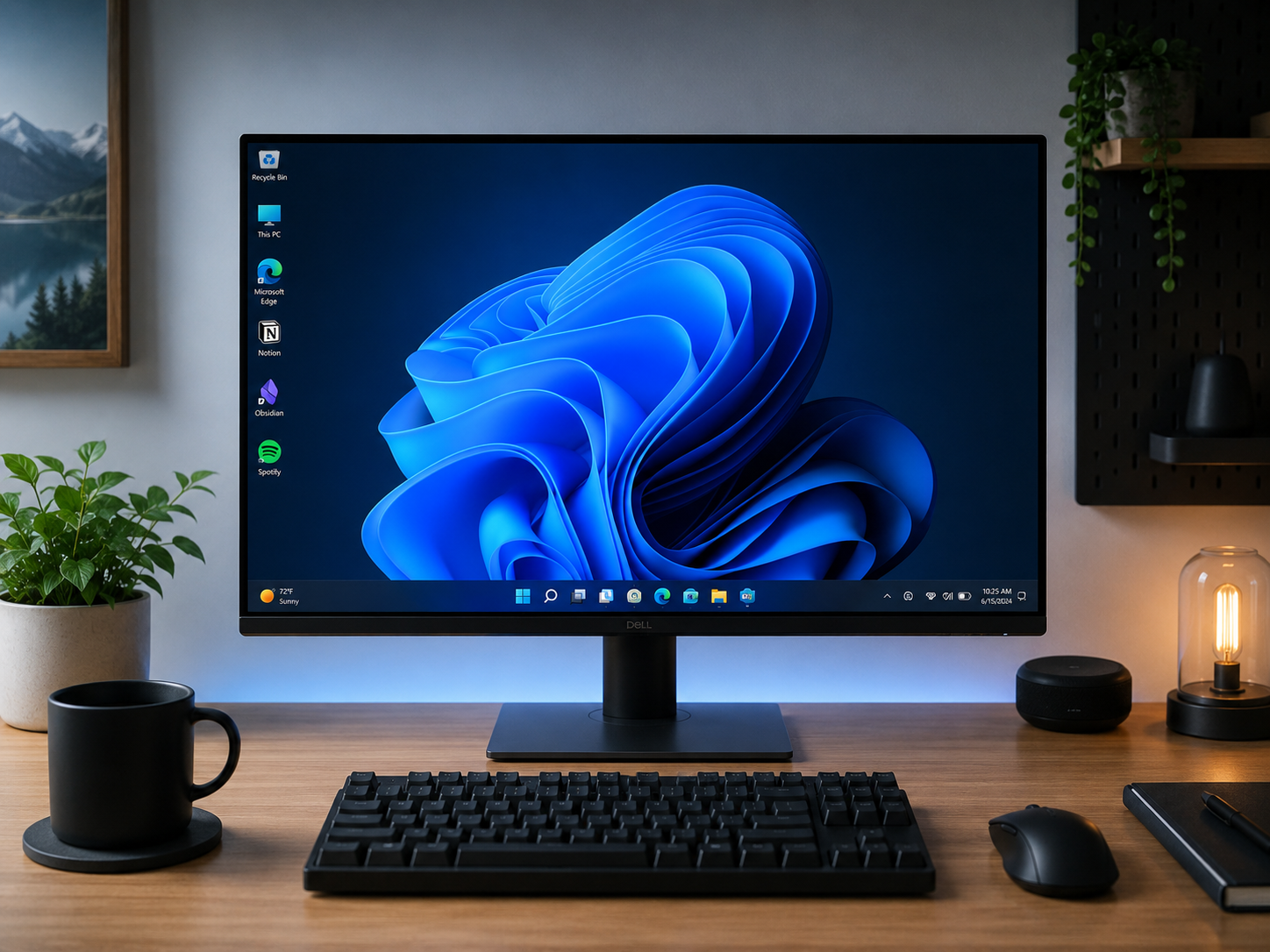
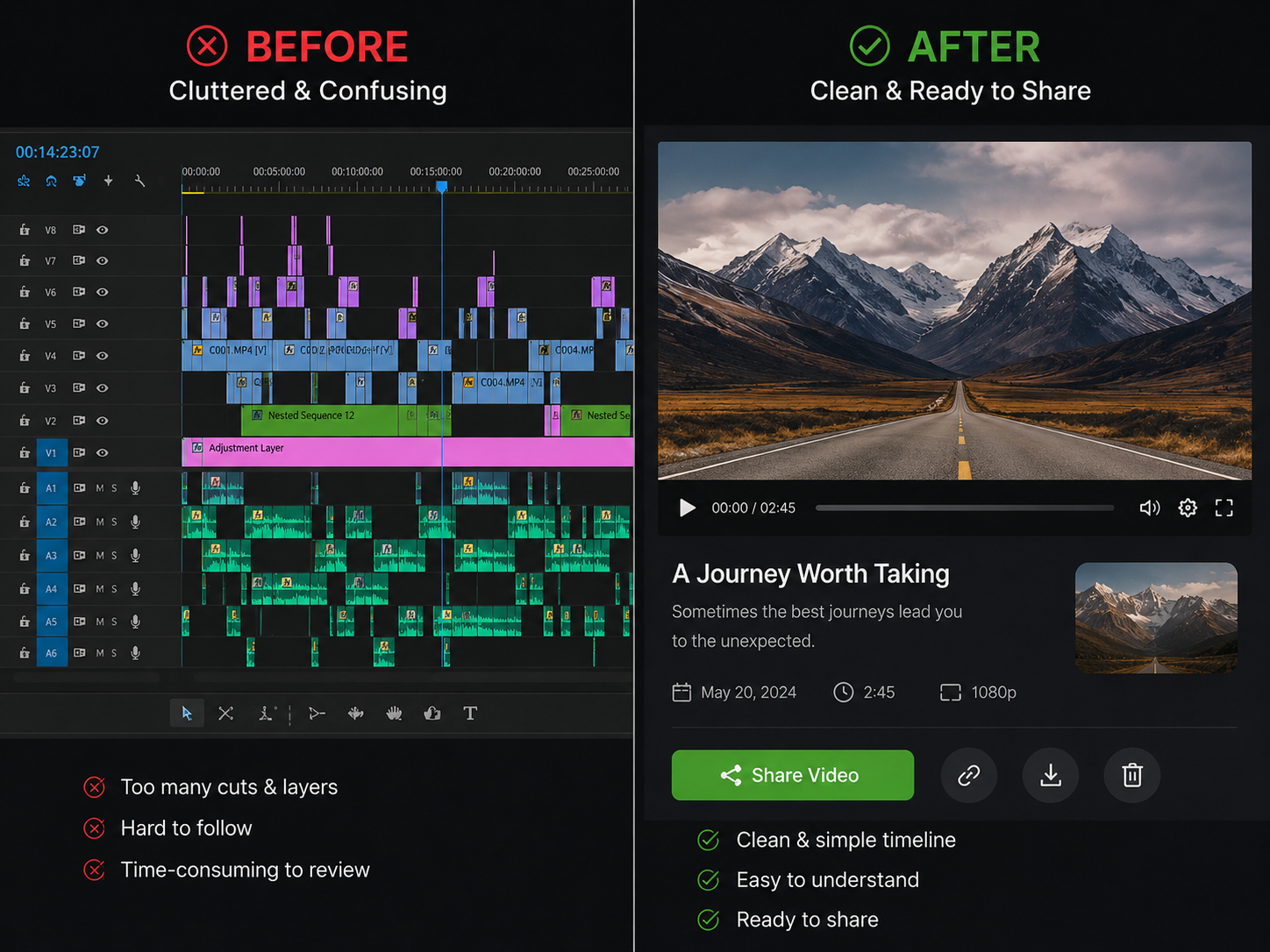
When you record a tutorial or a presentation, your main goal is to make sure the viewer understands your message. Standard screen recorders capture your entire screen exactly as it is, which means menus look microscopic on mobile phones and your mouse pointer probably jumps around frantically.
If you want to create videos that look incredibly professional without spending hours in video editing software, Cubix Capture is the absolute best choice on Windows right now. It is built entirely around the idea of human-friendly visual clarity.
Instead of just recording a flat video, it acts as an intelligent assistant while you work:
- Auto-Zoom: It watches where the action is happening and smoothly magnifies that region, so even tiny menu items stay readable on a phone screen.
- Smooth Cursor: It smooths the twitchy, darting motion of your pointer into a calm, flowing path across the screen.
- Live Backgrounds: Turn on your webcam and it quietly replaces the clutter behind you with a clean, professional scene.
It is number one on this list because it respects your time. It gives you an edited, polished, and perfect video the moment you hit the stop button.
2. OBS Studio
If you are a live streamer or a gamer, you have probably heard of OBS Studio. It is the heavyweight champion of the open-source world. It is completely free, with no watermarks and no time limits.
OBS allows you to set up complex "scenes." You can mix your gameplay, your webcam, and multiple audio sources all at once. However, it comes with a very steep learning curve. The interface is intimidating, and it is strictly a capture tool—it offers no built-in video editing. If you are just trying to record a quick tutorial for a client, OBS is likely overkill.
3. ActivePresenter
ActivePresenter is a fantastic tool if you are an educator or a corporate trainer building extensive eLearning courses. It is essentially a screen recorder and a heavy-duty video editor rolled into one program.
You can record your screen and then use its timeline editor to add interactive quizzes, text callouts, and voiceovers. It is highly capable, but it is also a heavy piece of software. If you just need to share a fast, visual solution with a team member, navigating its complex editing timeline might slow you down.
4. Loom
Loom changed the way remote teams communicate by making asynchronous video messaging popular. It is a browser extension and desktop app that allows you to quickly record your screen and webcam, instantly uploading the video to the cloud so you can share it via a simple link.
It is incredibly fast and great for quick updates. The downside is that the free version strictly limits your videos to five minutes, and you can only store a limited number of videos. Also, like most basic tools, it captures raw footage, meaning your viewers still have to deal with tiny text on large screens.
Enjoying this read?
Get weekly insights on video editing, AI workflows, and creator growth straight to your inbox.
5. Camtasia
Camtasia has been around for years and is widely used by professional tutorial creators. It is a premium, paid software that offers a very robust suite of video editing tools alongside its screen recorder.
If you want to manually add professional transitions, green screen effects, and detailed annotations, Camtasia is excellent. The main drawback is the price. It is quite an investment, and you still have to manually edit your videos to fix zoom issues and cursor movements, which takes up a lot of valuable time.
6. ScreenPal (formerly Screencast-O-Matic)
ScreenPal is a very accessible, budget-friendly option for basic screen recording tasks. It is straightforward to use and offers a simple video editor if you want to trim the start or end of your clips.
It is a solid middle-ground tool for educators and students who need to capture a quick lecture or presentation. However, the free version does lack some of the advanced features needed to produce highly polished content, and it does not offer intelligent automation for visual clarity.
7. Kommodo
Kommodo is a newer entry in the market that focuses heavily on teams and documentation. What makes it unique is that it offers unlimited screen recording on its free plan and uses AI to make your video library searchable.
If you are building a massive library of internal company training videos, it is a great platform for keeping things organized. However, if your main concern is making sure the actual video content looks visually flawless and easy to follow for the end viewer, you might still struggle with raw, unzoomed screen captures.
Choosing the Right Recipe
Finding the best screen recording software for Windows comes down to what you are trying to achieve. If you are live streaming a game, OBS is your best friend. If you want to shoot a quick, five-minute message to your boss, Loom works great.
But if your goal is to create tutorials, demonstrations, and guides that actually help people—videos that are visually clear, easy to follow, and look completely professional—you need a tool that works for you.
When you provide a real-life solution, the presentation matters. Give your viewers the clarity they deserve by using tools designed to guide their attention naturally.
📖 Keep reading: our guides on how to screen record on Windows with audio, how to record your screen without a watermark, and the best free screen recorder for Windows in 2026.
Don’t miss the next one.
Join our newsletter for exclusive tips, product updates, and the latest from the Cubix team.