
If you have never recorded your screen before, let me put your mind at ease in one sentence: it is one keyboard shortcut, it is already on your computer, and you can do it in the next thirty seconds. No download, no sign-up, no settings to wade through.
That is genuinely all this guide is. One method for Mac, one for Windows, and quick answers to the three questions every first-timer asks. Let's go.
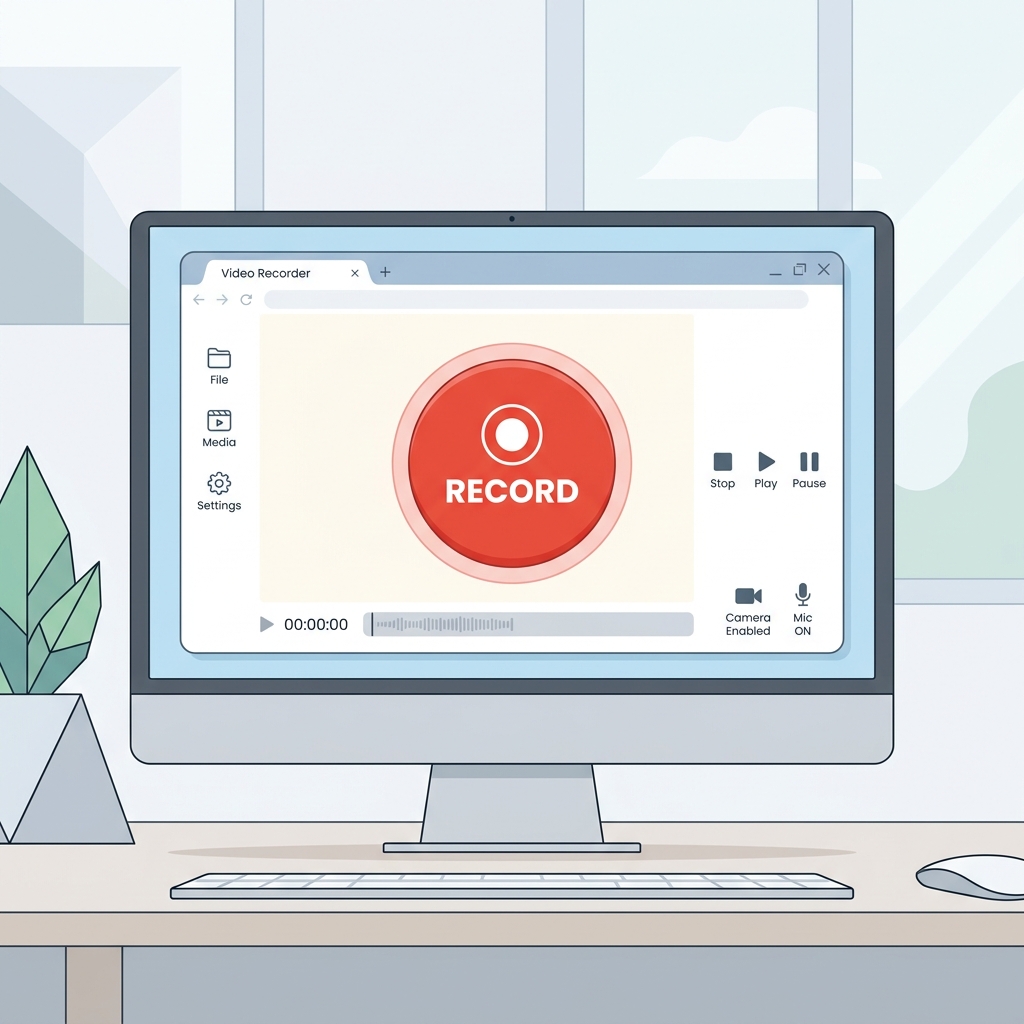
On a Mac: one shortcut
Press Command + Shift + 5. A little bar appears at the bottom of the screen. Click the record button (the one shaped like a screen, not a camera), then click Record. To stop, click the small square icon in the menu bar at the top-right. Done — your video is on the desktop.
On Windows: one app
Press the Windows key, type Snipping Tool, and open it. Click the video camera icon at the top, click New, drag a box around what you want to film, and hit Start. Click the stop button when you are finished. Your video saves automatically.
That is the whole skill. Everything below is just the questions people ask the first time.
"Wait — is this really free?"
Yes, completely. Both tools are built into the operating system you already paid for. There is nothing to buy, no trial clock ticking, and no watermark stamped across your video. Record as many as you like.
Enjoying this read?
Get weekly insights on video editing, AI workflows, and creator growth straight to your inbox.
"Where did my recording go?"
On a Mac it lands on your Desktop by default. On Windows the Snipping Tool asks you to save it or pops a notification you can click to find it. If you would rather keep things tidy, make a folder called "Recordings" and point the tool there in its settings.
"Will it record sound?"
It will record your voice through the microphone — just make sure the mic is switched on before you start (Mac shows it under Options; Windows shows a mic icon in the toolbar). Recording the sound coming out of your computer, like a video you are watching, is trickier and not something the basic tools do easily, so don't worry about that for your first few recordings.

One thing to know as you do more
The built-in shortcuts are perfect for everyday clips. The only place they struggle is when someone watches your recording on a phone — a full computer screen shrinks down and the text gets hard to read. If you start making real tutorials and that becomes a problem, a tool like Cubix Capture records the same way but automatically zooms in on whatever you are doing, so it stays readable on any screen — no editing on your part.
But that is a worry for later. For now, you know everything you need: one shortcut, thirty seconds, and you have recorded your screen. Try it right now.
Don’t miss the next one.
Join our newsletter for exclusive tips, product updates, and the latest from the Cubix team.