
Have you ever tried to show someone how to do something on a computer, but explaining it with words just caused more confusion? Or maybe you wanted to save a live webinar or a video call for later, but you were not sure how to capture it.
If you search the internet for how to screen record on Windows 10, you will find dozens of websites asking you to download complicated or expensive software. The good news? You do not need any of them. The perfect tool is already hidden inside your computer, waiting to be used.
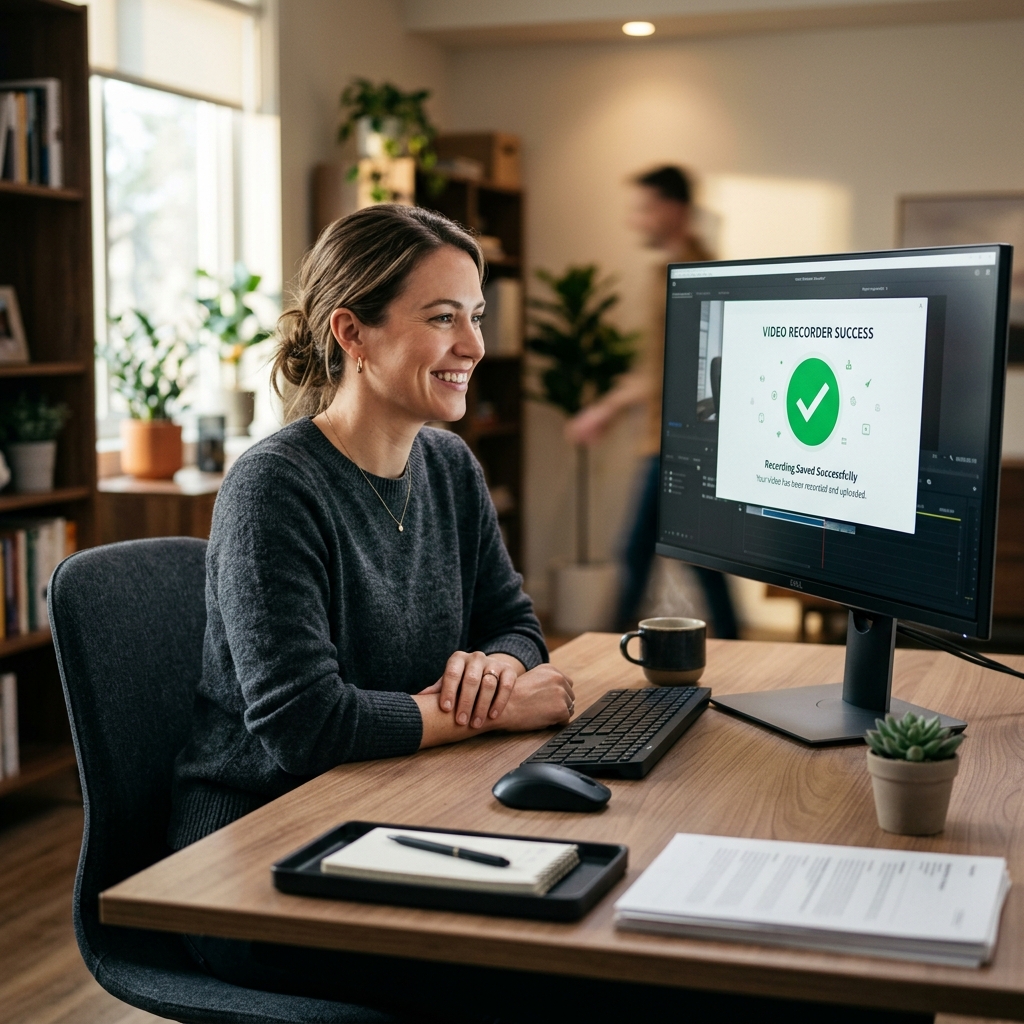
The Hidden Recorder on Your Computer
Windows 10 has a built-in screen recorder called the Xbox Game Bar.
As the name suggests, Microsoft originally designed it for gamers to record their video games. However, it works perfectly for everyday tasks. Whether you need to record your web browser, a software tutorial, or a presentation, it handles the job smoothly. It is completely free, secure, and already installed on your system.
The Real-Life Recipe for Screen Recording
Recording your screen takes only a few seconds once you know the secret shortcut. Here is the step-by-step recipe to get started:
- Prepare your screen: Open the exact app, browser, or window you want to record. (Note: The Game Bar records one specific window at a time, not your entire desktop background or your file folders).
- Open the Game Bar: Press the Windows key + G on your keyboard at the same time. A dark menu will instantly appear over your screen.
- Check your audio: Look for the small "Capture" window. If you want to record your voice while you click around, click the microphone icon to unmute it.
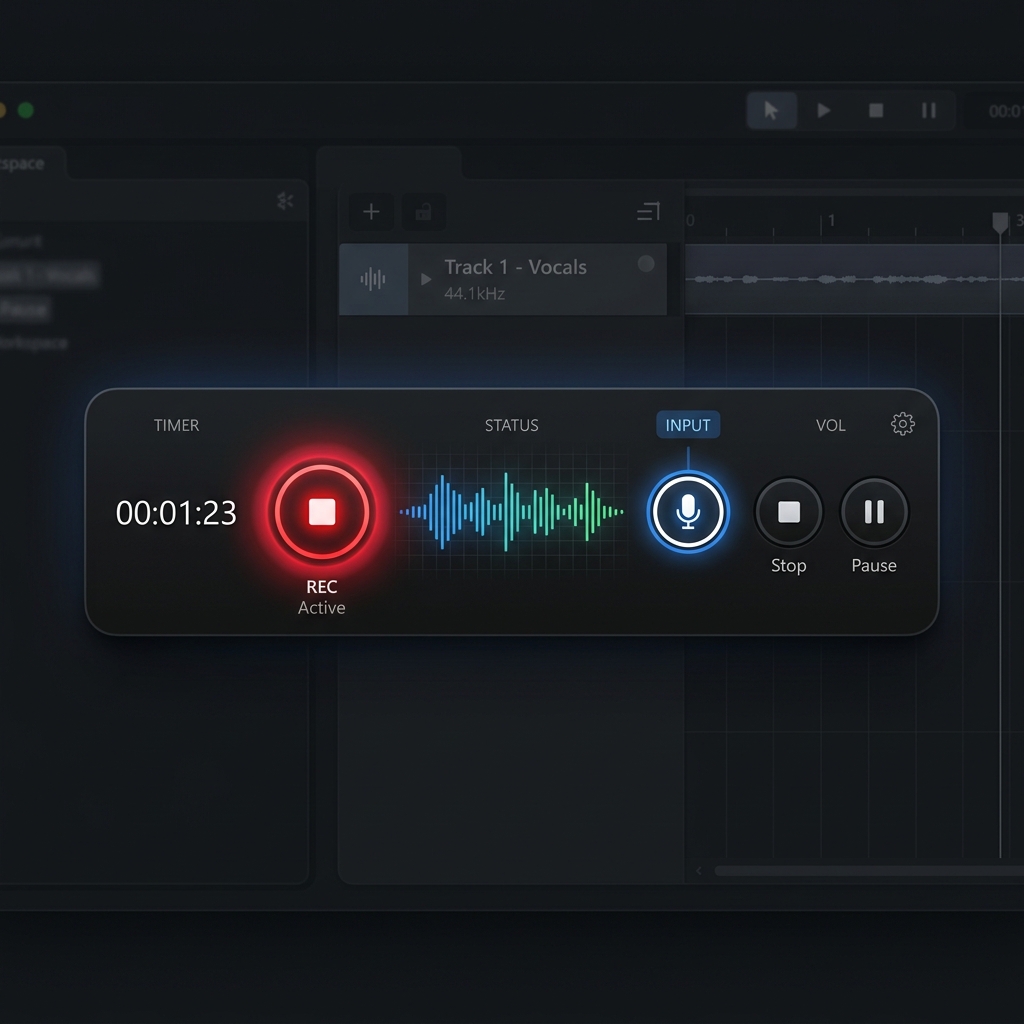
- Start recording: Click the solid white circle button to record. You can also bypass the menu entirely and just press Windows key + Alt + R. The main menu will disappear, and a small timer will show up to let you know it is recording.
- Stop and save: When you are finished, click the square stop button on the timer. Your video is automatically saved. To find it, open your computer's "Videos" folder, and look inside the "Captures" folder.
Enjoying this read?
Get weekly insights on video editing, AI workflows, and creator growth straight to your inbox.
Why the Game Bar Alone Is Not Enough for Tutorials
The Xbox Game Bar is great for capturing a quick clip, but it only records raw footage of a single window. If you are making a tutorial, a training video, or a walkthrough for clients, that raw capture has a problem.
On a large monitor your menus and buttons look microscopic when someone watches on a phone, and ordinary mouse movements come across as jittery and hard to follow. A genuinely helpful video needs automatic focus on the action, smooth cursor motion, and a clean, professional look none of which the Game Bar provides.
The Free Way to Record Polished Videos on Windows 10
You do not have to record a basic clip and then spend hours zooming and trimming in editing software. A smarter recorder does the polish for you as you record.
This is why Cubix Capture is the easiest upgrade for Windows 10 users. It is built to turn ordinary screen captures into clear, professional videos with no editing required:
- Auto-Zoom: It tracks your actions and automatically zooms in on the important areas so viewers never miss a click.
- Smooth Cursor: It smooths out the shaky movement of your mouse into a calm, elegant guide for the eye.
- Live Backgrounds: With your webcam on, it instantly replaces your room with a clean, distraction-free background.
If you want your Windows 10 recordings to look professional without complicated software, you can get it free here: Cubix Capture for Windows.
📖 Keep reading: How to screen record on Windows 11, how to record without the Xbox Game Bar, and the best free screen recorder for Windows in 2026.
Final Thoughts
You do not need expensive software to record your Windows 10 screen the built-in Game Bar handles quick clips for free. But when your video is meant to teach or impress, give it real clarity. Use the Game Bar for fast captures, reach for Cubix Capture when the recording matters, and your tutorials will be far easier to follow.
Don’t miss the next one.
Join our newsletter for exclusive tips, product updates, and the latest from the Cubix team.