
If you take a lot of screenshots on your Mac, your desktop probably looks like a digital graveyard. By default, every time you press a capture shortcut, Apple saves a physical .png file right onto your background, usually with a name like “Screenshot 2026-06-11 at 10.42 AM.png”.
If you are just capturing an image to immediately paste it into a Slack message, an email, or a Google Doc, generating a permanent file is a complete waste of hard drive space. You do not need those files haunting your desktop for the next three years.
You need to bypass the hard drive entirely and send the image straight to your Mac's invisible short-term memory. Here is the definitive guide to capturing your screen and copying it directly to your clipboard.
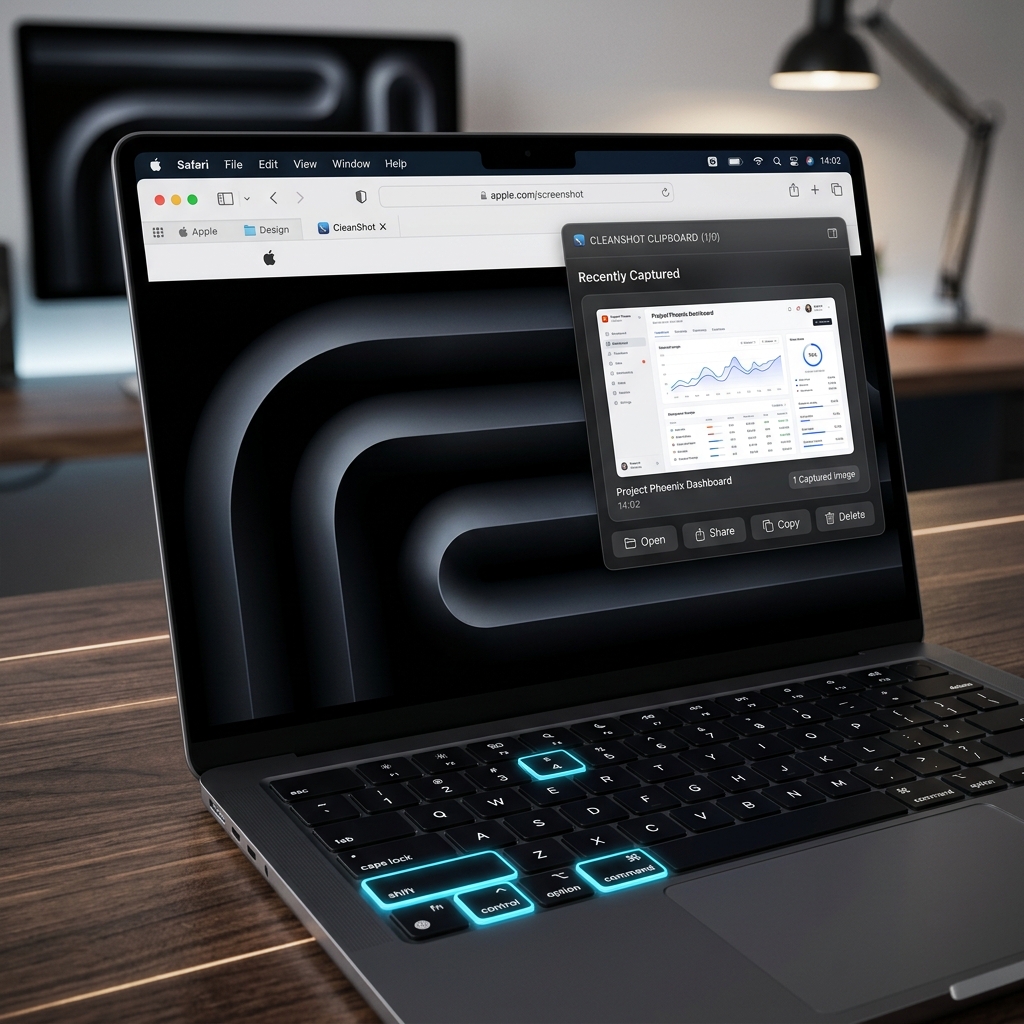
The Magic Modifier: The Control Key
If you already know the basic Mac screenshot shortcuts, learning the clipboard trick takes zero effort. You just need to add one single key to your existing muscle memory: the Control key.
Pressing Control while taking a screenshot tells macOS, "Do not save this as a file. Just hold it in memory so I can paste it."
Method 1: Copy the Entire Screen
The Shortcut: Command + Control + Shift + 3
If you need to instantly grab absolutely everything visible on your monitor and drop it into a chat window, this is the combination you need.
How it works:
- Press all four keys at the exact same time.
- You will hear the classic camera shutter sound.
- No thumbnail will appear in the corner of your screen, and no file will appear on your desktop. The image is loaded onto your clipboard.
Method 2: Copy a Specific Selection
The Shortcut: Command + Control + Shift + 4
You rarely need to show someone your entire, cluttered monitor. If you just want to copy a specific paragraph of text or an image from a website, use this method.
How it works:
- Press the shortcut. Your mouse cursor will turn into a small crosshair icon.
- Click and drag a grey selection box over the exact area you want to capture.
- The moment you release your mouse button, the specific cropped image is copied to your clipboard.
Pro-Tip: If you start drawing your box and realize you are in the wrong spot, do not let go of the mouse! Keep holding your left-click down and press the Spacebar. You can now drag the fully-formed selection box around the screen to reposition it perfectly before releasing to capture.
Enjoying this read?
Get weekly insights on video editing, AI workflows, and creator growth straight to your inbox.
Method 3: Copy a Clean Application Window
The Shortcut: Command + Control + Shift + 4, then hit the Spacebar
This is the most professional way to share an image of a web browser, a spreadsheet, or an app. It automatically crops out your desktop and copies a perfect image of the software you are using.
How it works:
- Press
Command + Control + Shift + 4to bring up the crosshairs. - Press the Spacebar. The crosshairs will turn into a small camera icon.
- Hover over any open window on your screen (it will highlight in blue).
- Click the window. A flawless image of that app—complete with a professional drop shadow—is instantly copied to your clipboard.
How to Paste Your Screenshot
Once your screenshot is floating in your Mac's clipboard, you have to actually put it somewhere before you copy another piece of text, or the image will be overwritten and lost forever.
How to place the image:
- Open the application where you want the image to go (e.g., Microsoft Word, an Outlook email, a Slack channel, or Apple Messages).
- Click where you want the image to appear.
- Press
Command + Vto paste it.
The Ultimate Apple Ecosystem Hack (Universal Clipboard)
If you own an iPhone or an iPad and are signed into the same Apple ID as your Mac, your clipboard is actually shared across all your devices.
If you take a clipboard screenshot on your Mac using the shortcuts above, you can immediately pick up your iPhone, open a text message, tap the text field, and hit Paste. The screenshot from your Mac will magically paste directly into your phone.
Upgrade Your Digital Workflow
Mastering the clipboard shortcut is the best way to keep your Mac's desktop clean and speed up your daily digital chores. But when it comes to professional communication, handing someone a static image is rarely the most effective way to explain a complex idea.
If you find yourself taking multiple screenshots, drawing red circles all over them, and typing out paragraphs of text just to explain a software bug or walk a client through a new portal, you are working too hard. Modern communication requires dynamic, high-quality video.
When you are ready to graduate from static images and start instantly generating breathtaking, auto-zoomed cinematic video presentations without ever touching a video editing timeline, explore the ultimate professional toolkit right here: Cubix Capture.
Don’t miss the next one.
Join our newsletter for exclusive tips, product updates, and the latest from the Cubix team.