
You finally upgraded to a dual monitor setup. It is incredible for your productivity, giving you the digital real estate to have your research on one screen and your workspace on the other.
But the first time you try to quickly capture your screen to show a colleague what you are working on, you realize there is a massive new problem. If you press the standard screenshot keys, your computer doesn't know which screen you want. Instead of a clean, readable image of your project, you accidentally send a bizarre, ultra-wide panorama of your work and the Spotify playlist sitting on your second screen.
Capturing a single display on a multi-monitor setup requires a slight adjustment to your muscle memory. Whether you are using a Mac or a Windows PC, here is the definitive guide to isolating your screenshot to just one monitor.
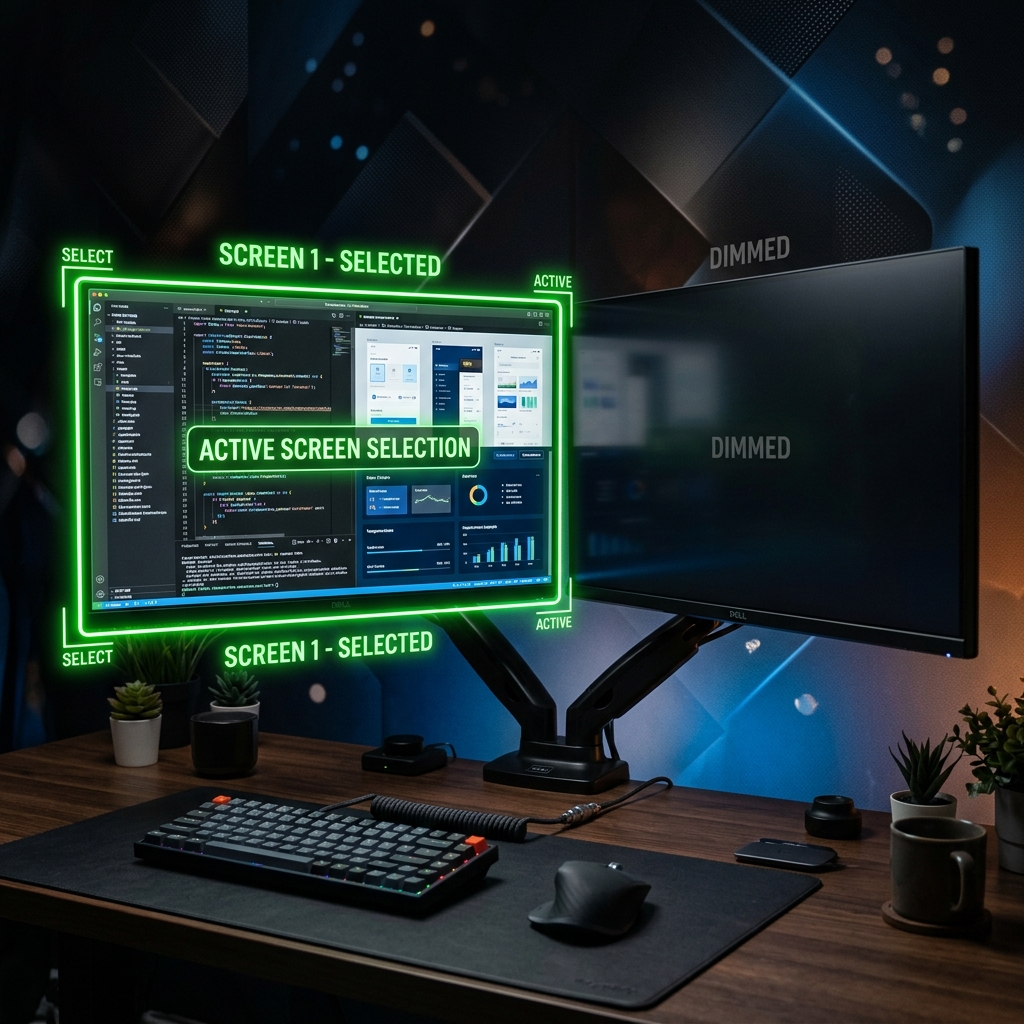
How to Capture One Monitor on Windows
By default, pressing Windows + PrtScn or the classic PrtScn key on a multi-monitor Windows setup captures an unreadable, ultra-wide image of every connected display stitched together. To fix this, you need to rely on Microsoft's built-in targeting tools.
Method 1: The Snipping Tool (The Best Method)
The Shortcut: Windows + Shift + S
This is the fastest and most reliable way to isolate a screen on Windows 11.
How it works:
- Press the shortcut to bring up the Snipping Tool overlay. Your screens will dim.
- Look at the small toolbar at the top of your primary monitor.
- Click the icon on the far right that looks like a solid monitor (this is Full-screen mode).
- The Trick: The Snipping Tool will capture the entire monitor where your mouse cursor is currently resting. Just make sure your mouse is on the correct screen before you click the button! The image will be copied to your clipboard.
Method 2: Capture the Active Window Only
The Shortcut: Alt + PrtScn
If you have a window maximized on your second monitor and you just want an image of that software without your taskbar, use this legacy shortcut.
How it works:
- Click anywhere inside the application on your target monitor to ensure it is the "active" window.
- Press
Alt + PrtScn. - Windows will snap a clean, borderless image of just that maximized application, completely ignoring your other monitor. Press
Ctrl + Vto paste it.
How to Capture One Monitor on Mac
Apple handles multi-monitor screenshots much more elegantly than Windows. In fact, macOS natively assumes that you don't want your screens stitched together.
Enjoying this read?
Get weekly insights on video editing, AI workflows, and creator growth straight to your inbox.
Method 1: The Native Separation
The Shortcut: Command + Shift + 3
If you use the standard full-screen capture shortcut on a Mac with two monitors, macOS does a brilliant bit of heavy lifting for you.
How it works:
- Press all three keys at once.
- You will hear the camera shutter sound.
- Instead of creating one massive panorama, your Mac will automatically take two separate screenshots simultaneously and save them as two distinct
.pngfiles on your Desktop. You just drag and drop the one you actually need and delete the other.
Method 2: The Display Selector
The Shortcut: Command + Shift + 5
If you don't want to generate multiple files on your desktop and want total control over what is being captured, use the master capture menu.
How it works:
- Press the shortcut to bring up the floating screenshot toolbar.
- Click the icon that says Capture Entire Screen (it looks like a solid screen with a dot in the corner).
- Move your mouse pointer. You will notice that your pointer has turned into a small camera icon.
- Simply hover the camera over the monitor you want to capture (it will highlight slightly) and click your mouse.
Method 3: Capture a Specific Window
The Shortcut: Command + Shift + 4, then hit the Spacebar
Just like on Windows, sometimes you only need the app, not the whole monitor.
- Press the shortcut.
- Hit the Spacebar to turn the crosshairs into a camera icon.
- Move the camera to your second monitor, hover over the window you want to capture, and click.
Upgrade Your Digital Workflow
Navigating a dual-monitor setup requires upgrading your screenshot skills. But when you are dealing with professional workflows—like explaining a complex software bug spanning across multiple applications, or walking a new client through a dense dashboard—a static image is incredibly hard to follow, no matter how cleanly you cropped it.
If you find yourself taking multiple screenshots, drawing chaotic arrows all over them, and typing out long paragraphs just to explain a simple idea, you are wasting your valuable time. Modern professional communication requires dynamic, high-quality video.
When you are ready to graduate from static images and want to start instantly generating breathtaking, auto-zoomed cinematic video presentations without ever opening a video editing timeline, explore the ultimate professional toolkit right here: Cubix Capture.
Don’t miss the next one.
Join our newsletter for exclusive tips, product updates, and the latest from the Cubix team.