
You are trying to save a massive, step-by-step recipe, an endless WhatsApp group chat, or a long article to read later.
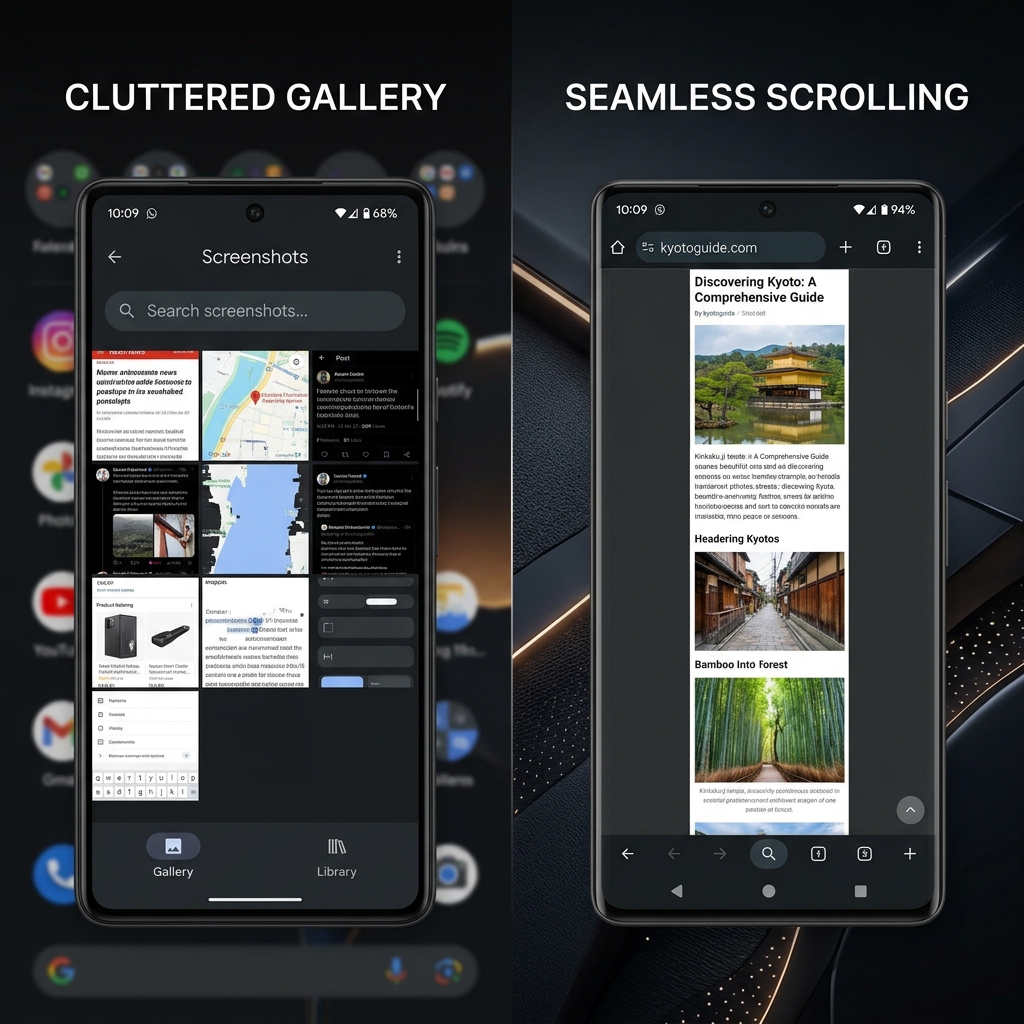
If you do not know the trick, you will likely end up doing it the hard way: taking a screenshot, scrolling down, taking another screenshot, and repeating the process until your photo gallery is flooded with eight disjointed, out-of-order images.
You do not have to work this hard. While Apple requires users to save scrolling screenshots as clunky PDF files, Android handles this beautifully. The operating system has a native tool that seamlessly stitches a long page into a single, high-quality image file that is perfectly formatted for sharing.
Whether you are holding a Google Pixel, a Samsung Galaxy, or a OnePlus, here is the definitive guide to capturing a scrolling screenshot on Android.
Method 1: Stock Android (Google Pixel, Motorola, Nothing)
Google built native scrolling screenshots directly into the core operating system starting with Android 12. If you are using a Pixel, a modern Motorola, or any phone that runs a clean, "stock" version of Android, this is your workflow.
How it works:
- Open the app, chat, or webpage you want to capture.
- Take a standard screenshot (press the Power button and Volume Down button simultaneously).
- A small thumbnail preview will pop up in the bottom corner of your screen. Next to it, you will see a button that says Capture more. Tap it.
- Your screen will transition into a magnifying glass editor showing the entire long page.
- Drag the thick borders at the top and bottom of the screen to expand the crop, covering as much of the page as you want to save.
- Tap Save in the top left corner.
Method 2: Samsung Galaxy Devices
Samsung was actually offering scrolling screenshots years before Google officially adopted the feature. Because of this, Samsung’s One UI operating system handles the process slightly differently—and many users find it even more intuitive.
How it works:
- Open the long webpage or document.
- Take a standard screenshot using the button combo or the palm swipe gesture.
- Look at the small toolbar that immediately pops up at the bottom of your screen.
- Tap the icon on the far left that looks like two downward-pointing arrows bouncing inside a box.
- The screen will automatically scroll down, capturing the next segment of the page. Keep tapping the arrow button until you have reached the bottom of what you want to save.
- Simply tap anywhere else on the screen (or swipe the toolbar away) to finalize and save the image.
Enjoying this read?
Get weekly insights on video editing, AI workflows, and creator growth straight to your inbox.
Method 3: What if the App Blocks It?
Sometimes, you will press the screenshot buttons, but the "Capture more" or downward arrow icons simply won't appear.
This usually happens in heavily customized third-party apps or older web browsers that do not support Android's native scrolling API. If you frequently need to capture long threads in unsupported apps, you can use a free third-party app to do the heavy lifting.
How to do it (Using an app like LongShot or Stitchcraft):
- Open the app you want to capture.
- Take a standard screenshot. Scroll down, making sure to leave a little bit of overlapping content from the previous screen, and take another screenshot.
- Open your stitching app.
- The software will automatically scan your recent screenshots, find the overlapping pixels, and seamlessly merge them into one massive, continuous JPEG image.
Where Does the Image Go?
Unlike an iPhone, which forces you to bury long screenshots in your Files app as a PDF, Android keeps things simple.
Your massive scrolling capture is saved as a standard, high-resolution JPEG or PNG file. You can find it instantly by opening your Google Photos or default Gallery app and looking in the "Screenshots" folder. You can immediately crop it, draw on it, or text it to a friend just like a normal photo.
Coming soon: Cubix Snap. We've got a desktop companion on the way that makes your captures look polished in seconds, with elegant backgrounds, easy markup, and instant background removal built in.
When You're Back at Your Desk
Android's stitched captures are great for hoarding long articles and chat threads on your phone. But the moment you sit down at a computer to actually teach something, like a new dashboard, a reporting flow, or a tricky setting, a tall static image stops being enough.
A short screen recording shows the clicks, the timing, and the result all in one pass. If your desktop work involves walking people through software, Cubix Capture records it and produces a clean, auto-zoomed video automatically, so you never have to open an editor.
Don’t miss the next one.
Join our newsletter for exclusive tips, product updates, and the latest from the Cubix team.