
You are looking at a long recipe, an endless text message thread, or a massive, detailed article. You want to save the entire thing to reference later.
If you do not know the trick, you will likely end up doing what most people do: you take a screenshot, scroll down slightly, take another screenshot, scroll down again, and repeat the process until your camera roll is cluttered with six disjointed images. Later, when you try to read them, they are completely out of order.
You do not have to work this hard. Apple actually built a native scrolling screenshot feature directly into iOS, but it is hiding in plain sight. Furthermore, it behaves a little differently than you might expect.
Here is the definitive guide to capturing a scrolling "Full Page" screenshot on your iPhone, and where to actually find the file once you save it.
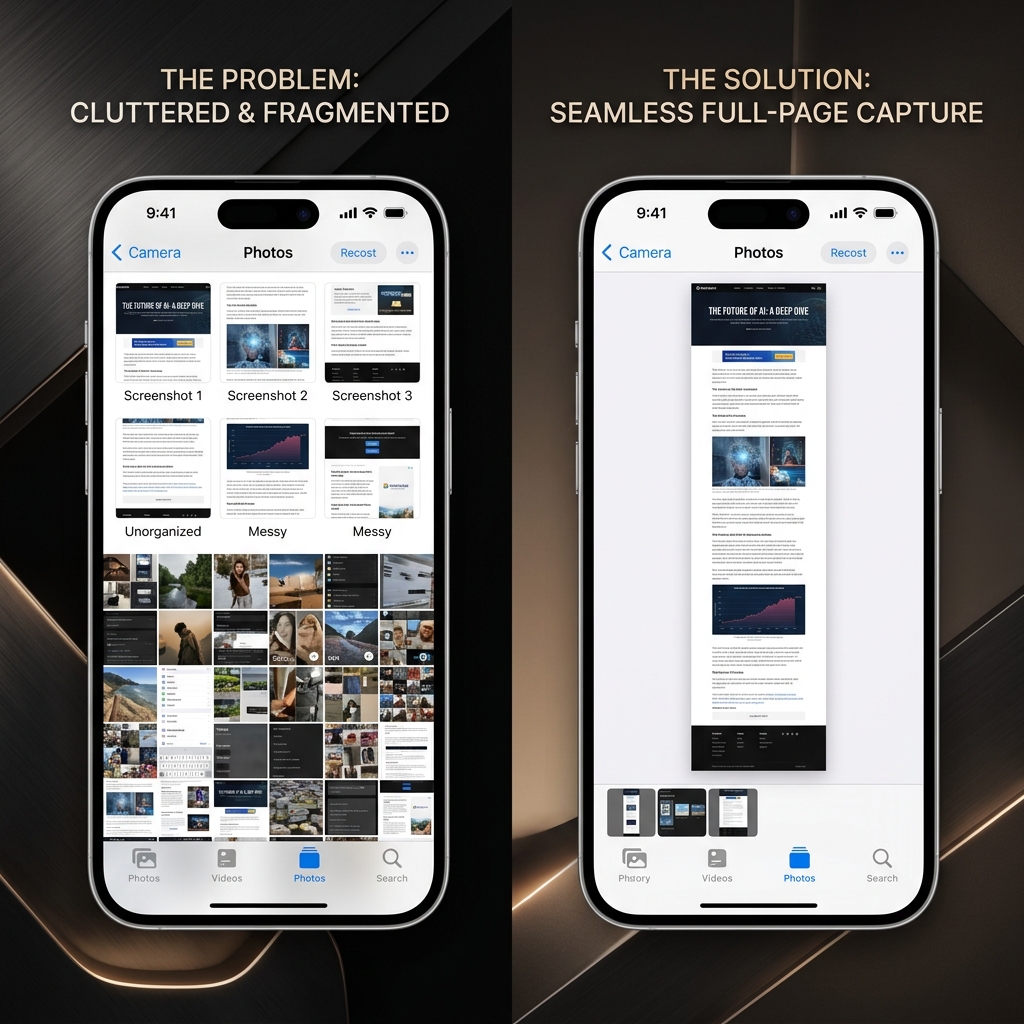
The Native iOS Method: The "Full Page" Capture
Apple’s built-in scrolling screenshot feature is incredibly fast, but there is a catch: it primarily works in native Apple apps like Safari, Mail, and Notes, or supported browsers like Google Chrome.
If you are trying to capture a long webpage or a document, this is exactly how to do it.
How it works:
- Open the long webpage or document on your iPhone.
- Take a standard screenshot (press the Side button and Volume Up button at the same time).
- A small thumbnail preview will immediately pop up in the bottom-left corner of your screen. Tap this thumbnail quickly before it slides away.
- This opens the editing screen. Look at the very top center of your screen you will see two tabs: Screen and Full Page. Tap Full Page.
- You will now see a long scrollbar on the right side of your screen. You can use this to scroll through the entire captured page to ensure everything looks correct.
- Tap Done in the top left corner.
The Big Catch: Where Did It Go?
This is the number one reason iPhone users think the scrolling screenshot feature is broken.
When you capture a "Full Page" screenshot, the iPhone does not save it as a standard PNG or JPEG image file, and it will not appear in your Photos app. Because the file is so large, Apple saves it as a PDF document.
How to find your scrolling screenshot:
- When you tap "Done" in the editor, tap Save PDF to Files.
- Choose a destination folder (like "On My iPhone" or "iCloud Drive") and hit Save.
- To view or share the screenshot later, open the blue Files app on your iPhone, locate the PDF, and open it. From there, you can email or text it just like any other document.
Enjoying this read?
Get weekly insights on video editing, AI workflows, and creator growth straight to your inbox.
The Social Media Problem (And How to Fix It)
Apple's native PDF method is fantastic for saving webpages, but what if you want to capture a long WhatsApp conversation, an endless Twitter thread, or an Instagram feed? The native "Full Page" tab will not appear when you screenshot those apps.
If you need a scrolling screenshot saved as a standard image file (to post on social media or send in a quick text), you have to rely on a third-party app to stitch your images together.
How to do it (Using a free app like Tailor or Picsew):
- Open the app you want to capture (like WhatsApp).
- Take a screenshot. Scroll down, making sure to leave a little bit of overlapping content from the previous screen, and take another screenshot. Repeat this for the entire thread.
- Open a stitching app like Tailor.
- The app will automatically read your camera roll, find the overlapping images, and instantly stitch them together into one seamless, massive JPEG image.
- Save the final stitched image directly to your Photos app.
Coming soon: Cubix Snap. For when you're back on your computer, we're building the fastest way to take a screenshot and dress it up — beautiful backgrounds, simple annotations, and one-click background removal.
From Phone to Desktop
A full-page capture is a lifesaver for archiving a recipe, a receipt, or a long thread on your iPhone. But the work you do on a laptop, such as software demos, bug reports, and onboarding guides, rarely fits inside a screenshot no matter how tall you make it.
When you move from saving content to explaining it, a recorded walkthrough beats any stitched image. If you build tutorials or client presentations on your desktop, Cubix Capture records your screen and turns it into a smooth, auto-zoomed video, which is something a scrolling screenshot simply cannot be.
Don’t miss the next one.
Join our newsletter for exclusive tips, product updates, and the latest from the Cubix team.