
There is nothing quite like the frustration of clicking "Update" on a piece of software, expecting new features or performance boosts, only to be greeted by a solid black screen the next time you open it. Your scenes are still there, your audio mixers are bouncing perfectly, but your Display Capture, Game Capture, or Window Capture sources refuse to show a single pixel.
When an OBS Studio update triggers a black screen, it rarely means the software is fundamentally broken. Because OBS hooks directly into your operating system's graphics kernel to record low-latency video, an update can reset hook permissions, mismatch graphic card profiles, or break compatibility with third-party overlays.
If a recent patch has broken your feed, here is your step-by-step diagnostic guide to clear the black screen and restore your setup instantly.
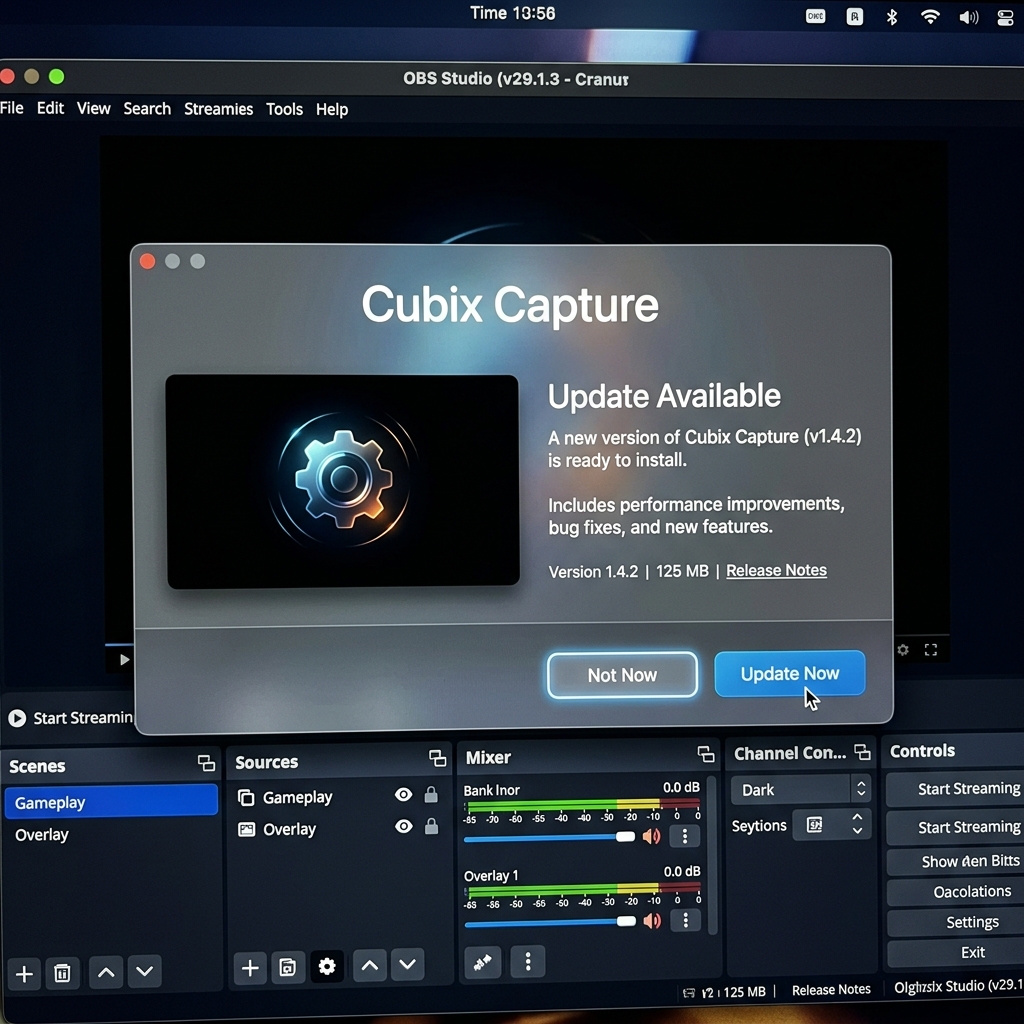
Step 1: Run OBS as an Administrator (Reset Hook Permissions)
Major OBS updates often rewrite the core executable files (obs64.exe). When this happens, Windows 11 treats it as a brand-new application layer and revokes any advanced system privileges you previously granted. If OBS doesn’t have administrative rights, Windows will block it from peeking into the memory buffer of secure apps or high-performance games.
- The Fix: Close OBS Studio completely. Right-click the OBS Studio shortcut icon on your desktop or start menu and select Run as administrator.
- Make it Permanent: If your display instantly reappears, right-click the shortcut, select Properties, head to the Compatibility tab, check Run this program as an administrator, and click Apply.
Step 2: Force the GPU Power-Saving Settings (Multi-GPU Laptop Fix)
If you are using a laptop or a desktop setup with dual graphics cards (an integrated low-power Intel/AMD chip for desktop rendering and a dedicated NVIDIA RTX/AMD card for heavy 3D workloads), an OBS update can throw your system into a graphics mismatch.
Windows updates or GPU driver updates frequently reset your custom graphics profiles, forcing OBS back onto your high-performance card. If OBS is sitting on your dedicated graphics card, it will be completely blind to your desktop canvas (which runs on the integrated chip), resulting in a black box on Display Capture.
-
Access Windows Graphics Settings: Open your system graphics preferences. Press the Windows Key, type Graphics settings into your search bar, and hit Enter.
-
Locate OBS Studio in the List: Re-target the updated executable file. Scroll down the application directory list. Click on OBS Studio (if it isn't listed, click Browse and locate
C:\Program Files\obs-studio\bin\64bit\obs64.exe). -
Click Options on the OBS Entry: Open the hardware execution profile. Select Options to bring up the hardware strategy pop-up window.
-
Re-assign the Performance Target: Match the GPU profile to your capture type.
- To restore Display Capture (Desktop): Select Power Saving (forces OBS onto your integrated chip to mirror the desktop layer).
- To restore Game Capture (Games): Select High Performance (forces OBS onto your heavy graphics card). Click Save and restart OBS.
Enjoying this read?
Get weekly insights on video editing, AI workflows, and creator growth straight to your inbox.
Step 3: Clear out Old Game Capture Hook Files
When OBS updates its direct-hooking mechanics, old tracking hooks can get stuck in your computer's temporary cache. This causes old game files to reject the new OBS handshake entirely.
- Close OBS Studio and close any active video games.
- Press Windows Key + R to open the Run dialog box.
- Type
%localappdata%\obs-studio-hookand press Enter. - Delete every file inside this folder (these are just temporary handshake files; deleting them is completely safe).
- Relaunch OBS and start your game. The software will generate fresh, updated hook profiles automatically.
Step 4: Update or Clean-Install Graphics Drivers
If a core video processing framework was changed in the OBS update, it might require a graphic instruction set that your current, outdated graphics card driver doesn't understand.
- The Fix: Open NVIDIA GeForce Experience or AMD Software, check for updates, and install the latest game-ready or studio driver.
- Pro-Tip: If the screen remains black, execute a Clean Installation during the driver update setup. This completely sweeps out corrupted visual cache files that might be choking your display capture streams.
Sick of Patch Troubleshooting? Move to Automated Recording
OBS Studio is an incredible open-source console for live broadcasters and streaming engineers who need advanced multi-track audio routing and technical encoder tweaking. But if you are a professional, online course creator, founder, or educator, constantly managing GPU updates, deleting hook folders, and fixing broken settings after an update can completely kill your creative momentum.
If your core goal is simply producing high-retention software tutorials, web walkthroughs, or crisp product demonstrations without playing IT support technician every few weeks, it is time to move your workflow to Cubix Capture.
Instead of acting like a heavy broadcast console that breaks under basic system changes, Cubix Capture operates on a completely modernized, zero-configuration architecture:
- Flawless App Isolation: It completely bypasses the multi-GPU tug-of-war. You simply click the exact application window or website you want to teach, and Cubix Capture isolates and hooks into that visual frame perfectly with zero black screen update errors.
- Algorithmic Click-Based Auto-Zooms: Forget manual timeline editing. As you naturally navigate your workspace, the software dynamically glides in and magnifies active menus and input blocks, keeping text perfectly legible on mobile screens automatically.
- AI Cursor Path Smoothing: It catches naturally frantic or jittery micro-movements from your physical trackpad or mouse and translates them into an elegant, fluid sweep that calmly leads your viewer's focus.
If you are setting up an advanced multi-camera live stream for Twitch, running OBS as an administrator and clearing your hook cache will restore your layout. But if you want to protect your schedule, avoid post-update bugs, and output polished, mobile-optimized tutorials the exact millisecond you click stop recording, moving your creator setup to a smart tool like Cubix Capture handles the entire production pipeline for you seamlessly.
Don’t miss the next one.
Join our newsletter for exclusive tips, product updates, and the latest from the Cubix team.