
Setting up your scenes, plugging in your microphone, and clicking record only to be greeted by a stubborn, completely black preview screen is a classic rite of passage for Mac creators. Your audio levels are bouncing perfectly, but your desktop or browser window refuses to show a single pixel.
Because OBS Studio is a professional-grade broadcasting utility rather than a basic screen recorder, it doesn't just copy your monitor. It requests direct access to your Mac's internal display graphics kernel. When it outputs a black screen, it usually means Apple's strict privacy frameworks or graphics architecture are blocking that connection.
Whether you are running an M1, M2, M3, or Intel-based MacBook, here is your definitive, step-by-step diagnostic guide to clearing the black screen and restoring your video feed instantly.
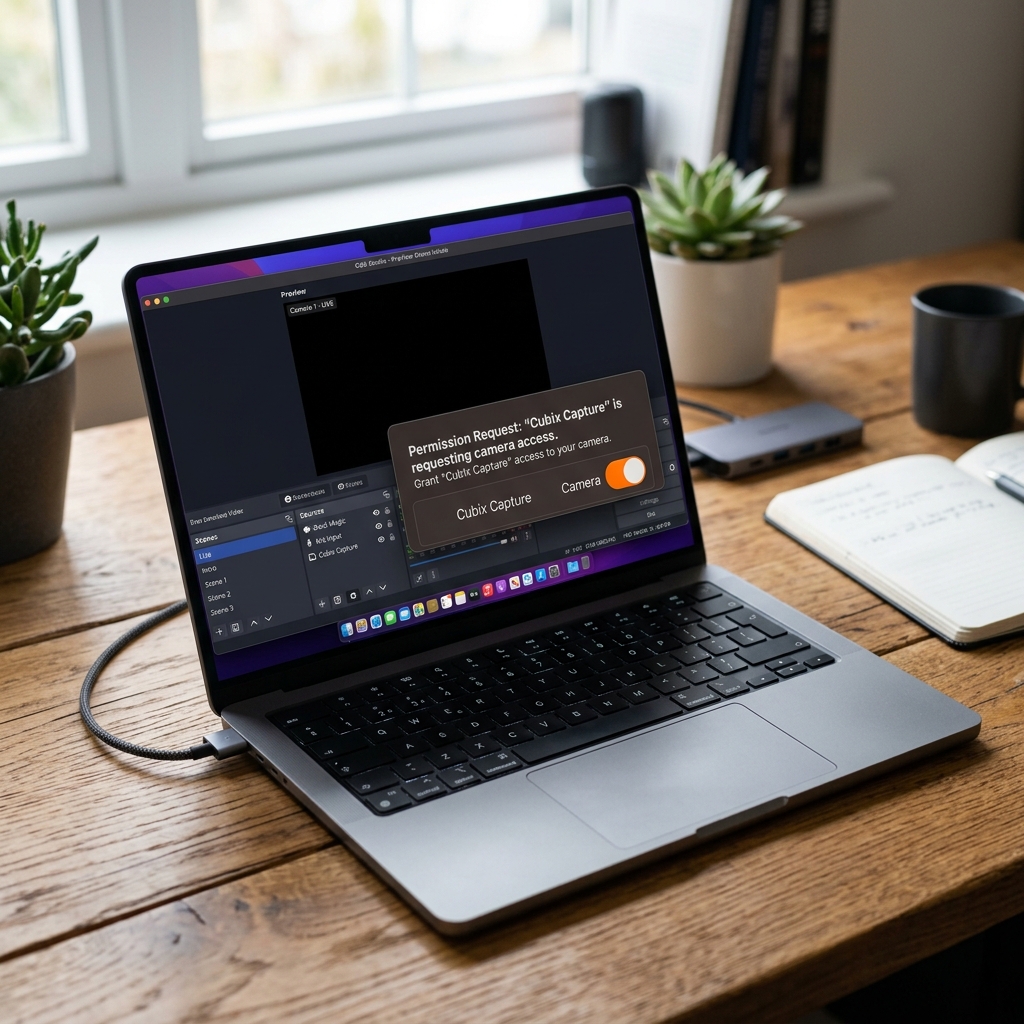
Step 1: Grant macOS Screen Recording Permissions (The #1 Culprit)
Apple treats full-screen capture as a critical user privacy issue. Unlike Windows, which often allows applications to capture screen pixels by default, macOS completely blocks any video recording software from peeking into your display memory until you explicitly whitelist it in your system settings.
-
Open Apple System Settings: Open your system security hub. Click the Apple logo in the top-left corner of your menu bar and select System Settings from the dropdown menu.
-
Navigate to Privacy & Security: Locate the video capture policies. Scroll down the left sidebar and click on Privacy & Security. In the right-hand panel, scroll down until you locate Screen & System Audio Recording and click it.
-
Toggle OBS Permissions On: Authorize the application layer. Look for OBS in the application array. If the toggle switch next to it is turned off, click it to switch it On. (You may need to enter your Mac’s user password or use Touch ID to authorize this change).
-
Relaunch OBS Studio: Force the privacy architecture to reset. A system prompt will appear stating that OBS must be closed for these changes to take effect. Click Quit & Reopen. When OBS boots back up, your Display Capture source should instantly light up with a video feed.
Step 2: Switch to the Modern "Screen Capture" Source
If you updated your macOS version recently and your older Display Capture or Window Capture sources suddenly turned black, you are likely using a deprecated capture framework. Apple has phased out older screen-grabbing hooks in favor of their highly optimized ScreenCaptureKit framework.
- Go to your Sources dock at the bottom of the OBS window.
- Click the + (Add) button and look closely at your options.
- If you see an option explicitly labeled macOS Screen Capture, select that instead of the generic legacy "Display Capture" or "Window Capture" options.
- In the properties window, set the method to ScreenCaptureKit. This native Apple API dramatically decreases your CPU usage and completely clears the hardware handshake issues common with older capture methods.
Enjoying this read?
Get weekly insights on video editing, AI workflows, and creator growth straight to your inbox.
Step 3: Turn Off Browser Hardware Acceleration (DRM Protection)
If your OBS layout captures your MacBook desktop, Finder folders, and local apps perfectly, but drops into an empty black void the exact moment you open Safari or Chrome to record a video clip (like Netflix, Prime Video, or Disney+), you have run face-first into Digital Rights Management (DRM) blocks.
To prevent media piracy, macOS works alongside web browsers to actively scrub out video frames from screen-recording utilities.
- The Fix for Google Chrome / Brave: Open your browser settings, type Hardware Acceleration into the settings search bar, and toggle Use graphics acceleration when available to Off. Restart your browser.
- The Safari Limitation: Apple’s native Safari browser has deeply embedded, system-level DRM that cannot be toggled off. If you need to record workflows or video elements inside a browser tab, you must use an alternative browser like Chrome or Firefox with hardware acceleration disabled.
Tired of Troubleshooting? Shift to Zero-Edit Automation
OBS Studio is an exceptional open-source tool for live broadcasters who need granular encoder maps and advanced multi-track hardware audio routing. However, constantly digging through macOS privacy panels, rebuilding broken scene layers, and managing Apple permission loops can completely kill your creative momentum.
If your core objective is simply producing clean software tutorials, web walkthroughs, onboarding series, or product demonstrations without playing IT support technician every week, it is time to upgrade your workspace to Cubix Capture.
Instead of acting like a rigid broadcast console that breaks under basic macOS security updates, Cubix Capture operates on a completely modernized, Mac-optimized architecture:
- Instant Application Isolation: It completely eliminates the technical friction of window mapping. You simply click the exact Mac application or browser window you want to teach, and Cubix Capture isolates and hooks into that frame perfectly with zero black screen errors.
- Algorithmic Click-Based Auto-Zooms: Since over half of your audience watches tutorials on mobile phones, recording a flat, full MacBook Retina display makes text look microscopic. Cubix Capture tracks your active cursor targets and automatically glides the camera inward to magnify dropdown menus, text blocks, and settings panels dynamically while you talk.
- AI Cursor Path Smoothing: It catches naturally jerky micro-movements from your physical Magic Trackpad or mouse and translates them into an elegant, fluid sweep that calmly leads your viewer's focus.
- Studio-Grade Canvas Staging: It automatically places your captured windows against gorgeous, dynamic canvas backdrops while setting your facecam into a clean floating geometric circle with hardware-accelerated studio background blurring natively.
If your ultimate goal is setting up a multi-cam live broadcast ecosystem for a streaming channel, taking a few minutes to grant Screen Recording permissions inside your macOS settings will clear your OBS pipeline blocks. But if you want to protect your schedule, avoid technical troubleshooting, and output polished, mobile-optimized tutorials the exact millisecond you click stop recording, moving your creator workflow to a smart tool like Cubix Capture handles the entire production pipeline for you seamlessly.
Don’t miss the next one.
Join our newsletter for exclusive tips, product updates, and the latest from the Cubix team.