
You are staring at your MacBook, and there it is: a tiny, persistent red dot.
If you just noticed it for the first time, your mind probably jumped to one of two worst-case scenarios. Either your expensive laptop has a damaged screen, or someone is secretly watching and recording your every move.
Take a deep breath. In almost every scenario, that red dot is actually a built-in safety feature, not a malicious hack or a broken display. Apple takes user privacy very seriously, and recent macOS updates have introduced strict visual indicators to let you know exactly when an application is accessing your hardware.
Here is the definitive guide to exactly what that red dot means, how to find out which app is causing it, and what to do if it is actually a hardware problem.
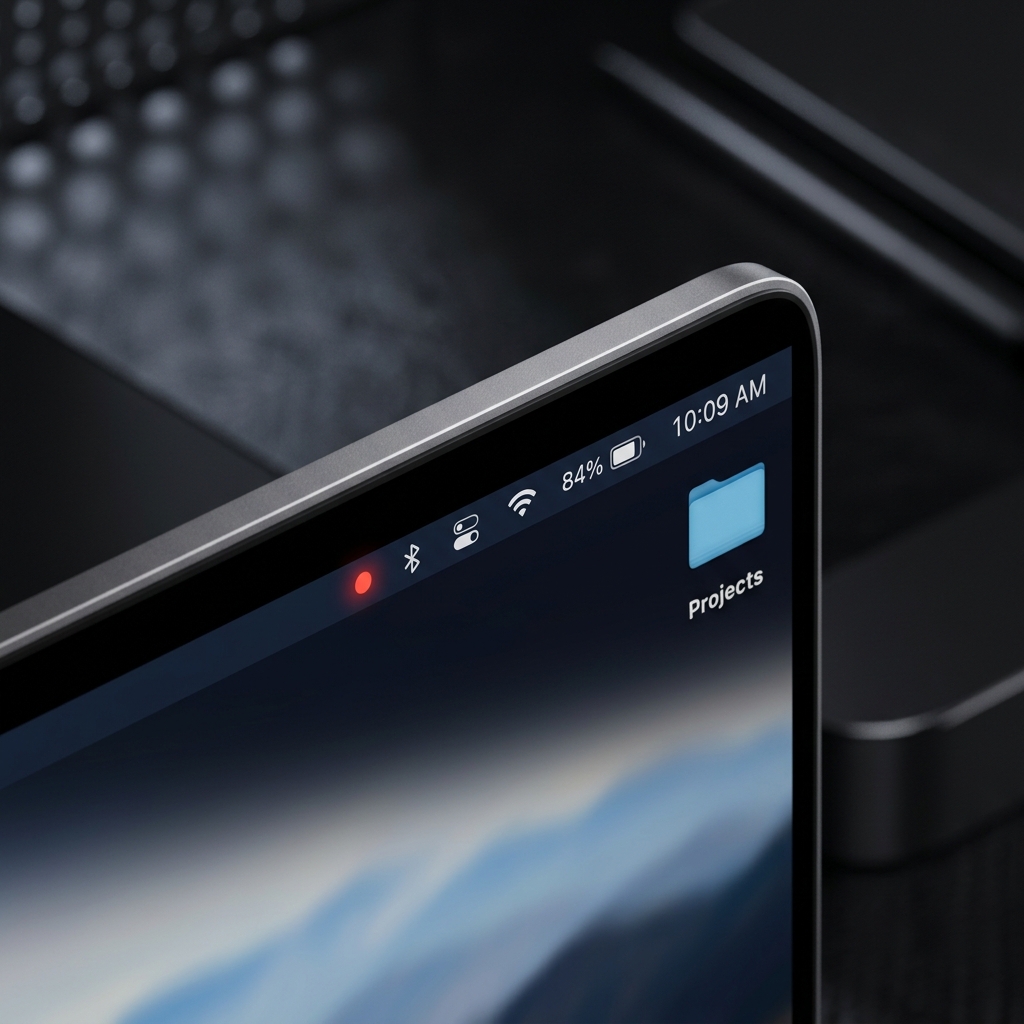
Scenario 1: The Red Dot in the Menu Bar (Screen Recording)
If the red dot is located in the top-right corner of your screen, sitting neatly inside your menu bar (right next to your Wi-Fi or Control Center icons), it is a software indicator.
What it means: A red dot (or a red icon with a white screen symbol inside it) means that an application is currently recording or sharing your screen.
The Usual Suspects:
- Screen Recording Apps: If you are using a tool like Loom, Cubix Capture, or the native macOS screen recorder to film a tutorial, this dot stays active until you hit stop.
- Video Conferencing: If you are sharing your screen on a Zoom, Microsoft Teams, or Google Meet call, Apple forces this dot to appear so you don't accidentally leave your screen broadcast on after your presentation ends.
- External Displays: Sometimes, using third-party display drivers (like DisplayLink for dual-monitor hubs) triggers this icon because the software technically has to "capture" your screen to send the image to the external monitor.
How to find the culprit: Click on the Control Center icon (the two toggle switches in the top right corner). At the very top of the drop-down menu, macOS will explicitly state which application is currently capturing your screen. You can then open that app and close it to make the dot disappear.
Scenario 2: Wait, is it actually Orange? (Microphone Access)
Depending on your screen brightness, your wallpaper, or the True Tone settings on your MacBook, the macOS Orange Dot can sometimes look red or amber.
What it means: If there is a tiny orange/amber dot right next to your Control Center icon, it means an application is actively using your Microphone.
Just like the screen recording indicator, simply click the Control Center to see exactly which app is listening. (You will often see this left open by apps like Slack, Discord, or Siri).
Enjoying this read?
Get weekly insights on video editing, AI workflows, and creator growth straight to your inbox.
Scenario 3: A Physical Red Dot on the Screen (Stuck Pixel)
If the red dot is not in the menu bar—if it is sitting dead in the center of your desktop, on top of your web browser, or visible even when your Mac is booting up—you are dealing with a hardware issue.
Your MacBook screen is made up of millions of microscopic pixels. Each pixel contains three sub-pixels: Red, Green, and Blue.
What it means: You have a Stuck Pixel. The tiny transistor supplying power to that specific pixel has malfunctioned, leaving the red sub-pixel permanently turned on. (This is different from a "Dead Pixel," which receives no power and appears completely black).
How to fix a stuck pixel:
- The Software Fix: Go to a website like JScreenFix. This free tool displays a box of rapidly flashing, high-contrast static. Drag the box over your red dot and leave it there for 10 to 20 minutes. The rapid color cycling can sometimes "shock" the transistor back into normal operation.
- The Hardware Fix: If software doesn't work, a stuck pixel is a physical defect. If your MacBook is relatively new or covered under AppleCare+, take it to the Apple Store. Apple has specific warranty policies regarding pixel anomalies and will often replace the display for free if it meets their criteria.
The macOS Privacy Indicator Cheat Sheet
To prevent future panic, here is a quick reference guide to the colored dots Apple uses in the top-right corner of your screen:
| Dot Color | What It Means | Common Causes |
|---|---|---|
| Green Dot | Your Camera is on | FaceTime, Zoom, Photo Booth |
| Orange Dot | Your Microphone is on | Voice Memos, Slack, Siri |
| Red Dot (or Icon) | Your Screen is being captured | Loom, Screen Sharing, Display Hubs |
| Blue Arrow | Your Location is being tracked | Maps, Weather, Find My |
Upgrade Your Screen Recording Workflow
If that red dot is glowing because you are recording a video for work, you already know how important visual communication is. But raw screen recordings are often clunky, hard to follow, and require hours of tedious editing in Premiere or Final Cut just to look professional.
If you are a heavy user of tools like Loom or QuickTime and are tired of manually zooming in on your mouse clicks or trying to edit out your mistakes, you are working too hard.
When you are ready to start instantly generating breathtaking, auto-zoomed cinematic video presentations of your screen without ever opening a video editing timeline, explore the ultimate digital workflow toolkit right here: Cubix Capture.
Don’t miss the next one.
Join our newsletter for exclusive tips, product updates, and the latest from the Cubix team.