
When you need to re-edit an existing software recording, reorganize a customer interview, or repurpose a long-form tutorial into concise clips, starting directly on a complex timeline can be overwhelming. Making a storyboard from representative still frames allows you to evaluate narrative progression, plan structural cutaways, and align stakeholders before you cut a single second of media.
This guide explains how to extract clean stills from permitted footage, organize them into a manual storyboard, and annotate editing directions while keeping source timestamps distinct from planned video durations.
Quick answer: how do you storyboard an existing video?
To build a storyboard from an existing video:
- Screen your source recording: Watch the complete video once without editing to identify key visual milestones, interface states, and natural narrative transitions.
- Extract representative still frames: Use a browser-based extraction tool to capture PNG stills at useful moments, noting the requested source position for each image.
- Establish your planned sequence: Arrange the extracted frames into your target narrative order (which often differs from the chronological source order).
- Annotate editing directions: Add shot numbers, original source timestamps, target screen duration, spoken dialogue cues, and planned transitions beneath each frame.
- Review audio and motion continuity: Confirm that the planned still sequence corresponds to smooth spoken audio and coherent cursor motion before executing the cuts in your timeline editor.
This process is a manual planning methodology. It does not automatically re-cut your video or choose "best frames" for you; rather, it gives you a clear visual blueprint to follow during editing.
Step 1: Prepare and verify your source recording
Before extracting frames, verify your source media:
- Verify media permissions: Confirm you have full authorization and ownership rights to use and adapt the footage.
- Keep your master file untouched: Always work with a copy or keep your master recording securely archived. Storyboarding is an observational planning step that leaves source files intact.
- Take initial timing notes: As you watch the video, jot down the approximate timestamps where major topics begin, where interface mistakes occur, and where clear visual conclusions appear.
Step 2: Extract clean stills using the Video Frame Extractor
To create crisp storyboard panels, choose stills where the useful action or screen state is visible. You can extract clean frames directly in your browser using the free Video Frame Extractor:
- Load a supported video: Open the Video Frame Extractor and choose your video file. MP4 with H.264 is recommended; other codecs depend on your browser. The tool accepts files up to 200 MB and 8192 px on the long edge. Decoding runs entirely client-side; your video is never uploaded to an external server.
- Navigate to visual milestones: Use the playback preview or the scrub bar to locate a useful moment where an action starts, a dialog opens, or an outcome appears.
- Capture individual stills: Click the Capture frame button at each milestone to add a preview labeled with its requested source position; download the selected image as a PNG.
- Sample evenly spaced candidate frames: If you are reviewing a long demo and want an overview of scene changes, use the Sample a range feature. Enter a start time, end time, and frame count (up to 24) to generate an evenly distributed set of candidate frames.
- Download your stills: Save the individual PNG files or download a composite contact sheet displaying all captured frames in a structured grid.
Note: The browser decodes the requested position; these timestamps are references, not forensic frame-accurate measurements. PNGs are saved up to 1280 px on the long edge without upscaling. It does not perform automated scene detection or AI story generation.
Step 3: Organize your illustrative storyboard sequence
Once you have your PNG stills, assemble them into a storyboard template. You can use standard document editors, slide decks (such as Google Slides or PowerPoint), or printable PDF sheets.
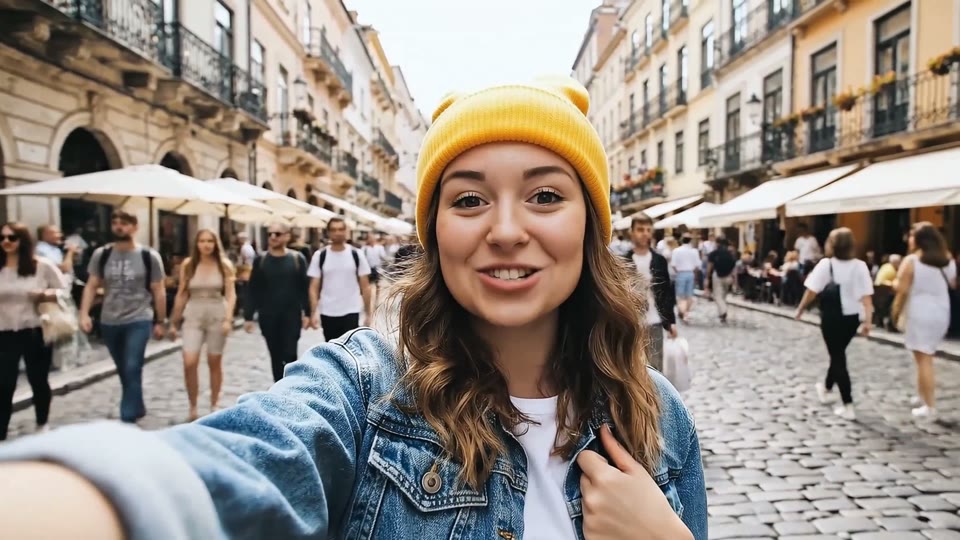
The stills below come from the supplied travel recording already shown in our three editing briefs comparison. They are real extracted images; the sequence and timing notes are an illustrative plan, not a new finished edit.
Open the source recording to compare the frames with the surrounding motion and sound. The positions below are sampling references.
Panel 1 — source position 00:04
Enjoying this read?
Get weekly insights on video editing, AI workflows, and creator growth straight to your inbox.
Panel 2 — source position 00:30

Panel 3 — source position 00:52
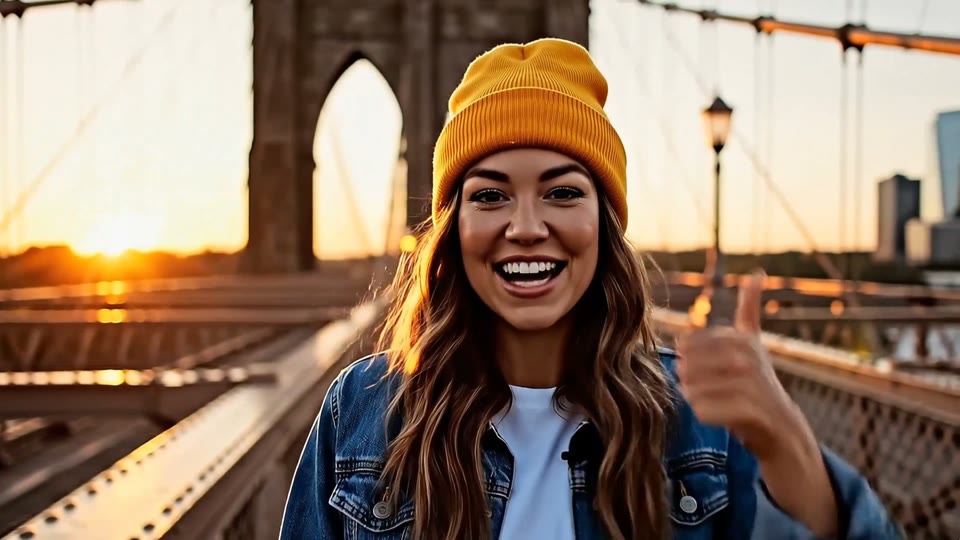
| Planned order | Source position | Proposed use | Review before cutting |
|---|---|---|---|
| 1 | 00:52 | Try a later visual as the opening; start with a 3-second hold | Listen for a complete opening line or use a clearly separated visual introduction |
| 2 | 00:04 | Return to the earlier passage for context | Check that the spoken context still makes sense after the proposed opening |
| 3 | 00:30 | Continue with another source passage | Watch the surrounding motion and listen across the planned join |
Download each image to arrange it in a document or slide deck. Add your chosen source in/out points after playing the recording. A still and a proposed hold do not establish usable spoken boundaries.
Step 4: Distinguish source order from planned edit order
One of the greatest benefits of frame-based storyboarding is the ability to reorganize narrative structure before committing to timeline splices. However, creators must keep two timelines distinct:
- The Source Timestamp (
00:19,00:51): Indicates where the footage lives inside the original master video file. You need this number to locate the clip during editing. - The Planned Edit Order (#1, #2, #3): Represents the sequence in which the clip will appear in your finished video.
For example, when creating a high-energy social clip from a 5-minute webinar, you might extract a compelling result frame from minute 04:15 and place it as Panel 1 (the 2-second hook). The setup frames from minute 00:30 become Panel 2, followed by the walkthrough.
Important reminder: Reordering still frames in a document does not edit the underlying video file or guarantee that the audio will flow naturally. Always verify audio transitions across your planned cuts.
Step 5: Review what still frames cannot show
While extracted frames excel at demonstrating visual hierarchy and framing, stills have inherent limitations:
- Pacing and velocity: A still cannot show whether cursor movement feels smooth or jerky.
- Spoken audio cadences: A still cannot indicate whether a cut point interrupts an acoustic breath decay or clips a spoken word.
- Animation easing: Stills cannot communicate whether a modal animation eases smoothly or snaps abruptly.
To compensate for these blind spots, perform a review with sound and an audio-only pass when useful. Listen to enough of the passage before and after each planned cut point in your source video to confirm that the speech join sounds natural.
Step 6: Sharing and executing your manual plan
Once your frame-based storyboard is complete:
- Share with collaborators: Distribute your storyboard document or slide deck to team members, clients, or product managers for visual sign-off before opening your editor.
- Import into your video editor: When editing begins, use the documented source timestamps to navigate straight to the relevant passages in your raw footage.
- Compare planning choices: If you are deciding whether your upcoming shoots need visual boards or production tables, consult our comparison of storyboard vs shot list.
- Learn more about product demo editing: For step-by-step guidance on cutting software walkthroughs, consult our guide to editing product demo videos.
Don’t miss the next one.
Join our newsletter for exclusive tips, product updates, and the latest from the Cubix team.