
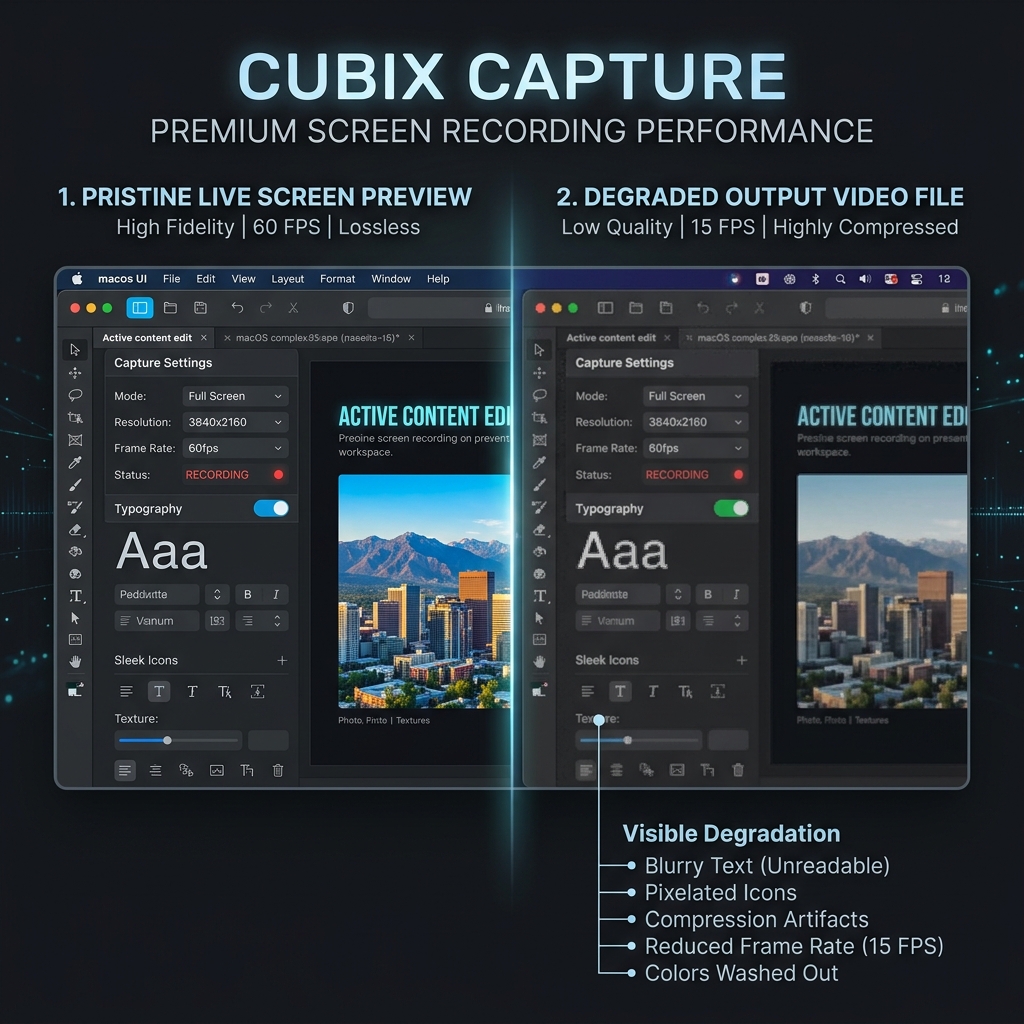
Almost every OBS quality complaint starts the same way: the preview looked fine. That detail feels like it should narrow the problem down, and it does, but not in the direction most people assume. It does not mean the capture worked and the save failed. It means you were never looking at the recording in the first place.
The OBS preview is not a preview of your file. It is a live composite of your sources, drawn by your GPU, displayed in a window. Your file is that composite handed to an encoder, compressed, and written to disk. Those are two separate pipelines, and the preview sits entirely upstream of everything that determines how the file looks.
This article explains what the preview can and cannot tell you, and how to identify which stage actually degraded your video. If you already know what is wrong and just want the settings, go straight to the fix list for OBS files that look worse than the preview.
What the Preview Actually Is
When OBS renders the preview, it composites your sources on the GPU and draws the result to a window. No compression happens. No bitrate is spent. No colour conversion for playback takes place. It is closer to a live monitor feed than to a video file.
That has a specific consequence: every setting that controls file quality is applied after the point where the preview is drawn. Rate control, CQ level, encoder choice, output scaling and colour range are all downstream. Changing any of them will not visibly change the preview, which is exactly why the preview can look perfect while the file is unusable.
The Four Things the Preview Structurally Cannot Show You
1. Compression Artifacts
The preview shows uncompressed frames. The file shows the encoder's best approximation of those frames within the bit budget you gave it. If that budget is too small, fast movement collapses into blocky squares. The preview has no budget, so it never blocks up.
2. Encoder Lag and Skipped Frames
If your encoder cannot compress frames as fast as they arrive, OBS discards some to stay in real time. The preview does not go through the encoder, so it keeps rendering smoothly. You get a smooth preview and a stuttering file from the same session.
3. The Downscale Filter
If your output resolution is smaller than your canvas, every frame is resampled on the way to the encoder. The preview is drawn from the canvas, before that resample. Fine text that looks sharp in the preview can arrive at the encoder already softened.
4. Playback Colour Interpretation
The preview is drawn in your desktop's colour space. The file carries colour range metadata that your player reads and applies. If OBS writes full range and your player assumes limited (or the reverse), blacks lift to grey and whites clip. The image itself is intact; the interpretation is not.
The Perception Trap Nobody Mentions
There is a fifth reason, and it is not technical at all.
Your preview is displayed inside a panel, typically a third of your screen or less. Your finished file gets watched full screen, or on a phone where a viewer's eye is much closer to the pixels. A recording that looks acceptable scaled down to a small window can look obviously soft the moment it fills a display.
Before you change any settings, verify you are comparing like with like. Play the file back full screen at 100% zoom, paused on a text-heavy frame, and compare that against the same frame on your actual desktop. If the gap disappears, your settings were fine and the preview panel was flattering you.
Read the Stats Dock to Find the Real Cause
OBS will tell you which stage failed, if you ask it. Open View > Docks > Stats and record a short test clip while watching the counters.
| Counter that climbs | What it means | Where the damage happened |
|---|---|---|
| Skipped frames due to encoding lag | The encoder cannot keep up with the frame rate | Encoding stage. Switch to a hardware encoder. |
| Frames missed due to rendering lag | The GPU cannot composite the scene in time | Rendering stage. Reduce sources, filters or canvas size. |
| Dropped frames (network) | Only relevant to streaming | Not your problem for a local recording. |
| Nothing climbs, file still looks bad | Encoder kept up but had too few bits | Bitrate or rate control. Not a performance problem. |
That last row is the important one. If no counter moves and the file still looks worse than the preview, you do not have a performance problem at all, and no amount of closing background apps will help. You have a quality settings problem.
Enjoying this read?
Get weekly insights on video editing, AI workflows, and creator growth straight to your inbox.
Three Things That Are Not the Cause
- "Run OBS as administrator." This is repeated constantly and it does not affect encoding quality or frame pacing. It matters only when capturing an elevated application, and the symptom of that is a black screen, not a soft recording.
- "Your GPU is too weak." Hardware encoders on any card from the last several generations handle 1080p60 screen content without effort. Weak hardware shows up as skipped frames in the Stats dock, not as blockiness.
- "The recording is fine, my player is bad." Mostly false, with one real exception: colour range. If sharpness is the complaint, the player is not responsible. If washed-out blacks are the complaint, it genuinely might be.
Once You Know Which Stage Failed
The diagnosis maps cleanly onto a fix, and each one has a dedicated walkthrough:
- Bits too low, blocky motion, no climbing counters: the rate control and CQ settings in the preview-versus-file fix guide.
- Skipped frames from encoding lag: OBS encoder lag: NVENC vs x264.
- Frames missed from rendering lag: OBS dropping frames.
The Preview Problem Disappears When the Recorder Owns the Encoder: Cubix Capture
The gap between the OBS preview and the OBS file exists because OBS deliberately separates them. It is a broadcast tool, it hands you the encoder, and it assumes you know what you are configuring. For live production that separation is a feature.
Cubix Capture collapses the two. It captures at 1:1 scale with encoder settings already tuned for screen content, so there is no gap to diagnose and no Stats dock to interpret. On top of that it auto-zooms into whatever you click, meaning the fine UI text that this entire class of problem is really about stays readable on a phone without you touching a single quality setting.
Keep Reading
- OBS Recording Looks Good in Preview But Bad in File for the ordered fix list.
- OBS Recording Laggy But Preview Looks Fine for the same split when the symptom is stutter rather than quality.
- OBS Encoding Overloaded: What It Means if the Stats dock shows encoding lag.
- OBS Recording Blurry: Fix Video Quality for softness caused by scaling.
Don’t miss the next one.
Join our newsletter for exclusive tips, product updates, and the latest from the Cubix team.