
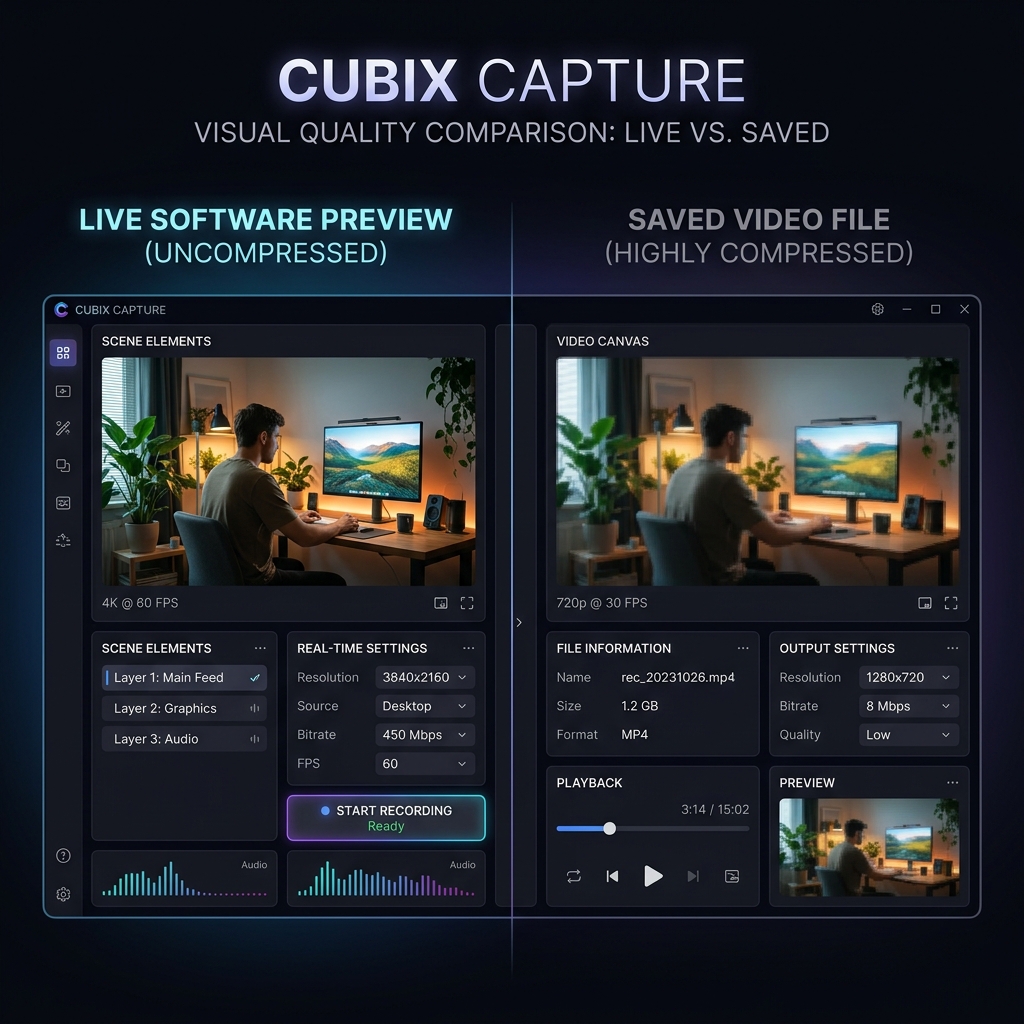
You recorded the whole thing in one take. The OBS preview was crisp the entire time, your app looked sharp, the cursor moved cleanly. Then you opened the saved file and it is a mess: blocky during movement, soft on text, or stuttering in a way the preview never did.
Nothing went wrong during the recording. The preview and the file are produced by two different parts of OBS, and only one of them is affected by your output settings. The preview draws raw frames straight from your GPU. The file goes through an encoder first, and every quality problem you are looking at was introduced at that step.
This guide is the fix list. It is ordered by how often each cause is the real one, so start at the top and stop when the problem goes away. If you want the explanation of why the two look different rather than the settings to change, read why your OBS recording looks worse than the preview instead.
The 60-Second Version
| What the file looks like | Most likely cause | Jump to |
|---|---|---|
| Blocky squares when things move | Recording inherited your stream bitrate | Fix 1 and Fix 2 |
| Choppy, drops frames, preview did not | CPU encoder could not keep up | Fix 3 |
| Soft, fuzzy text, but motion is fine | Output resolution is smaller than the canvas | Fix 4 |
| Grey blacks or blown-out whites | Colour range mismatch on playback | Fix 5 |
Fix 1: Stop Recording at "Same as Stream"
This is the single most common cause and it hides in plain sight, because it lives in Simple output mode where most people never look twice.
In Settings > Output with Output Mode set to Simple, there is a Recording Quality dropdown. If it is set to Same as stream, OBS is writing your local file at your streaming bitrate, which is typically 2500 to 6000 Kbps. That is a sensible ceiling for pushing video over the internet. It is nowhere near enough for a local screen recording full of fine text and hard edges.
- Open Settings > Output.
- With Output Mode on Simple, find Recording Quality.
- Change it to High Quality, Medium File Size or Indistinguishable Quality, Large File Size.
- Click Apply.
If that alone fixes it, you are done. If you want finer control, move to Fix 2.
Fix 2: Switch Rate Control from CBR to CQP
Constant Bitrate (CBR) spends the same number of bits every second whether your screen is frozen on a static form or scrolling through a code file. Screen content is bursty, so CBR either wastes bits on still frames or starves the busy ones, and the busy ones are exactly where blockiness appears.
CQP (Constant Quantisation Parameter) targets a quality level instead and lets the bitrate move to hit it.
- Open Settings > Output and switch Output Mode to Advanced.
- Click the Recording tab.
- Set Rate Control to CQP. On x264 the equivalent setting is called CRF.
- Set CQ Level to 18. Lower is higher quality and a bigger file; higher is smaller and softer. For screen recording, 16 to 20 is the useful range and 18 is a safe default.
- Click Apply.
If your files come out enormous after this, that is expected and fixable. See OBS recording file too large for the size levers.
Fix 3: Move Encoding Off Your CPU
If the file stutters or skips but the preview was smooth, the encoder is the bottleneck, not the capture. The preview does not need to be encoded, so it keeps running at full speed while the encoder quietly drops frames behind it.
The default x264 encoder runs on your CPU. On a machine that is also running the app you are demonstrating, it often cannot keep up.
- Go to Settings > Output > Recording.
- Open the Video Encoder dropdown.
- Select your GPU's dedicated encoder:
- NVIDIA NVENC H.264 or NVENC HEVC/AV1 on NVIDIA cards
- AMD HW H.264 or AMD HW HEVC/AV1 on modern AMD cards
- Intel QuickSync H.264 on Intel integrated graphics or Arc
- Apple VT H.264 Hardware on Mac
- Click Apply and record a 30-second test.
Hardware encoders are dramatically cheaper on system resources and, at the CQ levels above, visually indistinguishable for screen content. If the stutter persists after switching, the cause is upstream of the encoder and OBS encoder lag: NVENC vs x264 covers it properly.
Fix 4: Match Canvas and Output Resolution
Soft, slightly fuzzy text with no blockiness is a scaling problem, not a bitrate problem. It happens when OBS captures at one resolution and writes the file at a smaller one.
- Open Settings > Video.
- Compare Base (Canvas) Resolution and Output (Scaled) Resolution.
- If they differ, set them equal. Text stays pixel-perfect because no resampling happens.
- If you genuinely need to downscale (for example, capturing a 4K display but delivering 1080p), leave them different but set Downscale Filter to Lanczos (Sharpened scaling, 36 samples). Bilinear is the fastest and by far the blurriest.
- Click Apply.
Enjoying this read?
Get weekly insights on video editing, AI workflows, and creator growth straight to your inbox.
Fix 5: Fix the Colour Range Mismatch
If the file is not blurry or blocky but the blacks look washed out and grey, or the whites look clipped, nothing is wrong with your encoder. The file is tagged with one colour range and your player is interpreting it as the other.
- Go to Settings > Advanced.
- Set Color Format to NV12, Color Space to Rec. 709, and Color Range to Limited.
- Click Apply and record a fresh test clip.
Limited range is what almost every player, editor and video platform expects. Full range is the usual reason a recording looks correct in one player and wrong in another.
Confirm the Fix Actually Worked
Do not judge the result by scrubbing the timeline in an editor, which decodes at reduced quality while you drag.
- Record a 30-second test that includes both a static screen and some scrolling.
- Open it in VLC or your OS player, not a browser preview.
- Play it back at 100% zoom, full screen, paused on a text-heavy frame.
If a paused frame is sharp and only motion is blocky, you are still bitrate limited. If a paused frame is soft, it is still a scaling problem.
Why the Preview Was Never Going to Warn You
The preview is a live GPU composite drawn before the encoder exists in the pipeline, and it is displayed inside a small window rather than at full size. It cannot show you encoder output, and its smaller display size hides softness that a full-screen playback exposes immediately. That is not a bug you can configure away, which is why fixing the file always means changing output settings rather than anything you can see while recording.
A Recorder Where the File Matches What You Saw: Cubix Capture
Every fix above exists because OBS asks you to configure the encoder yourself, and gives you a preview that cannot verify your choices. That is a reasonable trade for a live streamer who needs that control. It is a bad trade if you just wanted a clean walkthrough of your product.
Cubix Capture captures at 1:1 scale with quality settings already chosen for screen content, so there is no rate control to pick and no canvas-versus-output mismatch to introduce. It also auto-zooms into whatever you click, so the control you are demonstrating fills the frame and stays legible on a phone, which is the part no bitrate setting was ever going to solve.
Keep Reading
- Why Does My OBS Recording Look Worse Than the Preview? for the diagnosis behind these fixes.
- OBS Recording Laggy But Preview Looks Fine if the problem is smoothness rather than sharpness.
- OBS Recording Pixelated: Why and How to Fix for blockiness specifically.
- OBS Video Quality Bad: Best Settings to Fix for a full settings pass from scratch.
Don’t miss the next one.
Join our newsletter for exclusive tips, product updates, and the latest from the Cubix team.