
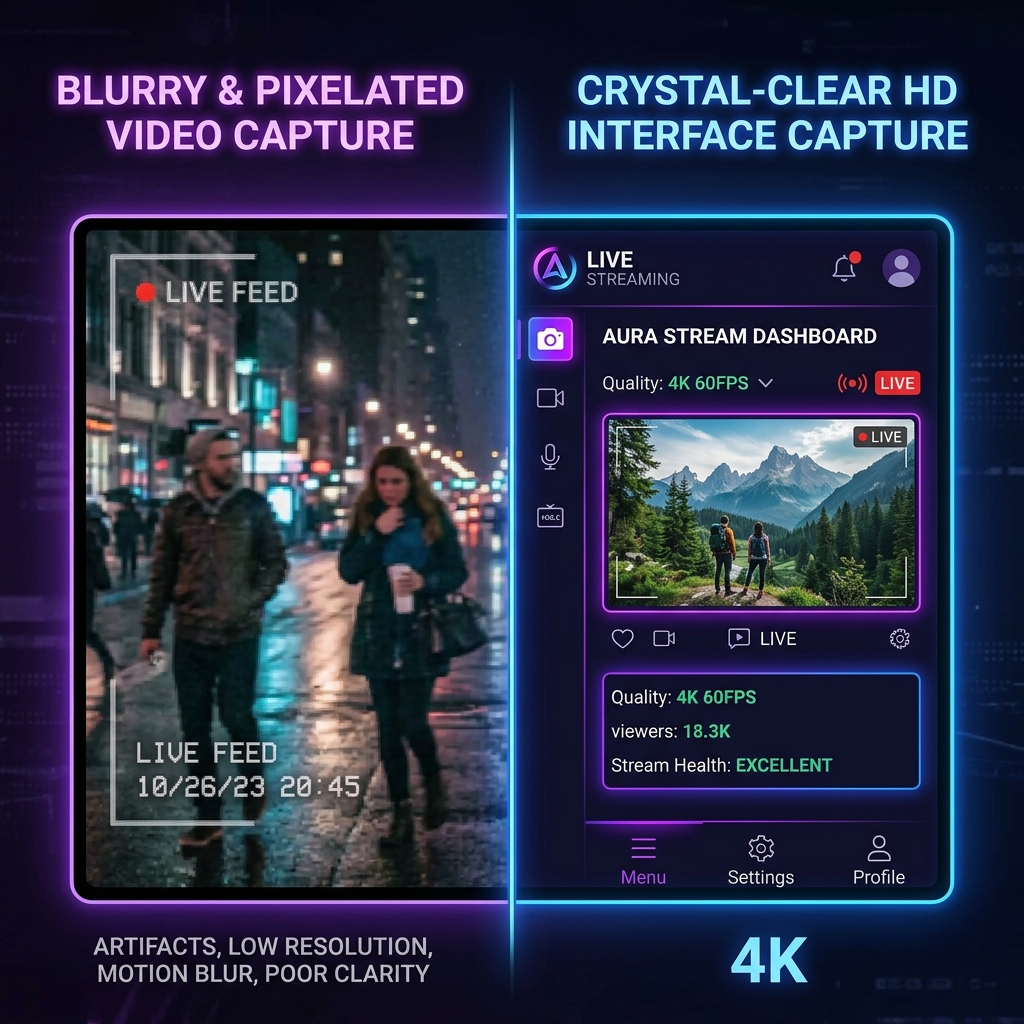
Your OBS recording plays back soft. Menu labels look smeared, thin text has a faint halo around it, and edges that should be crisp bleed into each other, like the whole frame was shot slightly out of focus. Crucially it is soft, not blocky: you are not seeing the jagged squares of compression, just a gentle mush laid over everything.
That distinction is the whole game, because soft blur and blocky pixelation have different causes and different fixes. Soft blur almost always means a scaling problem: OBS is resizing your screen somewhere between capture and export, and the resize is smearing every fine line. (If instead your footage breaks into visible squares during fast movement, that is macroblocking from too little bitrate, and the fix lives in OBS Recording Pixelated.)
Line up your resolution so every pixel OBS captures lands intact in the final file, and the softness disappears. Here is how.
The Two Things That Actually Soften a Screen Recording
Soft, smeared OBS footage traces back to scaling, in one of two forms:
- OBS is downscaling your output. Your monitor hands OBS a full-resolution image, but your export size is set lower to save space. To shrink the frame, OBS has to blend neighbouring pixels together, and with the wrong filter that blend turns every letter fuzzy.
- You are recording far more screen than anyone will watch. Capture a whole 27-inch monitor and then watch it back on a phone, and the app you are demoing has been shrunk to a stamp. No bitrate on earth makes a stamp-sized button readable. This blur is not a settings bug, it is a framing problem, and it gets its own section below.
Step-by-Step Fixes for Pristine Video
Work through these targeted hardware and setting configurations to completely clear up your output files.
Step 1: Align Resolution Matrices Natively (1:1 Scaling)
The single most destructive setting for fine text legibility is resolution downscaling. If your base desktop display outputs a native resolution layout, but your output parameters scale that layer down to save storage space, your text will distort during recording.
-
Access Video Configuration Coordinates: Navigate to global display frameworks. Launch OBS Studio, click on Settings in the bottom-right corner of the interface dashboard, and select the Video tab from the left navigation bar.
-
Establish Canvas Parity: Eliminate resolution downscaling taxes. Locate the Base (Canvas) Resolution option and verify it matches your physical monitor's native display metrics perfectly (e.g., 1920 x 1080 or 2560 x 1440). Next, click the Output (Scaled) Resolution dropdown and match it exactly to your Base resolution, making sure they are completely identical.
-
Optimize the Filtering Engine: Select the strongest downscale algorithm. If your system hardware requires you to downscale your output resolution due to processing limitations, change the Downscale Filter dropdown option to Lanczos (Sharpened scaling, 36 samples). Avoid using the default Bilinear configuration, as it processes details too weakly, causing severe blurring. Click Apply.
Step 2: Rule Out the Other Two Blur Causes
Once your scaling is 1:1, most softness is already gone. Two things can still leave a recording looking less than crisp, and each has a dedicated guide so this one can stay focused on scaling:
- Blocky squares during motion, not soft mush? That is bitrate starvation, not scaling. Switching local recordings to CQP at level 18 fixes it, and the full walkthrough is in OBS Recording Pixelated.
- Want the complete "make everything look good" settings pass (encoder, rate control, colour) in one place? See OBS Video Quality Bad: Best Settings to Fix.
Shadows look grey and milky rather than fuzzy? That is a colour-range problem, not blur. A "Full" range or the wrong colour space adds a haze people often mistake for softness: fix it in OBS Recording Washed Out.
Enjoying this read?
Get weekly insights on video editing, AI workflows, and creator growth straight to your inbox.
The Blur No Setting Can Fix: You Are Filming Too Much Screen
Here is the one that catches almost everyone who already has a perfect 1:1 config. You are recording your entire high-resolution desktop, and your viewer is on a phone. A 2560-pixel-wide capture squeezed onto a six-inch screen shrinks a 12-pixel font to something no amount of bitrate can rescue. You are not short on pixels; you are spending them on empty desktop instead of on the thing you are demoing.
The fix is to frame the app, not the monitor. Record a single window or a tight region, or zoom into the part that matters while you talk, so the interface fills the frame and survives being scaled down. That is a capture-time decision, not a rate-control setting, which is exactly why bumping your bitrate never fixed it.
Quality Parameter Blueprint
| Configuration Metric | Blurry Setting (Default/Weak) | Pristine Setting (Sharp Output) | Impact Matrix Result |
|---|---|---|---|
| Rate Control Method | CBR @ 2500 Kbps (Low Budget) | CQP @ 18 or CBR @ 6000+ Kbps | Eliminates pixel blockiness entirely |
| Resolution Balance | Downscaled (e.g., 1080p to 720p) | 1:1 Native Match (Canvas = Output) | Secures absolute pixel-perfect text line clarity |
| Downscale Algorithm | Bilinear (Fastest, very blurry) | Lanczos (36 Processing Samples) | Preserves shape edges during reduction matrices |
| Hardware Encoder Choice | x264 (CPU Slow Preset) | NVIDIA NVENC / AMD HW / Apple VT | Offloads calculation math to protect visual streams |
The Faster Path to Sharp Tutorials: Cubix Capture
Every fix above is really you doing OBS's scaling math by hand: matching canvas to output, choosing Lanczos, then still fighting the "too much screen" problem in an editor afterwards. That is a fair trade for a live streamer who needs OBS's raw control. It is a poor one if you just want a clean product walkthrough.
Cubix Capture removes the whole class of problem. It locks capture to a 1:1 scale, so there is no downscale filter to get wrong, and it auto-zooms into whatever you click, so the control you are pointing at fills the frame and stays legible on a phone without you framing a single region by hand. The softness this guide fixes never gets a chance to appear.
Keep Reading
- OBS Recording Pixelated: Why and How to Fix for blocky squares rather than soft blur.
- OBS Video Quality Bad: Best Settings to Fix for the full encoder and colour settings pass.
- OBS Recording Too Dark: How to Brighten It if the image is dim as well as soft.
- OBS Best Settings for Screen Recording in 2026 for a clean baseline profile.
Don’t miss the next one.
Join our newsletter for exclusive tips, product updates, and the latest from the Cubix team.